Chapter 9. Talking by Voice — Dictation and Voice Chat
Optional Read this when you need it. You can skip it and still follow the later chapters.One-line summary: On the right side of the message box, there are two buttons for speaking. The microphone turns your words into text (Dictation), and the blue wave button lets you talk back and forth with ChatGPT like a phone call (Voice). Your voice can be saved just like chat history, so choose your location and topics carefully.
The screens shown here are from the web version (Plus plan) as of October 2026. Menu locations may look slightly different on the free plan or mobile app.
The Difference Between the Two Buttons — Dictation and Voice
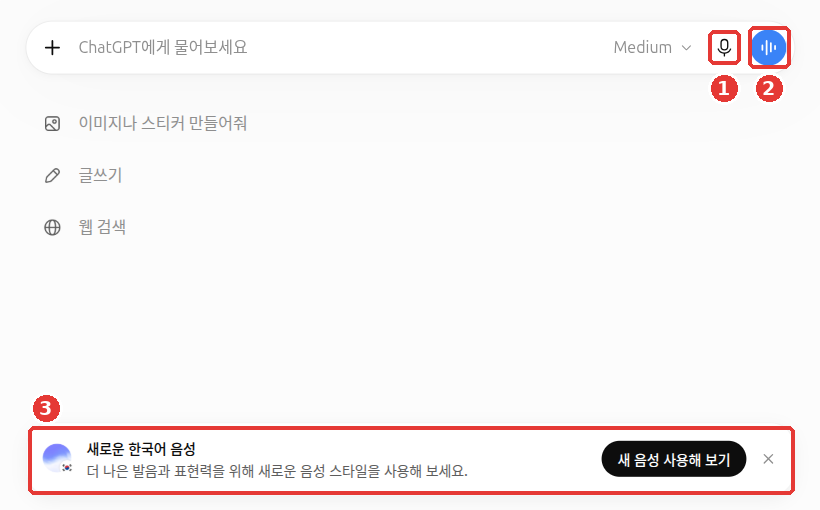
Chat titles and the account name in this screenshot have been replaced with examples. ① The microphone is Dictation, ② the blue wave button is Voice, and ③ the bottom banner is a notice about new Korean voices.
| ① Microphone — Dictation | ② Blue wave button — Voice | |
|---|---|---|
| What it does | Turns your speech into text in the message box | Lets you talk back and forth with ChatGPT. Replies also come back as voice |
| Before sending | You read and edit the transcribed text before sending it | The conversation continues right away with no pause to edit |
| Best for | When typing a long question feels tiring, or when exact wording matters | When thinking out loud, when your hands are busy, or for speaking practice |
How to choose is simple. When you want a back-and-forth conversation or want to talk through an idea, use Voice. When you want to check and edit your spoken words as text before sending, use Dictation.[1]
Try Dictation like this. Press the microphone and say the lines below. Then check the text in the message box, fix any typos, and send it.
Recommend three day-trip spots near Seoul to take my parents next Saturday.
Pick places that don't require much walking.
Names of people or places are easy to transcribe wrong. Reading the text once before sending is the big advantage of Dictation.
Quick check
Trying a Voice Conversation
- Press the blue wave button on the right side of the message box. In the mobile app, it is the voice icon on the message bar.[1:1]
- The first time you use it, allow your browser to use the microphone when asked. You need to allow this for your voice to go through.
- Speak just as you normally would. When you are done, press the end button on the screen to finish the conversation.
You can only have one voice conversation at a time.[1:2] When speaking, the same tips you learned in Stage 1 still apply. Say who it is for and what format you want the answer in (Stage 1, Chapter 4).
Here are two good requests to try out loud.
I have a job interview next week. Act as the interviewer and ask me one question at a time.
After I answer, briefly tell me one thing I did well and one thing to improve, then move on to the next question.
I want to practice speaking English. Have a short conversation with me where I'm ordering at a cafe.
If my pronunciation or phrasing sounds awkward, briefly let me know in Korean.What the reply looks like (example — click to expand) (click to expand)
This is an example created for this guide. Actual replies vary depending on the service and the moment.
Hi! Welcome. What can I get for you today?
If you say, "I want one coffee," it continues like this:
Sure! What size would you like? "I want" works too, but saying "Can I get a coffee?" sounds more natural.
Check if you got a good result: Does it keep the exchange short, just a sentence or two at a time? Does it briefly point out awkward phrasing? If the explanation gets too long, say "Keep it shorter."
If the answer is too long, just say "Keep it shorter" out loud. It works the same way as asking for changes in a text chat (Stage 1, Chapter 6).
Using it in the car — CarPlay (click to expand)
While driving, you can also talk with ChatGPT by voice through CarPlay (Apple's feature that connects your iPhone to your car screen). It works on all plans, worldwide. You need an iPhone running iOS 26.4 or later.[2]
However, it cannot see maps, vehicle information, or your current location. So you cannot use it in place of a navigation app.[2:1]
Quick check
Which statement is true about Voice Mode?
Voice Modes and Voice Styles
Three Modes
There are three voice conversation modes.[1:3]
- Live: Listens and speaks at the same time. This means you can interrupt while ChatGPT is talking. Video and screen sharing are not supported.
- Advanced: The earlier real-time mode. In the mobile app, you can talk while showing your camera feed or screen.
- Standard: Transcribes your speech into text first, then replies. You take turns one at a time.
If you need video or screen sharing, use Advanced mode in the mobile app. For example, you can point your camera at a broken appliance and ask, "What does this blinking light mean?"
Choosing a Mode and Voice
On the web, click your account name → Settings (설정) → Voice style (음성 스타일) to choose a voice and language. Voice style has the following items.[3]
The option to pick Live, Advanced, or Standard was not visible on the web screen in October 2026. This may vary depending on the mobile app or your plan.
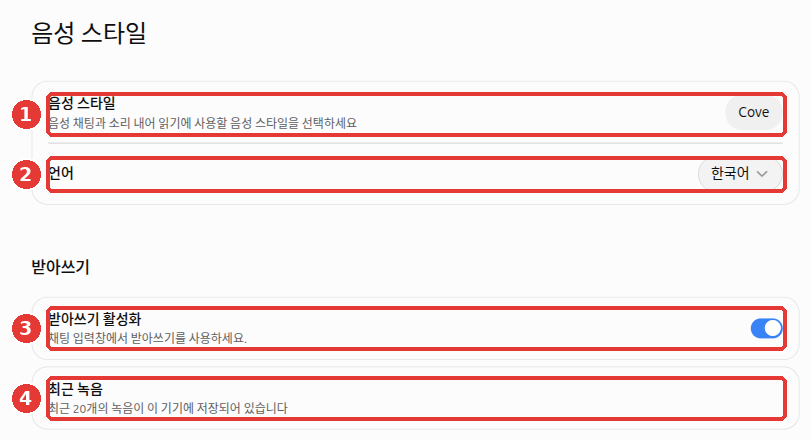
The red numbers in the image match the numbers in the table below.
| No. | Item | Description on screen |
|---|---|---|
| ① | Voice style (음성 스타일) | Choose the voice used for voice chat and Read Aloud |
| ② | Language (언어) | The language to speak in (for example, Korean) |
| ③ | Enable dictation (받아쓰기 활성화) | Decide whether to show Dictation (the microphone button) in the chat message box |
| ④ | Recent recordings (최근 녹음) | Notice that the last 20 recordings are stored on this device |
To use a different voice, click the Voice style box (①) and pick one from the list. Voice names often appear in English, like "Cove" in the screenshot above.
Live mode has two Korean voices, Haetsal (햇살) and Hanul (한울).[1:4] If you see the "New Korean voices (새로운 한국어 음성)" notice at the bottom of the home screen, click "Try new voices (새 음성 사용해 보기)".
Where do I choose between Live, Advanced, and Standard? (click to expand)
The help center says you can choose between Live, Advanced, and Standard under Voice in Settings.[1:5] However, on the web screen in October 2026, the left menu in Settings showed "Voice style (음성 스타일)" instead of "Voice (음성)", and the option to pick Live, Advanced, or Standard was not visible on this screen. This may vary depending on the mobile app or your plan. Which modes and voices you can pick may also vary by plan.
Quick check
You want to point your phone camera at a broken appliance and ask about it by voice. Which mode should you use?
How Much Can You Use It?
Live mode in voice conversations counts your limit based on how much time you have used in the last 24 hours. ChatGPT lets you know when you reach the limit.[1:6]
| Plan | Usage per 24 hours (checked 2026-10-23) |
|---|---|
| Free | Limited access |
| Go | 3 hours |
| Plus | 3 hours |
| Pro | 15 hours depending on tier, or unlimited subject to abuse guardrails |
These numbers change often. Check the help center link in the footnote for the latest figures.
Quick check
Which statement is true about usage limits for Voice Mode (Live mode)?
Voice History and Privacy
Your Voice Is Saved Too
How long recordings are kept depends on the mode.
- Live and Advanced: Audio clips are kept with your chat history for 30 days.
- Standard: After your speech is transcribed into text, the recording is deleted.
- Dictation (microphone): The recording is kept for as long as that chat stays in your history. When you delete the chat, the recording is deleted along with it within 30 days. However, there are exceptions, such as for security or legal reasons, or if you agreed to share audio for training.[4]
The recordings themselves are not used for training unless you separately allow sharing. You must turn on "Include your audio recordings" (내 오디오 녹음 포함) for recordings to be used in training.[5] However, the transcribed text follows your "Improve the model for everyone" (모델 개선을 위한 데이터 학습 허용) setting, just like regular text chats.[1:7] We covered this setting in Chapter 8.
Be Careful in Public Places
Spoken conversations can be heard by people around you. Not only your questions, but ChatGPT's replies also play out loud through your speaker.
- On the subway, in a cafe, or in an office, wear earphones or use Dictation to enter your words quietly instead of having a voice conversation.
- Do not say out loud any information you should not type, such as names, phone numbers, addresses, or medical records, as covered in Stage 1, Chapter 9. When speaking, it is easier to let things slip without thinking than when typing.
- When other people are around, make sure their voices or conversations do not get recorded along with yours.
- Connected apps (Chapter 7) may not work in voice conversations. If one does not work, try typing the same request instead.[6]
Before having ChatGPT transcribe a meeting, tell everyone attending and get their consent first.[7] Before the meeting starts, just ask something like "Is it okay if I record today's meeting to write up notes?"
Meeting notes feature — Meetings plugin (click to expand)
The Meetings plugin in the Mac desktop app (Pro and Business plans, beta) transcribes meetings and creates summaries and action items.[7:1]
- The consent reminder shown by the app is only visible to you—it is not sent to other attendees. So you need to tell them yourself.
- Once the notes are finished, the audio recording is deleted and cannot be played back.
Quick check
On the subway, you want ChatGPT to polish a clinic appointment text. What is the best way?
Watch and Learn More
These are official introduction videos made by the company. Screens and feature names may differ from what is shown in this chapter.
All the videos below are in English. On the YouTube video, click Settings (gear icon) → Subtitles/CC → Auto-translate to watch with subtitles in your preferred language. The videos play right inside this page.
This is the new ChatGPT Voice, powered by GPT-Live · OpenAI · For those who want to hear what the new voice conversation sounds like (July 2026, 4 min)
Get Stuff Done with ChatGPT Voice · OpenAI · For those who want to see examples of using plugins like email, calendar, and Slack in a voice conversation (September 2026, 2 min)
The second video shows plugins being used during a voice conversation. If it does not work on your screen, try typing the same request as explained in this chapter.
Try It Yourself
1. Same question, two ways
Try asking the question below once using the microphone (Dictation), and once in a new chat using the blue wave button (Voice).
I have eggs, tofu, and green onions in the fridge. Tell me two side dishes I can make in 15 minutes.Then ask yourself two questions. Does the text placed in the message box by Dictation match what you said? In Voice mode, which feels more comfortable—listening to the answer or reading it?
2. Try interrupting
In a voice conversation, ask for a long explanation, then say "Hold on, make it shorter" while ChatGPT is still talking. Since Live mode listens even while speaking, check whether it picks up your interruption and adjusts.
Ongoing project (Preparing a Book Club): In a voice conversation, say, "Help me practice a 30-second opening greeting for my book club." Deliver your greeting out loud and ask ChatGPT to point out one thing to improve.
Summary
- The microphone is Dictation: it turns your speech into text in the message box, and you check it before sending.
- The blue wave button is Voice: you talk back and forth out loud. You can only have one voice conversation at a time.
- There are three modes: Live, Advanced, and Standard. On the web, you pick a voice and language under Settings (설정) → Voice style (음성 스타일) (the option for Live, Advanced, or Standard may not appear depending on your screen). Video and screen sharing only work in Advanced mode on the mobile app.
- Usage limits are counted over a rolling 24-hour period, vary by plan, and change often.
- Recordings in Live and Advanced modes are kept for 30 days, and Dictation recordings are kept as long as the chat remains in your history. Before transcribing a meeting, get everyone's consent first. Transcribed text follows your training settings. In public places, use Dictation or earphones, and do not speak personal information out loud.
Key Terms
| Term | One-line meaning |
|---|---|
| Dictation | A feature that turns your spoken words into text in the message box |
| Voice | A feature for talking back and forth with ChatGPT out loud |
| Live | A voice mode that listens and speaks at the same time |
| Advanced | A voice mode that supports video and screen sharing |
| Standard | A voice mode that transcribes your words first and replies in turns |
| Transcript | A written record of what was said |
| CarPlay | An Apple feature that connects your iPhone to your car screen |
Finished this chapter?
Progress is saved only in this browser. See your progress on the full table of contents.
Next chapter: Chapter 10. Hands-on Practice
References (7)
OpenAI Help Center, "ChatGPT Voice". Three modes (Live, Advanced, Standard) and selecting them under Voice in Settings, no video or screen sharing in Live (mobile Advanced only), Korean voices Haetsal and Hanul, 24-hour usage limits (Free limited, Go 3 hours, Plus 3 hours, Pro 15 hours or unlimited), voice icon location, 30-day retention of Live and Advanced audio clips vs. deletion after transcription in Standard, separate opt-in required to use audio for training, one voice conversation at a time, difference from Dictation. help.openai.com (checked on 2026-10-23) ↩︎
OpenAI Help Center, "Using ChatGPT in CarPlay". "ChatGPT is available in Apple CarPlay on supported iPhone models running iOS 26.4 or later." / "ChatGPT in CarPlay is available globally on all ChatGPT plans." / "It cannot access maps, vehicle information, or live location." help.openai.com (checked on 2026-10-24) ↩︎
Verified directly by opening Settings → Voice style on the web (Plus) screen on October 23, 2026. ↩︎
OpenAI Help Center, "Voice Dictation - FAQ". "Audio from dictation will be retained for as long as the chat is part of your chat history." / "When you delete the chat, we’ll also delete the associated audio clip within 30 days". help.openai.com (checked on 2026-10-24) ↩︎
This guide could not confirm on screen where this switch is located in Settings. That recordings are used for training only if you turn it on separately comes from the help article "ChatGPT Voice". help.openai.com (checked on 2026-10-23) ↩︎
OpenAI Help Center, "Troubleshooting plugins and apps in ChatGPT". "If an app is unavailable in voice, try a supported text conversation." help.openai.com (checked on 2026-10-24) ↩︎
OpenAI Help Center, "The Meetings plugin in ChatGPT". "Meetings is available in beta in the ChatGPT desktop app on macOS for all Pro plans and all Business plans." / "get everyone’s consent before you start." / "The consent reminder in your app is visible to you." / "Once your notes are ready, the audio is deleted from your Mac and OpenAI’s servers and can’t be replayed." help.openai.com (checked on 2026-10-24) ↩︎