Chapter 2. A Tour of the Screen — What Is Where
Required Read this to follow this stage.In One Sentence: You only need to know four areas on the ChatGPT screen: the left sidebar (past chats and features), the center input box (where you ask questions), the top Chat/Work switch, and the bottom-left account menu (settings). At first, just using the input box and "New chat (새 채팅)" is enough.
These screenshots are from the web version (Plus plan) as of October 2026. Menu locations may look slightly different on the Free plan or in the mobile app.
The Home Screen at a Glance
Once you log in, you see "Where should we begin? (어디서 시작할까요?)" and an input box in the center.
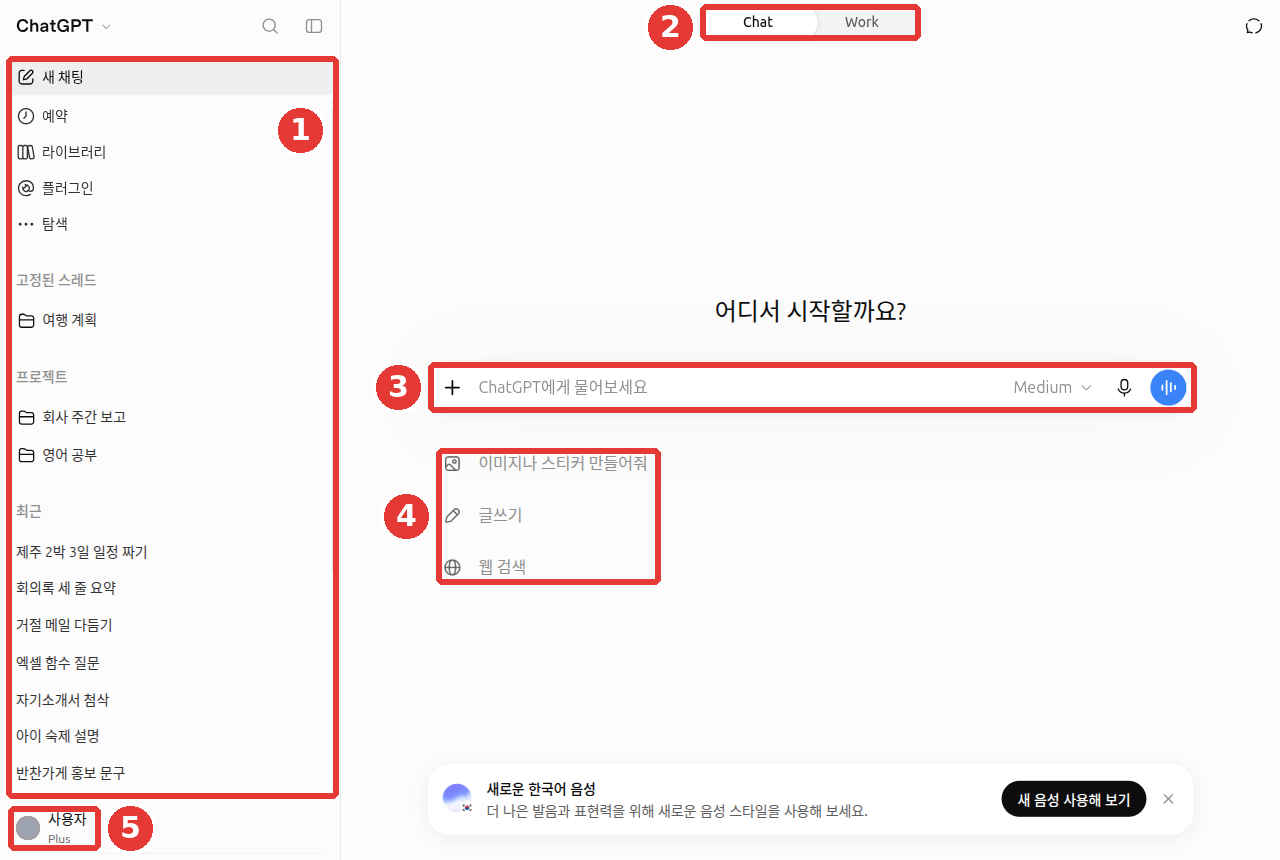
Chat titles and the account name in the screenshot have been replaced with examples. The red numbers match the numbers in the table below.
| No. | Location | Name | What It Does |
|---|---|---|---|
| ① | Left | Sidebar | Starts a new chat, shows your chat list, and leads to other features |
| ② | Top center | "Chat" / "Work" | Switches between regular chat and the long-task mode |
| ③ | Center | Input box "Ask ChatGPT (ChatGPT에게 물어보세요)" | Where you type your question |
| ④ | Below input box | Suggestions | "Create an image or sticker (이미지나 스티커 만들어줘)", "Help me write (글쓰기)", "Search the web (웹 검색)" |
| ⑤ | Bottom left | Account (name and plan) | Settings, changing your plan, logging out |
If you do not know what to ask, try clicking one of the suggestions below the input box first. For example, click "Help me write (글쓰기)" and type the following.
Write a text message to tell our regular customers that our neighborhood side-dish shop is opening. Three sentences, in a warm tone.The reply will look roughly like this (example — click to expand) (click to expand)
This is an example created for this guide. Actual replies vary by service and each time you ask.
Hello, this is ○○ Side Dishes. On [Month] [Day], we are finally opening our doors. We look forward to welcoming you warmly with homemade dishes made with care.
Check if you got a good reply: Is it exactly three sentences telling regulars about the grand opening? Is the tone warm? You did not give the shop name or date, so blanks are fine. If it made up a date, edit it before using it.
Quick check
Where is the "Chat" / "Work" switch button on the first screen after logging in?
The Sidebar — Your Path to Past Chats and Features
The top of the sidebar has feature buttons, and the bottom has your list of chats. The red numbers in the image match the numbers in the table below.
A thread, which you will see in the list, is another word for a single chat. "Pinned threads (고정된 스레드)" means "chats you have pinned in place."
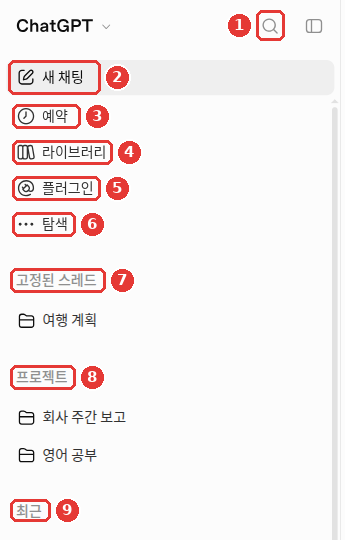
| No. | Item | What It Does | Details |
|---|---|---|---|
| ① | Magnifying glass ("Search (검색)") | Finds past chats | Chapter 3 |
| ② | "New chat (새 채팅)" | Starts a blank new chat | Chapter 3 |
| ③ | "Scheduled (예약)" | Views things it does on its own at set times (e.g., a morning reminder) | Chapter 11 |
| ④ | "Library (라이브러리)" | Holds files you uploaded or created[1] | Chapter 4 |
| ⑤ | "Plugins (플러그인)" | Finds extensions that add features to ChatGPT | Chapter 7 |
| ⑥ | "Explore (탐색)" | Browses other features | — |
| ⑦ | "Pinned threads (고정된 스레드)" | A list of chats you open often, pinned to the top | Chapter 3 |
| ⑧ | "Projects (프로젝트)" | Folders that group chats and files by topic | Chapter 7 |
| ⑨ | "Recent (최근)" | Your list of recent chats | Chapter 3 |
Quick check
Chat vs. Work — Have a Conversation or Hand Off a Job?
The "Chat" / "Work" button at the top center is a switch added in July 2026.[2]
- Chat: The ChatGPT you already know. You ask questions and talk back and forth. Most of this guide is based on Chat.
- Work: A mode where you hand off a long, multi-step job and get back a finished deliverable such as a document, spreadsheet, presentation, or report.
We cover how to use it in Chapter 7. On the web and mobile, it is only available on paid plans (excluding Free and Go).[2:1][3]
Quick check
Which statement explains the difference between Chat and Work?
The Input Box and the + Menu
Click the + button on the left side of the input box (① in the image, labeled "Add files and more (파일 등 추가)") to open a menu where you choose what to attach to your question.
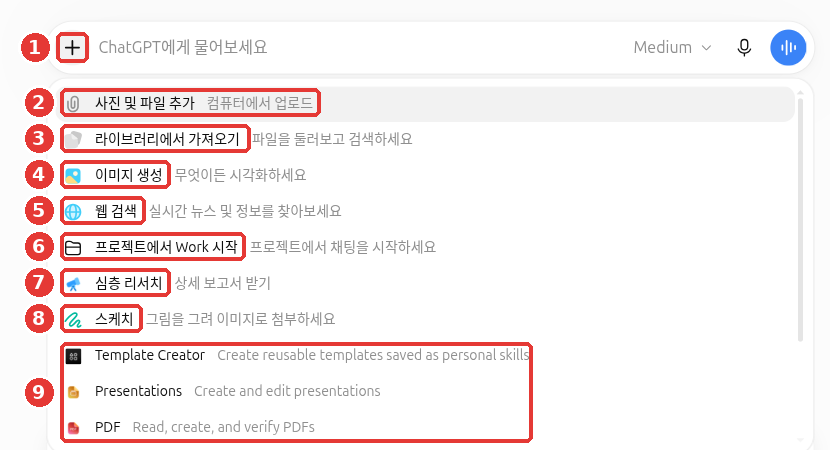
Chat titles and the account name in the screenshot have been replaced with examples. The red numbers match the numbers in the table below.
| No. | Item | What It Does | Details |
|---|---|---|---|
| ② | "Add photos & files (사진 및 파일 추가)" | Uploads photos or documents from your computer | Chapter 4 |
| ③ | "Add from Library (라이브러리에서 가져오기)" | Reuses a file you uploaded earlier | Chapter 4 |
| ④ | "Create image (이미지 생성)" | Asks ChatGPT to draw a picture | Chapter 4 |
| ⑤ | "Search the web (웹 검색)" | Has ChatGPT search the internet for the latest info before answering | Chapter 6 |
| ⑥ | "Start Work in a project (프로젝트에서 Work 시작)" | Hands off a job to Work inside a project | Chapter 7 |
| ⑦ | "Deep research (심층 리서치)" | Researches a topic at length and writes a report | Chapter 6 |
| ⑧ | "Sketch (스케치)" | Attaches a quick drawing you sketch yourself as an image | Chapter 4 |
Below that (⑨) are plugin items. Their names may appear in English (Chapter 7).
On the right side of the input box, you will find the microphone button (dictate by voice) and the voice button (talk back and forth out loud, Chapter 9).
If long pasted text turned into an attachment (click to expand)
If you paste more than 10,000 characters, it automatically becomes an attached file. If you want to keep it as plain text inside the input box, click "Show in text field." The help article gives this button its English name.[4]
Quick check
What happens if you paste a long text of over 10,000 characters into the message box?
Reasoning Effort and Thinking — How Deeply Should It Think?
On paid plans, clicking the label like "Medium" on the right side of the input box (button name "Choose ChatGPT model (ChatGPT 모델 선택)") opens the "Reasoning effort (추론 수준)" slider. Reasoning means thinking step by step before answering. The slider sets how long ChatGPT spends thinking.
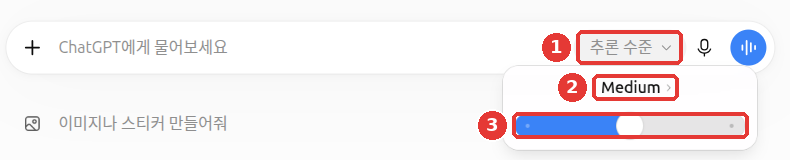
Chat titles and the account name in the screenshot have been replaced with examples. Clicking ① the "Reasoning effort (추론 수준)" button shows ② the current level ("Medium") and ③ the slider. On the Free and Go plans, there is "Think (생각하기)" instead of a slider (see "Available Plans" below).
When should you turn it up? Not just for math. For simple or low-stakes tasks like polishing a short sentence, a faster level may be plenty. Turn the level up when you have several conditions, need to compare options against set criteria, or want to spot missing assumptions in a plan you wrote.[5]
Compare three candidate event venues using three criteria: budget, public transit, and backup plan for rain.
Recommend one venue, and tell me how to reduce its downsides.
Send the savings math question below once at a low level and once at a high level. You will feel the difference between a quick answer and a deep answer right away.
If an office worker earning 3 million won a month wants to save 20 million won in 3 years, show me the step-by-step math for how much to save each month—both with savings interest and without it.Available Plans
| Level | How It Works | Available Plans |
|---|---|---|
| Instant | Answers right away. Best for light questions | Paid |
| Medium · High | Thinks longer. Best for planning, comparing, and math | Plus and above |
| Extra High · Pro | Thinks the deepest | Pro, Business, Enterprise |
Pro is a plan for very heavy users, and Business and Enterprise are plans for companies (Chapter 1). Source: OpenAI Help Center[6]
Keep two things in mind.
- Telling it in words to "think harder" does not change the level. Even if you type that while set to Instant, it will not switch up automatically. Move the slider yourself.[6:1]
- Free and Go plans turn on "Think (생각하기)" instead of using a slider.[7]
Quick check
On the Plus plan, if you leave the "Reasoning level" on Instant and type "Think deeper," what happens?
Account Menu and Settings Screen
Click your name at the bottom left to open the account menu.
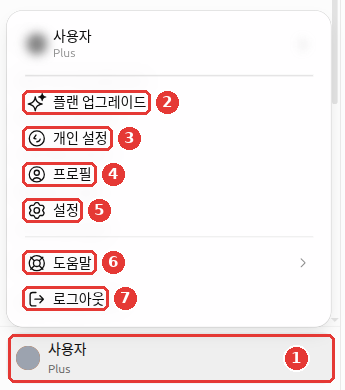
Chat titles and the account name in the screenshot have been replaced with examples. Clicking ① your name brings up ② "Upgrade plan (플랜 업그레이드)", ③ "Personalization (개인 설정)", ④ "Profile (프로필)", ⑤ "Settings (설정)", ⑥ "Help (도움말)", and ⑦ "Log out (로그아웃)".
Clicking "Settings (설정)" here opens Settings in full screen. The menu list is on the left, and the details appear on the right. Click "Back to app (앱으로 돌아가기)" to return to the chat screen.
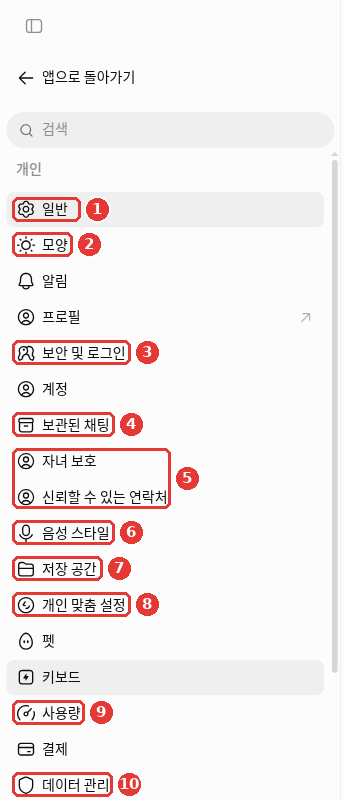
The Settings menu is grouped into three sections: "Personal (개인)", "Integrations (통합)", and "Coding (코딩)". At first, you only need to know the few items below. The red numbers in the image match the numbers in the table below.
| No. | Settings Menu | What You Do Here | Details |
|---|---|---|---|
| ① | "General (일반)" | Screen language ("Auto-detect (자동 감지)") | — |
| ② | "Appearance (모양)" | Light or dark mode, text contrast, accent color | — |
| ③ | "Security & login (보안 및 로그인)" | Multi-factor authentication, logged-in devices, account PIN, lockdown mode | Chapter 8, Chapter 3 |
| ④ | "Archived chats (보관된 채팅)" | Views chats you have archived | Chapter 3 |
| ⑤ | "Family safety (자녀 보호)" · "Trusted contacts (신뢰할 수 있는 연락처)" | Links a teen child's account, designates someone to notify in a crisis | Chapter 8 |
| ⑥ | "Voice style (음성 스타일)" | Voice used in voice chats | Chapter 9 |
| ⑦ | "Storage (저장 공간)" | Space used by files you uploaded | Chapter 4 |
| ⑧ | "Personalization (개인 맞춤 설정)" | Memory, custom instructions, tone | Chapter 5 |
| ⑨ | "Usage (사용량)" | Remaining usage limits and credits | Chapter 1 |
| — | "Plugins (플러그인)" (under "Integrations (통합)" lower in the image) | Connected apps and default permissions | Chapter 7 |
| ⑩ | "Data controls (데이터 관리)"[8] | Training permission, shared links, exporting data | Chapter 8 |
Here is what the unfamiliar words in the table mean. You do not need to remember them all now. Each chapter in the table covers them in detail.
- Multi-factor authentication: A login that checks it is really you one more time with another method besides your password (e.g., a code sent to your phone).
- Account PIN: A 4-digit code to open locked chats.
- Lockdown mode: A setting that blocks features that connect to the outside, such as web search. It is meant for people who handle sensitive information.
- Trusted contacts: People you choose in advance to get a check-in alert in a crisis.
- Custom instructions: A place to write rules ChatGPT should always follow in every chat. For example, you write something like "Keep answers short."
- Credits: Extra usage you buy separately to keep using features like Work after you use up your plan's limits. If you only have regular chats, you do not need them.
If your screen appears in English and you want to change the language, go to "Settings" → "General" → "Language". You can only change the language while logged in.[9] Dark mode chosen under "Appearance (모양)" is set separately on each device. Changing it on the web leaves your mobile app unchanged. Choose it once more in the app.[10]
Quick check
What is the actual screen name in Settings where training permission, shared links, and data export are gathered?
Try It Yourself
- On the home screen, click the suggestion "Help me write (글쓰기)", paste the side-dish shop text message example from above, and send it.
- Click the + button in the input box, read through each menu item one by one (you do not need to click them), and close the menu.
- If you are on a paid plan, send the savings math question above once with "Reasoning effort (추론 수준)" at the lowest setting and once at Medium, then compare the replies. If you are on the Free plan, compare once with "Think (생각하기)" off and once with it on.
- Open the account menu → "Settings (설정)", find where "Data controls (데이터 관리)" is located, and click "Back to app (앱으로 돌아가기)" to exit.
Ongoing Project (Preparing a Book Club): Click the suggestion "Help me write (글쓰기)", paste the contents of the sample file memo-next-month.txt, and send: "Write a short draft notice to send as a group text to our members." See how the draft handles the fact that the venue is not decided yet.
Summary
- The screen is divided into four areas: sidebar, input box, Chat/Work switch, and account menu.
- Use the + button to choose files, images, web search, deep research, or sketch.
- Paid plans set thinking depth with the "Reasoning effort (추론 수준)" slider; the Free plan uses "Think (생각하기)". Asking in words does not change the level.
- Settings opens in full screen. Privacy-related options live under "Data controls (데이터 관리)".
Key Terms
| Term | One-line meaning |
|---|---|
| Sidebar | The vertical menu attached to the left side of the screen |
| Thread | Another word for a single chat conversation |
| Reasoning | Thinking step by step before answering |
| Instant | A level that answers right away with almost no extra thinking |
| Plugin | An extension that adds features to ChatGPT (Chapter 7) |
| Work | A mode where you hand off long tasks and get finished deliverables (Chapter 7) |
Finished this chapter?
Progress is saved only in this browser. See your progress on the full table of contents.
Next chapter: Chapter 3. Managing Your Chats
References (10)
"Library (라이브러리)" is being renamed to "Space". See Chapter 4 for details. ↩︎
OpenAI Help Center, "ChatGPT release notes", 2026-07-09 entry. "ChatGPT Work is an agent for longer, more involved tasks." / "rolling out to paid plans except Free and Go". help.openai.com (checked on 2026-10-23). Limited desktop access for Free and Go is from OpenAI, "Plans & Pricing (플랜 및 가격)" openai.com under "Limited access to ChatGPT Work on desktop (데스크톱에서 ChatGPT Work의 제한적 이용)" (checked on 2026-10-23) ↩︎
Free and Go plans can use Work in a limited way on the computer app only. The source is "Plans & Pricing (플랜 및 가격)" in the footnote just before this one. ↩︎
OpenAI Help Center, "ChatGPT release notes", 2026-08-04 entry. "If you paste more than 10k characters…". help.openai.com (checked on 2026-10-23) ↩︎
OpenAI Academy "Applied AI Foundations" course text (login and registration required). "Use a faster model when the task is simple and/or low-stakes." / "Use a reasoning model when the task has:" "Several constraints" / "A need to compare options" / "Compare options against criteria instead of giving a generic list of pros and cons" / "Review your draft recommendation for missing assumptions" (checked on 2026-10-26) ↩︎
OpenAI Help Center, article on the model menu and thinking levels (the article title contains current model names, so we omit it in this guide). Table "Plus — Included / Not included / Not included" / "Asking ChatGPT to "think harder"… won't automatically switch". help.openai.com (checked on 2026-10-23) ↩︎
In the mobile app on the Go plan, select "Think harder" from the + menu. Source: OpenAI Help Center, "What is ChatGPT Go?". "On mobile, select Think harder from the + menu." help.openai.com (checked on 2026-10-23) ↩︎
Some help articles translate this into Korean as "데이터 제어", but the actual label on the Korean screen is "데이터 관리" (Data controls). ↩︎
OpenAI Help Center, "How to change your language setting in ChatGPT". "you can only update the ChatGPT language setting if you are logged in." help.openai.com (checked on 2026-10-24) ↩︎
OpenAI Help Center, "Updating your visual experience". "changing the appearance on the web doesn't automatically change the appearance in the mobile app." Settings menu names verified on the web Settings screen on 2026-10-24. help.openai.com (checked on 2026-10-24) ↩︎