Chapter 5. Memory and Personalization — So You Don't Have to Introduce Yourself Every Time
Optional Read this when you need it. You can skip it and still follow the later chapters.One-line summary: ChatGPT tailors its answers to you using Memory, which remembers what you tell it, and Custom Instructions, where you write rules you want it to always follow. You will learn how to see what it remembers and how to delete what you don't need.
The screens shown here are from the web version (Plus plan) as of October 2026. The menu locations may look slightly different on the free plan or in the mobile app.
Why You Need Memory and Personalization
In Stage 1, Chapter 4, you learned that a good prompt includes context (what your situation is). However, it is tedious to type context like "I run a neighborhood side-dish shop, and my customers are mostly in their 40s to 60s" in every new chat.
ChatGPT has two features that save you this trouble.
| Feature | What It Does | Analogy |
|---|---|---|
| Memory (메모리) | Remembers facts about you from your chats and uses them in future chats | A shop owner who remembers a regular customer's preferences |
| Custom instructions (사용자 지정 지침) | Applies rules you write down ("always follow these") to every new chat | An order note taped to the shop wall |
In Stage 1, Chapter 6, you learned that "a new chat starts from scratch by default." When you turn these two features on, even a new chat starts knowing a bit about you.
Quick check
What is the biggest change when you turn on Memory and Custom Instructions?
Turning On and Checking Memory
Memory settings are in Account menu → Settings (설정) → Personalization (개인 맞춤 설정).[1] In the "ChatGPT Memory (ChatGPT 메모리)" section at the top, you will see two rows.
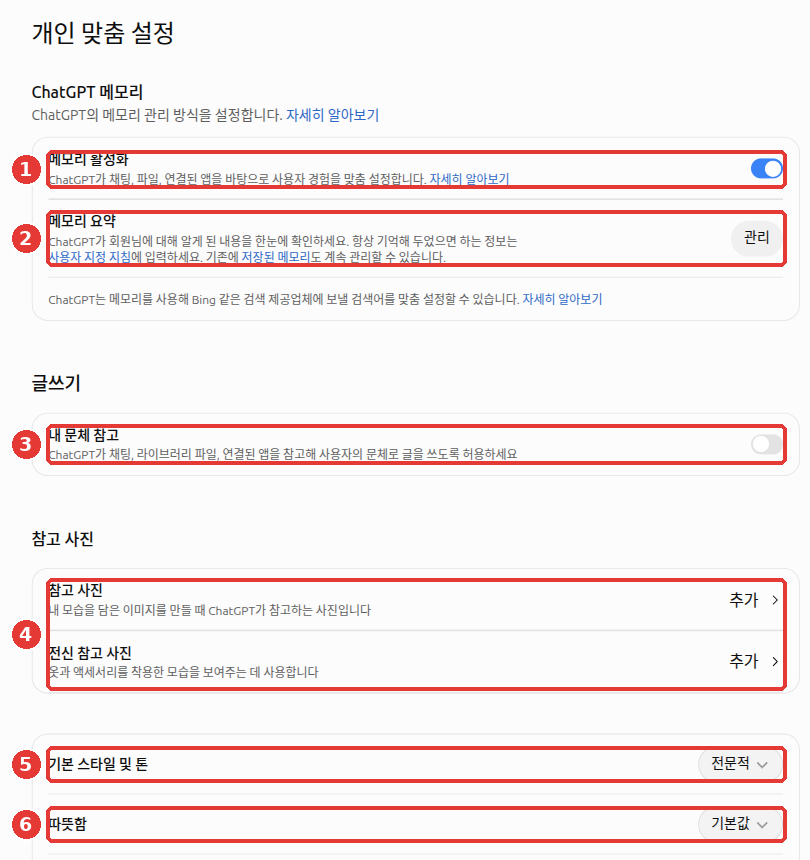
This section looks at ① and ②. ③, ⑤, and ⑥ are covered in the "Choosing a Tone" section of this chapter. This guide does not cover ④ "Reference photos (참고 사진)" separately.
- ① Enable memory (메모리 활성화) — When turned on, ChatGPT tailors answers to you based on your chats, files, and connected apps. When turned off, it does not use memory. Connected apps are other services, like Gmail, that you have linked to ChatGPT (Chapter 7). If you have never connected one, you do not need to worry about it.
- ② Memory summary (메모리 요약) → Manage (관리) — Lets you see at a glance what ChatGPT has learned about you. The note on the screen also says to put information you want it to always remember into Custom Instructions.[2]
What ChatGPT Looks At to Remember You
When creating a personalized answer, ChatGPT refers to the following.
- Past chats: Conversations you had before
- Saved memories: Information saved separately when you said "Remember this" (explained just below)
- Custom instructions: Rules you wrote yourself (explained later in this chapter)
- Library files: Files you uploaded before (Chapter 4)
- Connected apps: Other services like Gmail (Chapter 7)
If you want to know what a specific answer referred to, check "Sources (출처)" below the answer.[1:1]
Saved Memories and Reference Chat History Are Different
Memory comes in two parts.[1:2]
- Saved memories (저장된 메모리) — Information saved separately, such as when you say "Remember this." It is stored separately from your chat history. Example: "I am a vegetarian. Remember this."
- Reference chat history (채팅 기록 참조) — Pulls needed details from past chats on the fly, even if you never asked to save them separately. For example, it might use your child's age from last week's chat in today's answer.
If you turn off referencing saved memories, referencing chat history turns off together with it.[1:3] On the web, the switch to turn it off is ① "Enable memory (메모리 활성화)" in the image above.
To ask ChatGPT to remember something directly, try saying this:
Remember this: I run a side-dish shop in Seoul, and my customers are mostly in their 40s to 60s.
When I ask for promotional copy, write it for this customer group.
Quick check
According to the help guide, what is the difference between "Saved memories" and "Reference chat history"?
How to Delete Memories
If something ChatGPT remembers is wrong or you no longer want it used, delete it. In Memory summary (메모리 요약) → Manage (관리), you have two choices.[1:4]
| Button | What It Does |
|---|---|
| Don't mention again (다시 언급하지 않기) | Stops ChatGPT from bringing up that item in future answers (only on items where this button appears) |
| Clear and turn off memory (삭제하고 메모리 끄기) | Deletes your memories and turns off the memory feature |
There are two points that are easy to mix up.[1:5]
- Deleting a chat does not delete saved memories. A saved memory created during a chat stays even if you delete that chat. You must delete the memory itself separately.
- When you turn off reference chat history, information remembered from past chats is scheduled to be deleted from OpenAI's systems within 30 days. Your original chats remain intact.[3]
If you use connected apps (click to expand)
The same applies to connected apps (Chapter 7). Even if you disconnect an app like Gmail, content already brought in from that app into your chats or memory is not deleted. ChatGPT simply cannot read new data from it going forward. Delete any remaining content separately using the methods above.[4]
Quick check
In a chat, you said "I'm a vegetarian, remember that," creating a saved memory. What happens if you delete that chat?
Custom Instructions — Rules You Want Always Followed
While Memory is what ChatGPT remembers on its own, Custom Instructions are rules you write down yourself. On the web, open them via the "Custom instructions (사용자 지정 지침)" link on the "Personalization (개인 맞춤 설정)" screen. In the mobile app, look under Settings → "Customize ChatGPT (ChatGPT 맞춤 설정)," and make sure "Enable for new chats (맞춤 설정 사용)" is turned on.[5]
For example, try writing something like this. Think of it as picking out the parts of the five prompt elements from Stage 1, Chapter 4 that stay the same every time (context, audience, constraints).
I am a shop owner in my 50s running a neighborhood side-dish shop. I don't know computer terms well.
- Use a polite, friendly tone, and explain difficult terms in parentheses.
- Give a one-line conclusion first, then explain.
- If you are not sure about something, do not make it up; tell me you don't know.
You don't have to write only about tone. You can also write how you want to be helped. For example, if you asked for advice and got only vague answers like "It depends," try writing this. These are examples from an OpenAI Academy course.[6]
- When I ask for advice, give a clear recommendation, explain the tradeoffs, and call out any assumptions.
- If something is uncertain, say so clearly. Do not guess, and tell me what information would make the answer stronger.
The character limit for instructions depends on your plan. The examples above fit easily on any plan.[5:1]
| Plan | Maximum Characters |
|---|---|
| Free · Go | 1,500 characters |
| Plus · Pro · Business · Enterprise · Edu | 5,000 characters[7] |
After editing your instructions, open a new chat to test them. Even the official help pages give mixed answers on whether changes apply right away to an ongoing chat. It is safest to assume they take effect starting with a new chat.[5:2] Information you write in Custom Instructions may also be used to improve models. If you do not want this, go to Settings → "Data controls (데이터 관리)" and turn off the setting that allows training (Chapter 8).[5:3]
Quick check
After editing your Custom Instructions on Plus, what is the surest way to check if the changes are working?
Choosing a Tone — Default Style and Tone, Warmth, Reference My Writing Style
Near the bottom of the "Personalization (개인 맞춤 설정)" screen, there are controls that set the tone of ChatGPT's answers.[2:1] "Reference my writing style (내 문체 참고)" (③) is just below the "ChatGPT Memory (ChatGPT 메모리)" section, and "Default style and tone (기본 스타일 및 톤)" (⑤) and "Warmth (따뜻함)" (⑥) are at the very bottom. The numbers below match the screenshot in the "Turning On and Checking Memory" section earlier in this chapter.
| Number | Screen Label | What It Does |
|---|---|---|
| ⑤ | Default style and tone (기본 스타일 및 톤) | Picks the overall mood of answers (for example, "Professional (전문적)") |
| ⑥ | Warmth (따뜻함) | Picks how warm and friendly answers sound (starts at "Default (기본값)") |
| ③ | Reference my writing style (내 문체 참고, under "Writing (글쓰기)") | When turned on, ChatGPT refers to your chats, library files, and connected apps to write in your own style |
For example, you can turn on "Reference my writing style (내 문체 참고)" and ask:
Write a text message to my regular customers announcing this week's side dishes. Use the tone I usually write in.What the answer roughly looks like (Example — click to expand) (click to expand)
This is an example created for this guide. Actual answers vary by service and over time.
Hello~ Here is this week's side-dish news! On [Day], we have fresh [Side dish name] coming out. Thank you as always for visiting us!
Check if you got a good result: Does it sound like how you usually write? Since you didn't tell it this week's menu, blanks are fine. If it made up dish names, swap them for your own menu.
You can also describe your preferred tone in Custom Instructions, such as "Write as if talking to a close neighbor." A handy way to split things up is to pick the overall mood from the menu and write detailed rules in your instructions.
Quick check
What happens when you turn on "Use my writing style" in "Personalization"?
Choosing Whether to Use Memory in Temporary Chat
Sometimes you want an answer as if ChatGPT doesn't know you at all. For example, you might be secretly shopping for a family gift, or you might want a general answer without your personal tastes mixed in. When that happens, click the "Temporary Chat (임시 채팅)" button in the top right. Then, before sending your first message, click ① "Personalized (개인화됨)" in the top right and switch it to "Unpersonalized (개인화되지 않음)".[2:2][8]
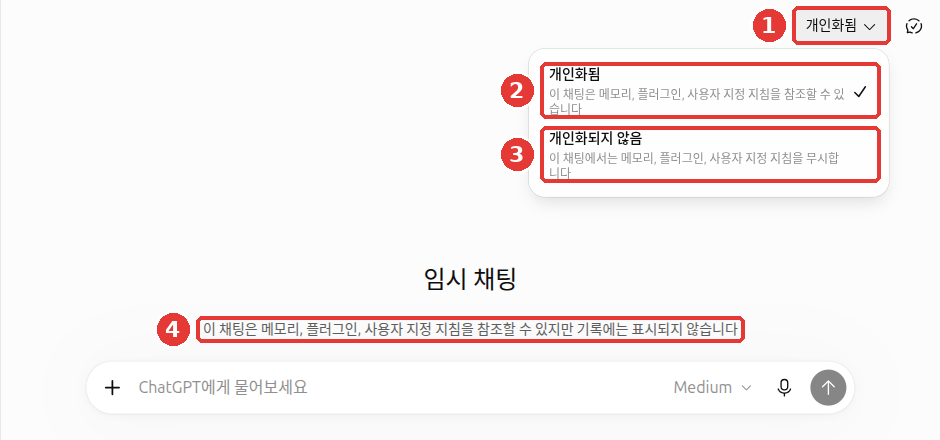
The difference between the two choices is the same as what you saw in Chapter 3. ② "Personalized (개인화됨)" uses your saved memories and instructions, and ③ "Unpersonalized (개인화되지 않음)" ignores them.
Either way, nothing you say in a Temporary Chat is saved as a new memory. You cannot change this choice after the conversation starts.[8:1] So if you start an "Unpersonalized (개인화되지 않음)" temporary chat and ask "Do you remember me?", it is normal for ChatGPT not to know.[9] Other details about Temporary Chat (history and retention period) are covered in Chapter 3.
Quick check
You started a Temporary Chat as "Not personalized" and asked, "What shop did I say I run?" It says it does not know. Why?
Try It Yourself
- Open Settings (설정) → Personalization (개인 맞춤 설정) → Memory summary (메모리 요약) → Manage (관리) and read what ChatGPT currently knows about you. Delete anything that is wrong.
- In Custom instructions (사용자 지정 지침), write one line of context about yourself and three rules, like the example above.
- In a new chat, send only "Recommend three things to do this weekend." Check whether the answer follows the tone and format from your instructions.
- Turn on Temporary Chat (임시 채팅), switch to Unpersonalized (개인화되지 않음), and send the exact same question. Compare how the two answers differ.
Continuing task (Preparing a Book Club): Add one rule you always want for announcements into Custom instructions (사용자 지정 지침). Example: "When writing an announcement, put the date, location, and what to bring at the very top." You can move this line into Project instructions in Chapter 7.
Summary
- Memory is how ChatGPT remembers you from your chats, and Custom Instructions are rules you write down yourself.
- Memory is split into "Saved memories" and "Reference chat history," and you can check or delete it under Memory summary (메모리 요약) → Manage (관리).
- Deleting a chat leaves saved memories behind. Delete memories separately.
- Custom Instructions hold up to 1,500 characters on Free and Go, and up to 5,000 characters on Plus and above. Check changes in a new chat.
- Temporary Chat does not create new memories. To also leave out saved memories and instructions, choose Unpersonalized (개인화되지 않음) before your first message.
Glossary
| Term | One-line meaning |
|---|---|
| Memory | A feature that remembers information about you learned from your chats |
| Saved Memories | Memories saved separately; they remain even if you delete the chat |
| Reference Chat History | Pulling needed information from past chats |
| Custom Instructions | Rules you write down that apply to every new chat |
| Personalization | The settings screen that gathers memory, instructions, and tone controls |
Finished this chapter?
Progress is saved only in this browser. See your progress on the full table of contents.
Next chapter: Chapter 6. Search and Deep Research
References (9)
OpenAI Help Center, "Memory in ChatGPT". help.openai.com (checked on 2026-10-23) ↩︎
Verified directly on the ChatGPT web interface (Plus plan, Korean). The "Personalization (개인 맞춤 설정)" screen (checked on 2026-10-23) and the "Personalized (개인화됨)" menu on the "Temporary Chat (임시 채팅)" screen (checked on 2026-10-24) ↩︎
Information remembered from past chats is scheduled to be deleted from OpenAI's systems within 30 days. The source is "Memory in ChatGPT" above. ↩︎
OpenAI Help Center, "Connecting and managing app accounts in ChatGPT". "Disconnecting an app does not automatically delete existing or archived conversations, saved files, your Memory summary, or other saved memories." help.openai.com (checked on 2026-10-24) ↩︎
OpenAI Help Center, "ChatGPT Custom Instructions". help.openai.com (checked on 2026-10-23) ↩︎
OpenAI Academy "AI Foundations" course section 4.5 (login and registration required). "When I ask for advice, give a clear recommendation, explain the tradeoffs, and call out any assumptions." / "If something is uncertain, say so clearly. Do not guess, and tell me what information would make the answer stronger." (checked on 2026-10-26) ↩︎
The 5,000-character limit on paid plans was increased on 2026-07-15. Source: OpenAI Help Center, "ChatGPT release notes", 2026-07-15 entry. help.openai.com (checked on 2026-10-23) ↩︎
OpenAI Help Center, "Temporary chat in ChatGPT". "Unpersonalized: Does not use memory, custom instructions, or plugins." / "Neither option creates or updates memories while the chat remains temporary. You cannot change personalization after the conversation starts." help.openai.com (checked on 2026-10-24) ↩︎
In the past, Temporary Chat always turned off memory and instructions, but now you can choose. If your screen looks different, follow what is on your screen. ↩︎