Chapter 7. Projects, Plugins, and Work — Grouping Your Regular Tasks
Optional Read this when you need it. You can skip it and still follow the later chapters.One-line summary: Group conversations, files, and instructions for the same job into a Project, and use Plugins to connect other services or add a set workflow. Switch to Work at the top when you want to hand off a long task and get a finished result.
The screens shown are based on the web version (Plus plan) as of October 2026. Menu locations may look slightly different on the Free plan or mobile app.
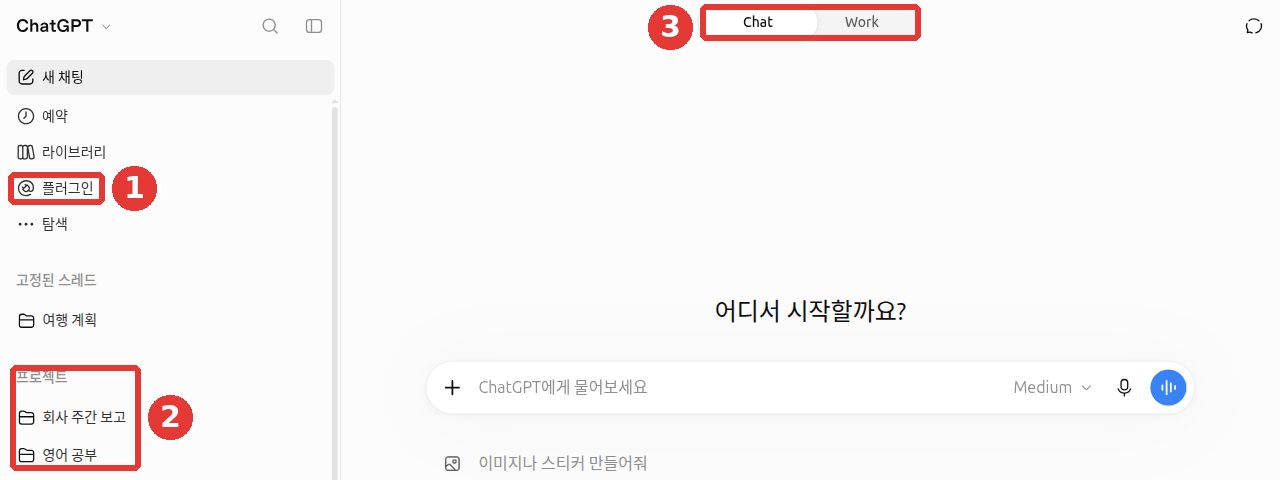
Chat titles and account names in this screen have been replaced with examples. This chapter covers ① Plugins (플러그인) in the side menu, ② the Projects (프로젝트) section, and ③ the Chat / Work switch at the top.
Projects — Conversations, Files, and Instructions in One Folder
A Project is a folder that keeps conversations, reference files, and instructions for a single topic in one place. For example, put your report template file and an instruction like "Use a three-column table" into a "Company Weekly Report" project. Then every conversation you open inside it starts off knowing that file and instruction. You do not have to repeat the same explanation in every chat.
How to Create and Fill One
- Hover your mouse over the Projects (프로젝트) section title in the side menu, click the + button (Add new project (새 프로젝트 추가)) that appears, and name it in the Create project (프로젝트 만들기) window.[1]
- In the top-right of the project screen, click ••• (Project actions (프로젝트 액션)) → Project settings (프로젝트 설정) to write instructions that apply only inside this project. Upload reference files using Files (파일).
- Move existing chats in with Move to project (프로젝트로 이동), and take them out with Remove from project (프로젝트에서 제거).[1:1]
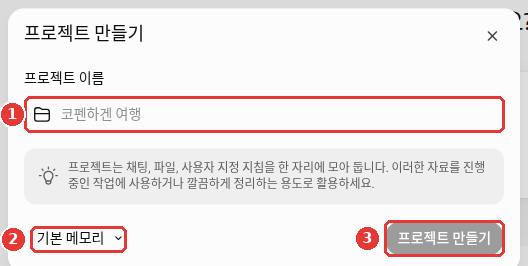
In the Create project (프로젝트 만들기) window: ① type a project name, ② change Default memory (기본 메모리) if needed, and ③ click Create project (프로젝트 만들기).
② is where you decide whether this project shares its memory (Chapter 5) with chats outside it.
- Default memory (기본 메모리): Chats inside this project and chats outside it can use each other's memory.
- Project-only memory (프로젝트 전용 메모리): As the name says, this project's memory is kept separate.
If you are not sure, leave it as it is at first. You can look at it again later in Project settings (프로젝트 설정).
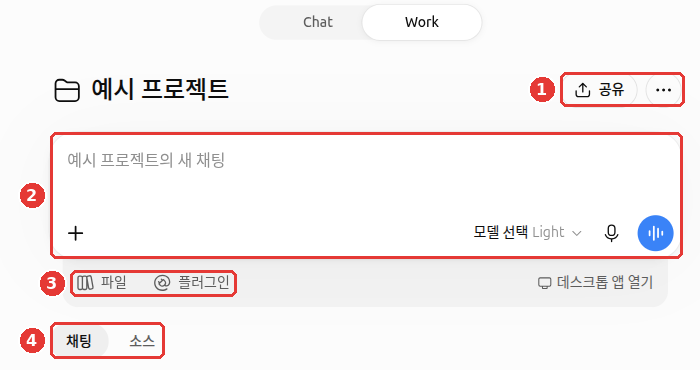
Once created, the project screen opens. Below ② the input box ("New chat in Example Project (예시 프로젝트의 새 채팅)"), there are ③ Files (파일) and Plugins (플러그인) buttons, and below those, ④ the Chats (채팅) and Sources (소스) tabs gather this project's conversations and materials. Open instructions from ① ••• in the top right.
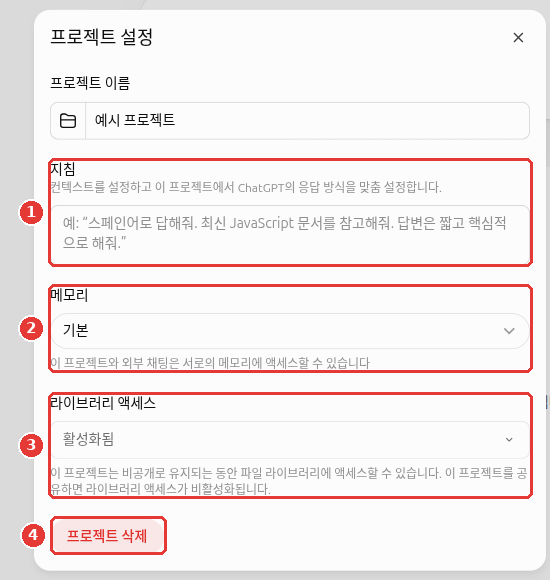
In the ••• → Project settings (프로젝트 설정) window, you set ① Instructions (지침), ② Memory (메모리), and ③ Library access (라이브러리 액세스), or delete the project with ④ Delete project (프로젝트 삭제). Library (라이브러리) is the place you saw in Chapter 4, where your uploaded files are kept. ③ is, as its name says, about whether this project can use your Library, and it starts out as Enabled (활성화됨).
Chat titles and account names in this screen have been replaced with examples, and the model name spot has been erased. "Example Project" was deleted after taking the screenshot.
If you delete a project, a confirmation window says that this project and all chats inside it will be permanently deleted from Chat and Work ("이 프로젝트와 프로젝트에 포함된 모든 채팅이 Chat과 Work에서 영구적으로 삭제됩니다"). Files saved in your Library are not deleted. Move any chats you want to keep somewhere else before deleting (verified on the web screen on 2026-10-23).
Project Instructions Come First
Custom instructions from Chapter 5 apply to all conversations. Project instructions apply only inside that project, and they take priority over custom instructions.[1:2] For example, you can set ChatGPT to usually reply in Korean, and set "Reply only in English" inside your "English Study" project.
Limits by Plan
You can create an unlimited number of projects. The number of files you can put in a project depends on your plan, and you can upload up to 10 files at a time.[1:3]
| Plan | Files per project | People you can share with |
|---|---|---|
| Free | 5 | 5 |
| Go · Plus | 25 | 10 |
| Pro | 40 | 100 |
Business, Enterprise, and Edu also allow 40 files per project.[1:4] When you share a project with others, its memory automatically switches to Project-only memory (프로젝트 전용 메모리). Once changed, you cannot switch it back to Default memory (기본 메모리).[1:5] Also, PDFs placed in a project may be read with images and charts left out. If images in a PDF are important, attach the file directly to the chat (Chapter 4).[2]
Quick check
Your usual Custom Instructions say "Reply politely in Korean," while your "English Study" project instructions say "Reply only in English." What happens in a chat inside that project?
Putting Reusable Templates into a Project
In Part 1, Chapter 8, you learned how to turn a good prompt into a reusable template where you only swap out the blanks. A project is a great place to keep that template. Try putting the template into your project instructions. You will not have to paste the template into every chat.
In chats inside this project, turn the work notes I send into a weekly report.
- Format it as a three-column table: "Done / In Progress / Next Week's Plan"
- Write one line per item
- Do not make up anything not in the notes; mark it as [Needs check]
Once you set this up, all you need to paste into a new chat inside the project is this week's notes.
Quick check
Pasting your weekly report format every single week is a hassle. What does this chapter recommend?
Plugins — Adding Other Services and Workflows
A Plugin is a bundle that adds features to ChatGPT. The bundle contains these things.[3]
- Skills: Written instructions for a set workflow
- Connected apps: Other services linked to ChatGPT, like Gmail and Google Drive
- Extensions: Extra actions built into a plugin
- App templates: Something the help docs list as another component. You do not need to know about it at first
On 2026-07-09, the old App Directory (앱 디렉터리) changed into the Plugin Directory. Apps you connected earlier stay as they are.[4]
- Open the Plugin Directory from Plugins (플러그인) in the side menu to look around. Every plan can view the directory.[3:1]
- When you find a plugin you like, click Install plugin (플러그인 설치). If it needs an account from another service, click Connect (연결).[3:2]
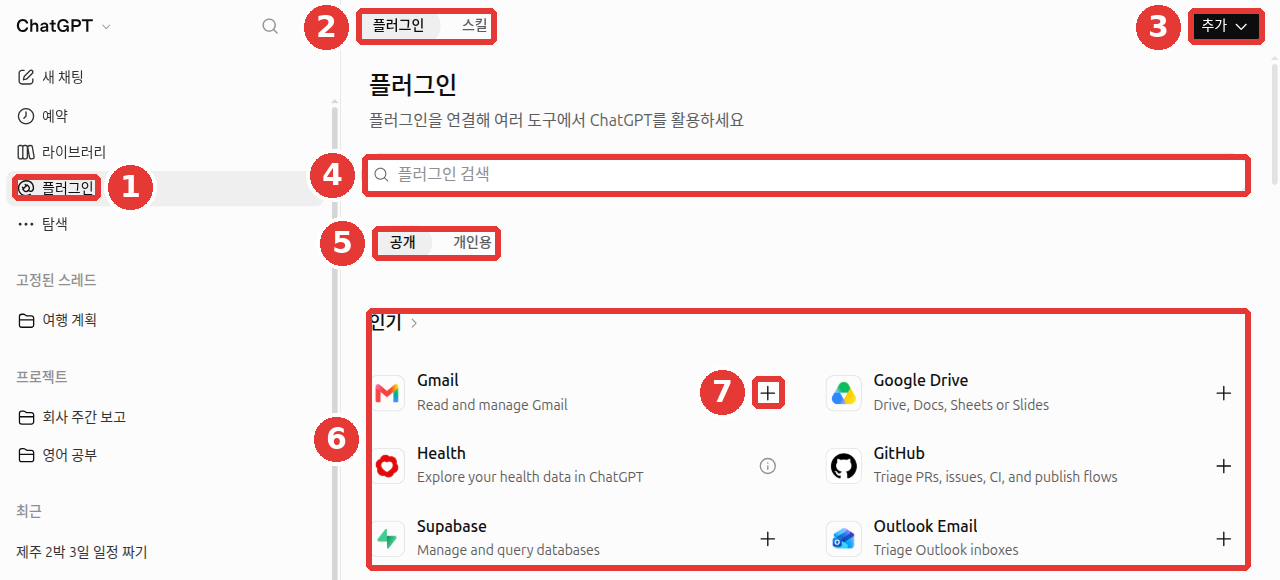
Chat titles and account names in this screen have been replaced with examples. ① Click Plugins (플러그인) in the side menu to see ② the Plugins (플러그인) and Skills (스킬) tabs, ③ the Add (추가) button, ④ the Search plugins (플러그인 검색) box, ⑤ Public (공개) and Personal (개인용) filters, and ⑥ the Popular (인기) list. Connect items using ⑦ the + button on the right.
There are four ways to use a plugin.[3:3]
| Method | Example |
|---|---|
| Just ask a question | ChatGPT uses the plugin on its own if it is relevant |
Type the name after @ | @PDF Pull only the dates from this contract |
| Type the name from the + button | Pick from the plugin list at the bottom of the + menu |
| Click Plugins in the input box | Pick from your installed plugins |
When you connect another service (like email or cloud storage), ChatGPT can read what is inside it. Before connecting, check what information is shared (Chapter 8).
On the Free and Go plans, you can still view the directory (the plugin list screen) and recommendations. However, you cannot use plugin extensions.[5]
Quick check
Which statement is true about plugins?
Setting Permissions for Connected Apps
When you connect an app like Gmail or Google Drive, ChatGPT can just read what is inside. Or it can also make changes, like sending emails or editing files. You choose how much it can do without asking in Settings → Plugins (플러그인) under Default permissions (기본 권한).[6][7]
You will see these choices on the screen:
- Always ask (항상 묻기): Asks you first before reading and before making changes.
- Allow read actions (읽기 전용 도구 허용): Reads without asking, and asks before making changes.
- Allow low-risk actions (위험도가 낮은 도구 허용): Handles low-risk actions on its own, while sensitive actions may be blocked. On a personal account, this is usually the default if you have not changed your settings. If your company has a policy, that policy comes first.[8]
We recommend starting with Always ask (항상 묻기) or Allow read actions (읽기 전용 도구 허용), and widening permissions once you are used to it (this guide's suggestion). The more often it asks, the more chances you get to see with your own eyes what ChatGPT is about to do.
The help docs also mention "Allow all actions" (모두 허용), which does everything without asking. The help docs themselves note that this option "carries elevated risk."[6:1][9]
What to Know After Connecting
Read the approval card (a box asking your permission before making a change) before you click. Before making a change like sending an email or deleting a file, ChatGPT pops up a box asking if it is okay to proceed. Ask yourself before clicking.[6:2]
- Which app is this? (Gmail or Google Drive?)
- Which account? (Your personal account or your work account?)
- What is it trying to do? (Send an email, or delete a file?)
If even one of the three is different from what you expected, do not click.
Here are a few other things to know.
- Connect the account that actually has the files. If you connect your personal Google account, files that exist only in your work account will not show up. Even after connecting, ChatGPT cannot see anything beyond what that account can already open.[10]
- If it is connected but not being used, ask specifically with
@AppNamein a new chat. Even if an app shows as Connected (연결됨), it may not be available in your current chat or on your current device.[5:1] - Some things stay behind even after you disconnect. If you pick an app in Settings → Plugins (플러그인) and disconnect it, ChatGPT simply cannot read that app going forward. Content that already came into your chats, files, or memory is not deleted (Chapter 5). Your model-training switch also stays as it was.[10:1]
- App permissions work separately from data settings like training permissions. So narrowing app permissions leaves your training settings unchanged (Chapter 8).[6:3]
Quick check
You connected Gmail and later disconnected it. Which statement is true?
The Difference Between Chat and Work
When ChatGPT Work launched on 2026-07-09, the top of the screen split into Chat / Work.[4:1][11]
| Chat | Work | |
|---|---|---|
| What it does | Talks with you back and forth | Takes on a long, multi-step task and sees it through to the end |
| Output | Text replies | Finished products like documents, tables, slide decks, reports, and Sites (simple websites) |
| Example | "Summarize the meeting notes in three lines" | "Make a 10-slide presentation from this quarter's sales file" |
- Work on the web and mobile is available on paid plans excluding Free and Go. Free and Go can use it only in a limited way on the desktop app.[4:2][12]
- You can schedule tasks in Work. You can have a task run once, on a repeating schedule, or when a certain condition happens. Manage scheduled tasks from Schedules (예약) in the side menu.[11:1][13]
- To use Work inside a project, click the + button → Start Work in project (프로젝트에서 Work 시작).[13:1]
- Think in Chat, build in Work. Inside the same project, Chat and Work share the same materials. So you can ask questions and shape your outline in Chat, and when you are ready to build, switch to Work without explaining everything from scratch.[14]
- Sites is not available on Free or Go.[15]
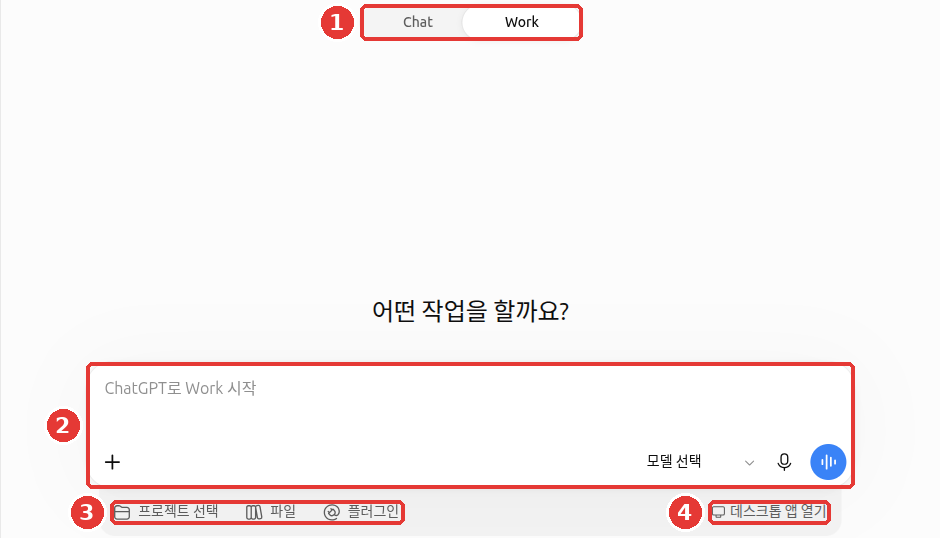
① When you switch the top toggle to Work, you get ② the "Start Work with ChatGPT (ChatGPT로 Work 시작)" input box, ③ buttons for Select project (프로젝트 선택), Files (파일), and Plugins (플러그인), and ④ the Open desktop app (데스크톱 앱 열기) button.
Chat titles and account names in this screen have been replaced with examples, and the model name spot has been erased. On the actual screen, recommendation cards titled "Explore what Work can do (Work가 할 수 있는 일을 살펴보세요)" appear below this, which we cropped out because they vary by account.
The desktop app's "built-in browser" (click to expand)
The desktop app (macOS and Windows) has a built-in browser. In Work or Codex (OpenAI's coding assistant, covered in Stage 3) chats, ChatGPT can open websites directly in this browser to get work done. If you only use the web version, you can skip this.
Quick check
What is best for a multi-step job that needs a finished file, like "Make a 10-slide presentation from this quarter's sales file"?
Retiring Features — Custom GPTs and Agent Mode
Two features you might see in older guides or videos have either ended or are scheduled to end.
Custom GPTs (your own versions of ChatGPT made by adding instructions and files) are scheduled to retire on 2026-12-11. After that, they move over to plugins.[18] Even after retirement, your past chat history with GPTs will remain.[19] On personal plans (Free, Go, Plus, and Pro), you can no longer create or publish new GPTs. It is not an error if the create button is missing. Also, GPTs do not use your memory, custom instructions, or past conversations. If a GPT connects to an outside service, part of what you type may be sent to that company. OpenAI does not monitor how that company handles your data. Only use GPTs made by sources you trust.[20]
If you have a GPT you made yourself, prepare like this before it retires:
- Copy the instruction text you wrote when making the GPT and save it in a notes app, and save a separate copy of any reference files you uploaded onto your computer.
- Check the official migration steps in the help article "Custom GPT retirement and migration FAQ".[19:1]
- If it was a GPT you only used by yourself, you can get a similar setup by creating a Project with your saved instructions and files (this guide's suggestion).
Agent mode (an older feature where ChatGPT handled multi-step jobs on its own) is no longer available. Work takes its place.[21] Even if old instructions remain at the bottom of help pages, do not follow them.
Other services that have ended — Sora and Atlas (click to expand)
Two other OpenAI services you might spot in videos or articles have also ended:
Quick check
You are using a custom GPT that you built yourself. What does this chapter advise?
Watch and Learn More
This is an official intro video made by the company. Screens and feature names may differ from the explanations in this chapter.
The video below is in English. You can turn on subtitles or auto-translation in the YouTube video settings (gear icon) → Subtitles. The video plays right inside this page.
Get started with ChatGPT Work · OpenAI · For those who want to see the first steps of handing tasks to Work (July 2026, 6 min)
Try It Yourself
- Create a "Weekly Report" project using New project (새 프로젝트), and paste the template from above into the project instructions.
- Open a new chat inside the project, type five rough lines about what you did this week, and send it. Check if the table comes out following the instructions.
- Open Plugins (플러그인) in the side menu to browse what plugins are available, pick one, and call it by typing its name after
@. - If you are on a paid plan, switch the top toggle to Work and ask it to turn your report from step 2 into a one-page document.
Continuing Exercise (Preparing a Book Club): Before uploading, open members.csv and check that there is no personal information like real names or phone numbers. Next, create a "Book Club" project, upload the four sample files (memo-next-month.txt, minutes-last-meeting.txt, members.csv, fees.csv), and put the one-line instruction from Chapter 5 into the project instructions. In a new chat inside the project, send only "Write a draft announcement for November" and see if details from the memo and meeting minutes are included.
Summary
- A project is a folder that groups conversations, files, and instructions. Inside a project, project instructions take priority over custom instructions.
- Files per project are 5 on Free, 25 on Go and Plus, and 40 on Pro. Sharing a project locks its memory to Project-only memory (프로젝트 전용 메모리).
- It is handy to keep reusable templates inside project instructions.
- Find plugins under Plugins (플러그인) in the side menu, and use them by asking a question, typing
@, clicking the + button, or clicking Plugins. - Chat is for conversation; Work is for long tasks and finished products. Work on web and mobile is available on paid plans excluding Free and Go.
- Choose default permissions for connected apps in Settings → Plugins (플러그인). Read the app, account, and action on approval cards before clicking, and remember that content already brought in stays even after disconnecting.
- Custom GPTs retire on 2026-12-11, so back up your instructions and files beforehand. Personal plans can no longer create new GPTs. Agent mode, Sora, and Atlas have already ended.
Glossary
| Term | One-line meaning |
|---|---|
| Project | A folder that gathers chats, files, and instructions for one topic |
| Plugin | A bundle that adds features or connects other services to ChatGPT |
| Skill | Written instructions for a set workflow; one part of a plugin |
| Plugin Directory | The list screen where you browse and install plugins |
| ChatGPT Work | A feature that takes on long, multi-step tasks and builds finished products |
| Custom GPTs | Your own ChatGPT made with instructions and files; scheduled to retire on 2026-12-11 |
| Agent Mode | An older feature that handled multi-step jobs on its own; now replaced by Work |
| Approval | A box where ChatGPT asks for your permission before changing something with an app |
| Permission | The range of actions ChatGPT is allowed to do in a connected app without asking |
Finished this chapter?
Progress is saved only in this browser. See your progress on the full table of contents.
Next chapter: Chapter 8. Privacy and Data Controls
References (23)
OpenAI Help Center, "Projects in ChatGPT". help.openai.com (checked on 2026-10-23) ↩︎
OpenAI Help Center, "Uploading files and audio to ChatGPT". help.openai.com (checked on 2026-10-23) ↩︎
OpenAI Help Center, "Plugins in ChatGPT". help.openai.com (checked on 2026-10-23) ↩︎
OpenAI Help Center, "ChatGPT release notes" 2026-07-09 entry. help.openai.com (checked on 2026-10-23) ↩︎
OpenAI Help Center, "Troubleshooting plugins and apps in ChatGPT". "plugin extensions are not available to these plans." / "An app can appear as Connected without being available in the current chat, model, or ChatGPT surface." help.openai.com (checked on 2026-10-24) ↩︎
OpenAI Help Center, "Managing app permissions in ChatGPT". "Always ask: ChatGPT asks before reading app information or making changes." / "Allow read actions: ChatGPT can read without asking but asks before making changes." / "This option carries elevated risk." / "Review the app, account, and proposed action before approving a request." / "App permissions are separate from Memory, personalization, data retention, and model-training controls." help.openai.com (checked on 2026-10-24) ↩︎
Verified directly in ChatGPT web Settings → Plugins (플러그인) → Default permissions (기본 권한) list (Plus plan, Korean). Always ask — Ask before reading or making changes (항상 묻기 — 읽거나 변경하기 전에 묻기), Allow read actions — Read without asking, but confirm before making changes (읽기 전용 도구 허용 — 묻지 않고 읽되, 변경 전에는 확인하기), Allow low-risk actions — Automatically approve low-risk tools, while sensitive tools may be declined (위험도가 낮은 도구 허용 — 위험도가 낮은 도구를 자동으로 승인하되, 민감한 도구는 거부될 수 있습니다) (checked on 2026-10-24) ↩︎
OpenAI Help Center, "Health in ChatGPT" (plugin settings explanation inside a US-only feature article). "If you make no changes to your Plugins settings, the default permission setting is “Allow low-risk actions”." help.openai.com (checked on 2026-10-24) ↩︎
On the web screen this guide checked on October 24, 2026, only the three choices above appeared, without "Allow all actions" (모두 허용). ↩︎
OpenAI Help Center, "Connecting and managing app accounts in ChatGPT". "Connecting a personal account does not provide access to files, channels, or records available only to your work account." / "Disconnecting an app does not automatically delete existing or archived conversations, saved files, your Memory summary, or other saved memories." help.openai.com (checked on 2026-10-24) ↩︎
OpenAI Help Center, "ChatGPT Work and Codex". help.openai.com (checked on 2026-10-23) ↩︎
OpenAI, "Plans and Pricing". openai.com (checked on 2026-10-23) ↩︎
Verified directly on the ChatGPT web screen (Plus plan, Korean). Side menu and input box + menu (checked on 2026-10-23) ↩︎
OpenAI Academy "Agents and Workflows" course section 3.1 (login and registration required). "when you work inside a project, both Chat and ChatGPT Work can share the same context." / "Use Chat when you want to think through the material, ask questions, or shape your ideas. Then, when you are ready to create or update something, you can switch to ChatGPT Work and use the same project context to build the output." (checked on 2026-10-26) ↩︎
Sites launched in public beta on 2026-07-09. OpenAI Help Center, "ChatGPT release notes" 2026-07-09 entry. help.openai.com (checked on 2026-10-23) ↩︎
OpenAI Help Center, "Using the built-in browser in the ChatGPT desktop app". "Enter credentials only in the browser, never in the chat." / "Treat website content as untrusted." help.openai.com (checked on 2026-10-24) ↩︎
OpenAI Help Center, "Using site tools in the ChatGPT desktop app". "Instructions from a website or site tool cannot authorize ChatGPT to share information or take sensitive actions on your behalf." help.openai.com (checked on 2026-10-24) ↩︎
Approved Enterprise accounts have an extension until 2027-02-11. OpenAI Help Center, "Custom GPT retirement and migration FAQ". help.openai.com (checked on 2026-10-23) ↩︎
OpenAI Help Center, "Custom GPT retirement and migration FAQ". help.openai.com (checked on 2026-10-23) ↩︎
OpenAI Help Center, "GPTs in ChatGPT". "New GPT creation and publishing are not available on personal ChatGPT accounts, including Free, Go, Plus, and Pro." / "GPTs do not use saved memory, custom instructions, or previous conversations." / "OpenAI does not audit or control how those services use or store your data." help.openai.com (checked on 2026-10-24) ↩︎
OpenAI Help Center, "ChatGPT agent". "ChatGPT agent is no longer available. Use ChatGPT Work" help.openai.com (checked on 2026-10-23) ↩︎
OpenAI Help Center, "What to know about the Sora discontinuation". "The Sora web and app experiences were discontinued on April 26, 2026." help.openai.com (checked on 2026-10-24) ↩︎
OpenAI Help Center, "ChatGPT Atlas retirement". "ChatGPT Atlas has been retired and no longer receives updates." / "To cancel a subscription, follow Canceling your ChatGPT subscription for the platform that billed you." help.openai.com (checked on 2026-10-24) ↩︎