Chapter 4. Files, Photos, and Creating Images — Show It, Ask It to Draw
Optional Read this when you need it. You can skip it and still follow the later chapters.One-line summary: If something is hard to explain in words, upload a photo or file to show it. If you need a picture, ask ChatGPT to make one. Uploaded files are collected in Library (라이브러리) so you can use them again. On the Free plan, you can only upload a few files per day.
Screenshots are from the web app (Plus plan) as of October 2026. Menu locations may look slightly different on the Free plan or mobile app.
Uploading Photos and Files
Click the + button on the left side of the message box and choose Add photos & files (사진 및 파일 추가). Then pick a file from your computer.[1] Once the file appears above the message box, type what you want to do with it and send your message.
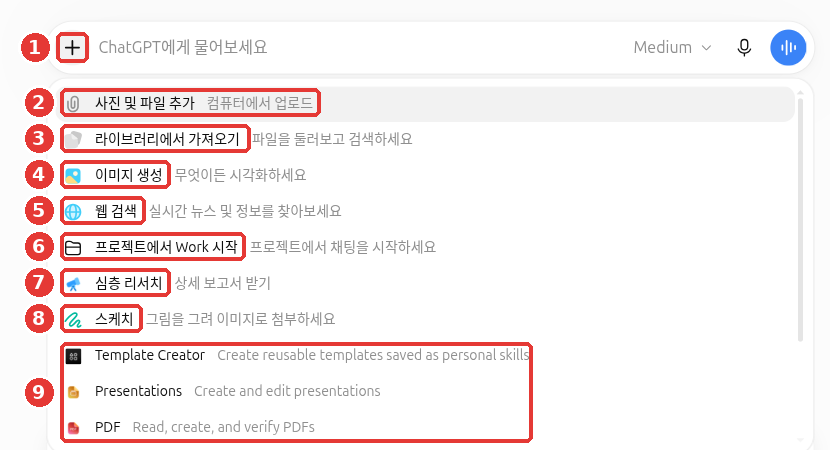
Chat titles and the account name in this screenshot were replaced with examples. In this chapter, we use ① the + button, ② Add photos & files, ③ Add from library (라이브러리에서 가져오기), ④ Create image (이미지 생성), and ⑧ Sketch (스케치). The rest, ⑤–⑦ (web search, Work, deep research), are covered in other chapters (Chapter 2).
Files You Can Upload
Here is what you can upload.[1:1][2]
| Type | Examples |
|---|---|
| Photos & images | Receipt photos, screenshots, photos of handwritten notes |
| Documents | PDF, Word (DOCX), text (TXT) |
| Spreadsheets | Excel (XLSX, XLS), CSV |
| Presentations | PowerPoint (PPTX) |
| Audio (paid plans only) | WAV, MP3, M4A audio recordings |
You cannot upload Google Docs (.gdoc) directly. Download the file from Google Docs as a PDF or Word file first, then upload it.[1:2] When you upload a PDF directly to a chat, ChatGPT reads not only the text but also the pictures and charts inside it.[1:3]
Write What You Want Along With It
Instead of just uploading a file and saying "Look at this," write what you want along with it. You will get a much better answer.
The attached PDF is my apartment maintenance bill.
Find the three items that went up the most compared to last month and show them in a table. Write one line for each on why it might have gone up.
Mark anything uncertain as "Guess".
Summarizing is not the only thing you can do with files. Try uploading a well-written past document as a model, and ask ChatGPT to rewrite your draft using the same structure and tone. You can also upload both an original document and your summary to find facts that differ or details missing from the original.[3]
The first file is the official notice (original), and the second file is my summary.
Find all facts or numbers in my summary that differ from the original, and anything that is not in the original.
What the reply looks like (example — click to expand) (click to expand)
This is an example created for this guide. Actual replies vary by service and situation.
Comparing it with the original, there are three differences.
My summary Original Difference "Deadline: Month ○, Day ○" "Deadline: Month ○, Day △" Different deadline date "Fee: ○○ won" (Not in original) Content not in original "Anyone can apply" "Only ○○ residents can apply" Different eligibility The rest matches the original.
Check if you got a good answer: Did it find all the facts and numbers that differ from the original? Did it separately mark content that is not in the original? Compare the places it pointed out against the actual original file once yourself.
When Uploading Photos
For a photo, you can write like this.
The attached photo is the inside of my fridge. Recommend two dinner dishes I can make in 30 minutes using only the ingredients you see.Before uploading files with personal information—like ID cards, contracts, or medical records—cover or remove those parts first. We covered the basic rules in Part 1, Chapter 9.
Keep these points in mind when uploading photos.[4]
- Korean text in photos may be misread. Non-Latin scripts like Korean or Japanese are read less accurately than English. Take the photo so the text looks large, and double-check numbers against the original.
- Do not use it to read medical scans like CT scans or X-rays. It is not built for that purpose.
- If there is a specific part you want to show, draw a circle around it in a photo editing app before uploading. That helps ChatGPT focus on that spot.
Quick check
How can you show a Google Docs (.gdoc) file to ChatGPT?
How Much You Can Upload — Limits by Plan
Files have size and count limits. On the Free plan, the first limit you will bump into is 3 files per day. If you need to ask about several files, upload the most important ones first. If you have several photos, stitching them into a single image before uploading is one workaround. That saves your daily upload count.
You will rarely hit the other limits. Check the table below only when your files are very large or numerous.
A token in the table is a small piece of text that AI breaks words into when reading. Two million tokens is a huge amount of text. Everyday work documents rarely hit this limit.
Here are the numbers from the official help center.[1:4]
| Limit | Value |
|---|---|
| Single file size (documents & presentations) | Up to 512 MB |
| Text length in a single document | Up to 2 million tokens |
| Spreadsheet files (CSV, etc.) | About 50 MB (depends on content) |
| Single photo | Up to 20 MB |
| Number of uploads | Up to 80 every 3 hours (may be lower during busy times) |
| Free plan | Up to 3 per day |
| Total storage for your account | Up to 25 GB |
| Audio files | Paid plans only |
Limit numbers change often, so treat the values above as current as of the checked date.
Quick check
What does the official help guide say is the file upload limit on the Free plan?
Library — Where Your Uploaded Files Are Kept
Files you upload and files ChatGPT creates are automatically saved in Library on the side menu. Library is available on the web.[5] If you want to reuse a file you uploaded earlier, click the + button → Add from library. You do not need to upload the file again.
Here are a few things to know.
- Deleting a chat does not delete its files from Library. To remove a file, delete it separately inside Library.[6][7]
- Files uploaded in Temporary Chat (Chapter 3) are not saved to Library.[5:1]
- Download links inside a chat expire quickly. Download files created by ChatGPT right away. If an English message like "Download failed" appears, the link may have expired. In that case, ask ChatGPT to make the file again.[8]
If you see "Space" (스페이스) on your side menu, treat it as the same place as Library in this section. Library is being renamed to Space.[9]
Library storage by plan (click to expand)
How much you can store in Library depends on your plan.[5:2]
| Plan | Library storage |
|---|---|
| Free | 500 MB |
| Go | 4 GB |
| Plus · Business | 20 GB |
| Pro | 100 GB |
Want to know more about Space? (click to expand)
Space replaces Library, while Projects stay as they are. In Space, besides files, you can also create pages (editable documents) to work on together with other people. As of October 24, 2026, the screen in this guide still showed Library.[9:1]
Quick check
You deleted a chat where you uploaded a file. What happens to that file saved in your Library?
Creating Images
ChatGPT can create pictures as well as text. Click the + button → Create image, or click the home screen suggestion "Create an image or sticker" (이미지나 스티커 만들어줘). Then describe the picture you want. Create image is turned off in Temporary Chat, so use a regular chat (Chapter 3).
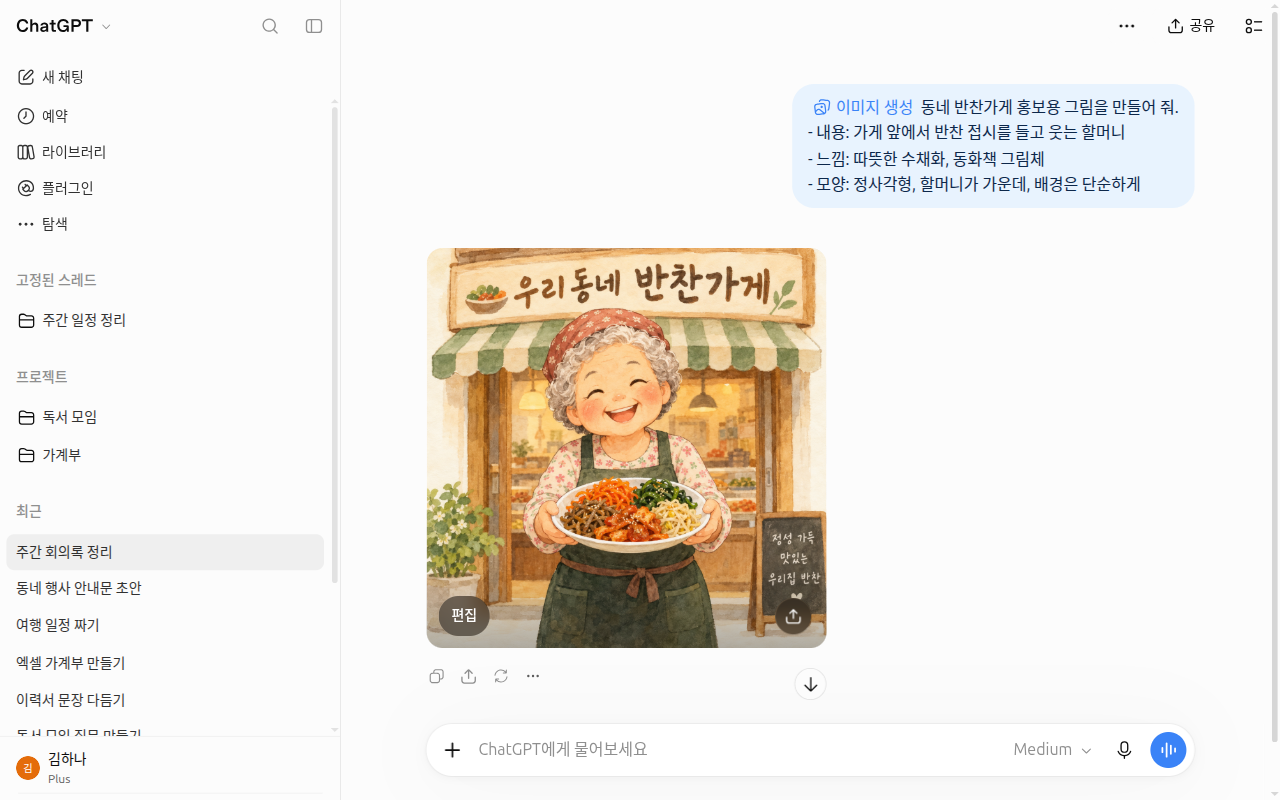
This screen shows what happened when we sent the example prompt below without the last "Text" line. Because we did not specify the wording, it wrote "Our Neighborhood Side-Dish Shop" (우리동네 반찬가게) on the sign on its own. We deleted the chat and image after taking the screenshot.[10]
When asking for a picture, the same prompt rules you learned in Part 1 apply (Part 1, Chapter 4). Try including the four things below. The result will get much closer to what you have in mind.
| What to include | Example |
|---|---|
| Subject | A smiling grandmother standing in front of a side-dish shop |
| Style & mood | Warm watercolor, children's storybook style |
| Layout | Square, person in the center, simple background |
| Text | "Today's Side Dishes" at the top |
Create a promotional illustration for a neighborhood side-dish shop.
- Subject: A smiling grandmother holding a plate of side dishes in front of the shop
- Style: Warm watercolor, children's storybook illustration style
- Layout: Square, grandmother in the center, keep the background simple
- Text: "Today's Side Dishes" in large letters at the top
It is fine if you do not like the first picture. Just like when editing text, point out only what you want to change and ask again. You can say something like, "Change the background to night and keep everything else the same" (Part 1, Chapter 6).
Using Reference Photos
When a look is hard to describe in words, upload a reference photo along with your request. Attach a photo using Add photos & files, and tell ChatGPT what to copy from it.
The attached photo is our shop sign. Keeping the colors and lettering style of this sign,
create a Chuseok holiday closure notice poster. Closed: October 5–7.
The Settings → Personalization (개인 맞춤 설정) screen also has Reference photo (참고 사진) and Full-body reference photo (전신 참고 사진). This guide does not cover these two items separately. When making a picture, uploading a reference photo straight into the chat as shown above is enough.
For the rights to AI-generated images and what to watch out for when uploading other people's photos or artwork, check Part 1, Chapter 9.[11]
Quick check
You want to change only the background of an image ChatGPT made. What is the best request?
Sketch — Draw It Yourself to Show What You Mean
The + button → Sketch feature lets you draw directly on the screen and attach it as an image. The on-screen description says "Draw a picture to attach as an image" (그림을 그려 이미지로 첨부하세요).
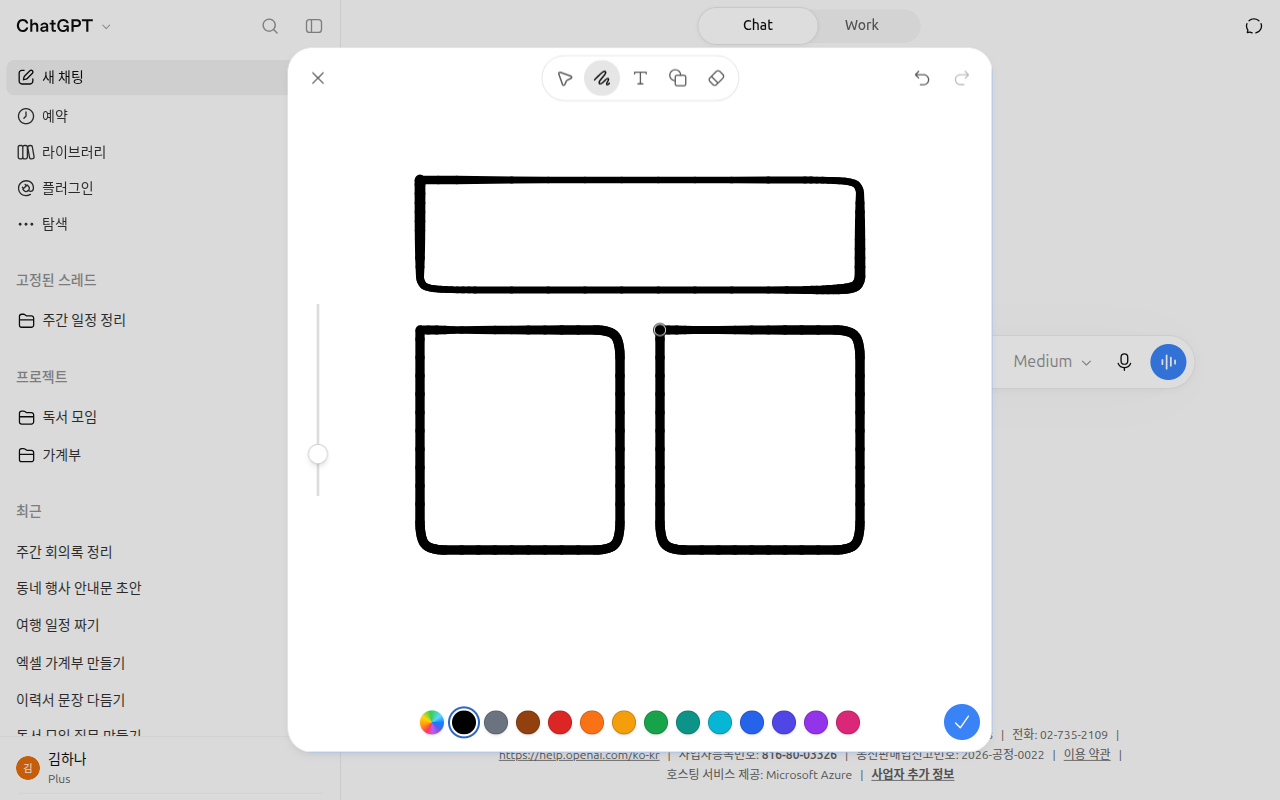
We closed the editor without attaching the drawing. When you close it, it asks once more: "Discard changes?" (변경 사항을 삭제할까요?).[12]
You do not need to draw well. Just roughly sketch a layout or shape that is hard to explain in words. For example, draw a flyer layout using boxes and arrows, attach it, and ask like this.
The attached sketch is a flyer layout. I want the shop name in the big box at the top, a photo of our signature dish in the circle in the middle,
and prices in the three small boxes at the bottom. Create a flyer image following this layout.
Quick check
When is "Sketch" in the + menu useful?
Watch More on Video
This is an official intro video made by the company. The screens and feature names may differ from what is described in this chapter.
The video below is in English. If you want subtitles in another language, click Settings (the gear icon) on the YouTube video → Subtitles/CC → Auto-translate and pick your language. The video plays right inside this page.
Introducing ChatGPT Images 2.5 · OpenAI · For those who want a quick look at faster, sharper image generation (September 2026, 1 min)
Try It Yourself
- Take a photo of a receipt or note at home with your phone, move it to your computer, upload it with Add photos & files, and ask: "Organize what is written here into a table" (cover any names or card numbers first).
- Open Library on the side menu and check that the photo you just uploaded is saved there.
- Use Create image to make the side-dish shop illustration above, then revise it once by saying: "Change the background to feel like spring and keep everything else the same."
- Use Sketch to draw three boxes, attach the drawing, and ask: "Make a birthday invitation using this layout."
Ongoing task (Preparing a Book Club): Upload the sample file minutes-last-meeting.txt using Add photos & files and send: "Divide this into a table of Decisions Made, Action Items, and Undecided Items. For Action Items, include the person in charge and the due date, and write 'TBD' if there is no due date." Check the reply against the meeting minutes to see if all three action items came out.
Summary
- Click the + button → Add photos & files to upload photos, documents, spreadsheets, and presentations. Audio files require a paid plan.
- Do not just upload a file—write what you want to do with it.
- The Free plan allows up to 3 file uploads per day. Photos can be up to 20 MB, and documents up to 512 MB.
- Korean text and numbers in photos may be misread, so double-check them against the original.
- Uploaded files are saved automatically in Library (being replaced by "Space") and remain there even if you delete the chat.
- In Create image, ask for a picture by including the subject, style, layout, and text. You can also show what you want using a reference photo or Sketch.
Glossary
| Term | One-line meaning |
|---|---|
| Upload | Sending a file from your device to a service |
| Token | A small piece of text that AI breaks words into when reading |
| MB · GB | Units of file size. 1 GB is about 1,000 MB |
| Library | The place where files you uploaded or created are kept together |
| Image Generation | A feature where AI draws a picture from your written description |
| Reference Image | A sample photo for the AI to follow when making a picture |
| Sketch | A quick, rough drawing you make yourself |
| Space | A workspace for files and pages that replaces Library |
| C2PA | An international standard tag that records how a photo or image was made |
Finished this chapter?
Progress is saved only in this browser. See your progress on the full table of contents.
Next chapter: Chapter 5. Memory and Personalization
References (12)
OpenAI Help Center, "Uploading files and audio to ChatGPT". "Select + in the prompt area, then Add photos & files." / "You can't upload a .gdoc file directly." / "maximum size of 512 MB per file" / "capped at 2 million tokens per file" / "size limit of approximately 50 MB" / "Images have a limit of 20 MB per image." / "Free users are limited to 3 file uploads per day." / "capped at 25 GB per user" / "Audio uploads are not available on the Free plan at this time." / "ChatGPT can analyze both text and images in PDFs". help.openai.com (checked on 2026-10-23) ↩︎
You can also attach videos. This works on the Free plan too. However, availability depends on your device and how you upload. Also, ChatGPT might not understand the entire video or its audio. The source is "ChatGPT Image Inputs FAQ" below. ↩︎
OpenAI Academy course content (login and registration required). AI Foundations: "Use this template as a model. Rewrite my draft so it follows the same structure and tone." Applied AI Foundations: "Verify" "Check whether a draft is supported by the source" (checked on 2026-10-26) ↩︎
OpenAI Help Center, "ChatGPT Image Inputs FAQ". "The model does not perform as well handling images with text of non-Latin alphabets, such as Japanese or Korean." / "The model is not suitable for interpreting specialized medical images like CT scans" / "consider using a photo edit markup tool on your image before uploading." / "ChatGPT can accept video files as attachments through supported upload methods, including on Free plans." / "It may not analyze the entire video or accurately interpret its audio." help.openai.com (checked on 2026-10-24) ↩︎
OpenAI Help Center, "Using Library to manage files in ChatGPT". "Library is available on web" / "Select Add from library." / "Free users have up to 500 MB of Library storage." / "scheduled for permanent deletion from OpenAI systems within 30 days" / "files uploaded while using Temporary Chat are not saved to your account or Library". help.openai.com (checked on 2026-10-23) ↩︎
OpenAI Help Center, "Deleting and archiving chats in ChatGPT". "Deleting a chat does not delete files saved separately in Library." help.openai.com (checked on 2026-10-23) ↩︎
You can sometimes restore deleted files from Recently Deleted (최근 삭제된 항목). They are scheduled to be permanently deleted within 30 days. The source is "Using Library to manage files in ChatGPT" below. ↩︎
OpenAI Help Center, "Troubleshooting ChatGPT Error Messages". "Ensure that the file is recently generated, files generated by ChatGPT expire quickly". help.openai.com (checked on 2026-10-24) ↩︎
OpenAI Help Center, "ChatGPT Space: sharing, data, and controls". "It replaces Library, while your Projects stay as they are." / "Pages are editable documents that you can organize inside other pages and work on with other people." help.openai.com (checked on 2026-10-24) ↩︎
Verified directly by sending the example prompt in this section (excluding the "Text" line) via + menu → Create image. An Edit (편집) button and a share button appeared above the image. Even after deleting the chat, the picture remained under Images (이미지) in Library, so we deleted it separately (checked on 2026-10-28, Plus account web app) ↩︎
Pictures made by ChatGPT include C2PA (an international standard tag that records how an image was made). You cannot see it on the picture, as it is saved inside the image file itself. Source: OpenAI Help Center, "What is ChatGPT: FAQ". "ChatGPT images include C2PA provenance metadata." help.openai.com (checked on 2026-10-24) ↩︎
Verified directly by opening Sketch Editor (스케치 편집기) via + menu → Sketch and checking the confirmation dialog when closing ("Continue editing" (계속 편집하기) / "Discard changes" (변경 사항 삭제)) (checked on 2026-10-28, Plus account web app) ↩︎