Chapter 8. Privacy and Data Controls — Deciding How Your Chats Are Used
Required Read this to follow this stage.One-line summary: Chats you send to ChatGPT are saved on OpenAI's computers (servers), and depending on your settings, they may be used for training to make the AI better. On a single screen under Settings > Data controls (설정 > 데이터 관리), you can manage training permissions, shared links, archiving and deletion, and data export.
The screens shown here are based on the web version (Plus plan) as of October 2026. If you use the free plan or the mobile app, menu locations may look slightly different.
What you should never enter is the same for any AI, so we already covered that in Part 1, Chapter 9 "What Not to Enter". In this chapter, we only look at how to manage chats you have already entered in ChatGPT.
A Tour of the Data Controls Screen
Click your account name in the bottom left to open Settings (설정), then click Data controls (데이터 관리) near the bottom of the left menu.[1]
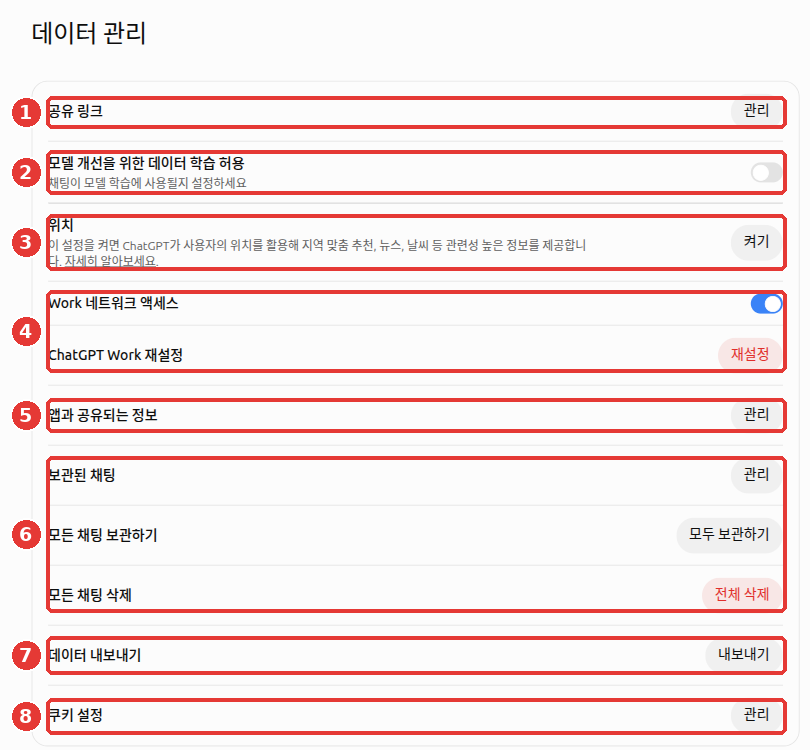
The red numbers in the image match the numbers in the table below.
| No. | Item | What it does | In this chapter |
|---|---|---|---|
| ① | Shared links (공유 링크) · Manage (관리) | View and delete conversation share links you created | Shared links |
| ② | Improve the model for everyone (모델 개선을 위한 데이터 학습 허용) | Toggle that decides whether your chats can be used for training | Turning off training |
| ③ | Location (위치) · Turn on (켜기) | Lets ChatGPT use your device location for local recommendations and weather | Explained below |
| ④ | Work network access (Work 네트워크 액세스) · Reset ChatGPT Work (ChatGPT Work 재설정) | Settings for the Work feature | Explained below |
| ⑤ | Information shared with apps (앱과 공유되는 정보) · Manage (관리) | Manage information shared with connected apps (plugins) | Chapter 7 |
| ⑥ | Archived chats (보관된 채팅) · Archive all chats (모든 채팅 보관하기) · Delete all chats (모든 채팅 삭제) | Hide chats or delete them all at once | Archive and delete |
| ⑦ | Export data (데이터 내보내기) · Export (내보내기) | Download your entire chat history as a file | Export |
| ⑧ | Cookie settings (쿠키 설정) · Manage (관리) | Settings for small records (cookies) that websites leave in your browser | — |
Work settings: Work is a feature where you hand off a long task and get back a finished result (Chapter 7). This guide does not cover the two settings in ④. If you don't use Work, you can leave them as they are.
Location: Device location sharing is turned off at first.[2] Even if you leave it off, ChatGPT knows your rough area from your internet connection address (IP address). You only need to turn this on when you really want neighborhood-level answers like "weather in my neighborhood."
Quick check
Where do you go in ChatGPT to manage model training, shared links, and data export all on one screen?
Stopping Your Chats from Being Used for Training
Model training is when an AI company collects people's chats and uses them to teach the next AI to be smarter. Improve the model for everyone (모델 개선을 위한 데이터 학습 허용) is the switch that controls this. In the help docs, its English name is Improve the model for everyone.
It Might Be Turned On at First
Whether this switch starts turned on or off can vary depending on your plan and region.[3][4][5] So don't just assume "mine is probably off." Open your settings and check for yourself. The image above shows the switch turned off (gray).
How to Turn It Off
- Open your account name → Settings → Data controls.
- Click the switch to the right of Improve the model for everyone (② in the first image of this chapter) so it turns gray. If a confirmation pop-up appears, click Done (완료).
If you change it while logged in, the change applies to all devices logged into the same account (including the mobile app). If you change it while logged out, it is saved only in that browser.[4:1]
What Does Not Change When You Turn It Off
Let's clear up four common misunderstandings about this switch.
- Does turning it off erase my chat history? No. Your history stays right where it is in the sidebar.
- Does turning it off mean none of my chats are ever used for training? Not quite. If you send feedback—like clicking the thumbs-up or thumbs-down button below an answer to rate whether it was good—that entire conversation may be used for training.
- Does turning it off stop my chats from being saved? No. They aren't used for training, but your chats are still saved on the servers. If you want to erase them, see Archiving and Deleting All Chats below.
- If I leave it on, are materials from connected Google apps used for training too? No. The help docs state that data read directly from connected Google apps (like Gmail or Drive) is not used for training even when the switch is on. However, there are exceptions: chats where you sent feedback (thumbs-up or thumbs-down), content you copied, pasted, or uploaded yourself, and content included in ChatGPT's replies.[6]
Alongside training permissions, what you write in Custom Instructions (Chapter 5) also follows this switch.[7] So you can block both with a single switch.
Quick check
Even after turning off "Improve the model for everyone," when can a chat still be used for training?
Managing Shared Links
A share link you create to show a conversation to someone else can be viewed by anyone who has the link address. You cannot block specific people, and there is no expiration date that makes it disappear on its own.[8] We saw how to create a link in Chapter 3. Here, we look at how to clean up links you created in the past.
- In Data controls, click Manage next to Shared links.
- Delete unneeded links one by one from the list, or delete them all at once with Delete all shared links (모든 공유 링크 삭제).
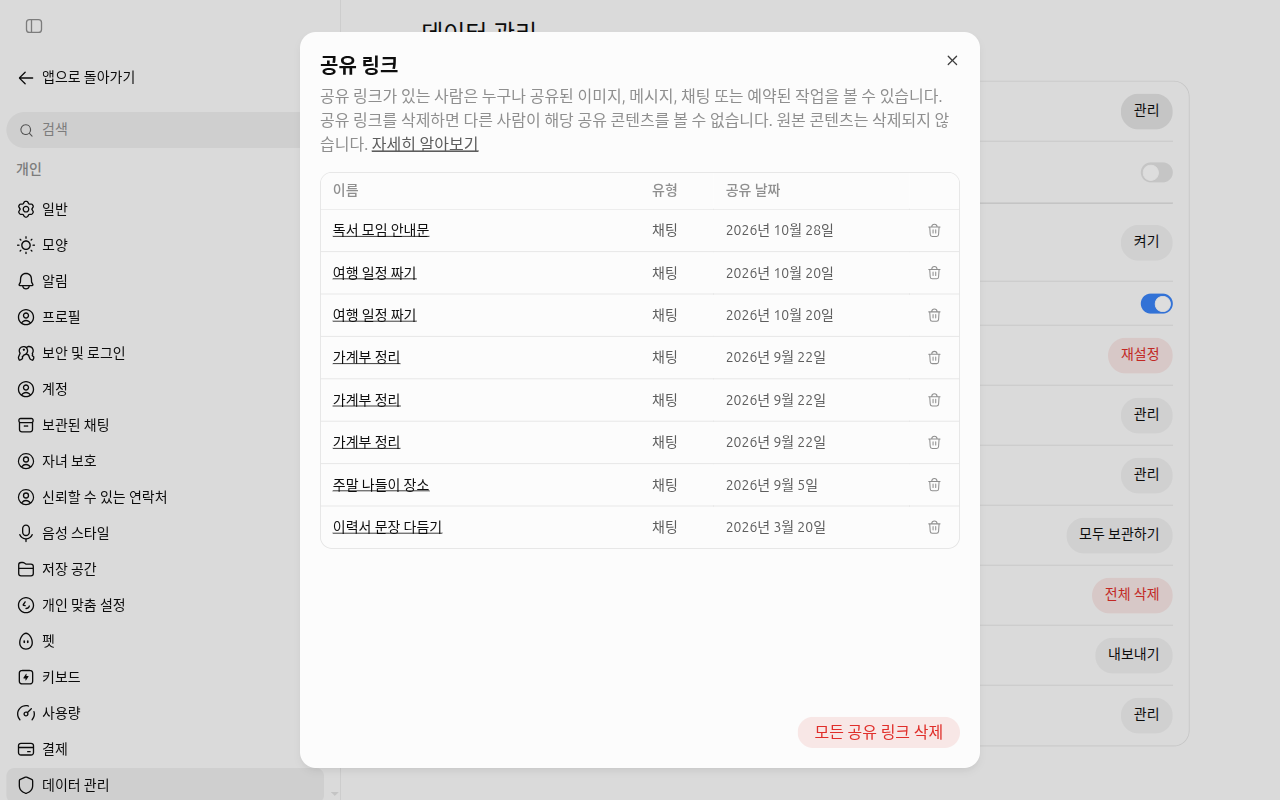
The link names in this screen were replaced with examples. Click the trash can button at the end of a row to delete links one by one.
Once you post a link in a group chat, you have no way of knowing how far it has spread. Deleting the link is the surest way to take it back.
Quick check
Archiving and Deleting All Chats
There are two ways to clean up your chats, and their results are completely different.[9]
| Archive | Delete | |
|---|---|---|
| In the sidebar | Disappears | Disappears |
| Chat content | Stays as is. Still shows up in chat search | Scheduled to be permanently deleted from OpenAI systems within 30 days |
| Undo | Unarchive in Archived chats | Impossible. Even customer support cannot bring it back |
In Data controls, you can do this for all your chats at once.
- Archived chats · Manage: View your list of archived chats and unarchive them.
- Archive all chats · Archive all (모두 보관하기): Clear your sidebar all at once. The content stays saved.
- Delete all chats · Delete all (전체 삭제): Erase every conversation. You cannot undo this. Before clicking it, download a backup using Exporting Your Data below.
Some things remain even after you delete a chat.
- Among the files you uploaded to chats, files saved separately in your Library (Chapter 4) remain.[9:1] Delete those separately in the Library.
- Any saved memories (Chapter 5) created from that chat also remain.[10] Delete those separately in Personalization (개인 맞춤 설정) (Chapter 5).
If you don't want a conversation to leave a record from the start, Temporary Chat is simpler. Start one with the Temporary Chat (임시 채팅) button in the top right. It won't stay in your chat history and won't be used for model training. However, a copy may be kept for up to 30 days for safety reasons.[11] See Chapter 3 for detailed instructions.
Quick check
You are about to press "Delete all chats" in "Data controls". What does this chapter suggest doing first?
Exporting Your Data
Export data lets you download your entire chat history and account information so far as a single compressed file (a ZIP file, which bundles multiple files into one). Use it as a backup before deleting all chats or deleting your account.[12]
- In Data controls, click Export next to Export data.
- In the confirmation pop-up, click Confirm export (내보내기 확인).
- A download link will arrive at the email address (or phone number via text) you signed up with. It can take up to 7 days.
- The link expires 24 hours after you receive it. Download the file as soon as the email arrives. If you miss the window, you can just request it again.
This is available on Free, Go, Plus, and Pro personal accounts. You cannot use it while logged out.[12:1]
The downloaded file contains all of your conversations. Do not download it on a public computer, and do not upload it to a cloud folder you share with others.
There is no feature to move your chats to another account. You cannot merge two accounts or move your entire chat list over. The most you can do is upload your downloaded history into a chat on your new account as reference material. Your old chats will not appear in the sidebar.[13]
- Unzip the downloaded file. Usually you can double-click the file, or use Extract (압축 풀기) from the right-click menu.
- In the unzipped folder, find the
conversations.jsonfile. This file holds your chat history as text. The.jsonat the end is just the name of the file format, so you don't need to worry about it. - Upload this file into a chat on your new account and ask something like "Find what we talked about for last month's trip plan in this history."
Quick check
You requested "Export data" and got a download link by email. What should you keep in mind?
Deleting Your Account
When you no longer want to use ChatGPT, you can delete your account.[14]
- Open Settings → ① Account (계정).
- Next to ② Delete account (계정 삭제), click Delete (삭제).
- When the confirmation window pops up, read the notice and continue. If more than 10 minutes have passed since you logged in, you will need to click Log in again (다시 로그인) first.[15]
- Follow the prompts to type your email address and
DELETE, then click Permanently delete my account (내 계정을 영구 삭제하기).
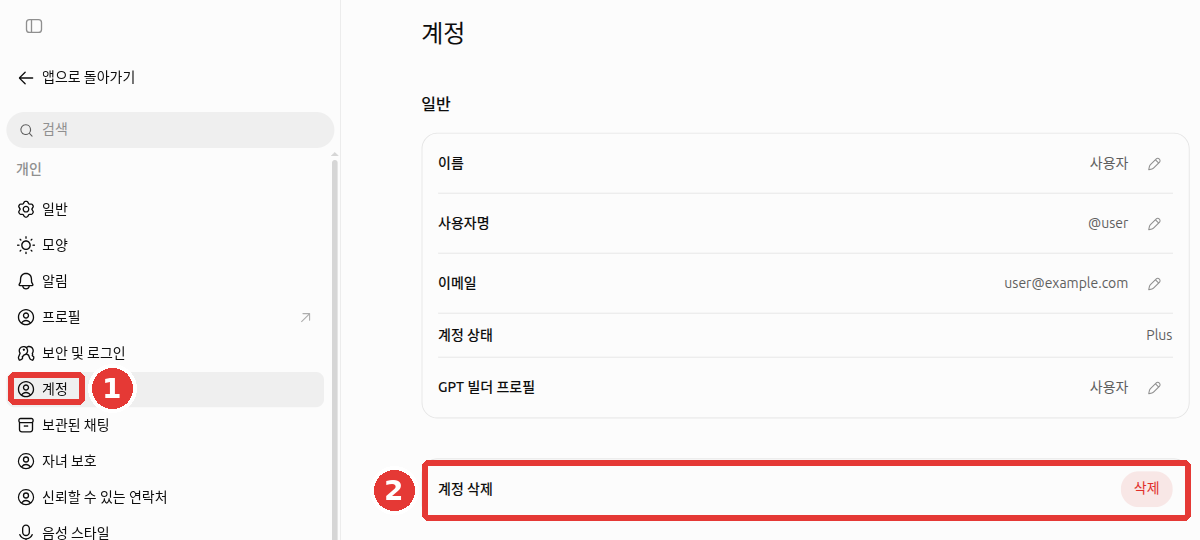
The name, username, and email in this screen were replaced with examples. We did not click Delete.
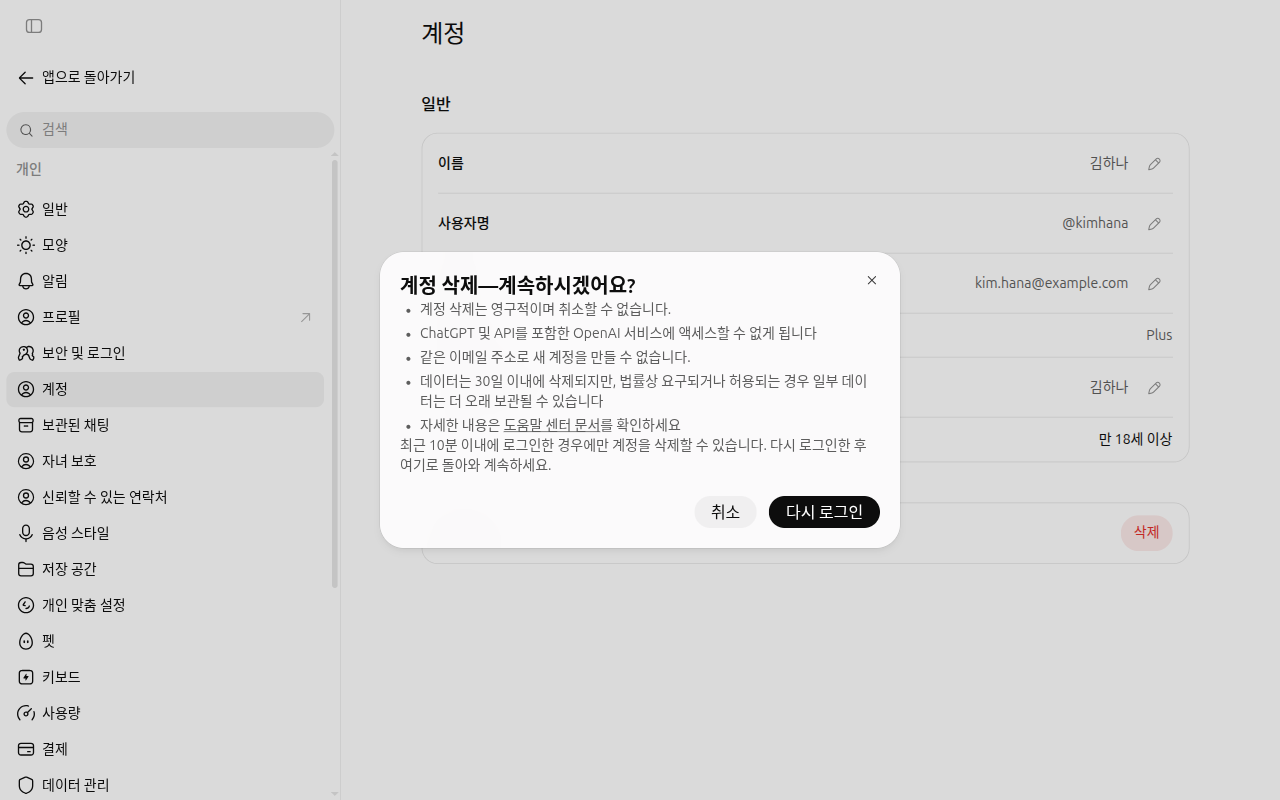
Clicking Delete does not erase your account right away; this window pops up first. You can continue immediately only if you logged in within the last 10 minutes. If you left the window open for a while, click Log in again first. On this screen, we clicked Cancel (취소).[15:1]
| After deletion | Details |
|---|---|
| Data | Deleted within 30 days (except where required to be kept by law) |
| Recovery | Impossible |
| Signing up again | It may be difficult with the same email[16][14:1][15:2] |
Cancel your subscription separately. Subscriptions paid through the iPhone App Store (Apple) are not canceled when you delete your account.[14:2] Deleting the app from your phone does not stop your subscription either.[17] So before you delete your account, make sure to cancel your subscription first wherever you set up payment.
Quick check
Someone who paid for a ChatGPT subscription through the iPhone App Store wants to delete their account. What should they do first?
Protecting Your Account
Your account holds all of your conversations. Protecting it with just a password is risky. Check the items below under Settings → Security (보안 및 로그인).[18]
- Multi-factor authentication (MFA) (다중 인증(MFA)): Checks your identity one more time beyond your password using a one-time code from an authenticator app or a 6-digit code sent by text message. We recommend turning this on (our guide's suggestion).
- Passkeys and security keys (패스키 및 보안 키): Log in using methods like your phone's fingerprint or face recognition instead of a password. This method is strong against phishing (tricks that use fake websites to steal your password).
- Active sessions (활성 세션): View all devices logged into your account. You can remove a device or log out of all devices.
- Connected logins (로그인 연동) → Sign in with ChatGPT (ChatGPT로 로그인): View other apps and websites where you logged in with your ChatGPT account and revoke their access.
- Lockdown Mode (락다운 모드): Explained below.
If you see unfamiliar chats or devices, change your password right away. Changing it will log out all devices within 30 minutes. If you have been logging in with a Google or Microsoft account, you need to change the password for that company's account.[19] Do not share your account among multiple people. Sharing makes it easy for your account to get flagged for unusual activity.[20]
When you click Sign in with ChatGPT on another app or website, that site receives only your name, email address, and profile picture.[21] Your chat content is not shared. Still, check Connected logins from time to time to clean up where you have logged in.
Lockdown Mode is a setting that blocks outside connection features. It reduces the risk of information leaking through malicious instructions hidden inside web pages or files (prompt injection).[22] It is designed for people and organizations that handle sensitive data, so you normally do not need to turn it on (our guide's view).
More about Lockdown Mode (click to expand)
- It limits web browsing to pre-saved (cached) content and blocks features like deep research.[22:1]
- The help docs state that this feature is not meant for everyone. It does not stop hidden instructions from appearing, either.[22:2]
- Depending on your plan and account, you might not see this menu.
- To learn what hidden instructions are, see Part 1, Chapter 9.
Quick check
You see chats in your sidebar that you never had. What is the very first thing you should do?
Features for Family and Safety
In Settings, you will find Parental controls (자녀 보호) and Trusted contact (신뢰할 수 있는 연락처).[18:1] You can use ChatGPT without any trouble even if you leave both off. Still, knowing what they do—and what they do not do—helps avoid misunderstandings.
Parental controls link a parent or guardian's account with a teen's account (under age 18). The parent or guardian can adjust certain features, set quiet hours, and receive safety notifications in rare situations.[23]
- Parents cannot read their teen's chats. Linking accounts does not give the parent access to conversation content, chat history, or current activity.[23:1]
- If ChatGPT's usage signals suggest a user is under 18, teen protections may turn on automatically. If you are an adult and were mistaken for a teen, you may be able to remove these restrictions by completing age verification (see "More details" below).[24]
Trusted contact lets an adult choose one person in advance. If there is a conversation raising serious safety concerns around suicide, ChatGPT may send a notification asking that person to check in on you. Trained reviewers check the case after automated detection.[25]
- The notification does not include the content of your chats.[25:1]
- It is not an emergency service. It does not work in voice conversations. If you are in danger right now, do not wait for this feature—contact emergency services or a crisis helpline immediately.[25:2]
In conversations where you share difficult feelings, ChatGPT may show crisis helplines for your area.[26]
More details — Conditions for age verification and trusted contact (click to expand)
Age verification: This only works if age verification is available on your account (this varies by account). An outside company called Persona handles the verification. OpenAI does not receive your ID or selfie, and you do not need to show ID numbers like a national registration number or Social Security number.[24:1]
Here are the conditions for Trusted contact.
- It works only on personal accounts. It is not enabled in company or school workspaces like Business, Enterprise, or Edu.[25:3]
- In Korea, both you and the person you choose as your contact must be 19 or older (18 or older in other countries).[27]
- The person you choose must accept the invitation within 1 week for the feature to become active. You can also choose someone who does not have a ChatGPT account.[25:4][28]
Crisis helpline guidance: OpenAI provides these local helplines in partnership with ThroughLine, an organization specializing in crisis support connections.[26:1]
Quick check
A parent linked their teen's account using parental controls. What can the parent do?
How Work Accounts Are Different
Group plans contracted by companies or schools—Business (formerly Team), Enterprise, and Edu for schools—do not use chat content for training by default.[4:2] If you use a work account, your company's AI usage policy comes before the training switch above. Check with the responsible team at your company to see what you are allowed to enter.
On the flip side, if you do company work on a personal account, you do not get this protection. Only handle company materials on an account approved by your company.
Here are a few more things to keep in mind about work accounts:
- Administrators can manage your chats. Depending on the settings, a company administrator may be able to view, export, audit, retain, or delete data in that account. They can also agree to share data with OpenAI to improve its models.[29] Think of chats on a work account as company records.
- Personal accounts and work accounts are separate. Switching between accounts does not move your chats, files, or settings over.[29:1]
- You may see a prompt asking you to merge your personal workspace into your company workspace. Merging cannot be undone. If you leave the company, you may lose access to the chats you moved over. You cannot export data yourself from a company workspace, either. So before merging, export your personal history first.[30]
- If your company turns off the Memory feature, your saved memories in that company workspace are deleted.[31]
Quick check
Which statement is true for an employee working with a company ChatGPT Business account?
Try It Yourself
1. Check Your Training Setting
Open Settings → Data controls and see whether Improve the model for everyone is turned on. Set it the way you want, and if you have the mobile app, check the app to confirm it changed to the same setting there too.
2. Clean Up Your Shared Links
Open Shared links → Manage and count how many active links you currently have. Delete any links you no longer need to show others.
3. Get a Personal Settings Checklist from ChatGPT
I use ChatGPT with a personal account.
I want to stop my chats from being used for training and clean up my old shared links.
Make me a checklist (☐) of the items I need to check myself on the Settings screen.
If you are not sure of an exact menu name, don't make it up—just write "Check on screen".
Compare the menu names in the checklist you get with the table in this chapter. If they differ, the name you see on your screen is the right one.
Ongoing Project (Preparing a Book Club): In Settings → Data controls, check Improve the model for everyone and your Shared links list. Decide how you want to set these if you upload real club materials to your "Book Club" project.
Summary
- On a single screen under Settings > Data controls, you manage training permissions, shared links, archiving and deletion, and data export.
- Improve the model for everyone may be turned on at first depending on your plan and region. Open it and check for yourself. Even when it is off, chats where you send feedback may still be used for training.
- Anyone with a shared link can view it, and links do not expire. Delete unneeded links under Manage.
- Archiving hides chats; deleting permanently erases them within 30 days and cannot be undone. Delete Library files and saved memories separately.
- Download your data export within 24 hours of receiving the link. Cancel your subscription first before deleting your account.
- Turn on multi-factor authentication under Security, and log out any unfamiliar devices. Changing your password logs out all devices within 30 minutes.
- Linking parental controls does not let parents read their teen's chats. Trusted contact requires both people to be 19 or older in Korea and is not an emergency service.
- Work accounts (Business, Enterprise, Edu) are not used for training by default, but company policy comes first and administrators can access your chats.
Glossary
| Term | One-line meaning |
|---|---|
| Data controls | The settings screen where you control training, archiving, and deletion for your chats |
| Model training | Teaching the next AI using collected conversations |
| Share link | An address that shows a chat to others. Anyone with the link can view it |
| Archive | Hiding a chat from the sidebar without deleting it |
| Export | Receiving your entire history as a file |
| ZIP | A compressed file that bundles multiple files into one to reduce size |
| Cookie | A small record that a website leaves in your browser |
| Subscription | A plan you pay for each month to use a service |
| MFA (Multi-Factor Authentication) | A login method that verifies your identity one more time beyond your password |
| Passkey | A way to log in using your device's fingerprint or face recognition instead of a password |
| Lockdown Mode | A setting that blocks outside connection features to reduce the risk of data leaking through hidden instructions |
| Prompt Injection | An attack that uses instructions hidden inside a web page or file to make an AI act in unintended ways |
| Parental Controls | A feature that links a parent's account with a teen's account to manage certain features and hours |
| Trusted Contact | A person chosen in advance to receive a check-in notification during a safety crisis |
Finished this chapter?
Progress is saved only in this browser. See your progress on the full table of contents.
Next chapter: Chapter 9. Talking with Voice
References (31)
In the official Korean help docs, this menu is written as 「데이터 제어」 (Data controls). On the actual Korean screen, its name is 「데이터 관리」. ↩︎
OpenAI Help Center, "Searching the web with ChatGPT". "Device location sharing is optional and off by default." Uses IP for approximate location. help.openai.com (checked on 2026-10-23) ↩︎
One OpenAI help page ("Data controls in ChatGPT") says it is turned on by default for Free, Plus, and Pro personal accounts. Another page ("The ChatGPT home page") says it depends on your region and settings. ↩︎
OpenAI Help Center, "Data controls in ChatGPT". On by default for Free, Plus, and Pro personal workspaces; applies across all devices when logged in; saved only to that browser when logged out; entire conversation may be used for training when feedback is given; Business, Enterprise, and Edu do not train on data by default. help.openai.com (checked on 2026-10-23) ↩︎
OpenAI Help Center, "The ChatGPT home page". Whether chats are used for training "depends on your location and settings". help.openai.com (checked on 2026-10-23) ↩︎
OpenAI Help Center, "Google app data controls FAQ". "Even if this setting is enabled, we do not train our generalized models on data accessed directly from connected Google apps." help.openai.com (checked on 2026-10-24) ↩︎
OpenAI Help Center, "ChatGPT Custom Instructions". Information from Custom Instructions use may also be used to improve models, and you can opt out via your training settings. help.openai.com (checked on 2026-10-23) ↩︎
OpenAI Help Center, "Sharing conversations and scheduled tasks in ChatGPT". Anyone with the link can view, no expiration date setting, delete individual or all shared links under Shared links > Manage. help.openai.com (checked on 2026-10-23) ↩︎
OpenAI Help Center, "Deleting and archiving chats in ChatGPT". Deletion schedules permanent removal within 30 days and cannot be restored; archiving only removes from the sidebar and still appears in search; deleting all chats cannot be undone; deleting a chat does not delete Library files. help.openai.com (checked on 2026-10-23) ↩︎
OpenAI Help Center, "Memory in ChatGPT". "Deleting the original chat does not automatically delete a separate saved memory." help.openai.com (checked on 2026-10-23) ↩︎
OpenAI Help Center, "Temporary chat in ChatGPT". Does not appear in history, is not used for training, and may be kept for up to 30 days for safety purposes. help.openai.com (checked on 2026-10-23) ↩︎
OpenAI Help Center, "Exporting your ChatGPT history and data". Sends link via email or SMS, takes up to 7 days, "The download link expires 24 hours after you receive it.", ZIP file, available on Free, Go, Plus, and Pro, unavailable when logged out. help.openai.com (checked on 2026-10-23) ↩︎
OpenAI Help Center, "Transfer exported conversations between ChatGPT accounts". "This is not a full account migration." / "Find conversations.json." help.openai.com (checked on 2026-10-24) ↩︎
OpenAI Help Center, "Deleting your ChatGPT account". Deletes data within 30 days (with legal exceptions), cannot be reactivated, can sign up again with the same email after 30 days, "Deleting your account does not cancel an Apple subscription." help.openai.com (checked on 2026-10-23) ↩︎
Verified directly from the confirmation window that appears when clicking Settings → Account → Delete. It states that you can only delete your account if you logged in within the last 10 minutes ("최근 10분 이내에 로그인한 경우에만 계정을 삭제할 수 있습니다."). This window also states that you cannot create a new account with the same email address ("같은 이메일 주소로 새 계정을 만들 수 없습니다."), which differs from the help docs saying you can sign up again after 30 days. If you plan to sign up again, double-check the help docs before deleting (checked on 2026-10-28, Plus account web screen) ↩︎
The help docs ("Deleting your ChatGPT account") say you can sign up again with the same email after 30 days. However, the deletion confirmation window says you cannot create a new account with the same email. If you plan to sign up again, double-check the help docs before deleting. ↩︎
OpenAI Help Center, "About ChatGPT Pro tiers". "Uninstalling the ChatGPT app does not cancel your subscription." help.openai.com (checked on 2026-10-23) ↩︎
Verified directly on the ChatGPT web settings screen (Plus plan, Korean UI). Under Security (보안 및 로그인): Multi-factor authentication (MFA) (다중 인증(MFA)), Passkeys and security keys (패스키 및 보안 키), Active sessions (활성 세션), Connected logins — Sign in with ChatGPT (로그인 연동 — ChatGPT로 로그인), Lockdown Mode (락다운 모드) and their on-screen descriptions ("Use a one-time code from an authenticator app" ("인증 앱의 일회용 코드 사용"), "Receive a 6-digit verification code" ("6자리 인증 코드를 받습니다"), "Remove trusted devices or log out of all devices" ("신뢰하는 기기를 제거하거나, 모든 기기에서 로그아웃")), plus Parental controls (자녀 보호) and Trusted contact (신뢰할 수 있는 연락처) in the settings menu (checked on 2026-10-24) ↩︎
OpenAI Help Center, "I'm seeing unrecognized activity on my OpenAI account.". "Once you change your password, all current sessions will be logged out within 30 minutes." / "If you have logged in with Microsoft or Google authentication, you'll need to reset your Microsoft or Google account password." help.openai.com (checked on 2026-10-24) ↩︎
OpenAI Help Center, "Troubleshooting ChatGPT Error Messages". "Ensure you are not sharing your ChatGPT account with other people". help.openai.com (checked on 2026-10-24) ↩︎
OpenAI Help Center, "Sign in with ChatGPT". "the external application receives only your name, email address, and profile picture, if you have one." help.openai.com (checked on 2026-10-24) ↩︎
OpenAI Help Center, "Lockdown Mode". "Web browsing is limited to cached content." / "Deep research is disabled." / "It is designed for people and organizations that handle sensitive data" / "Lockdown Mode is not intended for everyone." / "Lockdown Mode does not prevent prompt injections from appearing in the content ChatGPT processes." help.openai.com (checked on 2026-10-24) ↩︎
OpenAI Help Center, "Managing parental controls in ChatGPT". "Parental controls let a parent or guardian link their ChatGPT account to a teen’s account, manage selected settings, set schedules, and receive safety notifications in limited situations." / "Linking accounts does not give a parent or guardian access to a teen’s conversations, chat history, or real-time activity." help.openai.com (checked on 2026-10-24) ↩︎
OpenAI Help Center, "Age prediction in ChatGPT". "OpenAI uses Persona, a third-party service, to verify your age." / "OpenAI does not receive your ID or selfie." / "You do not need to show ID numbers, such as a national ID number or Social Security number." help.openai.com (checked on 2026-10-24) ↩︎
OpenAI Help Center, "Trusted contacts in ChatGPT". "if automated systems and trained reviewers detect you may be talking about suicide in a way that signals a serious safety concern, ChatGPT may notify your trusted contact" / "Your chat details or transcripts are not shared." / "Trusted contact is not an emergency service, a crisis response system, or a substitute for mental health care." / "Trusted contact is not currently available in ChatGPT Voice." / "It is available for personal ChatGPT accounts, and is not enabled in shared workspaces such as ChatGPT Business, Enterprise, or Edu." help.openai.com (checked on 2026-10-24) ↩︎
OpenAI Help Center, "Crisis helpline support in ChatGPT". "As part of our partnership with ThroughLine, we have introduced localized helplines in ChatGPT". help.openai.com (checked on 2026-10-24) ↩︎
OpenAI Help Center, "Managing parental controls in ChatGPT". "Trusted Contact is a separate, optional feature for adults 18 or older, or 19 or older in Korea." The Korean settings screen also states that both the user and the person designated as the contact must be 19 or older ("사용자 본인과 해당 연락처로 지정된 사람 모두 만 19세 이상이어야 합니다") (checked on 2026-10-24). help.openai.com (checked on 2026-10-24) ↩︎
OpenAI Help Center, "Adding and managing a trusted contact". "If the person accepts the invitation within 1 week, the feature becomes active." help.openai.com (checked on 2026-10-24). That a ChatGPT account is not required comes from "Being someone’s trusted contact": "You do not need a ChatGPT account to be someone’s trusted contact." help.openai.com (checked on 2026-10-24) ↩︎
OpenAI Help Center, "Data access for your managed ChatGPT account". "your administrator may be able to access, export, audit, retain, delete, and opt-in to share data tied to this account with OpenAI to improve OpenAI’s models." / "Switching accounts does not move chats, files, or settings between accounts." help.openai.com (checked on 2026-10-24) ↩︎
OpenAI Help Center, "Migrating your personal workspace to ChatGPT Business or Enterprise". "Migration does not provide an undo option" / "If you leave, are removed, or lose access to the destination workspace, you may also lose access to that content." / "Self-service data export is not available in ChatGPT Business or Enterprise workspaces." help.openai.com (checked on 2026-10-24) ↩︎
OpenAI Help Center, "Memory FAQ (Business Version)". "If a workspace owner turns off Memory for the workspace, existing saved memories for members in that workspace are deleted." help.openai.com (checked on 2026-10-24) ↩︎