Chapter 3. Managing Conversations — Finding, Organizing, Sharing, and Hiding
Required Read this to follow this stage.In short: As your chats pile up, find them with Search, and archive or delete the ones you don't use. Use a shared link to show a chat to someone else, Temporary Chat when you don't want to leave a record, and Locked Chat for conversations you don't want someone next to you to see.
The screens shown here are based on the web version (Plus plan) as of October 2026. Menu locations may look slightly different on the free plan or mobile app.
Starting a New Chat
Click "New chat (새 채팅)" at the top of the sidebar to open a blank conversation. Once you send your first question, the chat appears under "Recents (최근)" in the sidebar.
You learned when to open a new chat in Stage 1. Do it when the topic changes, when the AI keeps forgetting your initial instructions, or when the conversation gets too long (Stage 1, Chapter 6). The same rule applies in ChatGPT. When moving a long conversation, ask for a handoff note like this and paste it into the new chat.
I want to continue this conversation in a new chat. Please list what we've decided so far, my preferences, and what's left to do by category.What the reply roughly looks like (example — click to expand) (click to expand)
This is an example created for this guide. Actual replies vary by service and situation.
If you were planning a family trip, it might look like this.
What we've decided so far
- Week ○ of Month ○, ○ nights and ○ days
- Traveling with parents
My preferences
- Keep walking schedules short
- Quiet place to stay
What's left to do
- Pick one of the ○ hotel options
- Decide on a restaurant for the first night's dinner
Check if you got a good summary: Is it divided into three parts — decisions made, your preferences, and what's left to do? Is anything you decided missing? Is anything still undecided written as if it were already decided?
Quick check
A chat has gotten too long, so you want to move to a new chat. What is the best way?
Finding Past Conversations — Search Chats
Click the magnifying glass ("Search (검색)") at the top of the sidebar to open the search window. On your keyboard, press Ctrl+K on Windows or Cmd+K on Mac.[1]
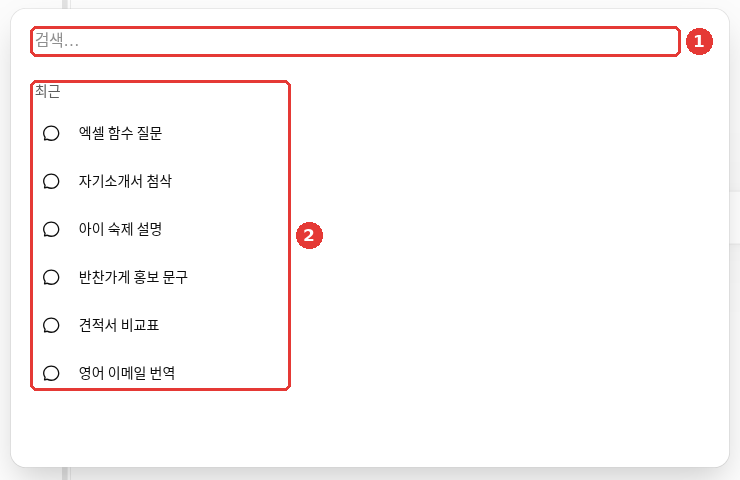
Chat titles and the account name in this screen have been replaced with examples. Type a word in ① the "Search… (검색…)" box, or leave it blank to see ② your "Recents (최근)" chat list.
If you want to find "the chat where I asked about Excel functions last week," just type Excel in ① the "Search…" box. Keep a couple of things in mind.[1:1]
- Chat search is not an internet search. It only searches inside your own chats, projects, and files. To search the internet, use "Web search (웹 검색)" in the + menu (Chapter 6).
- Deleted chats do not show up, but archived chats do. You will see the difference between archiving and deleting in the next section.
Quick check
What can you do with the magnifying glass ("Search") in the sidebar?
Organizing Conversations — Pin, Archive, and Delete
Use the More menu (•••, the three-dots button) next to any chat in the sidebar to organize it.[2]
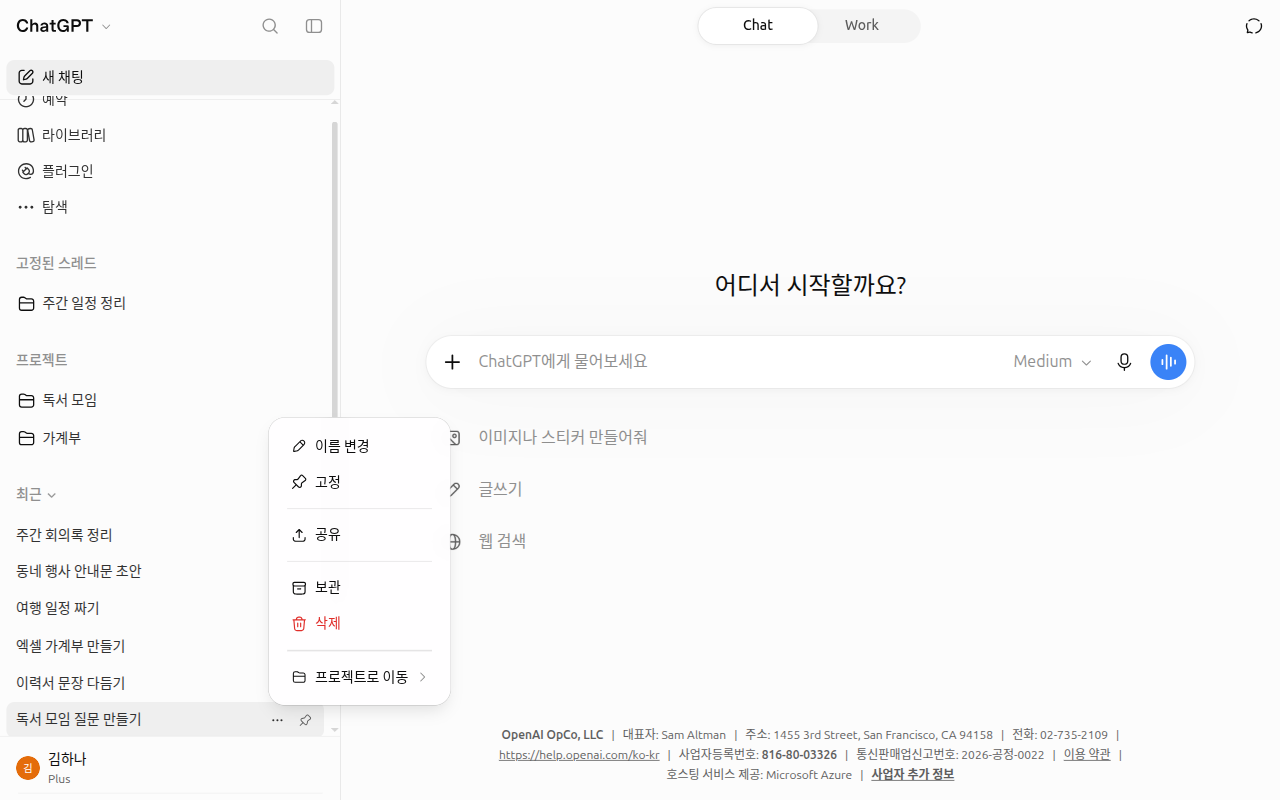
Chat titles and names in this screen have been replaced with examples.
The menu includes "Rename (이름 변경)", "Pin (고정)", "Share (공유)", "Archive (보관)", "Delete (삭제)", and "Move to project (프로젝트로 이동)".[3] Change a chat's title with "Rename". For chats you open often, click "Pin" to keep them under "Pinned threads (고정된 스레드)" near the top of the sidebar.
Archiving and Deleting Are Different
| "Archive (보관)" | "Delete (삭제)" | |
|---|---|---|
| In the sidebar | Disappears | Disappears |
| Confirmation popup | Archived right away without one | — |
| In chat search | Shows up | Does not show up |
| Undoing it | Undo with "Unarchive (보관 취소)" | Cannot be undone (even customer support cannot recover it) |
Source: OpenAI Help Center[2:1]
Think of Archive as putting a chat into a drawer, and Delete as throwing it away. If you are not sure, archive it first. You can undo an archive, but you cannot undo a deletion.[4] You can bring back archived chats from Settings → "Archived chats (보관된 채팅)".
If a chat is missing from the sidebar, that does not necessarily mean it was deleted.[5] First check that you are logged in to the same account (Chapter 1), then try finding it with chat search. Archived chats still show up in search.
When you click "Delete (삭제)", a confirmation window pops up saying "This will permanently delete (chat title). This cannot be undone." You must click "Delete chat (채팅 삭제)" to erase it.[3:1]
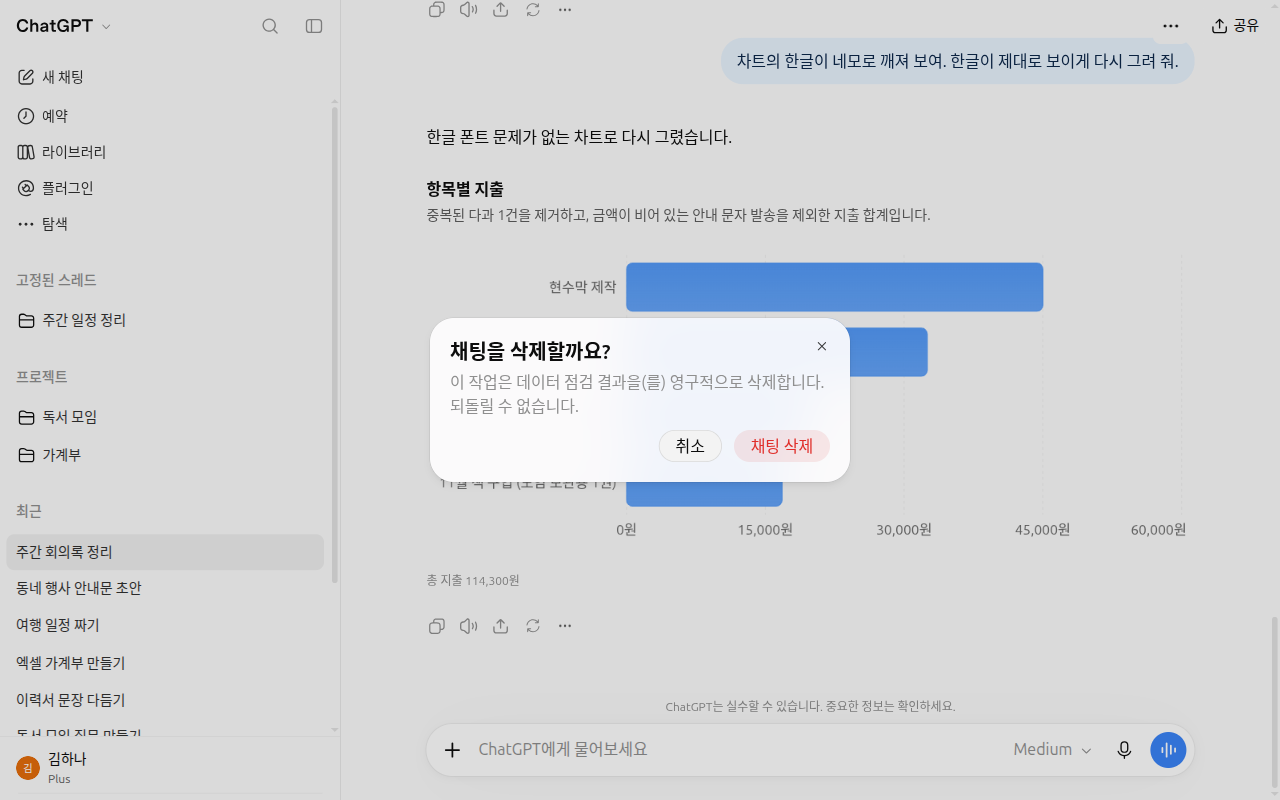
To clean up everything at once, go to Settings → "Data controls (데이터 관리)" and use "Archive all chats (모든 채팅 보관하기)" or "Delete all chats (모든 채팅 삭제)". "Delete all chats" cannot be undone.[2:2]
Deleting a chat still leaves its files behind. If a file you uploaded in a chat is saved separately in "Library (라이브러리)", deleting the chat does not delete the file. Delete the file separately in Library (Chapter 4).[2:3]
Quick check
What is the real difference between "Archive" and "Delete" for a chat?
Showing a Conversation — Shared Links
If you want to show a conversation to someone else, click "Share (공유)" on the chat screen. Click "Create link (링크 만들기)" or "Copy link (링크 복사)" on the screen, then paste it into a messenger. The link address looks like https://chatgpt.com/share/….[6]
Remember that a shared link is a snapshot of that exact moment, like taking a photo.[6:1]
- Messages sent after you create the link are not included. To show new messages as well, you need to click "Update link (링크 업데이트)".
- Anyone with the link can view it. You cannot restrict it to specific people, and the link can be forwarded elsewhere.
- There is no expiration date. It does not disappear on its own. Delete it yourself when you no longer need it.
- By default, your name is not shown (anonymous).
You can delete links you created one by one under Settings → "Data controls (데이터 관리)" → "Shared links — Manage (공유 링크 — 관리)", or delete all of them at once with "Delete all shared links (모든 공유 링크 삭제)".[6:2] Before sharing, scan the chat once to make sure it does not contain personal information like names or phone numbers (Stage 1, Chapter 9). Anyone who has the link can read it.
Quick check
Leaving No Record — Temporary Chat
For conversations you do not want left in your history — like picking out a gift — use Temporary Chat. Click the "Temporary Chat (임시 채팅)" button in the top right to switch to the Temporary Chat screen. The first time you turn it on, an info prompt may appear first.
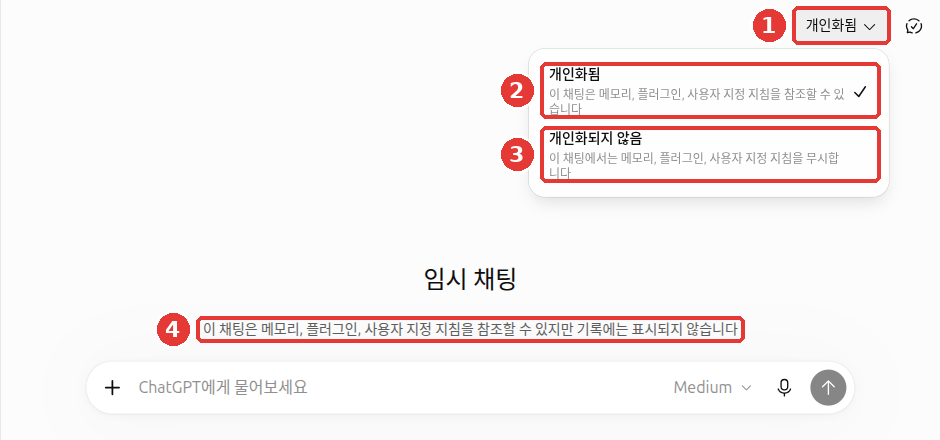
Clicking ① the "Personalized (개인화됨)" button at the top right opens a menu where you choose between ② "Personalized (개인화됨)" and ③ "Unpersonalized (개인화되지 않음)". ④ is the note saying the chat will not stay in your history.
Temporary Chat has three main traits.
- It does not stay in your history (text ④ in the image). It does not appear in your sidebar chat list. However, OpenAI may keep a copy for up to 30 days for safety purposes.
- It is not used for training. This conversation is not used to train and improve the AI.
- It does not create new memories. Nothing you say in a Temporary Chat is newly saved to Memory (Chapter 5).
With the "Personalized (개인화됨)" button at the top right (① in the image), you choose whether this chat also uses the things ChatGPT usually refers to about you.[7][8]
- Memory: What ChatGPT has remembered about you (e.g., "has two kids"). You will learn about it in Chapter 5.
- Custom instructions: Rules you have written for it to always follow, like "Keep answers short." You will also learn about these in Chapter 5.
- Plugins: Connections between ChatGPT and other services that add features. You will learn about them in Chapter 7.
| Choice | Meaning |
|---|---|
| ② "Personalized (개인화됨)" (default) | Replies using your saved memories, plugins, and custom instructions |
| ③ "Unpersonalized (개인화되지 않음)" | Replies without using your memories, plugins, or custom instructions (limited information may still be used for safety) |
You must choose before sending your first message. You cannot change this after the conversation starts.[7:1][9]
Here are a few things to keep in mind.
- It does not mean "stored nowhere at all." A copy may be kept for up to 30 days. Do not put sensitive info like passwords into Temporary Chat either.[7:2]
- Files uploaded in Temporary Chat are not saved to your "Library (라이브러리)".[10]
- You can also save it as a regular chat later. If you do, it follows your account's training settings just like a regular chat.[7:3]
- If you want a fresh answer without any information about you, choose "Unpersonalized (개인화되지 않음)" before you start.
Some features are unavailable in Temporary Chat (click to expand)
On the October 2026 web screen, the + menu in Temporary Chat had "Create image (이미지 생성)" grayed out and did not include "Deep research (심층 리서치)". "Add photos & files (사진 및 파일 추가)" and "Web search (웹 검색)" were available.
Quick check
Which statement is true about Temporary Chat?
Keeping Others Out — Locked Chat
If you share a computer with family and want to keep a health consultation chat out of sight, try Locked Chat. This feature began rolling out on October 20, 2026.[11]
- Click More (•••) on the chat you want to lock → "Lock chat (대화 잠그기)".
- Locked chats are gathered under "Projects (프로젝트)" → "Locked chats (잠긴 대화)".
- To open them, enter your 4-digit account PIN (a numeric passcode you set). On a phone, you can also use biometrics like Face ID.
You set your account PIN in Settings → "Security (보안 및 로그인)".[12][13]
There are important limits you must know.[12:1]
- It is a privacy screen, not a vault. It does not add separate encryption (scrambling content so others cannot read it). Retention periods and training settings stay the same as well.
- If you forget your PIN and reset it, all locked chats are permanently deleted. Any files inside them are erased too, and customer support cannot recover them. Make sure you remember your PIN.
- Some conversation types — such as temporary chats, archived chats, and chats created from shared links — cannot be locked.
Quick check
What happens if you forget your account PIN for locked chats and reset it?
Try It Yourself
- Open a "New chat (새 채팅)" and ask, "Recommend three family trip destinations for next month."
- Click the magnifying glass (Ctrl+K) and type
tripto find the chat you just had. - Choose "Archive (보관)" on that chat, search again to confirm it still appears, and then choose "Unarchive (보관 취소)" under Settings → "Archived chats (보관된 채팅)".
- Turn on "Temporary Chat (임시 채팅)", ask any question, return to a new chat, and check that the temporary chat is not listed under "Recents (최근)" in the sidebar.
Ongoing project (Preparing a Book Club): Press the magnifying glass (Ctrl+K) and type book to find the book club conversation from the previous chapter.
Summary
- Chat search only looks inside your own conversations. Archived chats show up, while deleted chats do not.
- Archiving can be undone, but deleting cannot. When in doubt, archive first.
- A shared link is a snapshot of the moment you created it, can be viewed by anyone with the link, and does not expire.
- Temporary Chat stays out of history and training and creates no new memories, though a copy may be kept for up to 30 days. Choose "Personalized" or "Unpersonalized" before starting to decide whether to use saved memories and instructions.
- Locked Chat hides conversations behind a PIN. Resetting your PIN deletes all locked chats.
Glossary
| Term | One-line meaning |
|---|---|
| Archive | Moving a chat out of your list without deleting it |
| Shared Link | A web address that lets you show a conversation to someone else |
| Snapshot | A record that captures a single moment as it was |
| Temporary Chat | A chat left out of history and training that creates no new memories |
| Personalized | A mode that tailors replies using your saved memories and instructions |
| Locked Chat | A conversation that requires a PIN to open |
| PIN | A short numeric passcode used to verify it is you |
| Encryption | Scrambling content so only authorized people can read it |
Finished this chapter?
Progress is saved only in this browser. See your progress on the full table of contents.
Next chapter: Chapter 4. Working with Files, Photos, and Creating Images
References (13)
OpenAI Help Center, "Finding your chats, projects, and files in ChatGPT". "press Ctrl+K on Windows or Cmd+K on macOS" / "Sidebar search finds your existing content. It does not search the web." help.openai.com (checked on 2026-10-23) ↩︎
OpenAI Help Center, "Deleting and archiving chats in ChatGPT". "schedules it for permanent deletion from its systems within 30 days" / "You cannot restore a deleted chat" / "No confirmation is required." / "Archived chats remain searchable." / "The Delete all chats action cannot be undone." / "Deleting a chat does not delete files saved separately in Library." help.openai.com (checked on 2026-10-23) ↩︎
Verified directly on the sidebar chat "Chat actions (채팅 액션)" (•••) menu and the "Delete (삭제)" confirmation window. The chat used for the screenshot was deleted after capturing (checked on 2026-10-28, Plus account web screen) ↩︎
Archived chats stay on the company's servers as they are. Deleted chats are scheduled for permanent deletion from the company's servers within 30 days. The source is "Deleting and archiving chats in ChatGPT" above. ↩︎
OpenAI Help Center, "Troubleshooting the ChatGPT mobile app". "A chat missing from the sidebar hasn't necessarily been deleted." help.openai.com (checked on 2026-10-24) ↩︎
OpenAI Help Center, "Sharing conversations and scheduled tasks in ChatGPT". "Messages added later are not included automatically." / "Shared links do not have configurable expiration dates." / "Personal-account links are available to anyone who has the link." / "anonymous by default" / "Shared conversation links begin with chatgpt.com" help.openai.com (checked on 2026-10-23) ↩︎
OpenAI Help Center, "Temporary chat in ChatGPT". "OpenAI may keep a copy of a temporary chat for up to 30 days for safety purposes." / "Saving converts it into a regular chat" / "Choose Personalized or Unpersonalized before you send your first message." / "Neither option creates or updates memories while the chat remains temporary. You cannot change personalization after the conversation starts." help.openai.com (checked on 2026-10-24) ↩︎
Verified directly on the ChatGPT web screen (Plus plan, Korean UI). Temporary Chat "Personalized (개인화됨)" menu — "이 채팅은 메모리, 플러그인, 사용자 지정 지침을 참조할 수 있습니다" (This chat may reference memories, plugins, and custom instructions) / "이 채팅에서는 메모리, 플러그인, 사용자 지정 지침을 무시합니다" (This chat ignores memories, plugins, and custom instructions) (checked on 2026-10-24) ↩︎
This option did not exist in the past. If your screen looks different from this guide, follow what is on your screen. ↩︎
OpenAI Help Center, "Using Library to manage files in ChatGPT". "files uploaded while using Temporary Chat are not saved to your account or Library". help.openai.com (checked on 2026-10-23) ↩︎
OpenAI Help Center, "ChatGPT release notes" entry for 2026-10-20. "Open them with your 4-digit account PIN". help.openai.com (checked on 2026-10-23) ↩︎
OpenAI Help Center, "Using locked chats in ChatGPT". "You can find your locked chats under Projects > Locked chats." / "It does not: create end-to-end encryption or a separate encrypted vault" / "Resetting your account PIN permanently deletes all locked chats" / "Access ends automatically after 1 minute away" / "The Lock chat option is unavailable for some conversation types". help.openai.com (checked on 2026-10-23) ↩︎
On the mobile app, it locks again after 1 minute. That happens when you leave the locked chat for 1 minute, or when you switch to another app and do not use the ChatGPT app for 1 minute. The source is "Using locked chats in ChatGPT" above. ↩︎