Chapter 6. Search and Deep Research — Getting Latest Information with Sources
Optional Read this when you need it. You can skip it and still follow the later chapters.One-line summary: Ask about things that happened today or change often using Web Search, and ask big questions that need comparing multiple sources using Deep Research. Either way, opening and checking the attached sources yourself is part of the process.
The screens shown here are based on the web version (Plus plan) as of October 2026. The menu locations may look slightly different on the free plan or mobile app.
Web Search — Having ChatGPT Search the Internet
AI only knows information up to the point it was trained. So if you just ask about recent events like "this week's weather" or "the policy announced yesterday," it is easy to get wrong answers. Web search is a feature that lets ChatGPT find and read the latest materials on the internet before answering.
ChatGPT will also search automatically when it decides it needs to.[1] If you want to make sure it searches, click the + button on the left of the message box → "Web search (웹 검색)" before asking your question.[2] You can use it on the Free plan too.[3]
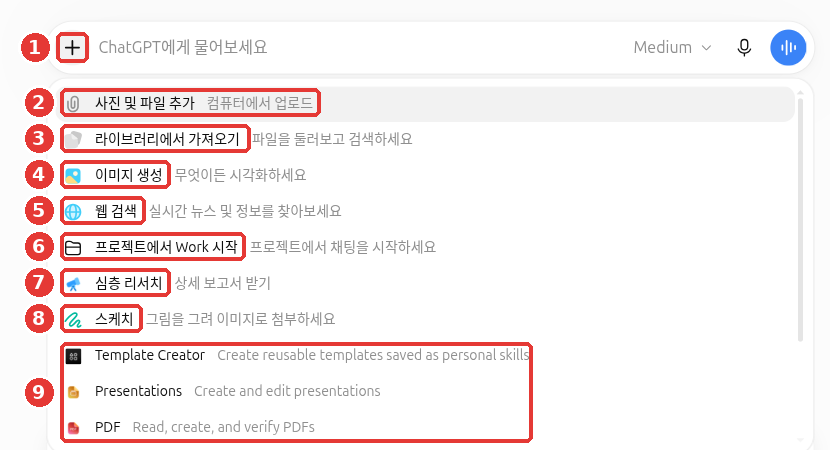
The chat titles and account name in this screen have been replaced with examples. What you will use in this chapter are ① the + button, ⑤ "Web search (웹 검색)", and ⑦ "Deep research (심층 리서치)".
Tell me the weather in Seoul this weekend. Split it into Saturday and Sunday,
and show me the websites you used.
How It Differs from "Search" in the Sidebar
The magnifying glass "Search chats (검색)" at the very top of the sidebar only searches your chats, projects, and files. It does not search the internet.[4] Use the sidebar "Search chats" for things like "Where did the resume chat I wrote last month go?" Use web search to ask things like "What is the minimum wage this year?" Sidebar search is covered in Chapter 3.
Quick check
You want to ask, "What is the minimum wage this year?" What is the right way?
The Habit of Checking Sources
Answers from web search have citations (labels showing where the information came from) attached at the end of sentences like small name tags. For example, "National Museum of Korea +1 (국립중앙박물관 +1)" means it referred to that website plus one other source. You can see the full list of websites it used under "Sources (출처)".[1:1]
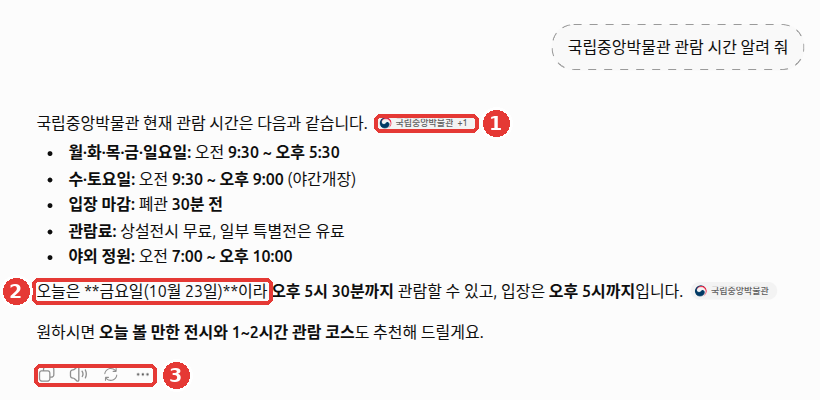
The chat titles and account name in this screen have been replaced with examples.
- ① The small name tag at the end of the sentence is the source tag. Clicking it opens the original webpage in a new tab (web screen on October 23, 2026).
- ② This is where asterisks (
**) show up as raw text. It has nothing to do with sources, so you do not need to worry about it.[5] - ③ Below the answer are buttons for Copy, Read aloud, Regenerate, and More.
However, OpenAI also states that search results and citations can be incomplete, outdated, or wrong.[1:2] Just having a link attached does not mean it has been verified. As you learned in Stage 1, Chapter 9, open the link yourself and check numbers, dates, and names against the original text. Once you open a link, ask yourself these four questions.
| What to check | How to check it |
|---|---|
| Does the link open? | Click the source and see if an actual page comes up |
| Is that statement in the original text? | Find whether the numbers and sentences in the answer are actually on the page |
| When was it written? | Check the date on the page to see if the information is outdated |
| Who wrote it? | See whether it is an official institution or company page, or a personal blog |
If you do not like the sources, you can ask again like this.
In your last answer, leave out personal blog sources and tell me again using only government or public institution websites.
Attach which page you got each piece of information from.
Quick check
A web search answer comes with source links. What is the best approach?
What ChatGPT Learns When You Search
When you ask a question where "near me" matters, like restaurants or clinics, your location is used. ChatGPT guesses your general location from your internet address (IP address, a number assigned to every device connected to the internet). For example, if you ask "Tell me a pharmacy open near me," this general location is used.
You have to turn on a separate setting to share your device's exact location. It is turned off by default ("Settings (설정)" → "Data controls (데이터 관리)" → "Location (위치)").[1:3][2:1]
ChatGPT also rewrites your question into search terms and sends them to an outside search company. When it does this, it does not send your IP address or account information along with them.[1:4] However, if Memory (Chapter 5) is turned on, it may tailor those search terms to you.[2:2]
Quick check
When asking "Find a pharmacy near me," what is true about sharing your device's exact location?
When Shopping — Let It Compare, Check Prices Yourself
When you ask about buying something, the answer may show product cards (product listings with photos, prices, and sellers). If you select one or more products and click the "Research" button, shopping research begins. ChatGPT asks follow-up questions about brands you like, size, and what matters most to you. Then after a few minutes, it gives you a buyer’s guide with what to look for, recommended products, and a comparison table.[6] It is fine if product cards do not appear. Just ask it to compare directly, as shown below.[7]
I'm looking for a commuter backpack. My budget is 100,000 won, it needs to fit a 15-inch laptop, and I'll use it on rainy days too.
Pick just three, show them in a comparison table, and attach links so I can check the price at each store myself.
What the answer roughly looks like (Example — click to expand) (click to expand)
This is an example created for this guide. Actual answers vary by service and time.
Here are three options that match your conditions (under 100,000 won, 15-inch laptop, rainy days).
Product Price Laptop Compartment Rain Resistance Seller (Product A) ○○ won Fits 15-inch Waterproof fabric (Seller link) (Product B) ○○ won Fits 15-inch Water-resistant (Seller link) (Product C) ○○ won Fits 15-inch Water-resistant (Seller link) Prices may vary by seller, so please check directly through the links.
Check if you got a good answer: Are thereero/exactly three items? Do all three of your conditions show up in the table? Does clicking the link bring up the same product? Did you check the price directly on the link?
Here are things to keep in mind.
- Are they ads? No. Product results are chosen independently by ChatGPT. Ads are labeled separately.[8]
- Does my chat go to the store? Conversations you have in shopping research are not shared with retailers.[6:1]
- The first price shown — This is the price from the first seller listed. It may not be the lowest price.[8:1]
- Labels like "Best value (가성비)" and review summaries — These are generated by ChatGPT and are not guarantees. OpenAI does not verify reviews either.[8:2]
Before paying, check the final price, taxes, shipping fees, stock, size, and return policy directly on the seller's website.[6:2] Prices and stock change often, so they may differ from what ChatGPT showed you.
"Try on" — trying clothes on your own photo (click to expand)
"Try on" (입어 보기) is a feature that lets you try clothes or accessories on your own photo. It does not guarantee actual size or fit. Uploaded photos are saved for next time, so delete them in Settings if you want them removed.[8:3]
Quick check
You see a product price shown by ChatGPT and want to buy it right away. What does the help guide recommend?
Deep Research — Handing Off a Report
Deep research is a feature where ChatGPT spends time finding and reading many sources, then organizes them into a report with citations. Use web search for quick facts. Use deep research when you need depth and thoroughness.[9]
| When to use | What to pick | Example |
|---|---|---|
| The answer takes one or two lines | Web search | "Tell me today's exchange rate" |
| You need to compare and organize multiple sources | Deep research | "Comparison report on 3 card terminals for a one-person shop" |
How to Start
Start in one of the following ways.[9:1][2:3]
- Message box + button → "Deep research (심층 리서치)"
- Type
/Deepresearchin the message box — a short command that starts with a slash (/). It is a shortcut for choosing a feature by typing instead of opening a menu.
For example, try sending this. The images below show the screens when we actually sent this question.
Write a report comparing delivery app fees that a neighborhood side-dish shop can use.
- Target reader: Owner running a single shop
- What to compare: Brokerage fees, payment processing fees, advertising costs
- Format: A one-line conclusion at the very top, then a comparison table, and a list of sources at the end
- Prioritize 2026 sources, and mark any source without a date separately
How It Works
- Send your question — The more detail you write about what you want, who it is for, and what format you want it in, the better.
- Review the research plan first — ChatGPT shows you a plan saying "I will research in this order." You can edit this plan.
- Step in while it researches — While it is running, you can change direction or tell it things to add.
- Get a report with citations — You can download it in Markdown, Word, or PDF format.[9:2]
You cannot use deep research in a temporary chat. Start deep research in a regular chat.[10]
Below is the screen when we actually sent the delivery app fee example above. The red numbers match the numbers in the list below each image.
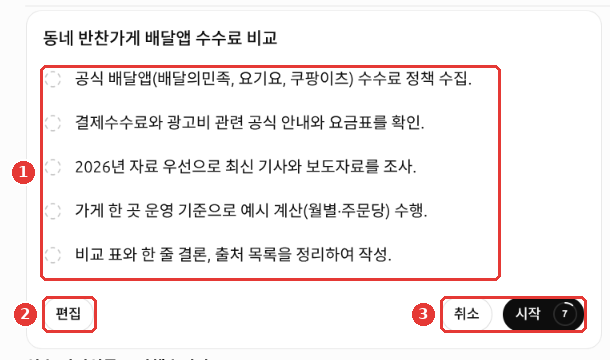
- ① This is the plan showing what it will research and in what order.
- ② Click "Edit (편집)" if you want to change the plan.
- ③ The number next to "Start (시작)" counts down until it starts automatically. On the October 27, 2026 screen, when we did not click anything, the research started after the countdown finished. Click "Cancel (취소)" to stop it.[11]
If you do not like the plan, click "Edit" before it starts. You can fix it before the research goes in the wrong direction.
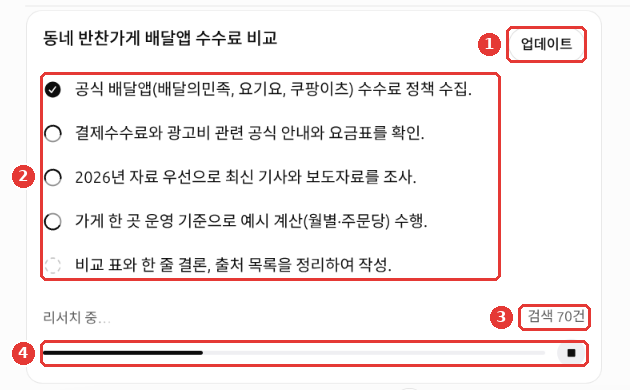
- ① Click "Update (업데이트)" if you want to change direction or add something during the research.
- ② Finished steps get a checkmark.
- ③ This is the number of searches done so far.
- ④ This is the progress bar. You can stop it with the ■ button on the right.[11:1]
You can leave the research running and do other work. This example took about 6 minutes to finish.[11:2]
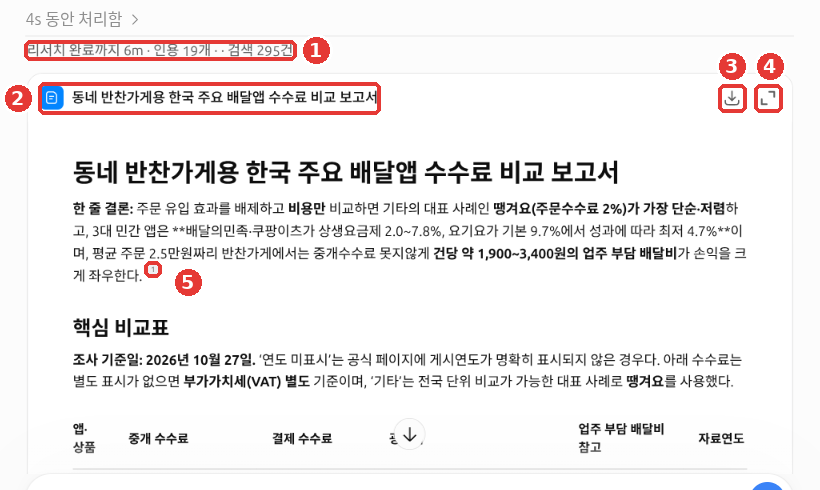
- ① Shows the time taken, number of cited sources, and number of searches.
- ② The report title. The report arrives as a document card inside the chat.
- ③ Download button, and ④ Expand view button.
- ⑤ The small numbers at the end of sentences are citations. Follow the numbers to open the sources.[11:3]
In the first paragraph of the report, there is a spot where asterisks show up as raw text. It is the same case as ② in the image in the earlier "The Habit of Checking Sources" section.[5:1]
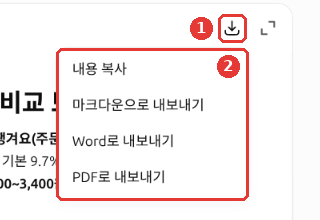
When you click the ① Download button in the image below (③ in the image above), the ② menu shows "Copy contents (내용 복사)", "Export to Markdown (마크다운으로 내보내기)", "Export to Word (Word로 내보내기)", and "Export to PDF (PDF로 내보내기)".[11:4]
Because this research was done in a regular chat, the conversation stays in your chat list. If you do not want to keep it, delete it using the method in Chapter 3 after you finish reading.
Just like search results, open the sources to verify the report. The longer and more convincing a report looks, the easier it is to skip checking. Start by checking the numbers used in the conclusion.
To have it research only specific websites (click to expand)
You can also have it research only specific websites or look at them first. You set this in the message box under Sites → Manage sites. However, this name comes from the help docs, and we have not yet confirmed the Korean screen label.[9:3]
Quick check
When you start Deep Research, what happens before the report comes out?
Check Usage Limits on Your Screen
The number of times you can use deep research varies by plan. Check your remaining uses via the in-app indicator. Your monthly limit resets every 30 days from the first day you use it.[9:4] Exact counts are not listed in the help docs and change often. That is why we did not write them in this guide. Check on your screen before using it.
Quick check
You want to know how many more times you can use Deep Research. What should you do?
Try It Yourself
- In a regular chat, choose the + button → "Web search (웹 검색)" and ask, "Tell me about cultural events in my neighborhood this month."
- Open two of the sources attached to the answer yourself and check whether the event dates match the original text.
- Change the delivery app fee example above to fit your own work and send it with deep research. When the research plan comes up, ask it to change one thing.
- Pick one number used in the conclusion of the report you receive and look it up in the source.
Ongoing project (Preparing a Book Club): Use web search to find "how to reserve a seminar room at my neighborhood public library." Put in your actual neighborhood name. Open the source yourself to check the operating hours and how to apply.
Summary
- Ask for the latest information using web search. ChatGPT can search on its own, or you can turn it on yourself via the + button → "Web search (웹 검색)".
- "Search chats (검색)" in the sidebar searches your own chats, not the internet.
- Citations and sources can be wrong too. Open the links and check them against the original text.
- Shopping results are not ads, but the first price shown may not be the lowest. Check the price, shipping fee, and return policy on the seller's site before paying.
- Hand off big questions to deep research. You can view and edit the plan first, and download the report as Markdown, Word, or PDF.
- Deep research limits vary by plan, so check them on your screen.
Glossary
| Term | One-line meaning |
|---|---|
| Web Search | A feature where ChatGPT finds the latest materials on the internet to answer |
| Citation | A label showing where the content in an answer came from |
| Source | A webpage that the answer referred to |
| IP Address | A number assigned to every device connected to the internet; reveals general location |
| Deep Research | A feature that researches many sources over time and organizes them into a cited report |
| Buyer’s Guide | A summary bundling what to look for, recommended products, and a comparison table |
| Shopping Research | A feature that asks follow-up questions about chosen products, compares them, and organizes a buyer's guide |
Finished this chapter?
Progress is saved only in this browser. See your progress on the full table of contents.
Next chapter: Chapter 7. Projects, Plugins, and Work
References (11)
OpenAI Help Center, "Searching the web with ChatGPT". help.openai.com (checked on 2026-10-23) ↩︎
Checked directly on the ChatGPT web screen (Plus plan, Korean). Message box + menu, "Data controls (데이터 관리)", and "Personalization (개인 맞춤 설정)" screens (checked on 2026-10-23) ↩︎
Web search is available on all plans, including Free. You can even use it when you are not logged in. The source is "Searching the web with ChatGPT" just above. ↩︎
OpenAI Help Center, "Finding your chats, projects, and files in ChatGPT". help.openai.com (checked on 2026-10-23) ↩︎
This is a case where the Markdown symbol for bold text (
**) shows through as is. Examples are**금요일(10월 23일)**(Friday, October 23) in the second paragraph of the image and**배달의민족·쿠팡이츠가…**(Baedal Minjok and Coupang Eats...) in the first paragraph of the deep research report. Markdown was covered in Stage 1, Chapter 7. ↩︎OpenAI Help Center, "Using shopping research in ChatGPT". "Select one or more products and choose “Research”" / "After a few minutes, shopping research returns a buyer’s guide." / "Your chats are never shared with retailers." / "Confirm the final price, taxes, fees, and shipping costs on the retailer’s website." help.openai.com (checked on 2026-10-24) ↩︎
The help docs do not say whether this feature also appears on the Korean screen. We could not confirm it while writing this guide either. ↩︎
OpenAI Help Center, "Shopping with ChatGPT Search". "Product results are selected independently by ChatGPT and are not ads" / "may not be the lowest available price" / "They’re not guarantees or verified statements" / "Reviews and ratings are not verified by OpenAI." / "Your reference photos are saved for future try-ons" / "do not guarantee fit or size". help.openai.com (checked on 2026-10-24) ↩︎
OpenAI Help Center, "Deep research in ChatGPT". help.openai.com (checked on 2026-10-23) ↩︎
On the October 2026 web screen, "Deep research" was not in the + menu of a temporary chat. "Create image (이미지 생성)" was also grayed out and disabled. ↩︎
Checked directly on the ChatGPT web screen (Plus plan, Korean). Research plan card ("Edit (편집)", "Cancel (취소)", "Start (시작)"), progress card ("Update (업데이트)", "70 searches (검색 70건)", stop), completed report ("6m to complete research · 19 citations · 295 searches (리서치 완료까지 6m · 인용 19개 · 검색 295건)"), and download menu when sending this chapter's delivery app fee example via the + menu "Deep research (심층 리서치)" in a regular chat. Deleted the chat after reviewing. (checked on 2026-10-27) ↩︎