Chapter 3. Managing Chats — Find, Organize, Share, and Export
Required Read this to follow this stage.One-line summary: You can find, pin, rename, and delete your past chats from the side menu. Use a public link to show a chat to others, and Export to move a response into a document or email. Just remember that anyone with a public link can read the chat.
The screens shown here are from the web version as of October 2026, and the screenshots show the Korean interface on a paid plan (Google AI Pro). Menu locations may look slightly different on the mobile app.
Finding Past Chats
Your past chats are listed in the side menu on the left (Chapter 2).[1] When you have many chats, scrolling through the list gets hard. Click Search for chats (채팅 검색, the magnifying glass icon) at the top of the side menu, type a word you are looking for, and press Enter.[1:1][2]
For example, if you asked about kimchi ingredients last week, search for "kimchi." A separate search box opens near the top of the screen.[2:1]
On a personal account, Keep Activity (활동 기록 보관) must be turned on to search, pin, rename, or delete chats.[1:2][3] Keep Activity is the setting that saves your chats to your account. If you are 18 or older, it is turned on by default. You can find it on the Gemini Apps Activity (Gemini 앱 활동) page by clicking Settings (설정) → Activity (활동). How to turn it off and what changes when you do is covered in Chapter 9.[4]
Quick check
You have a personal account, but you cannot pin or delete chats. Which setting should you check first?
Pinning, Renaming, and Deleting
Pin the chats you open often. Hover your mouse over a chat in the list, and three dots (⋮) appear on the right. Click them to open the chat menu.[1:3][2:2]
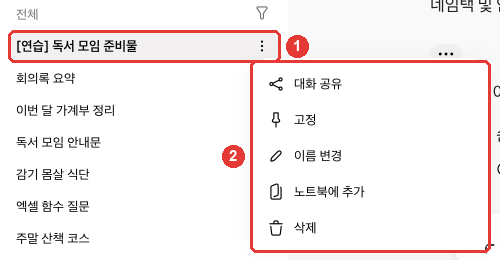
This screenshot was taken with a practice chat, and the other chat titles were replaced with examples. Clicking the three dots (①) opens the menu (②).[2:3]
| Menu | What it does |
|---|---|
| Pin (고정) | Keeps the chat at the top of the list (changes to Unpin (고정 해제) once pinned) |
| Rename (이름 변경) | Changes the chat title |
| Delete (삭제) | Deletes the chat |
| Share conversation (대화 공유) | Creates a public link (see "Sharing a Chat" below) |
| Add to notebook (노트북에 추가) | Saves the chat to a topic collection (a notebook) (Chapter 6) |
Source: Google Help and live screen[1:4][2:4]
If you already have the chat open, you can do the same things from the three-dot button at the top right (screen reader label: Open menu for conversation actions (대화 작업 메뉴 열기)).[2:5]
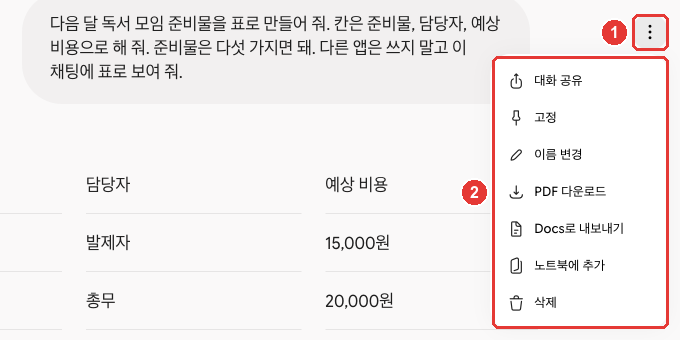
This menu (②) also has Download PDF (PDF 다운로드) and Export to Docs (Docs로 내보내기), which are not in the side menu.[2:6]
Renaming a chat to include a date or task name, like "November book club notice," makes it much easier to spot in your list.
Keep two things in mind before you delete a chat.[1:5]
- Deleting a chat also deletes it from Gemini Apps Activity. It disappears from your activity history as well.
- Anything you created in that chat is deleted too. Documents or apps made with Canvas disappear along with it (Canvas is covered in Chapter 4).
So if you want to keep using a document you made in that chat, move it out with Export before deleting the chat.
Quick check
You want to tidy up and delete a chat that contains a flyer you made with Canvas. What should you do before deleting it?
Branching a Chat in a New Direction
Sometimes in the middle of a long chat, you want to try going in a different direction. For example, while planning a trip, you might want to ask "What if it rains?" separately.
When that happens, click More (옵션 더보기, the three dots) below the response at that point and choose Branch in new chat (새 채팅에서 브랜치 생성).[2:7][1:6] A new chat opens, branching off from that exact point. Your original chat stays untouched, so you can come back and continue it later.[1:7]
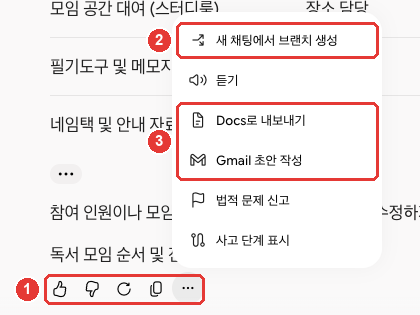
Clicking the three dots on the far right of the toolbar below a response (①) opens the menu. Item ② is for branching, and item ③ is used in "Exporting to Other Apps" below.[2:8]
Branching keeps your original chat from getting cluttered with side questions. It is a way to follow the "new topic, new chat" rule from Stage 1, Chapter 6 without losing the context from earlier in the conversation.
The two chats are deleted separately. Deleting the branched chat leaves the original chat intact, and deleting the original chat leaves the branched chat intact.[1:8]
Quick check
In the middle of a long trip-planning chat, you want to ask "What if it rains?" on the side without messing up the original chat. What is the best way?
Sharing a Chat — Public Links
To show a chat to someone else, create a public link. From the chat menu (the three dots in the side menu, or the three dots at the top right), choose Share conversation (대화 공유). You can see it in the chat menu screenshots above.[2:9] A link (g.co/gemini/share/…) is created.[5]
Anyone with the link can read that chat. Even people you didn't send it to directly can read it and share it further if they have the link.[5:1] So skim through the whole conversation before sharing. The link shows the entire chat. If you uploaded photos, anyone opening the link can view and download them.[5:2]
Here is what you should know.[5:3]
- Your name is not attached. Your name and account are not shown in the URL or on the shared chat page.
- It shows a snapshot from the moment you created the link. If you edit or continue the chat afterward, the shared page does not change. To show updated content, create a new link.
- Anything created in the chat is included. Canvas documents, images, and videos also appear on the shared page.
- The person who receives it can continue the conversation. Anyone who opens the link can click Continue this chat (이 채팅 계속하기) to keep talking in their own Gemini. However, this does not work for chats made with a Gem (your own custom Gemini built with instructions, Chapter 7) or for users under 18. Also, if you created the chat with a paid Google AI plan, the recipient must also have a paid Google AI plan to continue it.
Deleting a Shared Link
If you want to stop sharing, go to Settings (설정) → Your public links (내 공개 링크) and delete that link. You can also delete all of them at once with Delete all links (모든 링크 삭제).[5:4][2:10]
A few things remain even after you delete the link.[5:5]
- Posts you shared elsewhere stay where they are. If you pasted the link in an online community or messenger, you need to delete those posts separately on those sites.
- Your chat itself is not deleted. Only the link disappears; the conversation stays in your chat list.
On the flip side, if you delete the chat, its public link disappears too. A public link only works for as long as the chat remains saved in your activity history.[5:6]
Asking a prompt like this before sharing can help you spot personal information you might have missed. Still, don't assume the AI will catch everything—always read through the chat yourself at the end (Stage 1, Chapter 9).
I want to share this chat with someone else. Please check our conversation so far and list any
sensitive information—like names, phone numbers, addresses, or company names—that I shouldn't show to others.
Quick check
Exporting to Other Apps
When you want to move a response into a document or email, use Export. It creates a new document or email draft right away without copying and pasting. Click More (옵션 더보기, the three dots) below a response to find Export to Docs (Docs로 내보내기) and Draft in Gmail (Gmail 초안 작성) (marked ③ in the screenshot above).[2:11][6]
| Menu | Where to find it | What happens |
|---|---|---|
| Export to Docs (Docs로 내보내기) | Three dots below a response | Creates a new document in Google Drive |
| Draft in Gmail (Gmail 초안 작성) | Three dots below a response | Creates a new email draft in Gmail |
| Export to Sheets (Sheets로 내보내기) | Three dots below a table | Sends the table inside a response to Google Sheets |
Source: Google Help and live screen[6:1][2:12]
Export to Sheets (Sheets로 내보내기) appears when you click the small three dots (…) right below a table. You only see it on responses that contain a table, and tables with images cannot be exported.[6:2][2:13]
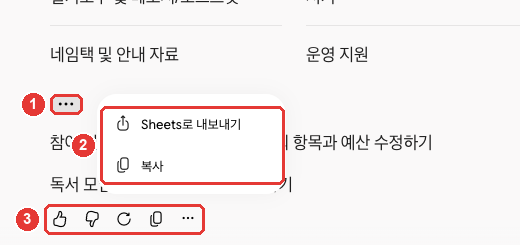
The three dots below the table (①) and the three dots below the response (③) open different menus. To export just the table, click ①.[2:14] Draft in Gmail requires a Gmail account. It does not send the email right away—it saves a draft, so you can check the recipient and content before sending it yourself.[6:3][7]
For example, if you get a table using the prompt below and move it with Export to Sheets, you can sort and edit it right away.
Make a table of supplies for next month's book club meeting. Use columns for Item, Person in Charge, and Estimated Cost.
Don't use any other apps—just show the table right here in this chat.
The second line means "show me the table in this chat first." If you want to check the table inside the chat first, say so clearly like this.[8]
Quick check
You exported a notice email written by Gemini using "Draft in Gmail." What happens next?
Regenerating and Checking Responses
If you don't like a response, try getting a new one. Click Redo (다시 실행, the circular arrow) below the response to generate a fresh answer to the same question.[2:15][9] You can only do this on the most recent response in a chat.[9:1] After regenerating, you can click the arrows below the response to flip back and forth and compare versions.[9:2]
If you know what you want changed, just ask in a follow-up. You can keep chatting and ask Gemini to change the length, use simpler words, or adjust the tone.[9:3] Redo works best when your question was fine, but the answer just happened to miss the mark (Stage 1, Chapter 6).
| Less helpful | Better request |
|---|---|
| (Clicking Redo over and over) | "Shorten this to three lines" |
| (Clicking Redo over and over) | "Rewrite this in simple words a fifth grader could understand" |
| (Clicking Redo over and over) | "Make the tone more polite" |
Telling Gemini what to change gets you closer to what you want much faster. When you just click Redo, you don't get to choose how the answer changes.
Checking Sources
If you see a Sources (출처) button at the bottom of a response or inside a sentence, click it. A side panel opens on the right with related links.[10] Those links might be public websites, files you uploaded, or connected Gmail messages and Google Docs.[10:1]Not every response includes sources. If there is no Sources button, that response doesn't have related links attached.[10:2]
Google also clearly states that Gemini can make mistakes. Be especially careful with the three things below.[11]
- Don't rely on it as professional advice for medical, legal, or financial matters. For example, check an answer to "Can I take these medicines together?" again with a doctor or pharmacist.
- Double-check answers about people in particular. Inaccurate details can come up.
- Gemini can even be wrong when explaining how Gemini itself works. For example, its answers to "How were you trained?" or "How do you cite sources?" may not match how the product actually works. If you are curious about a feature, check this guide or the official help pages.
If you spot an inaccurate answer, click Bad response (대답이 마음에 들지 않아요, thumbs down) below the response and write down what was wrong.[11:1] Keep in mind that when you send feedback, that conversation is sent to Google along with it (Chapter 1).
Quick check
A reply is too long and hard to read. What is the easiest way to get closer to the answer you want?
Try It Yourself
- Send a short question in a new chat, then rename that chat to "Practice — Today's Date" from the side menu.
- Pin that chat, and then unpin it.
- Open Search for chats, search for "Practice," and check that the chat comes up.
- Use Export to Docs on one response, and check that a new document appears in your Google Drive.
- Create a public link, then go to Settings → Your public links and delete it.
Continuing project (Preparing a Book Club): Ask Gemini to turn the prep list you organized in Chapter 2 into a table, then move it using Export to Sheets. Rename the chat to "Book Club Prep."
Summary
- Find past chats using the side menu list and Search for chats. On a personal account, Keep Activity must be turned on to search, pin, rename, or delete chats.
- Use a chat's three-dot menu to pin, rename, delete, or share it. Deleting a chat also deletes any Canvas items created in that chat.
- Use Branch in new chat from the three dots below a response to split off mid-conversation while leaving your original chat untouched.
- Anyone with a public link can read the shared chat. It only shows the chat as it was when you created the link. Delete public links in Settings → Your public links.
- Export to Docs or a Gmail draft from the three dots below a response, or to Sheets from the three dots below a table. Gmail exports are saved as drafts only.
- Redo only works on the most recent response. Asking for specific changes in a follow-up is often faster.
- Check supporting links with Sources, and always double-check answers about medical, legal, or financial matters—or about people.
Glossary
| Term | One-line meaning |
|---|---|
| Pin | Keeping a chat at the very top of your chat list |
| Branch | A new chat split off from the middle of a conversation; labeled Branch in new chat (새 채팅에서 브랜치 생성) on screen |
| Public Link | A web address that lets anyone with the link read a shared chat |
| Export | Moving a response into another app like Docs, Gmail, or Sheets |
| Regenerate | Generating a fresh answer to the same question; labeled Redo (다시 실행) on screen |
| Source | A web page or file link backing up parts of a response |
| Keep Activity | The setting that saves your Gemini chats to your Google account |
Finished this chapter?
Progress is saved only in this browser. See your progress on the full table of contents.
Next chapter: Chapter 4. Files and Creating
References (11)
Google Help, "Find & manage your recent chats in Gemini Apps" (Korean edition: "Gemini 앱에서 최근 채팅 확인 및 관리하기"). "You can pin, rename, and delete your chats so the important ones are easy to find." / "If you're using Gemini Apps with a personal account, the features below are only available if you have Keep Activity turned on." / "If you’re using Gemini Apps with a work or school account, your Gemini Apps Activity is controlled by your Google Workspace administrator and you can’t delete chats." / "In the text box, enter what you want to search." / "Click Pin. You can find your pinned chat at the top of the “Recent” section." / "On the side panel, hover over the chat you want to rename." / "You can create a new chat that branches off from a specific point in a conversation, then return to the main conversation to continue it." / "Tip: Deleting a branched chat doesn’t delete the original chat. Deleting the original chat doesn’t delete a branched chat." / "Important: When you delete a chat from your pinned and recent chats, it's also deleted from Gemini Apps Activity." / "If you delete a chat in pinned and recent chats, it also deletes any content created in that chat (like Canvas docs and apps) and the related activity from Gemini Apps Activity." Korean UI labels: "더보기", "고정", "고정 해제", "이름 변경", "삭제", "새 채팅에서 분기". support.google.com (checked on 2026-10-31) ↩︎
Verified directly on the Gemini web app (Google AI Pro, Korean UI) using a practice chat. Side menu Search for chats (채팅 검색, opens a search box near the top of the screen), Your public links (내 공개 링크) under Settings (설정). Side menu three-dot chat menu: Share conversation (대화 공유), Pin (고정), Rename (이름 변경), Add to notebook (노트북에 추가), Delete (삭제). Top-right Open menu for conversation actions (대화 작업 메뉴 열기) menu: Share conversation (대화 공유), Pin (고정), Rename (이름 변경), Download PDF (PDF 다운로드), Export to Docs (Docs로 내보내기), Add to notebook (노트북에 추가), Delete (삭제). Toolbar below a response: Good response (대답이 마음에 들어요), Bad response (대답이 마음에 들지 않아요), Redo (다시 실행), Copy (복사), More (옵션 더보기); More (옵션 더보기) menu: Branch in new chat (새 채팅에서 브랜치 생성), Listen (듣기), Export to Docs (Docs로 내보내기), Draft in Gmail (Gmail 초안 작성), Report legal issue (법적 문제 신고), Show thinking (사고 단계 표시). More (옵션 더보기) menu below a table: Export to Sheets (Sheets로 내보내기), Copy (복사). The help center labels "새 채팅에서 분기", "재생성", "공유 및 내보내기", and "공유" below a response did not appear on this screen and had changed to the labels above. When sending only "Make it into a table" ("표로 만들어 줘"), the response got stuck at "Connecting to Google Sheets". (checked on 2026-10-31) ↩︎
On a work or school account, your administrator manages your activity history. In that case, you cannot delete chats yourself. The source is the "Find & manage your recent chats in Gemini Apps" help article below. ↩︎
Google Help, "Manage & delete your activity in Gemini Apps". "If you’re 18 or over, Keep Activity is on by default." The Korean UI label "활동 기록 보관" was verified on the "Gemini 앱 활동" page opened via "설정" → "활동" (2026-10-30,
docs/reports/2026-10-30_Gemini-공식-자료.md"실제 화면에서 직접 확인"). support.google.com (checked on 2026-10-31) ↩︎Google Help, "Share your chats from Gemini Apps" (Korean edition: "Gemini 앱의 채팅 공유하기"). "Anyone with the link can read the chat, even if you didn’t share the link with them directly." / "To share the link: The g.co/gemini/share link is auto-copied." / "If you upload an image to a chat and then share the chat, the image is available and downloadable from the shared chat." / "We don’t add your name or account to the URL address or the shared chat page." / "If you edit or continue the chat after you create a public link, the content on the shared chat page won’t change." / "The shared chat will include any AI-generated artifacts from the conversation, including Canvas documents, images, and videos." / "Continue the chat with Gemini Apps on their own (except for a chat that was created with Gems or for users under the age of 18)." / "If the chat was created by a user with a Google AI subscription, you can continue it only if you have a Google AI subscription." / "anyone with the link can read the chat, reshare it with others" / "It doesn’t delete the chat from your Gemini Apps activity." / "Tip: To delete all your public links, click Delete all links." / "It doesn't delete any posts with the link that you've made on third-party sites. To delete the post, delete it from the third party site." / "Your links are publicly available for as long as the associated chat is saved in your Gemini Apps Activity." Korean UI labels: "공유", "대화 공유", "이 채팅 계속하기", "내 공개 링크", "모든 링크 삭제". support.google.com (checked on 2026-10-31) ↩︎
Google Help, "Export responses from Gemini Apps" (Korean edition: "Gemini 앱 대답 내보내기"). "You can export responses from Gemini Apps to Google Workspace apps like Gmail and Google Docs. You can also export code to developer tools like Google Colab and Replit." / "If you export content or code from Gemini Apps, the terms and policies of the service you export to will apply to that content." / "Below the response, click Share & export Export to Docs. This saves a new doc in Google Drive." / "Below the response, click Share & export Draft in Gmail. This creates a new draft email in Gmail." / "Important: This feature is only available if you have a Gmail account." / "Important: This feature is only available for responses that have a table. Tables with images can’t be exported to Sheets." Korean UI labels: "공유 및 내보내기", "Docs로 내보내기", "Gmail 초안 작성", "Sheets로 내보내기". support.google.com (checked on 2026-10-31) ↩︎
Exported documents and emails follow the terms and policies of the service you export them to (Docs or Gmail). The source is the "Export responses from Gemini Apps" help article below. ↩︎
When we sent only the first line while writing this guide, Gemini didn't show a table in the chat. Instead, it tried to connect to Google Sheets and got stuck (see the screen-check footnote below). ↩︎
Google Help, "Regenerate or modify responses from Gemini Apps" (Korean edition: "Gemini 앱에서 대답 재생성 또는 수정하기"). "Important: You can regenerate only the most recent response in a chat." / "To switch between response versions: Below the response, click the arrows to switch between versions." / "For example, you can adjust the length, simplify the language, and change the tone of a response." / "You can continue to chat with Gemini to modify a response. For example, you can ask Gemini to simplify the language or provide more details about your topic." Korean UI label: "재생성". support.google.com (checked on 2026-10-31) ↩︎
Google Help, "View related sources from Gemini Apps" (Korean edition: "Gemini 앱의 관련 출처 보기"). "When sources are available, you can find the Sources button at the bottom of the response or in-line throughout the response. On the right, a side panel will open with the relevant links." / "These links may include content that is related to parts of Gemini’s response, including public websites, files you have uploaded, or documents or emails from Google Workspace if you’ve connected to Workspace." / "Not all responses include related links or sources." The button label "출처" is from the Korean edition of the help page. Because no sources were attached to the practice chats in this guide, it could not be verified on the live screen. support.google.com (checked on 2026-10-31) ↩︎
Google Help, "Learn about responses from Gemini Apps" (Korean edition: "Gemini 앱의 대답에 관해 자세히 알아보기"). "Don’t rely on responses from Gemini Apps as medical, legal, financial or other professional advice." / "Gemini Apps may provide inaccurate or inappropriate responses about people, so double-check its responses." / "One example is that Gemini can misrepresent how it works, including in response to prompts asking how it was trained or how it carries out various functions (like citing sources, or providing fresh information)." / "If you see a hallucination or something that isn’t accurate, please click the thumbs down button and provide your feedback." The Korean label for the thumbs down button, "대답이 마음에 들지 않아요", is from the Korean edition of "Send feedback or report a problem with Gemini Apps" (13275746). support.google.com (checked on 2026-10-31) ↩︎