Chapter 5. Memory and Personalization — Memory, Instructions, and Importing from Other AIs
Optional Read this when you need it. You can skip it and still follow the later chapters.In one line: Gemini tailors its answers to you using your past chats (Memory), your connected Google apps, and the instructions you write down. If it remembers something wrong, correct it in a chat. To erase a memory, delete the chats where it came up. You can also bring over your memories and chats from ChatGPT and Claude.
The screens shown here are from the web version as of October 2026, and the screenshots show the paid plan (Google AI Pro) in Korean. Some features in this chapter work only in the US, and those are marked clearly.
Three Ways Gemini Gets to Know You
Gemini tailors its answers to you in three ways.[1]
| Way | What it uses | In this guide |
|---|---|---|
| Memory | Your past Gemini chats | This chapter |
| Connected Apps | Content from Google apps like Gmail and Google Photos[2] | Chapter 7 |
| Instructions | Preferences you write down (tone, format, and so on) | This chapter |
Source: Google Help[1:1]
These features only work with a personal Google Account. They do not work with work, school, or supervised accounts.[1:2] They are not rolled out to everyone yet, and each feature has its own requirements.[1:3]
All of these settings are in one place. Click Settings (설정) → Personal Intelligence (개인 인텔리전스).[3][4]
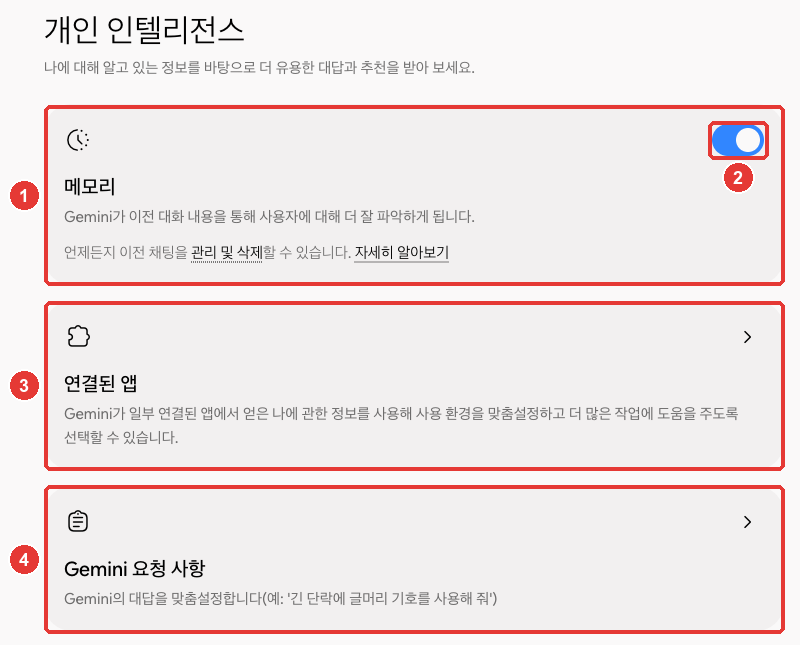
The red numbers match the numbered list below.[3:1]
- ① Memory (메모리): Learns about you from your past chats. You can click Manage and delete (관리 및 삭제) to clean up past conversations.
- ② The switch to turn Memory on or off.
- ③ Connected Apps (연결된 앱): Connects your Google apps (Chapter 7).
- ④ Instructions for Gemini (Gemini 요청 사항): Where you write down your instructions. The description says "Customize Gemini's responses (e.g., 'Use bullet points for long paragraphs')." Clicking it opens a separate screen (see the "Instructions" section below).
Quick check
Someone using Gemini with a work Google Account is looking for personalization features like memory and instructions. Which statement is true?
Memory — Remembering Your Past Chats
When you turn on Memory, Gemini learns about you and your world from your past chats and uses that in its answers.[4:1] For example, if you mentioned last time that you are "planning a trip to Jeju Island next month," Gemini can build on that later when you talk about travel. It may even suggest next steps for a project you are working on or offer to help plan a trip you mentioned.[4:2]
There are a few requirements to use it.[4:3]
- Age 18 or older, with a personal Google Account
- Keep Activity (활동 기록 보관) must be turned on (Chapter 3)
- It is not used in certain features. Most notably, it does not work in Gems (your own custom Gemini built with instructions, Chapter 7) or voice chats (Live, talking back and forth out loud, Chapter 10). However, in a text chat, you can ask Gemini to refer back to a past voice chat.
Asking About Past Chats
In a new chat, you can ask about past chats by topic or timeframe.[5]
Find and summarize the chat from last month where we talked about venues for the book club.If Gemini used your past chats, it shows Previous chats (이전 채팅) under Sources and related content (소스 및 관련 콘텐츠) below the answer. However, this label can occasionally be wrong.[5:1] If you are curious, just ask directly. You can ask, "Did you use any info from past chats?"[4:4]
When a Memory Is Wrong, or When You Want to Delete It
The way to do it depends on what you want.
| What you want | How |
|---|---|
| Fix a wrong memory | Correct it right in the chat |
| Erase a memory | Delete every chat containing that information |
| Stop it from learning new things | Turn off the Memory switch |
If something is wrong, correct it right in the chat. For example, just say, "I live in Busan now, not Seoul." As long as Memory is turned on, Gemini will take your correction into account. Even so, it might not always get it right.[4:5]
To erase something Gemini remembers, you must delete all chats containing that information. Find and delete those chats in Gemini Apps Activity (Gemini 앱 활동).[4:6] Even after you delete a chat, there may be a short delay before it stops showing up in answers.[4:7]
Giving an instruction like "Forget about that" does not always work. To make sure Gemini stops bringing up a topic, delete the chats about it.[6]
Turning off Memory itself stops Gemini from learning anything new about you. Just turn off switch ② in the screenshot above.[6:1][3:2]
Quick check
Gemini keeps remembering your old address from an earlier chat and using it in replies. How do you erase that memory?
Instructions — So You Don't Have to Repeat Yourself
Instructions are your personal rules that you want Gemini to follow every time. Once you write them down, you do not have to repeat them in new chats.[6:2] On the screen, this is called Instructions for Gemini (Gemini 요청 사항) (④ in the screenshot above).[3:3] All users can add instructions.[6:3]
Here are some examples of instructions.[6:4]
Start all responses with a short summary.Break long paragraphs into bullet points.Compare vague instructions with better ones.
| Vague instruction | Better instruction |
|---|---|
| "Explain things well" | "When technical terms come up, explain them in plain words inside parentheses" |
| "Keep it short" | "Keep answers under five lines, and put just one action item on the last line" |
A good instruction is specific enough that you can tell right away whether Gemini followed it (Stage 1, Chapter 4).
Here is how to add an instruction. Step 1 was verified on the screen, and steps 2–3 use the names from Google Help (this guide did not open the inner instructions screen).[6:5][3:4]
- Click Settings (설정) → Personal Intelligence (개인 인텔리전스) → Instructions for Gemini (Gemini 요청 사항).
- Click Add + (추가 +), type your instruction, and click Submit (제출).
- To edit or delete an instruction, click More (더보기) next to it. You can also turn all instructions on or off using the switch at the very top.
Asking Gemini to Remember Things in Chat (US Only)
There is also a feature where you can tell Gemini to remember something right in the middle of a chat, like saying "Remember that I am vegetarian." However, this feature is not currently available in South Korea. It only works in the US.[6:6] Outside the US, you can get the same result using Instructions above. Just add an instruction like: "I am vegetarian. Leave out meat when recommending food."
The Memory summary screen, where you can view and edit what Gemini understands about you in one place, is also US-only.[7]
More on the US-only features (click to expand)
Quick check
A Gemini user in Korea is tired of typing "Start every reply with a short summary" in every single chat. What can they do?
Importing from Other AIs
If you are switching to Gemini from ChatGPT or Claude, you can bring over your memories and chats.[8] If you have never used another AI, you can skip this section.
In the Settings (설정) menu, under the Data & privacy (데이터 및 개인 정보 보호) section, click Import memory to Gemini (Gemini로 메모리 가져오기) (Chapter 2).[3:5]
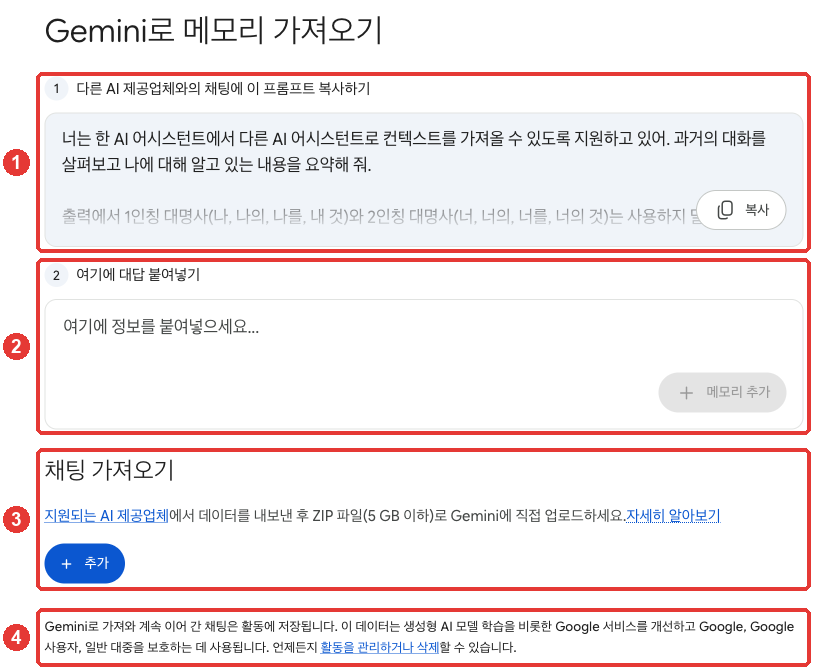
Here is how to import memories.[8:1][3:6]
- Click Copy (복사) on the prompt in ① and paste it into a ChatGPT or Claude chat.
- Copy the response that the other AI puts together about you.
- Paste it into box ② and click Add memory (메모리 추가).
To import chats, use ③. Click Add (추가) to upload the ZIP file you exported from ChatGPT or Claude.[8:2][3:7]
- In ChatGPT, get this from Export data (데이터 내보내기) under Settings > Data controls (설정 > 데이터 관리). In Claude, get it from Export data (데이터 내보내기) under Settings (설정) → Privacy (개인정보보호).[8:3][9] For step-by-step instructions, see ChatGPT Chapter 8 and Claude Chapter 9.
- Each file can be up to 5 GB, and you can upload up to 5 files per day.[8:4]
- If you upload the same ZIP file again, new chats are added and previously imported chats are overwritten.[8:5]
Keep one thing in mind before importing. As noted in ④, imported chats that you continue are saved in your Activity and used to improve Google services, including training generative AI models.[8:6][3:8] You can manage and delete your activity at any time.
Importing is only available for personal Google Accounts and users aged 18 or older.[8:7][10]
Quick check
You want to import a ZIP file of exported ChatGPT chats into Gemini. What should you know before importing?
Try It Yourself
- Open Settings (설정) → Personal Intelligence (개인 인텔리전스) and check whether Memory (메모리) is turned on.
- In Instructions for Gemini (Gemini 요청 사항), add "Start all responses with a short summary." Then open a new chat and ask any question. Did it start with a summary?
- In a new chat, ask "Did you use any info from past chats?"
- Once you are done checking, delete the instruction from step 2 or turn it off with the switch.
Ongoing project (Preparing a Book Club): In Instructions for Gemini (Gemini 요청 사항), add "Write book club announcements in a polite, friendly tone, and put the date, venue, and what to bring at the very top." Then ask for the announcement again in a new chat and see if Gemini follows your instruction.
Summary
- Gemini tailors its answers to you using Memory (past chats), Connected Apps, and Instructions. You can find all of these under Settings (설정) → Personal Intelligence (개인 인텔리전스).
- Memory requires being 18 or older, a personal account, and having Keep Activity (활동 기록 보관) turned on. It is not used in Gems or voice chats.
- Correct wrong memories right in a chat, and delete all chats containing that info to erase a memory completely. Telling Gemini to "forget" something does not always work.
- Instructions (Instructions for Gemini (Gemini 요청 사항)) are available to all users. Asking Gemini to remember things in chat and the Memory summary screen are US-only.
- You can move memories from ChatGPT or Claude by copying a prompt, and import chats using an exported ZIP file. Imported chats that you continue are used to improve services, including AI training.
Glossary
| Term | One-line meaning |
|---|---|
| Memory | The feature that learns about you from past chats and uses that in answers |
| Personal Intelligence | The personalization features—and their settings screen—combining Memory, Connected Apps, and Instructions |
| Instructions for Gemini | Your personal rules that you want Gemini to follow every time |
| Memory summary | A screen where you can view and edit what Gemini understands about you. US-only |
| Import | Moving your memories and chats from another AI into Gemini |
| ZIP | A compressed file that bundles multiple files into one |
Finished this chapter?
Progress is saved only in this browser. See your progress on the full table of contents.
Next chapter: Chapter 6. Search and Deep Research
References (10)
Google Help, "Get personalization in Gemini Apps" (Korean version: 「Gemini 앱에서 개인화 기능 사용하기」). "You can get a personalized experience in Gemini Apps based on:" / "These features are not available to everyone at this time. You can find details about each feature in the articles linked below." / "To use these features, you must sign in to Gemini Apps with a personal Google Account. These features are not available while signed in to a work, school, or supervised account." support.google.com (checked on 2026-10-31) ↩︎
Google Help, "Connect your Google apps to personalize your Gemini experience" (Korean version: 「Google 앱을 연결하여 Gemini 환경 개인화하기」). "Get content from Gmail and Google Photos, like photos from your last vacation." support.google.com (checked on 2026-10-31) ↩︎
Verified directly on the Gemini web app (Google AI Pro, Korean UI). Settings (설정) → Personal Intelligence (개인 인텔리전스) (URL
/personalization-settings) screen: "Get more helpful responses and recommendations based on information known about you." (나에 대해 알고 있는 정보를 바탕으로 더 유용한 대답과 추천을 받아 보세요.), Memory (메모리) card ("Gemini learns more about you through your past conversations. You can manage and delete past chats at any time." / "Gemini가 이전 대화 내용을 통해 사용자에 대해 더 잘 파악하게 됩니다. 언제든지 이전 채팅을 관리 및 삭제할 수 있습니다.") and toggle switch, Connected Apps (연결된 앱), and Instructions for Gemini (Gemini 요청 사항). Settings (설정) → Import memory to Gemini (Gemini로 메모리 가져오기) (URL/import) screen: "1 Copy this prompt to a chat with another AI provider" (1 다른 AI 제공업체와의 채팅에 이 프롬프트 복사하기) and Copy (복사), "2 Paste response here" (2 여기에 대답 붙여넣기), "Paste information here..." (여기에 정보를 붙여넣으세요...), Add memory (메모리 추가), Import chats (채팅 가져오기) "Export your data from a supported AI provider and upload it directly to Gemini as a ZIP file (up to 5 GB)." (지원되는 AI 제공업체에서 데이터를 내보낸 후 ZIP 파일(5 GB 이하)로 Gemini에 직접 업로드하세요.), Add (추가), and "Chats imported to and continued in Gemini are saved in Activity. This data is used to improve Google services, including training generative AI models, and to protect Google, Google users, and the general public." (Gemini로 가져와 계속 이어 간 채팅은 활동에 저장됩니다. 이 데이터는 생성형 AI 모델 학습을 비롯한 Google 서비스를 개선하고 Google, Google 사용자, 일반 대중을 보호하는 데 사용됩니다.). Instructions for Gemini (Gemini 요청 사항) card description: "Customize Gemini's responses (e.g., 'Use bullet points for long paragraphs')" (Gemini의 대답을 맞춤설정합니다(예: '긴 단락에 글머리 기호를 사용해 줘')). Import memory to Gemini (Gemini로 메모리 가져오기) is under the Data & privacy (데이터 및 개인 정보 보호) section of the Settings (설정) menu. The screen inside Instructions for Gemini (Gemini 요청 사항) was not opened because it displays personal user instructions. Only the Google AI Pro screen was checked; whether these cards appear on free or minor accounts was not verified. (checked on 2026-10-31) ↩︎Google Help, "Get personalization with memory of your past Gemini chats" (Korean version: 「이전 Gemini 채팅의 메모리를 사용해 개인화 기능 사용하기」). "With this feature, Gemini can learn from your chats to understand more about you and your world." / "Be 18 or over." / "Not available in certain features, like Gems or Live chats. In a text chat, you can ask Gemini to reference a past Gemini Live conversation." / "At the top, tap Menu Settings & help Personal Intelligence." / "Tip: When Memory is turned on, Gemini may suggest topics or tools for you based on previous conversations. For instance, Gemini might:" / "Suggest next steps for a project you’re working on" / "Offer to help plan a trip you’ve mentioned" / "To correct what Gemini knows about you and uses in a response:" / "Make sure that Memory is turned on." / "If you delete a chat, there might be a short delay before Gemini stops using it to personalize your responses." / "To check if Gemini used your past chats, just ask Gemini, “Did you use any info from past chats?”" / "To delete something that Gemini remembered about you, delete all chats with this info from Gemini Apps Activity." / "While Gemini continues to improve, it might not always get it right." support.google.com (checked on 2026-10-31) ↩︎
Google Help, "Find & manage your recent chats in Gemini Apps". "In a new chat, you can ask Gemini about your past Gemini chats by topic or timeframe, or ask it to reference them before responding." / "Gemini may occasionally make mistakes and display this label incorrectly." Korean UI labels: Sources and related content (소스 및 관련 콘텐츠), Previous chats (이전 채팅). support.google.com (checked on 2026-10-31) ↩︎
Google Help, "Manage what Gemini remembers about you and customize responses" (Korean version: 「Gemini가 나에 대해 기억하는 정보 관리 및 대답 맞춤설정」). "Gemini will remember the information or instructions you share with it, even in new chats." / "be over 18." (Korean version: "만 18세 이상이어야 합니다.") / "Have a Google AI plan." / "Only available in the US. All users can add instructions for Gemini Apps." / "Remember that I am vegetarian." / "“Start all responses with a short summary.”" / "Important: Instructions for Gemini to forget or avoid topics in chats doesn’t always work perfectly. To make sure Gemini stops mentioning a topic, delete any chats about it from your Gemini Apps Activity." / "Tap Add +." / "At the top, turn Instructions for Gemini off or on ." / "To stop Gemini from learning about you" Korean UI labels: Instructions for Gemini (Gemini 요청 사항), Add + (추가 +), Submit (제출), More (더보기), Edit (수정), Delete (삭제). support.google.com (checked on 2026-10-31) ↩︎
Google Help, "View & manage your Memory summary in Gemini Apps" (Korean version: 「Gemini 앱에서 내 메모리 요약 보기 및 관리하기」). "You can use memory summary to view, edit, and delete what Gemini Apps understands about you." / "Currently available to US users with an active Google AI plan." / "Available in English." support.google.com (checked on 2026-10-31) ↩︎
Google Help, "Import from other AI platforms to Gemini Apps" (Korean version: 「다른 AI 플랫폼에서 Gemini 앱으로 가져오기」). "You can bring over your preferences, remembered facts & details, and general contextual information (sometimes called "memory") from other AI platforms." / "Be signed in with a personal Google Account. This feature isn’t available if you sign in to a work, school, or supervised Google Account." / "Be 18 or older." / "The EEA, Switzerland, or the United Kingdom." / "Click Settings Data controls." / "Click Settings Privacy." / "Copy the response from the other AI platform that contains memories about you." / "Tip: You can upload up to 5 .zip.files per day." / "A download link will be sent to the email associated with your account on the other AI platform." / "If you reupload a .zip file with your exported chats it will add any new conversations and overwrite previously imported ones." / "Your imported and continued chats are saved in your Activity. This data is used to improve our services (including training generative AI models), and to protect Google, our users and the public." support.google.com (checked on 2026-10-31) ↩︎
Google's Korean help page translates ChatGPT's menu as "데이터 제어", but on the actual Korean ChatGPT screen verified by this guide, it is called "데이터 관리". ↩︎
Importing is not available in the European Economic Area (EEA), Switzerland, or the United Kingdom. The source is the "Import from other AI platforms to Gemini Apps" help article below. ↩︎