Chapter 7. Skills and Connected Apps — Save Frequent Requests and Connect Your Google Apps
Optional Read this when you need it. You can skip it and still follow the later chapters.One-line summary: Save long, repeated requests as skills and call them up with
/. The Gems you use today (your own custom Gemini built with instructions) will become skills starting November 17, 2026. Turn on Connected Apps to ask about your Gmail, Drive, or Calendar. Before connecting, learn what information goes to Gemini first.
The screens are based on the web version as of October 2026, and the screenshots show the paid plan (Google AI Pro) in Korean.
Skills — Save Your Frequent Requests
A skill (Skill) is a saved set of instructions that you create once and reuse in any chat.[1][2] For example, if every week you write, "When you get meeting notes, organize them into decisions, action items, and owners," you can save that request as a skill and just call it by name.
Here is what skills can do:[2:1]
- Easy to call up. Type
/in the chat input box and pick the skill name.[3] - Used automatically too. When a skill fits your current question, Gemini recognizes it and applies it for you.
- Stackable. You can combine multiple skills in a single chat.
You can use skills without a paid plan on the web, the mobile app, and the Mac app.[1:1] There are three conditions.[1:2]
- 18 or older
- Signed in
- Keep Activity (활동 기록 보관) turned on (the setting that saves your chat history to your account, Chapter 9)
Open the Skills Screen
In the side menu, go to Customize (맞춤설정) → the Skills (스킬) tab at the top. If you don't see Customize, click More (더보기) first.[1:3][4] You can also get there through Skills in the settings menu (Chapter 2).
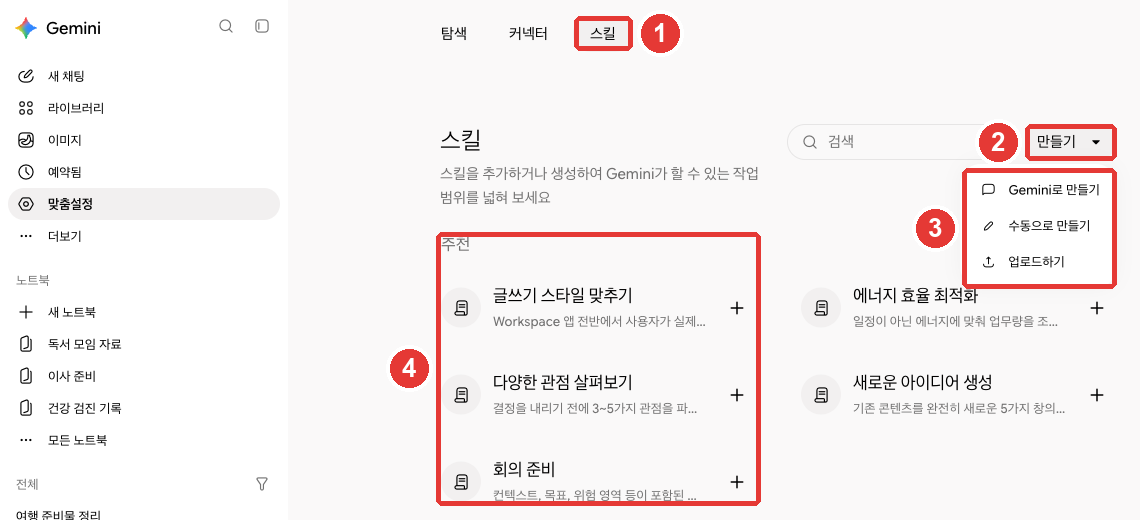
The red numbers match the numbered list below.[4:1]
- ① This is the Skills tab. The description reads, "Add or create skills to expand the range of tasks Gemini can do."
- ② Click Create (만들기) to see ③ three ways to make a skill:
- Create with Gemini (Gemini로 만들기): Explain what you want in a chat, and Gemini builds it with you. This is the easiest way if you are just starting out.
- Create manually (수동으로 만들기): Write the name, description, and instructions yourself in a blank form.
- Upload (업로드하기): Upload a skill file (
SKILL.md, the file containing the skill's name, description, and instructions) or a folder containing that file. Use this to bring in a skill made in another service (web and Mac app only).[2:2]
- ④ These are Recommended (추천) skills pre-made by Google. Click "+" to add one, and then edit it to fit your needs.[1:4]
You can also ask in a chat, "Make a skill with these instructions," and Gemini will create it. However, you can only turn skills on or off or delete them in Customize → Skills.[1:5]
Manage Skills
On the Skills screen, pick a skill and click More.[1:6]
| What you want to do | Menu item |
|---|---|
| Stop using it for now | Deactivate (비활성화) |
| Edit it by chatting | Edit with Gemini (Gemini로 수정) |
| Save it to your computer | Download (다운로드) (.zip file) |
| Remove it | Delete (삭제) — cannot be undone |
Source: Google Help[1:7]
If you ask Gemini to use a skill that is turned off, Gemini will ask if you want to turn it back on.[1:8] You can create as many skills as you want.[5]
Skills do not work with every feature yet. They work with Connected Apps like Gmail and Drive, but they cannot be used yet with Canvas, Deep Research, video or music generation, or Guided Learning.[2:3]
Quick check
Every week, you type a long request asking Gemini to format your meeting notes the same way. What can you use to save this request and call it up in any chat?
How to Write a Good Skill
Write a skill like a short summary note, not a long manual.[6] Gemini first looks only at the skill's name and description to decide whether it fits your current question. It reads the full instructions only when there is a match.[6:1] So if the name and description are vague, the skill won't get used when you need it.
When to Make a Skill, and When Not To
| Good tasks for a skill | Tasks that don't need a skill |
|---|---|
| You keep retyping the same long request | A one-time task |
| You fix the answer format every time | Something Gemini already does well |
| You manually connect steps across multiple apps | A task whose rules change often |
Source: Google Help[6:2]
Write the Name, Description, and Instructions
- Start the name with an action (verb). Show what it does, not what it is.[6:3] Write the name in lowercase English letters with hyphens (-) between words (for example:
summarize-meeting-notes).[1:9] - Keep the description to 1–2 sentences, and include when to use it. It cannot exceed 1,024 characters.[6:4]
- Write instructions that work for a type of task, not a single instance. For example, write for "summarizing meeting notes" rather than "summarizing this week's meeting notes."[6:5]
- Show an example of the output format, and write what to do when information is missing. That way, Gemini is less likely to make up missing details or skip them.[6:6]
Compare a weak example with a better one.
| Weak example | Better example | |
|---|---|---|
| Name | meeting-helper | summarize-meeting-notes |
| Description | Helps with meetings | Organizes meeting notes into decisions, action items, and owners. Use when meeting notes or meeting memos are pasted in |
In the better example, you can tell what it does just from the name, and the description includes when to use it.
In the instructions box under Create manually, you could write something like this:
When you receive meeting notes, organize them in the order below.
1. Decisions made (one line each)
2. Action items (task - owner - due date)
3. Items to revisit at the next meeting
If an owner or due date is missing from the meeting notes, do not make it up. Write "Needs confirmation."
It doesn't need to be perfect from the start. Try it a few times and refine it with Edit with Gemini.
Quick check
You created a skill, but Gemini doesn't seem to use it when you expect it to. What is the first place you should fix?
Gems Are Becoming Skills
Gems were your own custom Gemini, built by adding a name, instructions, and reference files. You can find them in the side menu under More → Gems.[7][4:2] These Gems are turning into skills. Here is the schedule for personal Google accounts (18 and older):[2:4]
| Date | What happens |
|---|---|
| November 17, 2026 | Gems become read-only. You can view them, but you cannot use, edit, or create new ones |
| December 17, 2026 | Gems disappear from Gemini |
Source: Google Help[2:5]
When Gems are removed, Google will automatically recreate them as skills.[2:6] Still, moving your important ones yourself gives you peace of mind.
More details (click to expand)
- Personal accounts for users under 18 will change later, and Google says it will share the schedule separately. Work accounts switch in March 2027, and school accounts switch in June 2027.[2:7]
- Opal, an experimental feature for building mini apps, and Gems by Google Labs will also go away in November.[2:8]
What Gets Left Out During Automatic Migration
Some files are left behind during the automatic transition:[2:9]
- If the total file size exceeds 100 MB, the largest files are removed first.
- File types not supported by skills (older Office files like .doc, .xls, and .ppt, audio and video files, compressed files like .zip, etc.) will not carry over.
So if you have a Gem you care about, download the files you put under Knowledge (지식) before December 17.[2:10]
How to Move a Gem Yourself
- Open the Gem and download each file under Knowledge one by one.[2:11]
- Go to Customize → Skills → Create → Create manually, and copy and paste the Gem's name, description, and instructions.[2:12][4:3]
- To move your files as well, do the following. If moving just the instructions is enough, you can skip this step.[2:13]
- Download the skill you just made. You get a .zip file (a compressed file that bundles several files into one).
- Open the .zip file. It contains
SKILL.md. - Move
SKILL.mdinto the folder with the Gem files you downloaded in step 1. The folder name must match the skill name (for example:summarize-meeting-notes). - Go back to the Skills page, click More options (옵션 더보기) → Replace skill (스킬 바꾸기) next to that same skill, and upload that folder.
Unlike Gems, skills do not have a dedicated page listing the chats you had with that skill. Chats where you used a skill appear mixed in with your regular chat list in the side menu.[2:14] Google says features from Gems—like sharing and adding Drive files or notebooks—will come to skills "in the coming weeks."[2:15]
Quick check
You are 25 and use a favorite Gem on your personal account. What happens to that Gem after December 17, 2026?
Connected Apps — Use Gmail, Drive, and Calendar in Gemini
When you turn on Connected Apps, Gemini can search your apps like Gmail, Drive, and Calendar to answer your questions. With your permission, it can also help edit or manage content inside those apps.[8] For example, you can ask, "Find the email from last month that told us the book club location."
The Connected Apps Screen
View them in the side menu under Customize → the Connectors (커넥터) tab.[8:1][4:4]
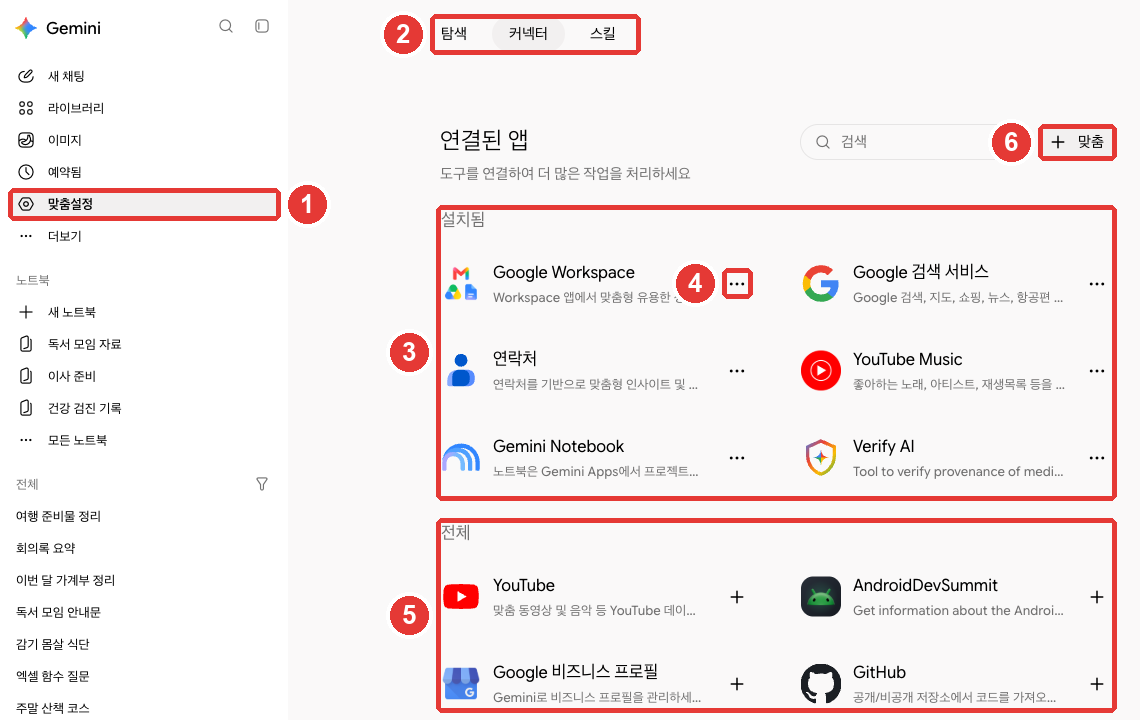
The red numbers match the numbered list below.[4:5]
- ① Click Customize in the side menu and ② pick the Connectors tab. The heading reads Connected Apps (연결된 앱).
- ③ Installed (설치됨) shows apps that are already connected. On the account used for this guide, Google Workspace, Google Search services (Google 검색 서비스), Contacts (연락처), YouTube Music, Gemini Notebook, and Verify AI appeared.
- ④ Click the three dots to see Use now (지금 사용) and Disconnect (연결 해제).
- ⑤ All (전체) shows more apps you can connect. Click "+" to connect them.
- ⑥ "+ Custom (+ 맞춤)" appears to be a menu for directly hooking up another company's service that isn't on the list. It is only for users in the US,[9] so as a beginner, you don't need to use it.
Click an app's name to open its details page. There you will see what it can and cannot do, along with example prompts.[8:2] Connecting Google Workspace alone lets you use Gmail, Google Calendar, Docs, Drive, Keep, and Tasks together.[10][4:6]
The apps you see vary from person to person. The list changes depending on your device, country, and Gemini app type.[8:3]
Two Settings to Check First
- Keep Activity must be turned on. If it is off, you cannot use Connected Apps on the web.[8:4] We cover this setting in detail in Chapter 9.
- "Smart features in other Google products" (다른 Google 제품의 스마트 기능) in your Gmail settings must be turned on for Workspace to connect. If it won't connect, check this first, turn it on, and refresh Gemini to try connecting again.[10:1]
Tips for Asking Well
- In every new chat, tell Gemini which app to search. Say things like "In my email," "In Drive," or "In Calendar." You don't need to repeat it in follow-up questions within the same chat.[10:2]
- Type
@in the input box and pick an app to tell Gemini to use that exact app.[8:5] - Don't paste the web address (URL) of a document or email. Instead, write keywords from the content along with the app name.[10:3]
| Weak question | Better question |
|---|---|
| "Summarize this document (pasting URL)" | "Find the 'Book Club Rules' document in Drive and summarize just the membership fee rules" |
The better question includes both the app name and the words to look for, so Gemini is much less likely to pick the wrong file.
Always double-check the answer. Gemini can give wrong or outdated answers—for instance, basing its reply on an older email when a newer one exists. Click the source links at the end of the reply to open the original email or file.[10:4]
What It Cannot Do
Even with Workspace connected, Gemini cannot do these things:[10:5]
- Read comments or images in Docs or Gmail
- Read pictures and videos in Drive
- Create folders or move files in Drive
- Count items or tell you how much storage space you have in Drive or Gmail
Public Information Used Without Connecting
Gemini uses public information from Google Search, YouTube, Google Maps, and Flights and Hotels without you having to connect anything. It will not open your personal information without permission.[8:6]
- YouTube: Find videos on a topic and ask questions about their content. It cannot save videos to a playlist or post comments.[11]
- Maps: Find places and get directions by mode of transport.[12]
- Flights and Hotels: Find flights and hotels that match your conditions. It will not book them for you.[13]
Public information from Search works even when Keep Activity is off, but Maps, YouTube, Flights, and Hotels require Keep Activity to be on.[8:7]
If an app isn't listed on your current device, you cannot use it on that device.[8:8][14]
Quick check
After connecting Google Workspace, you want Gemini to summarize a document in Drive. Which prompt works best?
Privacy Facts to Know Before You Connect
Connecting is convenient, but parts of your emails and files are sent to Gemini. Know the points below before you connect.[15]
- Sensitive content may be included. Data from Connected Apps may contain confidential info or sensitive topics like health or religion. If new data is added to those apps in the future, Gemini will be able to see that too.
- Human reviewers may see some of it. A subset of Connected Apps data is reviewed by human reviewers (including trained staff at outside service providers). That is why Google directly advises: do not connect apps containing confidential information that you wouldn't want a reviewer to see.
- Here is how training works.
- Google does not train AI models directly on your Gmail inbox or Drive itself.
- However, it does train on the summaries, excerpts, and inferences created when making a reply. For example, if you ask "Find the email that told me where the book club meets," the summary of that email pulled out to make the reply counts here.
- If an email or file is short, that summary might be the entire original text.
- When Keep Activity is on, activity that includes Connected Apps data is used to improve services, including AI training.
- Disconnecting does not delete your chat history. Even if you disconnect an app or delete data inside that app, records in your Gemini Apps Activity (Gemini 앱 활동) are not deleted. You must delete that history separately (Chapter 9).
For work email or a Drive with lots of other people's information, not connecting it in the first place is the safest choice. You can simply upload individual files whenever you need them (Chapter 4).
Quick check
You connected Gmail to Gemini for a while and then disconnected it. What happens to the chat history you had with Gemini during that time?
Try It Yourself
- Go to Customize → Skills, add a recommended skill like Explore different perspectives (다양한 관점 살펴보기), and call it up in a chat by typing
/. - Use Create manually to build the meeting notes skill from this chapter, and paste in a practice meeting memo to check the result. Leave out an owner on purpose and see if it writes "Needs confirmation."
- If you have been using Gems, download your Knowledge files and manually move your favorite Gem into a skill.
- On the Connectors tab, check which apps are connected to your account, and disconnect any you don't need via the three dots → Disconnect.
Ongoing project (Preparing a Book Club): Test the skill from step 2 using the sample meeting notes in the project kit. Compare the organized action items and owners against the original notes yourself.
Summary
- A skill is a saved instruction you call up with
/(soon@). You need to be 18+, signed in, and have Keep Activity on; no paid plan is required. - Create skills under Customize → Skills → Create using Create with Gemini, Create manually, or Upload. You can only turn skills on/off or delete them on this screen.
- A good skill is short, starts its name with an action verb, and states when to use it in the description.
- Gems become read-only on November 17, 2026, and disappear on December 17, automatically converting into skills. Download files from your important Gems ahead of time.
- Manage Connected Apps under Customize → Connectors. State which app to search in every new chat, and verify answers using the source links.
- Human reviewers can see some Connected Apps data. Do not connect apps that hold confidential information. Even after disconnecting, you must delete your chat history separately.
Glossary
| Term | One-line meaning |
|---|---|
| Skill | Saved instructions you can reuse in any chat |
| SKILL.md | The file containing a skill's name, description, and instructions |
| Gem | Your own custom Gemini made with instructions and files; now transitioning to skills |
| Connected Apps | The feature that links apps like Gmail and Drive with Gemini |
| Connector | The name of the tab where you manage Connected Apps |
| Google Workspace | Google's suite of work apps, including Gmail, Docs, Drive, and Calendar |
| Human reviewer | A person who reads a subset of chats to help improve the service |
Finished this chapter?
Progress is saved only in this browser. See your progress on the full table of contents.
Next chapter: Chapter 8. Delegating Tasks
References (15)
Google Help, "Create & manage skills for Gemini Apps" (Korean edition: "Gemini 앱에서 스킬 만들기 및 관리하기"). "Be 18 or over." / "Have Keep Activity on." / "Important: For now, skills are only available in the Gemini mobile app, the Gemini app on Mac, and the Gemini web app at gemini.google.com." / "Tip: Skills are available without a Google AI subscription and can be used in your chats." / "If you don’t find “Customize,” first click More ." / "On the Skills page, you can create a skill with help from Gemini, build one from a prefilled or blank template, or upload a skill file or a folder with a SKILL.md file and optional supported reference files." / "Tip: You can’t activate, deactivate, or delete a skill from a chat or task thread." / "Naming convention: The skill name inside SKILL.md must use all lowercase with words separated by a hyphen (such as my-new-skill)." / "If a skill is off and you ask Gemini to use it, Gemini will ask you if you want to turn it back on." / "Important: If you delete a skill, it can’t be undone." / "Click More Download . This downloads your skill in a .zip file." Korean UI labels: "비활성화" (Deactivate), "Gemini로 수정" (Edit with Gemini), "다운로드" (Download), "삭제" (Delete). support.google.com (checked on 2026-10-31) ↩︎
Google Help, "About the transition from Gems to skills" (Korean edition: "Gems에서 스킬로의 전환에 관한 정보"). "Skills are reusable custom instructions that can help you automate tasks and save time in Gemini." / "Easy access: Use a skill by typing / (soon to be @) followed by the skill's name directly in any Gemini chat." / "Automatic use: Gemini automatically recognizes when a skill is relevant to your current prompt and applies it for you." / "Stackable: Combine multiple skills in a single chat to handle more complex tasks." / "You can create as many skills as you want, but only 100 can be active at a time." / "For now, the option to upload files to create skills is only available in the Gemini app on Mac and in the Gemini web app at gemini.google.com." / "Skills work with some but not all features. You can use them with Connected Apps like Workspace apps, but they do not yet work with features like Canvas and Deep Research." / "November 17, 2026: Gems transition to skills and become read only. You can still access your Gems, but can’t use or edit them, or create new ones." / "December 17, 2026: Gems are removed from Gemini Apps. You’ll no longer be able to access your Gems." / "If you’re under 18 and signed in to a personal Google account, your Gems will transition to skills at a later date. We’ll share more details soon." / "March 2027: Workspace business, enterprise, and non-profit accounts." / "June 2027: Workspace education accounts." / "As part of this change, Opal, our experiment for building mini apps, as well as Gems by Google Labs, will also go away at the same time in November." / "When we remove Gems, we’ll automatically recreate your Gems as skills." / "Skills have a 100 MB total size limit for files. If your Gem is larger than this when we transition it to a skill, we automatically remove the largest files first until it’s under the limit." / "Some file types are not supported in skills. When we transition your Gems to skills, these unsupported file types will not be included:" / "If the Gem has files under “Knowledge,” download your files." / "Copy and paste the name, description, and instructions from your Gem to your skill." / "On your computer, open the .zip file and move the SKILL.md file into the folder with your Gem files." / "Important: The name of the folder must match the name of the skill." / "Go back to the Skills page, and next to the same skill, click More options Replace skill ." Korean UI labels: "옵션 더보기" (More options), "스킬 바꾸기" (Replace skill). / "Unlike Gems, skills don’t have a dedicated page that lists your recent chats with that skill." / "In the coming weeks, skills will have the features you loved in Gems, including the ability to share them with others and add files from Google Drive and notebooks from Gemini Notebook." support.google.com (checked on 2026-10-31) ↩︎
Google Help says
/will soon change to@. Use whichever one you see on your screen. The source is the "About the transition from Gems to skills" help page below. ↩︎Verified directly on the Gemini web screen (Google AI Pro, Korean). Side menu: "새 채팅" (New chat), "라이브러리" (Library), "이미지" (Images), "예약됨" (Scheduled), "맞춤설정" (Customize), "더보기" (More — expands to "동영상" (Videos), "Gems"). Top tabs under "맞춤설정" (Customize): "탐색" (Explore), "커넥터" (Connectors), "스킬" (Skills). "스킬" (Skills) tab prompt: "스킬을 추가하거나 생성하여 Gemini가 할 수 있는 작업 범위를 넓혀 보세요" (Add or create skills to expand the range of tasks Gemini can do); "만들기" (Create) menu: "Gemini로 만들기" (Create with Gemini), "수동으로 만들기" (Create manually), "업로드하기" (Upload); "추천" (Recommended) skills: "글쓰기 스타일 맞추기" (Match writing style), "에너지 효율 최적화" (Optimize energy efficiency), "다양한 관점 살펴보기" (Explore different perspectives), "새로운 아이디어 생성" (Generate new ideas), "회의 준비" (Prepare for a meeting). "커넥터" (Connectors) tab heading: "연결된 앱" (Connected Apps), prompt: "도구를 연결하여 더 많은 작업을 처리하세요" (Connect tools to get more done), "검색" (Search) box and "+ 맞춤" (+ Custom) button, "설치됨" (Installed): Google Workspace, Google 검색 서비스 (Google Search services), 연락처 (Contacts), YouTube Music, Gemini Notebook, Verify AI; "전체" (All): YouTube, AndroidDevSummit, Google 비즈니스 프로필 (Google Business Profile), GitHub. Three-dot menu on installed apps: "지금 사용" (Use now), "연결 해제" (Disconnect). App list on the "Google Workspace" details screen: Gmail, Google Calendar, Google Docs, Google Drive, Google Keep, Google Tasks. The Korean UI label for the Gems knowledge file section in Help is "지식" (Knowledge). (checked on 2026-10-31) ↩︎
However, only up to 100 can be active at the same time. The source is the "About the transition from Gems to skills" help page below. ↩︎
Google Help, "Write effective skills for Gemini Apps" (Korean edition: "Gemini 앱을 위한 효과적인 스킬 작성하기"). "Keep your skills short and focused. Instead of long paragraphs of general explanation, focus on:" / "Check if a skill is relevant. Gemini only checks the skill’s name and description to determine if a skill is relevant for your task." / "Repeat prompts: You give Gemini the same instructions over and over, especially for complex tasks with long prompts." / "A one-off job: You only need to do it once and won't repeat it." / "Start with an action statement, or verb. Focus on what the skill does, not what it is." / "Keep the description focused. Make it as clear as possible and within the 1024 character limit." / "Instead of giving instructions that only apply to a specific task, give instructions that teach Gemini how to handle a type of task." / "Tell Gemini exactly what to do if a piece of information is missing. This prevents Gemini from making up or skipping important details." support.google.com (checked on 2026-10-31) ↩︎
Google Help, "Use Gems in Gemini Apps" (Korean edition: "Gemini 앱에서 Gems 사용하기"). "Enter a name and instructions for your Gem." support.google.com (checked on 2026-10-31) ↩︎
Google Help, "Use & manage Connected Apps in Gemini" (Korean edition: "Gemini에서 연결된 앱 사용 및 관리하기"). "With your permission, Gemini can also help you take actions, like editing and managing your content in other apps." / "When Keep Activity is off, Connected Apps won’t be available on gemini.google.com, iOS devices, or smart watches." / "To specify an app for Gemini to use, enter @ and select the app." / "At the top, click Connectors." / "On the app’s details page, you can find a connected app’s full description, supported and unsupported actions, and example prompts." / "The apps in Connected Apps settings vary by Gemini app, device, country, and more." / "Gemini won’t access your personal information or content in these services without your permission." / "Gemini can always use public information from Google Search, even if Keep Activity is off or you’re signed out." support.google.com (checked on 2026-10-31) ↩︎
Google Help, "Connect & manage custom apps for Gemini Apps". "Be 18 or over and in the US." / "Google does not control, monitor, or secure third-party MCP servers. You’re responsible for supervising the MCP server." support.google.com (checked on 2026-10-31) ↩︎
Google Help, "Connect the Google Workspace app to Gemini Apps" (Korean edition: "Google Workspace 앱을 Gemini 앱에 연결하기"). "For Gemini Apps to connect with Google Workspace, Smart features in other Google products must be turned on in your Gmail settings." / "Tip: Don’t paste the URL of a document or email in your prompt." / "For every new conversation, ask the Gemini app to get or add something from your personal Google Workspace explicitly." / "Gemini Apps can hallucinate responses or provide outdated information, like from an older email when there’s a more recent one." / "Access comments or images in Docs or Gmail" / "Access pictures and videos in your Drive" / "Manage content in your Drive, like create folders or move content between folders" / "Count items in your Drive or Gmail or tell you how much Drive or Gmail storage you have" support.google.com (checked on 2026-10-31) ↩︎
Google Help, "Find & ask about YouTube content in Gemini Apps" (Korean edition: "Gemini 앱에서 YouTube 콘텐츠를 찾고 질문하기"). "Gemini uses public information from YouTube to help you:" / "Take actions that impact your YouTube experience, like saving a video to a playlist or adding a comment on a video." support.google.com (checked on 2026-10-31) ↩︎
Google Help, "Find places & get directions in Gemini Apps" (Korean edition: "Gemini 앱에서 장소 및 경로 찾기"). "Get directions based on mode of transport and help you avoid things like tolls" support.google.com (checked on 2026-10-31) ↩︎
Google Help, "Search for flights & hotels in Gemini Apps" (Korean edition: "Gemini 앱에서 항공편 및 호텔 검색하기"). "Gemini uses public information from Google Flights and Google Hotels to help you:" / "Book a flight or hotel for you" (unsupported actions list) support.google.com (checked on 2026-10-31) ↩︎
Google Help also mentions third-party apps like Dropbox, but some apps are only for users in the US. Google Help, "Manage files & folders in your Dropbox in Gemini Apps". "Be 18 or over and in the US." support.google.com (checked on 2026-10-31) ↩︎
Google Help, "About personalization with Connected Apps" (Korean edition: "연결된 앱을 통한 개인화에 관한 안내"). "Data shared may relate to topics you find sensitive, like race, religion, and health, or confidential info." / "Keep in mind that if new data is added to these apps in the future, Gemini will have access to that data." / "Gemini does not train generative AI models directly on your Gmail inbox, Drive, Contacts, Calendar or other Workspace apps, on your Google Wallet and payments services, or on imagery or audio from your Google Photos library." / "To make our responses relevant, helpful, and high quality, we train our generative AI models off of these summaries, excerpts, generated media, and inferences." / "Gemini Apps activity, which includes data from apps you connect, is used to improve Google services for everyone, including by training generative AI models, if your Keep Activity setting is on." / "In some cases, for example, where the email or file is brief or particularly relevant to respond to the prompt, the summary may just be the email or file." / "When connected to Gemini, a subset of Connected Apps data processed by Gemini is reviewed by human reviewers (including trained service providers) to debug our services, help keep them safe, and improve them." / "Important: Please don't connect your apps to Gemini Apps if they contain confidential information that you wouldn’t want a reviewer to see." / "Disconnecting an app or deleting data in a connected app doesn’t delete any data from Gemini Apps Activity." support.google.com (checked on 2026-10-31) ↩︎