Chapter 6. Search and Deep Research — Checking Sources, Long Research Reports, Notebooks, and Study Helpers
Optional Read this when you need it. You can skip it and still follow the later chapters.In One Line: Use Deep Research when you need a long report compiled from many sources. It shows you a research plan first, so edit anything you want right away. Use Notebooks to keep materials and chats on one topic over time, and use Guided Learning, quizzes, and flashcards when studying. Whatever the answer is, always check the sources yourself.
The screens are based on the web version as of October 2026, and the screenshots show the Korean interface on a paid plan (Google AI Pro).
Checking the Sources Behind an Answer
Gemini's answers can be wrong. Google also tells you to always evaluate responses and double-check facts using built-in tools or Google Search.[1] If you see "Sources (출처)" below an answer or between sentences, click it to open the original page. Some answers do not have sources (Chapter 3).
Ask yourself these questions when you check:
- Does the source link actually say what the answer claims?
- Do the numbers and dates match the original text?
- Is the source an official institution or a trustworthy place?
The more specific your question, the more useful the answer becomes.[1:1] Compare these two examples.
| Weak question | Better question |
|---|---|
| "Tell me the reading rate" | "Tell me how the annual reading rate of Korean adults has changed over the past 10 years, along with official statistical sources" |
The better question includes the time period, target group, and source requirement, which makes the answer much easier to verify (Stage 1, Chapter 9).
Quick check
Gemini replied, "The adult reading rate in Korea jumped sharply compared to last year." What should you do before putting this in a meeting handout?
Deep Research — Getting a Long Research Report
Deep Research searches multiple times, weighs the results, and puts together a comprehensive report for you. By default, it uses Google Search as its source.[2] You need to be 18 or older and signed in. The help docs do not say you must have a paid plan. However, free accounts may not be able to use it during busy hours (Chapter 1).[2:1][3] Google AI Pro and Ultra users can generate reports with a higher-quality model.[2:2]
Getting Started
In the input box, click "+" → "More tools (도구 더보기)" → "Deep Research" (Chapter 2).[2:3][4]
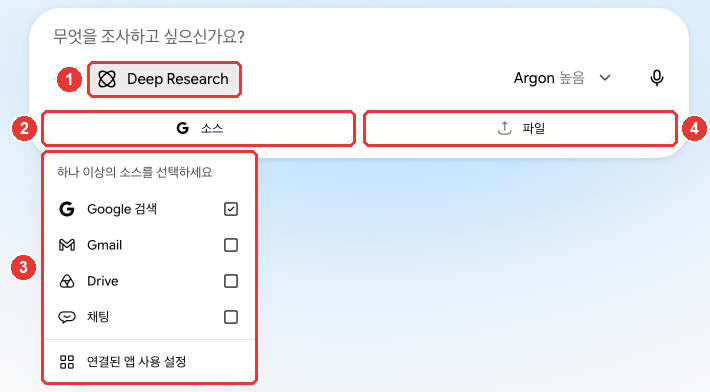
The red numbers match the numbered list below.[4:1]
- ① Shows that "Deep Research" is turned on. The prompt in the input box changes to "What would you like to research? (무엇을 조사하고 싶으신가요?)".
- ② Click "Sources (소스)" to ③ choose where Gemini looks for information. "Google Search (Google 검색)" is checked by default.
- ③ If you uncheck "Google Search", Gemini searches only the sources you selected.[2:4] At first, leaving just "Google Search" checked is enough.
- ③ To use Gmail or Drive as sources, you need to connect your Google apps to Gemini first. You will learn how to connect them in Chapter 7.[2:5]
- ③ "Chats (채팅)" appears to include your past Gemini conversations as sources.[5]
- ④ Use "Files (파일)" to attach your own files as well.[2:6]
Type your research topic and send it, and Gemini first shows you a research plan.[2:7]
Reviewing the Plan and Starting
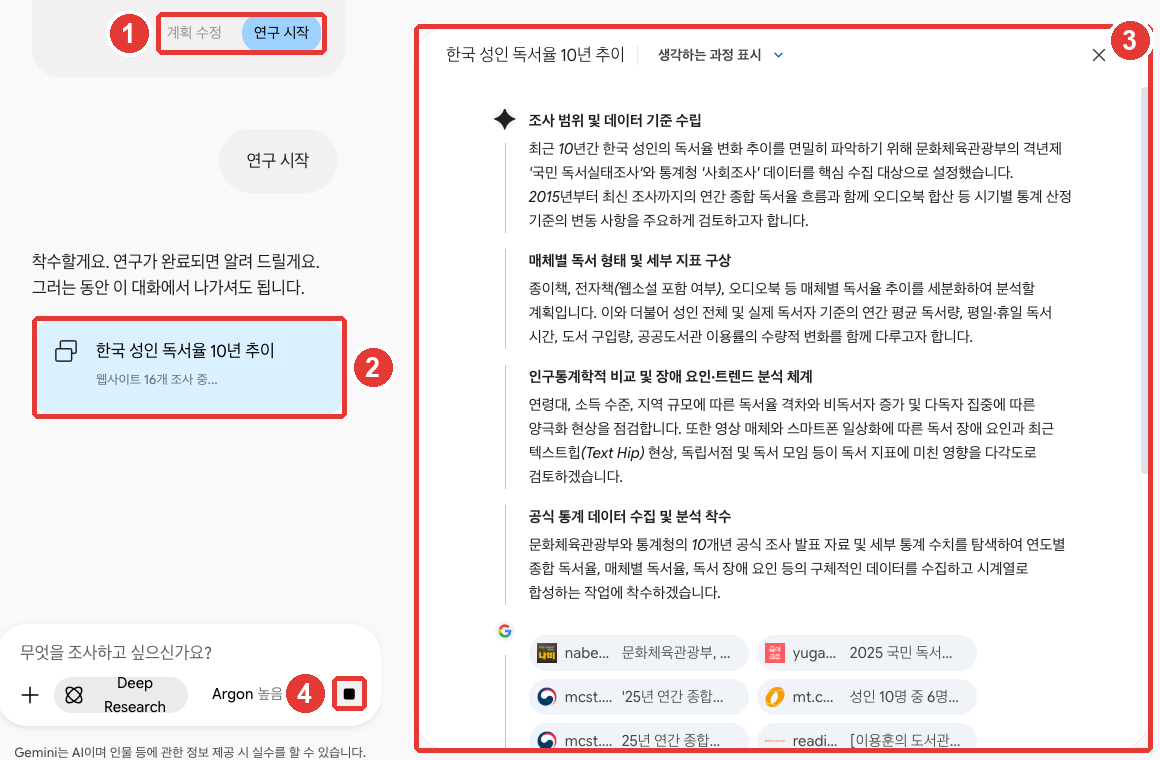
The red numbers match the numbered list below.[4:2]
- ① Click "Edit plan (계획 수정)" to adjust the plan, and click "Start research (연구 시작)" to begin the research.[2:8][4:3]
- ② Once research starts, Gemini replies "I'll get started. I'll let you know when the research is done. Feel free to leave this chat in the meantime." along with a progress card.[4:4]
- ③ In the right panel, you can see the research steps and which websites Gemini is checking.[4:5]
- ④ Click this button if you want to stop. When "Cancel research? (조사를 취소하시겠어요?)" pops up, click "Yes, cancel (예, 취소합니다)".[4:6]
If you want to change the plan, click "Edit plan" right away if possible. That's because the research has started before without anyone clicking "Start research".[6] If it has already started, you can stop it with ④.[4:7]
A report usually takes 5 to 10 minutes, or longer for complex topics. You can leave the chat while you wait. Gemini notifies you when it is done.[2:9]
Good to Know
- It uses a lot of your usage limit (Chapter 1).[3:1] There are also limits on how many research reports you can run per day and at the same time. When you get close to the limit, Gemini tells you how many requests you have left.[2:10]
- You can find past reports in your chat list. "Keep Activity (활동 기록 보관)" must be turned on for you to find them later.[2:11]
- You can export reports to Docs.[2:12] You can also turn a report into an Audio Overview (which reads the report out loud as a conversation) (Chapter 4).[2:13]
Remember that a report is still text written by Gemini. For important numbers, open the source links in the report and verify them yourself.
Research how the annual reading rate of Korean adults has changed over the past 10 years.
Prioritize official statistics (such as the National Reading Survey by the Ministry of Culture, Sports and Tourism),
put the yearly figures in a table, and attach a source to every figure.
What About Deep Think?
Deep Think was a feature for longer reasoning. It is now being replaced by Gemini 4 Argon.[7] For tough problems, just select Argon and the "High (높음)" thinking level from the model button in Chapter 2 (Pro and Ultra).
More details (click to expand)
Deep Think was only available to Google AI Ultra subscribers.[7:1]
Quick check
When asking Deep Research to look into a topic, you want to add the rule "Use only official statistics." When and how should you do that?
Notebooks — Organizing Sources and Chats by Topic
A Notebook (노트북) is a space where you gather sources, instructions, and chats on a single topic in one place. When you chat inside a notebook, Gemini remembers the sources, instructions, and past conversations you added there.[8] For example, if you put club rules, past meeting minutes, and a schedule into a "Book Club" notebook, you do not have to re-upload those files every time.
In the side menu under "Notebooks (노트북)", click "New notebook (새 노트북)", give it a name, and ask your questions. Add materials with "Add source (소스 추가)" (Chapter 2).[8:1][4:8] You can add up to 600 sources to a single notebook, depending on your plan.[8:2]
| Sources you can add | Examples |
|---|---|
| Files from your device | PDFs, documents, spreadsheets, images, audio, text files |
| Google Drive files | Documents and spreadsheets stored in Drive |
| Website URLs | News articles or information pages |
| Copied text | Notes, email bodies |
Source: Google Help[8:3]
There are two things you really need to know.[8:4]
- If you delete a notebook, the sources and chats inside it are deleted too. Keep a separate copy of any material you want to keep using outside the notebook.
- This feature is rolling out gradually, so you might not see it yet. If there is no "Notebooks" in the side menu, check again later.
For example, add a single meeting-notes PDF and ask, "Organize the tasks decided in this meeting by person in charge." If you ask again in the same notebook the next day, you don't need to upload the material again.
Other things to know (click to expand)
- You can still use web search and Gemini tools inside a notebook.[8:5]
- To rename a notebook, add instructions ("Notebook settings (노트북 설정)"), or pin it, go to "All notebooks (모든 노트북)" and click "More (더보기)" on the notebook.[8:6]
- You can still chat when "Keep Activity" is off, but some features will not work—such as auto-saving chats, remembering past chats, adding existing chats, and adding Google Drive files as sources.[8:7]
You can also add a past chat to a notebook by clicking "Add to notebook (노트북에 추가)" in the chat menu (Chapter 3). This also requires "Keep Activity" to be turned on.[8:8][4:9]
Quick check
You put meeting notes and a schedule into a "Book Club" notebook as sources. If you delete this notebook, what happens to the sources and chats inside it?
Study Helpers — Guided Learning, Quizzes, and Flashcards
When studying, you can use Gemini like a personal tutor. In the input box, click "+" → "More tools (도구 더보기)" → "Guided Learning (가이드 학습)".[9][4:10] You can also ask it to explain things with pictures or diagrams.[9:1]
To prepare for exams, ask Gemini to make quizzes, flashcards (word cards with a question on the front and the answer on the back), and study guides.[10] A good tip is to state what you want to create first, and then write the material or topic.[10:1]
Create a quiz for me. The topic is Silhak in the late Joseon Dynasty, with 10 multiple-choice questions.Create flashcards for me. Put the English word on the front, and the meaning and an example sentence on the back. Use the word list below.
(Paste word list here)- While taking a quiz, you can click "Hint (힌트)", or click "More questions (더 많은 질문 생성)" after finishing to get more questions. When you finish, Gemini shares your strengths and areas to study more.[10:2]
- With flashcards, you can shuffle the deck ("Shuffle mode (셔플 모드)") and have Gemini read the cards aloud.[10:3][11]
When using Gemini for schoolwork, check your school's AI policy first.[1:2] Treat Gemini's suggestions as a starting point, and finish the work by adding your own thoughts and words.[1:3]
Quick check
You want to ask Gemini to make a practice quiz for an exam. How does the help guide recommend asking?
Try It Yourself
- Turn on Deep Research with a topic you are curious about, like "Changes in the share of single-person households in Korea over the past 10 years." When the plan appears, click "Edit plan (계획 수정)" to add "Use only official statistics," and then click "Start research (연구 시작)".
- Pick one number from the report, open its source link, and check whether it matches the original text.
- Create a "Book Club" notebook with "New notebook (새 노트북)", add a practice notice with "Add source (소스 추가)", and ask, "Write the next meeting notice in this format."
- Turn on "Guided Learning (가이드 학습)" and learn a concept you have been curious about step by step.
Continuing Project (Preparing a Book Club Meeting): Add the sample files from the project (meeting minutes, notes, and ledger) as sources to your "Book Club" notebook, and ask, "Summarize the supplies for the next meeting and the remaining club dues." Check the numbers you get against the ledger yourself.
Summary
- Gemini's answers can be wrong. Open "Sources (출처)" and double-check with built-in tools or Google Search. Asking specific questions makes fact-checking easier.
- Deep Research is available when you are 18 or older and signed in. Free accounts may not be able to use it during busy hours. Pick Google Search, Gmail, Drive, and more under "Sources (소스)", and when the plan appears, click "Edit plan (계획 수정)" or "Start research (연구 시작)".
- Reports usually take 5 to 10 minutes and use a lot of your usage limit. There is a daily limit on research requests. You can export reports to Docs.
- Deep Think is being replaced by Gemini 4 Argon.
- Notebooks organize sources (up to 600 depending on your plan), instructions, and chats by topic. Deleting a notebook also deletes the sources and chats inside it.
- Use "Guided Learning (가이드 학습)", quizzes, and flashcards to help you study. For schoolwork, check your school's rules first.
Key Terms
| Term | One-line meaning |
|---|---|
| Deep Research | A feature that searches and evaluates multiple times to create a comprehensive report |
| Source | A webpage or file that backs up an answer or research report |
| Research plan | The list of steps Deep Research shows you before starting its research |
| Deep Think | A feature for longer reasoning, now being replaced by Gemini 4 Argon |
| Notebook | A space to gather sources, instructions, and chats on a single topic |
| Guided Learning | A learning tool that lets you use Gemini like a personal tutor |
| Flashcard | A word card with a question on the front and the answer on the back |
Finished this chapter?
Progress is saved only in this browser. See your progress on the full table of contents.
Next chapter: Chapter 7. Skills and Connected Apps
References (11)
Google Help, "Learn in creative ways with generative AI" (Korean page: "생성형 AI를 활용해 창의적으로 학습하기"). "Important: Make sure to check and follow your school’s policy on using Generative AI." / "Use its suggestions as a starting point, then add your own unique voice and ideas to create something truly original." / "Always evaluate responses: While generative AI is a powerful tool, it can make mistakes." / "It’s important to always fact-check information using built-in tools or by double-checking with Google Search." / "Be specific: The more specific your questions, the more helpful the AI's answers will be." support.google.com (checked on 2026-10-31) ↩︎
Google Help, "Use Deep Research in Gemini Apps" (Korean page: "Gemini 앱에서 Deep Research 사용하기"). "By default, Gemini includes Google Search as a source for your research." / "You can also upload files and add NotebookLM notebooks." / "Be 18 or over." / "Google AI Pro and Google AI Ultra users can generate reports using Pro for even higher quality. All users can use Thinking for their reports." / "In Gemini Apps, there are limits for:" / "Number of research requests you can run at the same time" / "If you’re close to your limit, Gemini Apps notifies you how many research requests are left for the day." / "To update the research plan before you create a report, click Edit plan." / "Click Start research." / "Google Search is included as a source by default. To limit your research to other selected sources, deselect Google Search." / "It usually takes about 5-10 minutes to generate the report since Gemini analyzes many sources. For more complex reports, it may take longer." / "Important: You can only find past research reports if your Keep Activity setting is on." / "To export the report, click Export to Docs ." / "Other Google services, like Gmail and Drive, are only available if the Google Workspace app is connected to Gemini Apps." / "On the right in the Canvas panel, click Create Audio Overview ." The Korean page states: "Gemini가 주제에 맞는 조사 계획서를 작성합니다." support.google.com (checked on 2026-10-31) ↩︎
Google Help, "Gemini Apps limits & feature availability". "This requires Gemini to use multiple, multi-step search queries and several rounds of reasoning sweeps to create a comprehensive report." / "For users without a Google AI plan, some features that require more compute resources, like Deep Research, may be unavailable during periods of high demand." support.google.com (checked on 2026-10-31) ↩︎
Verified directly on the Gemini web app (Google AI Pro, Korean UI) using a practice chat (deleted after taking screenshots). Turning on "Deep Research" shows the input prompt "What would you like to research? (무엇을 조사하고 싶으신가요?)", along with "Sources (소스)" (Google Search selected) and "Files (파일)" buttons. The "Sources" menu shows "Select one or more sources (하나 이상의 소스를 선택하세요)" — "Google Search (Google 검색)", "Gmail", "Drive", "Chats (채팅)", "Enable connected apps (연결된 앱 사용 설정)". Buttons below the plan: "Edit plan (계획 수정)" and "Start research (연구 시작)" (the Korean help docs call them "계획서 수정" and "조사 시작"). Reply after research starts: "I'll get started. I'll let you know when the research is done. Feel free to leave this chat in the meantime. (착수할게요. 연구가 완료되면 알려 드릴게요. 그러는 동안 이 대화에서 나가셔도 됩니다.)", progress card "Researching 16 websites... (웹사이트 16개 조사 중...)", right panel "Show thinking (생각하는 과정 표시)". Clicking the stop button shows "Cancel research? (조사를 취소하시겠어요?)" — "No (아니요)", "Yes, cancel (예, 취소합니다)". In this guide's test, research started while waiting for the plan without clicking "Start research", so we captured the running screen and then canceled it. Also verified "Guided Learning (가이드 학습)" under "More tools (도구 더보기)", "New notebook (새 노트북)" and "All notebooks (모든 노트북)" under "Notebooks (노트북)" in the side menu, and "Add to notebook (노트북에 추가)" in the chat menu. (checked on 2026-10-31) ↩︎
The help docs do not explain the "Chats" item. This is our guess based on the name shown on the screen. ↩︎
When we tested this for the guide, the research started on its own without us clicking "Start research". The "Start research (연구 시작)" speech bubble in the screenshot also appeared automatically at that time. The help docs only say that you must click "Start research" to begin, so we could not verify why this happened (see the screen-check footnote below). ↩︎
Google Help, "Use Deep Think in Gemini Apps" (Korean page: "Gemini 앱에서 Deep Think 사용하기"). "Important: Deep Think is being replaced by Gemini 4 Argon." / "Be a Google AI Ultra subscriber or have a Google AI Ultra for Business license." support.google.com (checked on 2026-10-31) ↩︎
Google Help, "Organize your projects with notebooks in Gemini Apps" (Korean page: "Gemini 앱의 노트북으로 프로젝트 정리하기"). "Notebooks provide a continuous chat experience that remembers your sources, instructions, and ongoing discussions." / "We’re gradually making this feature available, so it might not be available to you just yet." / "Some features in notebooks require Keep Activity turned on. When Keep Activity is off, you can still chat with your notebook, but the following features aren’t available" / "Give your new notebook a name. This name helps you organize your notebooks and also helps you find them" / "Based on your Google AI Plan, you can add up to 600 sources." / "Files from your device: PDFs, documents, spreadsheets, images, audio, text files, files, and .md files." / "Files from Google Drive." / "Websites/URLs" / "Copied text" / "Auto-saving chats. Gemini cannot save new chats in your notebook." / "Adding existing chats. You cannot add existing chats to a notebook directly from the sidebar." / "Google Drive. You cannot add files from Google Drive as sources." (both listed under features unavailable when Keep Activity is off) / "Pin or unpin a notebook" / "Your chats in Gemini apps notebooks can include web searches and use of any Gemini tools." / "Important: If you delete a notebook, any sources or chats that you added to that notebook will also be deleted." / "You can create detailed instructions for Gemini Apps, like how to format responses or the tone you want it to use." Korean UI labels: "새 노트북", "소스 추가", "모든 노트북", "이름 바꾸기", "노트북 설정", "고정". support.google.com (checked on 2026-10-31) ↩︎
Google Help, "Use learning tools in Gemini Apps" (Korean page: "Gemini 앱에서 학습 도구 사용하기"). "You can use Gemini Apps as a tutor with guided learning, visual aids, and educational resources." / "Gemini Apps may include images in responses to help explain a topic or concept. You can also ask Gemini to provide a diagram or image in your prompt." support.google.com (checked on 2026-10-31) ↩︎
Google Help, "Create quizzes, flashcards, practice tests & more in Gemini Apps" (Korean page: "Gemini 앱에서 퀴즈, 플래시카드, 연습 시험 등 만들기"). "You can use Gemini Apps to create, use, and share study materials like flashcards, quizzes, and study guides to help prepare for exams." / "Tip: Start your prompt telling Gemini what to create followed by the materials or topic you want to study." / "Supported tests include SAT, JEE Main, and NEET UG." / "Once you finish a quiz, wait a moment for Gemini to share strengths and focus areas." / "To get a hint, click Hint." / "To generate more questions, when you complete the quiz, click More questions." / "To have Gemini play audio of the text, click Text to speech ." / "To shuffle the flashcards, click Shuffle mode . This will shuffle all of the flashcards in the deck." Korean UI labels: "힌트", "더 많은 질문 생성", "셔플 모드", "텍스트 음성 변환". support.google.com (checked on 2026-10-31) ↩︎
For practice tests, the help docs list exams such as the SAT, JEE Main, and NEET UG, and do not list Korean exams. The source is the "Create quizzes, flashcards, practice tests & more in Gemini Apps" help article below. ↩︎