Chapter 8. Handing Off Work — Tasks, Schedules, Gemini in Chrome, and Safety Rules
Optional Read this when you need it. You can skip it and still follow the later chapters.In One Line: Hand off multi-step jobs using Task (작업) below the input box. Set a Schedule to make it run on its own at a set time. When you hand off work, never type sign-in or payment info into the chat, and read permission screens carefully. Watching it work is your best safeguard.
The screens here are based on the web version as of October 2026, and the screenshots show the Korean UI on a paid plan (Google AI Pro).
Tasks — Handing Off a Whole Job Instead of Chatting
Chat is for asking questions and getting answers. Tasks are for handing off an entire multi-step job.[1] Gemini uses connected apps, skills, past chats, and websites you are signed into to get the work done (Chapter 7).[1:1]
Here are examples from the help docs.[1:2]
- Summarize or archive newsletters in your inbox, and make an urgent to-do list after a vacation
- Alert you when flight or hotel prices drop within your budget
- Turn research results with sources into a PDF, document, table, or presentation file
To use Tasks, you must meet all the conditions below.[1:3]
- Be 18 or older with a personal Google Account (work and school accounts are not supported yet)
- A Google AI Pro or Ultra subscription
- Keep Activity (활동 기록 보관) turned on, and opted in to Personal Intelligence (개인 인텔리전스) (Chapter 5)
- Available only on the web app, mobile app, and Mac app. In the Korean account used for this guide, Task (작업) was available.[2][3]
Starting a Task
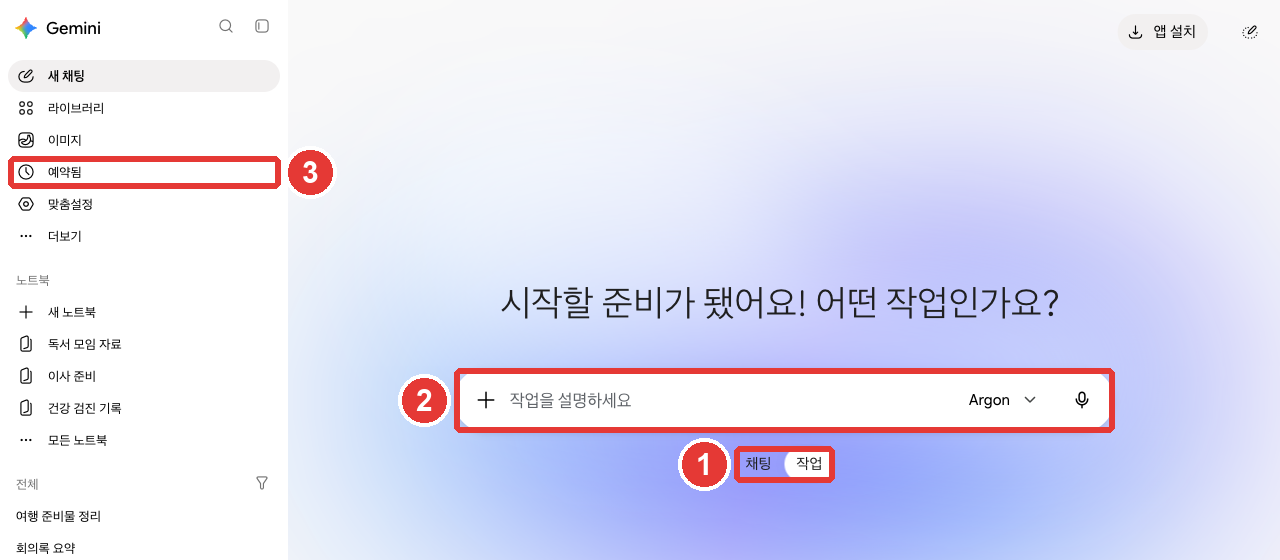
The red numbers match the numbered list below.[2:1]
- ① Click Task (작업) in the Chat (채팅) / Task (작업) toggle below the input box.
- ② The prompt changes to "Describe your task" (작업을 설명하세요). Type the job you want to hand off and send it. You can type
@to pick a skill to use with it, and you can attach files too.[1:4] - ③ View scheduled tasks in Scheduled (예약됨) on the side menu (see the section below).
If you are new and not sure what to hand off, try typing 'interview me' (물어봐 줘) in the task input box. The help docs say that entering "set up" (설정), "get started" (시작), or "interview me" (물어봐 줘) lets Gemini chat with you to build your first skill and task together.[1:5]
Even while a job is running, you can type more instructions in the input box to change direction. Gemini keeps the work it has already done and continues from there.[1:6]
Pick only the newsletters from the emails I received over the past week, and organize their titles and a one-line summary in a table.
Do not delete or archive the emails. Just show me the table.
Writing down what not to do, like in the last line, helps prevent unwanted actions.
Tasks you hand off appear in your side menu chat list, with an icon showing their progress.[4] Like chats, tasks count toward your usage limits.[1:7] You can run up to 15 tasks at the same time. Beyond that, you have to wait for one to finish.[1:8]
More details (click to expand)
Quick check
Someone on a free account wants to use "Tasks" below the prompt box to tidy up their inbox. What will happen?
Running on Its Own at a Set Time — Schedules
A Schedule tells Gemini to do a job on its own at a set time.[5] There are two features with similar names, so be sure to tell them apart.
| Chat Schedule | Task Schedule | |
|---|---|---|
| What it does | Sends you summaries or updates at a set time | Runs a task at a set time |
| Required plan | No plan requirement (rolling out gradually) | Google AI Pro or Ultra |
There is also a limit on how many can be active. Chat schedules allow up to 10, and task schedules allow up to 50.[6:1][5:2]
Setting a Schedule in Chat
In a normal chat, just write when and how often you want to get it, and send your message. Gemini replies with a summary of the schedule.[6:2]
Every morning at 7 AM, summarize today's weather and three news stories to know for my commute.- Content is prepared in advance within the hour before your scheduled time. Because of this, fast-changing info like stock prices may not be the latest. It works best for daily summaries and wrap-ups.[6:3]
- Keep Activity must be turned on.[6:4]
Setting a Schedule for a Task
In Tasks, you can set the trigger in three ways.[5:3]
- Time: Once, hourly, daily, weekly, monthly, or yearly
- Monitor Gmail: When an email matching your conditions arrives
- Monitor a topic: When new updates come out on a topic like news, finance, or sports
"Monitoring" is not meant for urgent jobs. The help docs give "Let me know right away when tickets go on sale" as an example of what to avoid. Run times are also approximate, not exact.[5:4]
Managing in Scheduled
Your schedules gather in Scheduled (예약됨) on the side menu. On the screen used for this guide, there was a Beta (베타) badge, a menu to filter by status, and a Create scheduled task (예약 작업 만들기) button.[2:2]
- You can only create time-based schedules manually with Create scheduled task (예약 작업 만들기). To monitor emails or topics, ask for it in words inside a task chat.[5:5]
- You can test a new schedule right away by clicking More (더보기) → Run now (지금 실행).[5:6]
- Schedules you have not checked in a long time may pause on their own. Our screen also showed the notice: "Some inactive scheduled tasks have been paused" (비활성 상태의 일부 예약된 작업이 일시중지되었습니다). You can turn them back on anytime.[6:5][2:3]
Quick check
You want to set up a scheduled task (watch) that says, "Tell me right away the moment concert tickets go on sale." According to the help guide, which statement is true?
Tasks That Use a Browser and Permissions
You can also hand off jobs that require clicking around on websites, like shopping, booking travel, or reserving a restaurant.[1:10] When doing this, Gemini uses one of two browsers.[1:11]
- Chrome on your computer: The browser you are using right now.
- Remote browser: A browser just for Gemini that runs not on your device but on Google's computers over the internet (the cloud).
| Chrome on Your Computer | Remote Browser | |
|---|---|---|
| Sites it can visit | Even sites you are signed into | Inside a dedicated Gemini browser |
| Where it is used | Computer only | Mobile uses only this |
| If you turn off your device | Must stay on | Keeps running |
| If sign-in is needed | — | Pauses so you can take over |
Source: Google Help[1:12]
If you turn off your computer while Gemini is working in Chrome on it, the task may switch to the remote browser and continue.[1:13]
Tasks that use the web ask for your confirmation first every time by default.[1:14] If you change this to Always allow (항상 허용) in settings, Gemini uses the web without asking.[7]
The Permission Screen
Before Gemini uses a browser, changes something inside an app, or sends info that might be sensitive, it asks for your permission in the task thread.[7:1] Here are the choices you can pick.[7:2]
- Deny / Don't allow (허용 안함): Stops the action. Gemini will not try another way to do something you denied.[1:15]
- Allow once (한 번 허용): Allows this step only.
- Allow for this chat (이 채팅에 허용): Allows it until this task chat ends. This option only appears for actions in connected Google apps.
- Always allow (항상 허용): Allows that action in all future task chats. Clicking this once changes your settings so it keeps applying.
At first, stick to Allow once (한 번 허용). It is never too late to widen permissions after you get used to what Gemini asks about.
Even if you set it to Always allow, Gemini asks again before important actions like sending messages, making purchases or payments, or submitting web forms. It also pauses and asks before sending sensitive info like health records, financial details, or government ID numbers.[7:3][1:16] To change permission settings for each app, go to Personalization (맞춤설정) → Connected Apps (커넥터), click the app, and next to App actions (앱 작업), choose Always allow (항상 허용) or Always ask (항상 확인).[7:4]
Stopping and Taking Control
If Gemini is doing something you do not like, stop it right away. Click Stop response (대답 중지) in the chat, or Take control (직접 제어) in the browser.[1:17] At steps where a password or payment info is needed, Gemini may pause and ask you to take control directly.[1:18]
Task Settings
In the settings menu under Task settings (작업 설정) (Chapter 2), there are three options.[2:4][1:19]
| Option | What it does |
|---|---|
| Hand off tasks using task mode (작업 모드를 사용하여 작업 전달) → Turn off (사용 중지) | Turns off the Tasks feature. Deletes browsing history and remote code execution files, and pauses schedules (without deleting them) |
| Delete remote browser data (원격 브라우저 데이터 삭제) → Delete (삭제) | Clears cookies in the remote browser and signs out of websites |
| Delete remote code execution data (원격 코드 실행 데이터 삭제) → Delete (삭제) | Deletes files and data left on the remote computer |
Source: Gemini web screen[2:5]
If the words in the table are unfamiliar, here is how to understand them.
- Cookie: A small record a site leaves in your browser to remember things like your sign-in. Deleting it signs you out of that site.
- Remote code execution files and data: These appear to be files Gemini left on the remote computer (Google's computer) while working.
Even if you turn off the Tasks feature, the tasks, chats, and files you already created are not deleted.[1:20]
Quick check
During a task, Gemini asks for permission: "Can I access this website?" It is your first time delegating this, so you want to be careful. Which choice is best?
Before You Hand Off Work — Safety Rules
Tasks is an experimental feature. The help docs state that your active supervision is the most important safeguard.[1:21] Follow these five rules before handing off work.
- Never type sign-in info, payment details, or sensitive info into a task chat. If needed, take control of the browser and enter them directly on the webpage.[1:22]
- Do not set schedules for sensitive jobs. If a schedule runs while you are offline, you may not be able to stop an unintended action.[1:23]
- Read permission screens and clarifying questions carefully. Only hand off jobs you feel comfortable giving to Gemini.[1:24]
- Watch out for hidden instructions on unfamiliar sites and in emails. Someone can hide sentences on a webpage or in an email to trick the AI. This is called prompt injection (controlling an AI with hidden instructions). If an AI reads these sentences while doing a task, it might do something unintended, and even built-in safeguards cannot block every risk.[1:25][8]
- When connecting a folder to the Mac app, do not put files in it that you cannot afford to lose. In the Mac app, you can add folders from your computer to Connected folders (연결된 폴더) so tasks can use them. Gemini can only see the folders and files you add there. But you may not be able to recover files that Gemini deletes while working. If you don't use the Mac app, you can skip this item.[9]
We also covered prompt injection in Stage 1 (Stage 1 Chapter 9). Google also advises using caution with shared Gemini chats or Canvas apps from people you do not know.[8:1]
Quick check
While a task is reading your emails, a hidden sentence inside an email could trick the AI into doing something unintended. What is this kind of attack called?
Gemini in Chrome
You can also call up Gemini inside the Chrome browser on your computer. You can have it summarize the page you are looking at, explain a hard concept, or find answers on the page.[10]
- Use it in the latest Chrome on a computer (Chromebook Plus, Mac, or Windows).[10:1] If you are 18 or older, South Korea is on the supported regions list and Korean is a supported language.[11]
- You must be signed in to Chrome, and it does not work in Incognito mode.[10:2]
- Click Ask Gemini (Gemini에게 물어보기) at the top of Chrome, and follow the onscreen instructions the first time to opt in.[10:3]
- By default, the content of your current tab is sent to Gemini. You can type
@in the prompt box to pick other tabs, and share up to 10 open tabs at once.[10:4] - It is not open to everyone yet. It is rolling out gradually.[10:5]
- Auto browse, which navigates the web for you to add items to a cart or make bookings, is not available in Korea yet.[12]
Because we could not verify this section on screen for this guide, it is based solely on the help docs.
Quick check
An adult living in Korea wants to use Gemini in Chrome on a computer. Which statement is true?
Try It Yourself
- Click Task (작업) below the input box and send "interview me" (물어봐 줘) to see what tasks Gemini suggests (paid plan).
- In chat, set a schedule by typing "Every Monday morning at 8 AM, summarize this week's weather for me", check it in Scheduled (예약됨) on the side menu, and then use More (더보기) to pause or delete it.
- Open Settings → Task settings (작업 설정) and read the names and descriptions of the three options (you do not need to click them).
- In Chrome on your computer, click Ask Gemini (Gemini에게 물어보기) and have it summarize an article you are reading in three lines.
Ongoing Project (Preparing a Book Club): Set a schedule that says "At 8 PM the evening before the meeting, remind me of the checklist of things to bring." Check whether the list you get matches the checklist in your meeting notes, and delete the schedule once the meeting is over.
Summary
- Task (작업) is where you hand off a whole multi-step job. It requires being 18 or older, a personal account, Google AI Pro or Ultra, Keep Activity, and Personal Intelligence. Up to 15 tasks can run at the same time.
- There are two kinds of schedules. You can keep up to 10 chat schedules and up to 50 task schedules active. Manage them in Scheduled (예약됨) on the side menu.
- Tasks that use the web ask for permission by default. Start by using only Allow once (한 번 허용), and if something looks wrong, stop it with Stop response (대답 중지) or Take control (직접 제어).
- Never type sign-in or payment info into the chat, and do not set schedules for sensitive jobs. Watch out for hidden instructions (prompt injection) and keep an eye on Gemini while it works.
- Gemini in Chrome works in the latest Chrome on a computer, including in Korea for users 18 or older. It is rolling out gradually, so you might not see it yet. Auto browse is still US-only.
Glossary
| Term | One-line meaning |
|---|---|
| Task | A feature for handing off an entire multi-step job |
| Schedule | A setting that makes Gemini work on its own at a set time |
| Remote browser | A dedicated Gemini browser running in the cloud |
| Take control | Taking over the browser that Gemini was using |
| Prompt injection | An attack that hides instructions on a webpage or in an email to trick an AI |
| Auto browse | A feature where Gemini in Chrome navigates the web for you |
Finished this chapter?
Progress is saved only in this browser. See your progress on the full table of contents.
Next chapter: Chapter 9. Privacy and Safety
References (12)
Google Help, "Manage your tasks & workflows in Gemini Apps" (Korean edition: 「Gemini 앱에서 작업 및 워크플로 관리하기」). "Assign Gemini tasks to automate complex workflows and manage schedules for ongoing tasks." / "Save you money: Gemini can monitor and alert you when the prices of flights and hotels drop within your budget." / "Be 18 or over." / "Have a Google AI Pro or Ultra subscription. Learn how to upgrade." / "Have Keep Activity on." / "Opt in to Personal Intelligence." / "Available wherever Gemini Apps are supported, except in the European Economic Area, Nigeria, Switzerland, and the United Kingdom." / "Only available in the Gemini mobile app, the Gemini app on Mac, and the Gemini web app at gemini.google.com." / "Just enter “set up,” “get started,” or “interview me” in a task." Korean edition: "작업에 '설정', '시작' 또는 '물어봐 줘'를 입력하기만 하면 됩니다." / "If you close or turn off your device before the task is finished, or the device isn’t available, Gemini might use a remote browser to complete the task." / "Your schedules and tasks are paused and not deleted." / "직접 제어 모드: Gemini는 작업을 일시적으로 중지하고 사용자에게 브라우저를 '직접 제어'해 특정 유형의 정보(예: 비밀번호 또는 결제 세부정보) 입력 등 일부 작업을 직접 수행해 달라고 요청할 수 있습니다." / "Gemini updates its work without losing progress." / "You can have up to 15 tasks running at a given time." / "To interact with websites, Gemini can connect to the local Chrome browser on your desktop or use a separate remote browser in the cloud." / "If you use your local browser: Gemini has access to all the same sites that you do, including sites you’re signed into." / "If you use the remote browser: Gemini continues to work on your task even if you close your device, and only uses the remote browser on mobile devices. For certain steps, like signing in to a website, the task pauses until you take over and complete that step." / "After that, for every task that involves web browsing, Gemini will ask for confirmation first." / "Do not enter sign-in info, payment details, or info you may find sensitive directly into the task thread. If needed, take control of Gemini’s browser or the local browser. Then, enter relevant details directly on the webpage." / "If a schedule runs when you are offline, you may not be able to stop Gemini from completing an unintended action." / "Sending communications, modifying or deleting your data, making purchases, completing financial transactions, and filling out and submitting web forms." / "Gemini pauses and asks for your permission before it shares info you may find sensitive, such as your health information, financial details, or government ID numbers, with a website or connected app." / "If an AI agent reads these instructions while doing a task, it may be misled into doing unintended things." / "Deny or don’t allow an action: If you deny an action in a task thread, Gemini stops and doesn’t try another way to complete it." / "Gemini’s ability to handle tasks is experimental." / "Your active supervision is the most important way to protect against risk when you assign tasks to Gemini. Review confirmation requests and clarifying questions closely. Assign tasks to Gemini carefully and safely, and only give it tasks you're comfortable with." / "If Gemini is doing something you don't like, you can stop it by selecting Stop response in the chat or Take control over Gemini’s browser." / "Your tasks, threads, schedules, or any related files that Gemini updated or created will not be deleted." Korean UI labels: 「대답 중지」, 「직접 제어」. support.google.com (checked on 2026-10-31) ↩︎
Verified directly on the Gemini web screen (Google AI Pro, Korean). Below the input box, the Chat (채팅) and Task (작업) toggle buttons; clicking Task (작업) shows the heading "시작할 준비가 됐어요! 어떤 작업인가요?" and input prompt "작업을 설명하세요" (the Korean help docs call this button 「할 일」). On the side menu Scheduled (예약됨) screen: the Beta (베타) badge, filter-by-status menu, Create scheduled task (예약 작업 만들기) button (called 「예약된 작업 만들기」 in the Korean help docs), and notice "비활성 상태의 일부 예약된 작업이 일시중지되었습니다". On the Settings → Task settings (작업 설정) screen: Hand off tasks using task mode (작업 모드를 사용하여 작업 전달) (description: "이 기능을 사용 중지하면 인터넷 사용 기록과 원격 코드 실행 파일이 삭제되고 예약된 작업이 중지됩니다", button: Turn off (사용 중지)), Delete remote browser data (원격 브라우저 데이터 삭제) (description: "쿠키가 삭제되고 웹사이트에서 로그아웃됩니다", button: Delete (삭제)), and Delete remote code execution data (원격 코드 실행 데이터 삭제) (button: Delete (삭제)). The help docs say to delete remote browser data under Settings > Browser (설정 > 브라우저), but there was no Browser (브라우저) item in this screen's settings menu. (checked on 2026-10-31) ↩︎
It is not available in the European Economic Area, Nigeria, Switzerland, or the United Kingdom. The source is the "Manage your tasks & workflows in Gemini Apps" help page below. ↩︎
Google Help, "Find & manage your tasks in Gemini Apps" (Korean edition: 「Gemini 앱에서 할 일 확인 및 관리하기」). "Next to your task threads, check the icon for the progress of your tasks." / "Tasks are only listed in the side bar if you have Keep Activity on." / "If you delete a task thread, it also deletes the following:" support.google.com (checked on 2026-10-31) ↩︎
Google Help, "Create & manage schedules for tasks in Gemini" (Korean edition: 「Gemini에서 작업 일정 만들기 및 관리하기」). "A schedule acts as the automated trigger for a task, telling Gemini exactly when to step in and execute your instructions." / "Time-based: schedule tasks to run once, hourly, daily, weekly, monthly, or yearly." / "While Gemini has improved at monitoring and responding to events more quickly, monitors are still not ideal for tracking fast-moving data or performing time-critical tasks like “Let me know when tickets go on sale immediately so I can buy it.”" / "The option to create a schedule manually is only available for time-based schedules." / "Tip: To test your new schedule, hover over the schedule, then click More Run now ." / "Active schedules limit reached: The current limit for how many active schedules you can have for tasks is 50." / "Schedule run times vary: Scheduled tasks run times are approximate and may not run at the exact moment a time or event condition is met." support.google.com (checked on 2026-10-31) ↩︎
Google Help, "Schedules in Gemini Apps" (Korean edition: 「Gemini 앱의 일정」). "You can set a delivery time that works for your schedule. Gemini will prepare your content in the background so it’s ready by the scheduled time." / "Important: We’re gradually making this feature available to all personal Google Accounts, so it might not be available to you just yet." / "Have Keep Activity on. This feature isn't available when this setting is off." / "Important: You can have up to 10 active schedules at a time." / "If you aren’t receiving responses for a schedule, it may have been automatically turned off due to inactivity. You can turn the schedule on again at any time." / "Tip: In your prompt, provide details about when and how often you want to schedule the action." / "Responses for schedules are prepared in advance to guarantee timely delivery. As a result, rapidly changing data, like stock prices, won’t be the latest when you receive them. Schedules work best for daily summaries and wrap-ups." support.google.com (checked on 2026-10-31) ↩︎
Google Help, "Manage browser & app permissions for tasks in Gemini" (Korean edition: 「Gemini에서 작업에 대한 브라우저 및 앱 권한 관리하기」). "Gemini is designed to ask for your permission in the task thread before it uses a browser, makes a change in an app, or performs an action or shares info that you may find sensitive." / "Allow for this chat: Approves the action automatically for the rest of the current thread without changing your Connected Apps settings." / "This option is only available for connected Google products." / "Always allow: Gemini uses the web without asking." / "Always allow: Approves the action for the current thread and all future task threads. Selecting this automatically updates your preference to “Always allow” in your settings." / "Under “App actions,” next to the action, click the dropdown and select your permission preference:" / "To help prevent unintended actions and protect your data, Gemini is designed to apply built-in safeguards that confirm some actions with you even if you set a permission to “Always allow.”" Korean edition option labels: 「허용 안함」, 「한 번 허용」, 「이 채팅에 허용」, 「항상 허용」, 「항상 확인」. support.google.com (checked on 2026-10-31) ↩︎
Google Help, "How Gemini Apps help protect users from malicious content & prompt injection" (Korean edition: 「Gemini 앱이 악성 콘텐츠 및 프롬프트 인젝션으로부터 사용자를 보호하는 방법」). "Prompt injection is an attempt to elicit an unintended or harmful response from generative AI tools." / "Use caution when interacting with shared content, like public Gemini Apps chats or Gemini Canvas web apps, from unknown providers" support.google.com (checked on 2026-10-31) ↩︎
Google Help, "Assign tasks in the Gemini app on Mac" (Korean edition: 「Mac의 Gemini 앱에서 작업 할당하기」). "Gemini can only view files or directories that you specifically add to the Connected folders toolbar." / "Don’t include any files that you don’t want Gemini to work with or which are too sensitive to lose. You may not be able to recover files once Gemini completes a task for them or is instructed to delete them." support.google.com (checked on 2026-10-31) ↩︎
Google Help, "Use Gemini in Chrome" (Korean edition: 「Chrome의 Gemini 사용하기」). "With Gemini in Chrome, you can get AI assistance in your browser to easily get key takeaways, clarify concepts, find answers and more." / "Important: Gemini in Chrome is not available to all users at this time." / "On a computer, you can also share up to 10 open tabs with Gemini." / "Use a Chromebook Plus, Mac, or Windows computer." / "Use the latest version of Chrome." / "Sign in to Chrome. This feature isn’t available in Incognito mode." / "You’ll need to opt in the first time you use Gemini in Chrome. To opt in, follow the onscreen instructions." / "To add an open tab directly in your prompt, enter @ and select the tab. You can also share up to 10 of your open tabs." Korean edition button label: 「Gemini에게 물어보기」. support.google.com (checked on 2026-10-31) ↩︎
Google Help, "Gemini in Chrome availability" (Korean edition: 「Chrome의 Gemini 사용 가능 여부」). "For users 18 or older, Gemini in Chrome is available in the following locales:" ("South Korea" on the list, and "Korean" on the supported languages list) support.google.com (checked on 2026-10-31) ↩︎
Auto browse is only for users 18 or older in the US. Google Help, "Ask Gemini in Chrome to complete tasks for you with auto browse" (Korean edition: 「Chrome의 Gemini에게 자동 탐색을 사용하여 작업을 완료하도록 요청하기」). "Be 18 or over and in the US." support.google.com (checked on 2026-10-31) ↩︎