Chapter 1. Getting Started — Where to Use It, Signing In, Plans, and Usage Limits
Required Read this to follow this stage.One-line summary: You can use Gemini on the web, in a mobile app, and in a computer app with a single Google Account. There is no separate sign-up. Just sign in with the Google Account you already use. Start for free and only consider a paid plan if you often hit the usage limit.
The screens in this guide are based on the web version as of October 2026, and the screenshots show the Korean interface on a paid plan (Google AI Pro). Menus may look slightly different on a free account or in the mobile app.
What Is Gemini and Where Do You Use It?
Gemini is an AI service made by Google. It runs on an LLM (Large Language Model, Part 1, Chapter 1), which you learned about in Part 1. The tips for asking good questions from Part 1 work the same way in Gemini. This chapter only covers how to get into the Gemini service.
You can use it on the web, in a mobile app, or in a computer app. Wherever you use it, you sign in with the same Google Account.
| Where to use it | How to open it |
|---|---|
| Web | Go to gemini.google.com in your browser |
| Android app | Get it on Google Play |
| iPhone and iPad app | Get it on the App Store |
| Mac app | Get it at gemini.google/mac |
| Windows app | Get it at gemini.google/desktop |
Source: Google Help[1][2][3][4]
If this is your first time, start on the web. It is the easiest option because there is nothing to install.
There are two requirements to use it.
- You must be in a supported country. South Korea is a supported country, and Korean is supported.[5][2:1]
- You must be 13 or older (for a personal account).[6]
Paid plans and some features (such as customization and importing from other AIs) are only available if you are 18 or older.[7][8] Accounts managed with Family Link (a feature that lets parents manage a child's account), such as a child's account, cannot use Gemini on the web.[6:1]
More details (click to expand)
What each device needs[1:1][2:2][3:1][4:1]
- Web: Chrome, Safari, Firefox, Opera, or Edge browser
- Android app: Android 9 or later, 2 GB of RAM or more
- Mac app: macOS 15 or later, Apple chip
- Windows app: Windows 10 or later
Age and account type[6:2]
- The minimum age of 13 may vary by country.
- For a work account, you must be 18 or older.
- For the mobile app, parents can turn off their child's access in Family Link settings.
When you open it for the first time, try asking this:
What kind of work can you help me with? Give me five examples that an office worker can use right away.Quick check
Your middle-school nephew wants to try Gemini on the web. His parents manage his Google Account with Family Link. What will happen?
Signing In with Your Google Account
There is no separate sign-up process for Gemini. Just sign in with the Google Account you use for Gmail or YouTube.[1:2] Go to gemini.google.com and click Sign in (로그인) at the top right.[6:3]
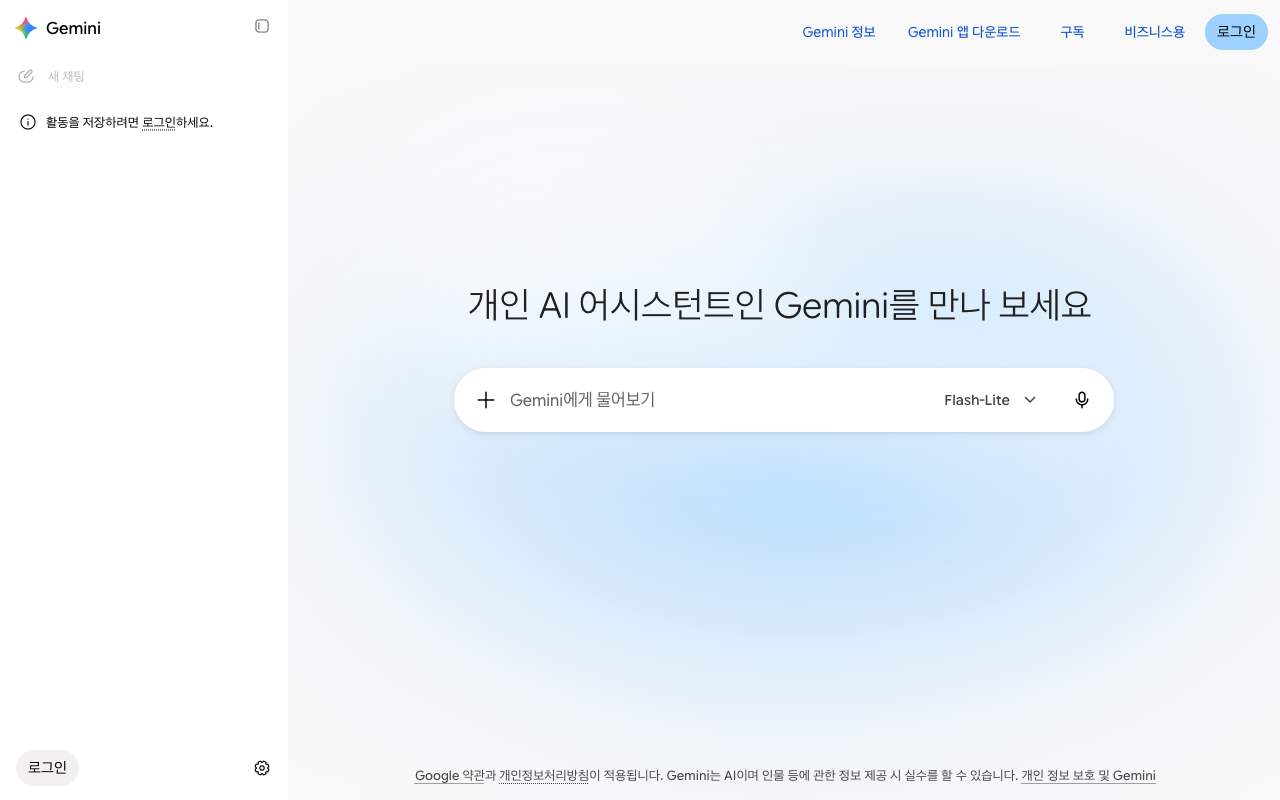
This is the screen before you sign in. The side menu shows the message "Sign in to save your activity (활동을 저장하려면 로그인하세요.)", and the model is set to "Flash-Lite".[9]
On the web, you can ask simple questions without signing in. However, there is a lot you cannot do.[1:3]
| Signed out | Signed in |
|---|---|
| Ask and answer by text | Ask and answer by text |
| View past chats ✗ | View past chats |
| Upload files or create images ✗ | Upload files and create images |
| Connect Google apps like Gmail or Drive ✗ | Connect Google apps |
Source: Google Help[1:4]
Sign in if you want to save your chats and read them again later. The Android mobile app requires you to sign in from the start.[1:5]
To sign out, click your profile picture (or initial) in the left menu and choose Sign out (로그아웃).[6:4] If you are using a shared computer, always sign out when you are done. If you leave it signed in, the next person can open your chats from the side menu.
Quick check
You asked a few questions on Gemini on the web without signing in. The next day, you want to read that chat again. What will happen?
Plans at a Glance
Gemini also has several plans (tiers that give you different features and usage limits depending on what you pay), starting from a free plan. Paid plans are called Google AI plans, and you subscribe through Google One (Google's paid subscription service).[10]
| Plan | Monthly price (Korea) | Usage | Storage |
|---|---|---|---|
| Free | ₩0 | Standard | — |
| Google AI Plus | ₩7,500 | 2x standard | 400 GB |
| Google AI Pro | ₩29,000 | 4x standard | 5 TB |
| Google AI Ultra | From ₩119,000 | 5x or 20x Pro | From 20 TB |
Source: Google plans page (South Korea) and Google Help[11][12]
There is one thing worth noting. Google AI plans include Google storage. This storage is shared across Drive, Gmail, and Google Photos.[10:1] So if you already pay for extra storage for your photos or emails, factor that in when choosing a plan.
Prices can change and limited-time discounts are common. Check the plans page yourself before you pay.
At first, comparing just Free and Pro is enough. Ultra is a plan for people who use it several times more than Pro allows.
"5x or 20x" in the table means Ultra comes in two tiers: "Ultra 5x (Ultra 5배)" (₩119,000/month, 20 TB) and "Ultra 20x (Ultra 20배)" (₩300,000/month, 30 TB).[11:1]
What Changes with Each Plan?
It is easier to choose when you focus on "what changes" rather than just the numbers.
Before reading the table, learn just two words.
- Token: The unit AI uses to count text. The bigger the number, the longer the text it can read at once.
- Model: The AI inside Gemini that actually creates the answers. There are several models of different sizes and characters, and the largest one is Argon. You will see more in Chapter 2.
| What changes | Free | Paid |
|---|---|---|
| Usage | Standard | Plus: 2x, Pro: 4x[12:1] |
| How much it can read at once | About 32,000 tokens | Plus: 128,000; Pro & Ultra: 1 million tokens[12:2] |
| Choosing a model yourself | No | Yes (Chapter 2)[13] |
| Largest model (Argon) | No | Pro & Ultra[7:1] |
How much it can read at once is the context window you learned about in Part 1. With 1 million tokens, it can read about 1,500 pages of text at once.[12:3] This makes a big difference when you want to upload an entire long report or book and ask questions about it.
If you use the Pro plan with a family plan, your family members can also use the AI features at no extra cost.[7:2]
Quick check
Someone who takes lots of photos is running out of Google storage and is thinking about a paid Gemini plan. What is good to know?
Usage Limits — 5-Hour, Weekly, and Reading Capacity
Gemini's limit is counted by how much you use, not by a fixed number like "how many times a day." It factors in how complex your question is, which model and features you use, and how long your chat is.[12:4] Your usage refreshes every 5 hours, and there is a separate weekly limit.[12:5]
Knowing which tasks use up a lot of your limit helps you save it.[12:6]
| Task | Usage |
|---|---|
| A single short question | Very low |
| A long back-and-forth chat | Medium |
| Deep Research (long research report) | High |
| Creating images, music, or videos | High (video uses the most) |
Source: Google Help[12:7]
There is a reason a long chat uses more. Every time Gemini replies, it re-reads the earlier conversation.[12:8] So start a new chat when you change topics. That saves usage because Gemini does not have to re-read a long conversation (Part 1, Chapter 6).[12:9]
When you get close to your limit, Gemini shows a notice, and when you reach the limit, it tells you when it will refresh.[12:10] If you are on a paid plan and reach your limit, you can keep chatting with a lighter model (Flash-Lite). If you are on the free plan, just wait until it refreshes.[12:11] On a free account, heavy features like Deep Research may be temporarily unavailable during busy hours.[12:12]
You can check how much you have used in Settings (설정) → Usage limits (사용량 한도) at the bottom left.[12:13][14]
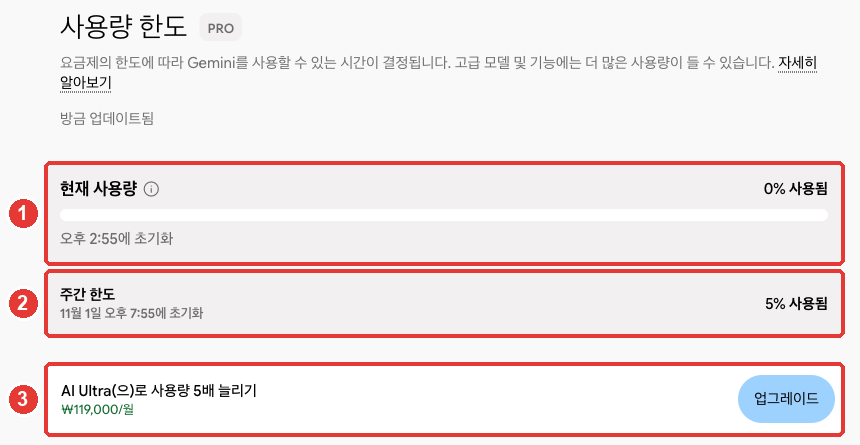
This is the screen for a paid plan (Pro). The red numbers match the numbered items below.[14:1]
- ① Current usage (현재 사용량): Usage that refreshes every 5 hours. It shows how much you have used and the time it will reset.
- ② Weekly limit (주간 한도): Usage counted over a week. It shows a separate reset date and time.
- ③ A prompt to upgrade to a higher plan.
For example, instead of sending three separate questions, bundle them like this. Sending them all at once reduces how many times Gemini re-reads the earlier chat, which saves your usage.
Please answer these three things at once.
1. Summarize these meeting notes in five lines.
2. Put the decided tasks and owners into a table.
3. Draft a short follow-up email to send to the attendees.
(Paste meeting notes)
Quick check
In a single chat, you planned a trip in the morning and worked on a company report in the afternoon. Your usage limit dropped quickly. What is the best habit here?
What to Know Before Upgrading to a Paid Plan
You do not need to start on a paid plan. The safest approach is to start for free and upgrade only when you often run into the limit.
Here is how to upgrade to a paid plan.[10:2]
- Click Settings (설정) at the bottom left of gemini.google.com.
- Click View subscriptions (구독 보기) — the label shown on accounts without a plan — and choose the Google AI plan you want.
- Choose or add a payment method and subscribe.
Billing is handled through Google One. That means Google One is also where you change or cancel your plan.[10:3]
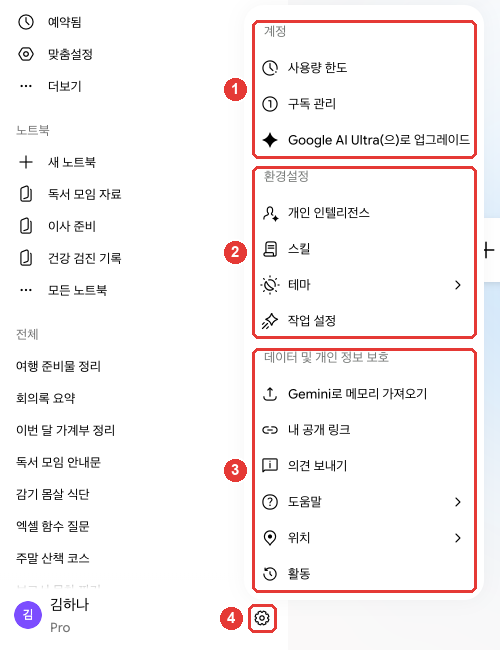
The name and chat titles in this screenshot have been replaced with examples. Clicking the ④ gear icon opens the menu, and the top ① Account (계정) group has Usage limits (사용량 한도) and Manage subscription (구독 관리).[14:2] The other groups are covered in Chapter 2.
Make sure you know the following before paying.
- You can cancel anytime.[7:3] Go to Settings (설정) → Manage subscription (구독 관리), then click Cancel membership (멤버십 취소) in Google One settings.[10:4][14:3]
- You also change your plan in Google One. Upgrade or downgrade under Manage membership (멤버십 관리) → Change membership plan (멤버십 요금제 변경).[10:5]
- Work and school accounts cannot subscribe to these plans. Only personal Google Accounts can subscribe.[7:4]
- If you cancel, the extra storage goes away too. If you have stored a lot of photos and emails, check before you cancel.[10:6]
What you lose when you cancel (click to expand)
If you are not sure which plan fits you, tell Gemini your usage habits and ask. Just remember to verify prices and terms on the plans page rather than trusting the AI's answer (Part 1, Chapter 9).
I use Gemini 3 to 4 times a day, mostly to polish work emails and summarize meeting notes.
Sometimes I also upload PDF files to summarize them. Give me three signs I can use to judge for myself
when it is time to move from the free plan to a paid plan.
Quick check
You are using Google AI Pro and want to cancel it. What should you check before canceling?
What to Try First When Something Goes Wrong
Sometimes you might get no reply, see an error message, or fail to sign in. When that happens, try these steps in order.[15]
- Send the same question again. If it still fails, try it in a new chat.
- If you attached a file, remove it and ask with text only.
- Check your internet connection and wait about 5 minutes. It may stop working briefly when traffic is heavy.
- Refresh the page or restart the app.
If it still does not work, send feedback. Go to Settings (설정) → Send feedback (의견 보내기) to write a report and attach a screenshot.[16][14:4]When you send feedback, that chat and any uploaded files are sent to Google along with it.[16:1] If the chat contains personal information, make sure that part is hidden.
What each error message means (click to expand)
Knowing what common messages mean will keep you from panicking.
| Message | What it means | What to try |
|---|---|---|
| Something went wrong (문제가 발생했습니다) (when signing in) | This account cannot use Gemini right now[6:5] | Check your age and account type |
| Too many requests… | Busy traffic or a temporary limit reached[15:1] | Try again in a few minutes |
| Error 1060 | May not be available in this country[15:2] | Check supported countries |
| I cannot fulfill this request | A required connected app is turned off[15:3] | Check your connected apps |
If you see Something went wrong (문제가 발생했습니다) when signing in, the issue may be with your account. Your location, age, or account type (such as a work or school account) could be the reason.[6:6]
Quick check
Gemini showed an error instead of an answer. What should you try before contacting support?
Try It Yourself
- Go to gemini.google.com and sign in with your everyday Google Account.
- Ask, "What kind of work can you help me with?"
- Open Settings (설정) → Usage limits (사용량 한도) and check your current plan and how much you have used.
- Install the Gemini app on your phone, sign in with the same Google Account, and check that the chat from your computer appears there.
Continuing project (Preparing a Book Club Meeting): Ask, "I'm the organizer of a neighborhood book club. Make me a checklist of things to prepare for next month's meeting." After you finish the project, compare the list you got with what you actually did.
Summary
- You use Gemini on the web (gemini.google.com), in the mobile app, and in the Mac and Windows apps with the same Google Account. South Korea and Korean are supported.
- There is no separate sign-up; you sign in with your Google Account. Without signing in, you cannot view past chats, upload files, or create images.
- Personal accounts require you to be 13 or older, while paid plans and some features require you to be 18 or older.
- Paid plans are Google AI Plus, Pro, and Ultra, subscribed through Google One. They come with Google storage included.
- Usage refreshes every 5 hours, with a separate weekly limit. Start a new chat when you change topics to save usage.
- To cancel, go to Settings (설정) → Manage subscription (구독 관리) to open Google One. Canceling also removes the extra storage.
- If you hit an error, try resending → opening a new chat → removing files → waiting 5 minutes, in that order.
Glossary
| Term | One-line meaning |
|---|---|
| Google Account | The Google sign-in account you share across Gmail, YouTube, and more |
| Google One | Google's paid subscription service that sells storage and AI plans |
| Google AI Plan | The three paid Gemini plans: Plus, Pro, and Ultra |
| Usage Limit | The amount you can use, which refreshes every 5 hours and every week |
| Context Window | The amount of text AI can read at one time, measured in tokens |
| Token | A small unit AI uses to split and count text |
| Family Link | A feature that lets parents manage their child's Google Account |
Finished this chapter?
Progress is saved only in this browser. See your progress on the full table of contents.
Next chapter: Chapter 2. Touring the Screen
References (16)
Google Help, "Use Gemini Apps". "You can use some features in Gemini Apps without signing in." / "The Gemini mobile app on an Android device." / "Accessing past chats: Your chat history with Gemini Apps won’t be available." / "Other features that require account authentication: Features like image generation, Gems, and file upload won’t be available." / "Integration with other Google services: Features that rely on Connected Apps (like Google Workspace, Google Photos, or other Google services) won’t be available." / "To use gemini.google.com, you need access to a supported browser: Chrome, Safari, Firefox, Opera, or Edgium." support.google.com (checked on 2026-10-30) ↩︎
Google Help, "Gemini mobile app availability". "Gemini mobile apps are currently available in multiple languages and more than 150 countries." Includes "South Korea" in the list under "Where you can download the Gemini app from the Google Play Store". "On iOS: The Gemini app." / "Tip: Android Go doesn't support the Gemini mobile app." support.google.com (checked on 2026-10-30) ↩︎
Google Help, "Use the Gemini app on Mac". "A Mac running macOS Sequoia (15.0) or later with Apple Silicon, 8 GB of RAM or more, and at least 200 MB of available disk space for installation." / "Open your web browser and go to gemini.google/mac." support.google.com (checked on 2026-10-30) ↩︎
Google Help, "Use the Gemini app for Windows". "A PC running Windows 10 or later." / "Go to gemini.google/desktop on your PC." support.google.com (checked on 2026-10-30) ↩︎
Google Help, "Where you can use the Gemini web app". "The Gemini web app is currently available in more than 70 languages and over 230 countries and territories." Includes "Korean" in the language list and "South Korea" in the country list. support.google.com (checked on 2026-10-30) ↩︎
Google Help, "What you need to sign in to Gemini Apps". "At the top right, select Sign in." / "Select Sign out." / "You must be 13 (or the applicable age in your country) or over to use Gemini with a personal or school Google Account and 18 or over to use Gemini with a work account." / "You still can’t access the Gemini web app with a Google Account managed by Family Link." / "If you get a “Something went wrong” message while trying to access or sign in to the Gemini web app, your account can't access the app at the moment." support.google.com (checked on 2026-10-30) ↩︎
Google One plans page (Korean). "Google AI 요금제에 포함된 Gemini 앱과 Gmail, Docs 등의 Gemini는 만 18세 이상만 이용할 수 있습니다." / "개인 Google 계정만 Google AI 요금제에 가입할 수 있습니다." / "복잡한 워크플로에서 최첨단 성능을 발휘하는 Gemini 4 Argon에 대한 액세스" / "Google AI Pro 요금제를 사용하는 가족 요금제 구성원은 추가 비용 없이 AI 혜택과 기능을 이용할 수 있습니다." / "언제든지 취소할 수 있습니다." The Help article (16275805) differs by listing the plan age as 13 or older in most countries — this guide follows the stricter requirement (18). one.google.com (checked on 2026-10-30) ↩︎
Google Help, "Customize your Gemini chats experience". "Customize is available for signed-in users 18 and older using Gemini Apps in an available language and region." Importing from other AIs is also only for personal accounts aged 18 and older: "Import from other AI platforms to Gemini Apps" support.google.com support.google.com (checked on 2026-10-30) ↩︎
Verified directly on gemini.google.com in a signed-out browser. Side menu "Sign in to save your activity (활동을 저장하려면 로그인하세요.)", model badge "Flash-Lite" in the input box, and top right "About Gemini (Gemini 정보)", "Download Gemini app (Gemini 앱 다운로드)", "Subscriptions (구독)", "For business (비즈니스용)", "Sign in (로그인)". (checked on 2026-10-31) ↩︎
Google Help, "Manage your Google AI plan from Gemini Apps". "You can subscribe to a Google AI plan through Google One." / "Select the Google AI plan you want." / "When you subscribe to the plan, you’ll need to select or provide a form of payment." / "To upgrade: Select a plan under "Upgrade options."" / "You can cancel your plan in Google One settings." / Korean version step: "하단에서 설정 및 도움말 구독 보기를 클릭합니다." (when not currently subscribed to a plan) / "When your AI Pro plan ends, you’ll no longer have access to:" / Korean version: "Start new chats with Pro (Pro로 새 채팅 시작하기)", "Continue chats created with Pro (Pro로 생성된 채팅 이어서 하기)" / "Expanded storage across Drive, Gmail, and Photos" support.google.com (checked on 2026-10-30) ↩︎
Verified directly on the Google One plans page (region "South Korea (대한민국)") in a signed-in browser. Google AI Plus ₩7,500/month, 400 GB, "2x more access to Gemini (2배 더 많은 Gemini 액세스)"; Google AI Pro ₩29,000/month, 5 TB, "4x more access to Gemini (4배 더 많은 Gemini 액세스)"; and in the comparison table, Ultra 5x at ₩119,000/month with 20 TB and Ultra 20x at ₩300,000/month with 30 TB. one.google.com (checked on 2026-10-30) ↩︎
Google Help, "Gemini Apps limits & feature availability". "These limits factor in the complexity of your prompt, the models and features you use, and the length of your chat." / "Your limit refreshes every 5 hours until you reach your weekly limit." / "4x higher than standard limits" / "5x or 20x higher than AI Pro limits depending on your subscription" / "32k tokens" / "128k tokens" / "1 million tokens" / "For example, with a 1M token context window, Gemini can understand up to 1,500 pages of text or 30,000 lines of code." / "These require Gemini to re-read the previous conversation history to maintain context. As the chat gets longer, this requires more thinking power." / "Video generally requires the most usage." / "Start a new chat when you move to a new topic. This will help save usage because Gemini won’t have to re-read a long conversation history before creating a response." / "If you have a Google AI subscription and reach your limit, you can continue your conversation with Flash-Lite." / "For users without a Google AI plan, some features that require more compute resources, like Deep Research, may be unavailable during periods of high demand." / "Gemini Apps will notify you when you're close to your limit based on your plan's level." / "To view your usage limits:" support.google.com (checked on 2026-10-30) ↩︎
Google Help, "About Gemini models". "If you have a Google AI plan you can manually switch models in both Chat Mode and Task Mode." support.google.com (checked on 2026-10-30) ↩︎
Verified directly on the Gemini web screen (Google AI Pro, Korean). In the bottom-left "Settings (설정)" menu under the "Account (계정)" group: "Usage limits (사용량 한도)" and "Manage subscription (구독 관리)"; on the "Usage limits (사용량 한도)" screen (gemini.google.com/usage): "Current usage (현재 사용량)" and "Weekly limit (주간 한도)" along with their reset times; under the "Data & privacy (데이터 및 개인 정보 보호)" group: "Send feedback (의견 보내기)". (checked on 2026-10-30, screenshots from 2026-10-31) ↩︎
Google Help, "Troubleshoot error codes in Gemini Apps". "Gemini Apps may not be available in your country or region." / "Wait a few minutes: If Gemini Apps are experiencing high traffic, wait 5 minutes and try your prompt again." / "High demand or usage limits: If you get "Too many requests in a short time period," Gemini Apps may be experiencing high traffic, or you may have reached a temporary usage limit." / "Connected Apps aren't turned on: If you get "I cannot fulfill this request" or "This feature only works with content that Gemini can access," the required connected app (such as Google Workspace) might not be connected." support.google.com (checked on 2026-10-30) ↩︎
Google Help, "Send feedback or report a problem with Gemini Apps". "Enter your feedback. You can choose to add a screenshot to help us better understand the issue." / "When you submit feedback, the associated conversation, like your prompts and the Gemini app’s responses, is added as part of your feedback." support.google.com (checked on 2026-10-30) ↩︎