Chapter 4. Files and Creating — Uploading Files, Canvas, and Images, Video, and Music
Optional Read this when you need it. You can skip it and still follow the later chapters.One-line summary: Click "+" in the prompt box to upload files for summaries and analysis, edit documents and apps together in Canvas, and create images, videos, and music. Media made with Gemini carries a mark showing that AI made it. Never enter passwords into an app someone else shared with you.
The screens shown here are from the web version as of October 2026, and the screenshots show the Korean interface on a paid plan (Google AI Pro). In this chapter, features that require a paid plan, such as making videos, are marked "Paid".
Uploading Files
When you upload files such as documents, spreadsheets, photos, or videos, you can get answers based on their content. You can ask for a summary, ask questions about what you are curious about, or have Gemini analyze them.[1] Click "+" in the prompt box and choose "Upload files (파일 업로드)". For files in Google Drive, bring them in with "Add from Drive (Drive에서 파일 추가)" (Chapter 2).[1:1][2]
You can upload up to 10 files at once. If you usually upload just a few documents or photos, you don't need to worry about the limit.[1:2]
How much you can upload (click to expand)
| Item | Limit |
|---|---|
| Number of files uploaded at once | Up to 10 (depends on availability) |
| Single video | Up to 2 GB |
| Any other single file | Up to 100 MB |
| Total video length | 5 minutes (1 hour for Pro and Ultra) |
| Total audio length | 10 minutes (3 hours for Pro and Ultra) |
If you upload a folder, each file inside it counts one by one. Source: Google Help[1:3]
To bring in files from Drive, you need to turn on two things first.[1:4]
- "Keep Activity (활동 기록 보관)" (the setting that saves your chats to your account, Chapter 3)
- The connection between Google Workspace (Google's bundle of apps like Gmail and Drive) and Gemini (Chapter 7)
If you haven't connected them yet, you can download the Drive file to your computer and then upload it with "Upload files (파일 업로드)".
If you upload a spreadsheet, you can also make charts. Upload a spreadsheet on the web and ask Gemini to make a chart. You can zoom in to explore the chart and customize its look to fit your needs.[1:5]
Using the budget spreadsheet I uploaded, draw a bar chart of this month's spending by category.
Point out the top three categories where I spent the most, one line for each.
There are three things to keep in mind.[1:6]
- Large files may have parts missed. For better results, split them into smaller files with less content before uploading. To see how much Gemini can read at once, check the plan table in Chapter 1.
- File analysis has its own rolling time limit. If you upload a lot and hit the limit, wait until some time passes and the limit resets.
- Uploaded files use Gemini Apps storage. This space is counted separately from your Drive storage.
When your storage is full (click to expand)
If you see "Delete data to upload files (파일을 업로드하려면 데이터를 삭제하세요)", your storage is full. Go to "Settings (설정)" → "Activity (활동)" and delete past activity to free up space. Chats containing videos or photos take up more space.[1:7]
Before uploading a file, check once to make sure it does not contain other people's personal information (Stage 1 Chapter 9).
Quick check
You uploaded a thick report PDF all at once for a summary, and it seems to have missed the later chapters. What should you try first?
Canvas — Editing Documents and Apps Together
Canvas opens a document or app in its own side window so you can edit it together with Gemini. You can create documents, apps, slides, and code.[3] Click "+" in the prompt box → "More tools (도구 더보기)" → "Canvas", then type what you want to make and send it (Chapter 2).[3:1][2:1]
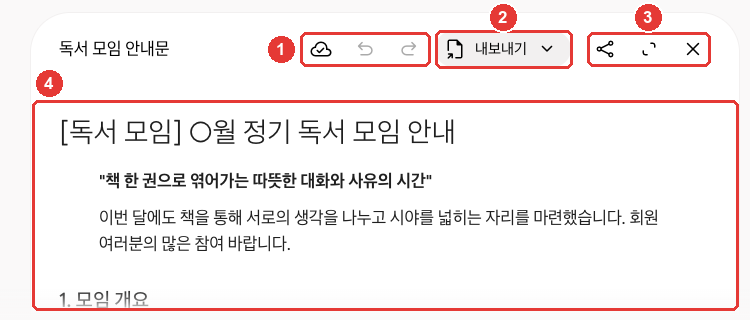
This is a practice notice we made. On the screen checked for this guide, the document window opened inside the chat. Click "Full screen (전체 화면)" at ③ to view it larger.[2:2]
| Number | Button | What it does |
|---|---|---|
| ① | "Changes saved (변경사항이 저장됨)", "Previous Version (이전 버전)", "Next Version (다음 버전)" icons | Check save status, go back and forth between versions |
| ② | "Export (내보내기)" | Move it out to Docs or elsewhere |
| ③ | "Share (공유)", "Full screen (전체 화면)", "Close (닫기)" icons | Create a link, view large, close |
| ④ | Document body | Edit directly, or select text and ask Gemini to edit it |
The icon names are the tooltips that appear when you hover your mouse over them. Source: Verified directly on the Gemini web screen[2:3]
When you first open it, a tip appears saying you can click anywhere to type and edit directly, or select text to ask Gemini for changes.[2:4] At ④, you can edit the body yourself, or highlight the part you want to change and leave it to Gemini.
If you need a specific format like slides, say so in your prompt.[3:2] For example, you can ask like this:
Make a notice for next month's book club meeting. Include the date, place, book to read, and what to bring,
and write it as a one-page document.
Here is what you can do in Canvas.[3:3]
- Your changes are saved automatically. Use the Previous Version and Next Version buttons to look back at earlier saved versions.
- You can edit just one part. Drag your mouse to select the part you want to fix, then type what to change.
- For documents, you can change the length and tone right away. Just click "Change length (길이 변경)" or "Change tone (어조 변경)".
- You can turn it into other formats. From a document you made, you can create slides, a quiz, an infographic (a single page that organizes information with pictures and charts), a web page, or an Audio Overview (which reads the document out loud as a conversation). Right now, users under 18 cannot use this feature.
- You can move it out. You can export documents to Docs, and export slides to Google Slides or as a PDF.
When you make an app, you can view and edit the code (the instructions that make the app run) directly at the top right of Canvas. Click "Show console (콘솔 표시)" to also see the error log the app left while running.[3:4] You don't need to understand this at first. Just ask Gemini in plain words for any changes. To add AI features like writing text or making pictures into your app, you must be signed in and be 18 or older.[3:5]
Anything made in Canvas is deleted along with that chat (Chapter 3). If you want to keep a document for a long time, export it to Docs.
Quick check
In a flyer made with Canvas, you want to keep everything else the same and make only the second paragraph shorter. What is the best way?
Sharing and Receiving Canvas Apps
You can also create a share link for an app made with Canvas. When you do, you need to be more careful than when sharing a normal chat. Even if you never make an app yourself, someone may send you a Canvas app saying "Sign up with this link." So learn what to watch for on the receiving side, too.
For an app that shares data among multiple people, anyone with the link can view and edit that app's data.[3:6][4] When you build an app that saves information, Gemini also creates a database (a place where data is stored) for it. An app where multiple people share data stores it in a public database. So anyone with the link can view and edit it.[4:1] For example, if you build an app to collect club members' contact info and spread the link, anyone who gets the link can see those contacts. Do not share apps that collect personal information.
Treat an app someone else sent you with the same caution as an unfamiliar email. Information you type into the app can be seen by the person who made it, and may also be visible to anyone else who has the link. Google gives the following advice.[4:2]
- Be very careful with any app that asks for passwords or payment details.
- Watch out for apps that ask for camera or microphone access.
- Do not download apps from sources you do not trust.
- If an app looks unsafe, you can report it using the link at the bottom of the page.
Shared Canvas links only open on the web (gemini.google.com) and do not open in the mobile app.[3:7]
Quick check
You opened a Canvas app link from someone you don't know, and it says "Enter your password to sign in." What should you do?
Creating Images
Describe what you want in words and Gemini will create a picture for you. The model that makes pictures is Nano Banana.[5] Click "+" in the prompt box → "Create images (이미지 만들기)", or click "Images (이미지)" in the side menu to pick a template (a ready-made starting style) or type your description right away.[5:1][2:5]
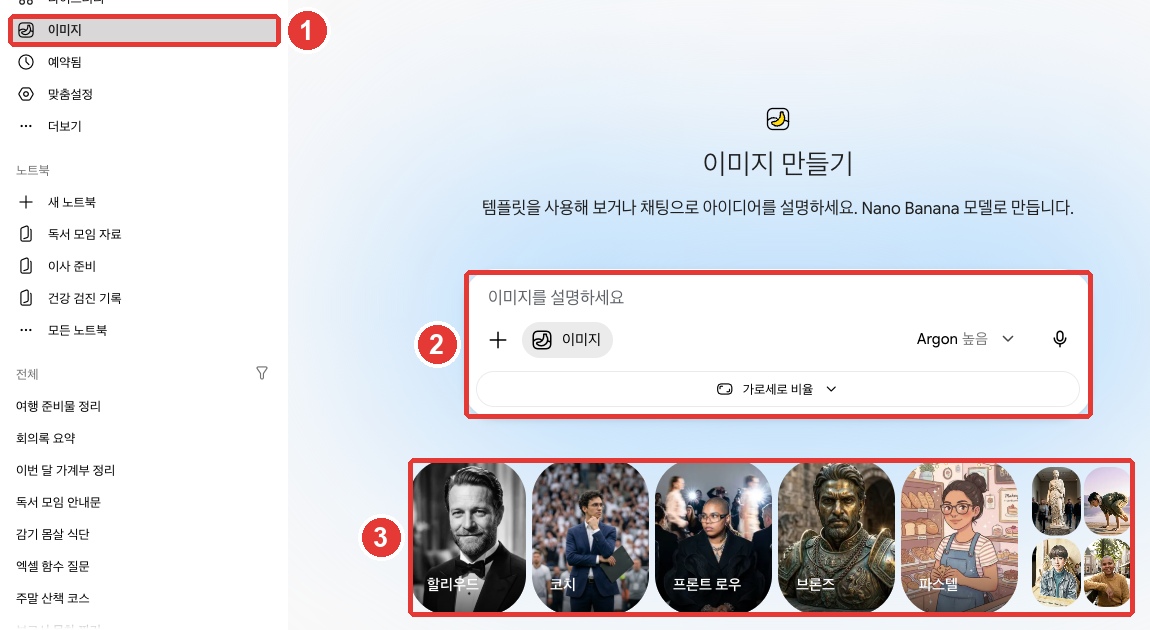
When you click ① "Images (이미지)" in the side menu, you can describe a picture in ② the prompt box, or pick a template at ③ to get started. Use "Aspect ratio (가로세로 비율)" below the prompt box to choose the shape of the picture (the ratio of width to height).[2:6]
Here are some tips for getting a good picture.[5:2]
- Start with what you want Gemini to do, using words like "Draw" or "Create".
- Describe the style (photorealistic, watercolor, cartoon, and so on) and who or what is doing what, and where, in detail.
| Weak prompt | Better prompt |
|---|---|
| "A picture of a cat" | "Draw an orange cat dozing by a window in a watercolor style. Make it a scene with afternoon sunlight shining in." |
A better prompt tells Gemini the style, main subject, setting, and mood all at once, so you do not have to ask it to redraw as often.
You can edit the pictures you make through conversation. Open the picture from "Library (라이브러리)" in the side menu, click "Chat (채팅)" at the bottom, and type what you want to change. You can also upload your own photo to edit it, or combine several pictures to make a new one.[5:3]
To generate images only, you must be 13 or older; to edit them as well, you must be 18 or older.[5:4][6]
What depends on your plan (click to expand)
- Download size: 2K resolution with a Google AI plan, or 1K without one.[5:5]
- More detailed model (Paid): On a paid plan, you can regenerate an image with Nano Banana Pro. This is available when your model is set to Pro. However, if you use up your daily quota of Nano Banana 2 images, you cannot regenerate any more images with Pro that day.[5:6]
Quick check
You only typed "cat picture" and didn't get the image you wanted. What is a better way to ask?
Creating Videos and Music
Creating Videos (Paid)
With Gemini Omni, you create and edit videos just like having a conversation. You can mix text, images, and video to explain what you want.[7] For a personal account, you must have a Google AI plan to use this.[7:1] Click "+" in the prompt box → "Create video (동영상 만들기)" and describe the video you want.[7:2][2:7] As with making pictures, just write what does what, and where. For example, try something like "Make a video of a puppy running after a ball on the beach."
Here is what to know when making one.
- You can upload reference materials. You can upload up to 1 video and 5 images.[7:3]
- It takes a few minutes to make. While your video is being made, you cannot use that chat, so open a new chat to do something else and come back later.[7:4]
- You edit through conversation. Ask it to remove or swap objects, or change the camera angle or scene.[7:5]
- Landscape (wide screen) is the default. If you upload a reference photo or video, the video will match that aspect ratio.[7:6]
- Once the video is done, you can share it on YouTube or download it.[7:7]
Only upload photos that you have the rights to use. Violating the terms or other people's rights can get your account terminated.[7:8]
Creating Music
Describe the song you have in mind, and Lyria will create music and lyrics for you.[8] Click "+" in the prompt box → "Create music (음악 만들기)".[8:1][2:8]
- You must be 18 or older and have "Keep Activity (활동 기록 보관)" turned on.[8:2]
- You can choose a short (about 1 minute) or full (about 2–3 minutes) length, whether the track has vocals, and the genre.[8:3]
- To create a full-length track, you must switch the model to Pro (Chapter 2).[8:4]
- You can download your track as a video with cover art (MP4) or as audio only (MP3).[8:5]
- There is a limit to how many tracks you can create. You will get a notification when you go over the limit.[8:6]
For music too, it helps to start with words like "Write" or "Compose" and name the genre and instruments.[8:7]
Compose a calm song to play at the start of our book club meeting. Use acoustic guitar and piano,
and make it a short track without lyrics.
Creating images, music, and videos uses up a lot of your usage limit. Video uses the most (Chapter 1).
Quick check
A friend using a free Gemini account wants to try generating a video. Which statement is true?
Checking Whether Something Was Made by AI — Watermarks
Images, videos, and music created or edited with Gemini carry a mark showing that AI made them.[9][8:8]
There are two main kinds of marks.
- Hidden mark: You can't see it. The main one is the SynthID watermark. The checking feature covered below reads this mark.
- Visible watermark: A mark overlaid on top of pictures and videos. In South Korea, it is added when you create on the free, Plus, or Pro tiers. The setting to turn it off is shown in South Korea only to AI Ultra subscribers.[9:1]
More details (click to expand)
| Mark | Visible? | What it does |
|---|---|---|
| SynthID watermark | Not visible | A hidden mark that identifies whether something was made with Google AI |
| Content Credentials | Not visible | A record showing where and how the content was made |
| Visible watermark | Visible | A mark overlaid on top of pictures and videos |
In South Korea, you cannot turn off the visible watermark unless you have AI Ultra. There is a "Media watermark (미디어 워터마크)" setting to turn the watermark on or off, but in South Korea it is only shown to AI Ultra subscribers.[9:3] Because of this, pictures, videos, and the video player screen for music made on the free, Plus, or Pro tiers always get a visible watermark. This setting only changes the visible watermark; the hidden marks (SynthID and Content Credentials) remain in place.[9:4]
Asking Whether a Picture You Received Was Made by AI
If you are curious whether a picture, video, or audio clip you received was made by AI, upload it to Gemini and ask.[10:1]
Was this photo made by AI?Keep these points in mind.[10:2]
- It only recognizes content made by Google AI. Even if it says no hidden mark was found, the file could still have been made by another company's AI.
- For screenshots, crop tightly around just the image before uploading. Uploading a collage of multiple pictures on one screen lowers accuracy.
- Content Credentials (a record of how the content was made) do not flatly declare "AI made this" for you. They only show the origin and history, and the final judgment is up to you.
- It checks one file at a time. The size and count limits are in the box below.
Limits of the checking feature (click to expand)
Do not rely only on the tool—look closely yourself too. Check whether any text looks garbled, whether small details like hands or teeth look strange, and whether the shadows make sense. Searching for the original with Google Images is another good way to check.[10:5]
Quick check
You uploaded a photo you received to Gemini and asked, "Was this made by AI?" It says there is no hidden Google watermark (SynthID). How should you take this?
Try It Yourself
- Upload a spreadsheet you have at home (like a household budget) and ask, "Draw a bar chart by category." Use a file without personal information.
- Create a one-page notice with "Canvas", drag to select just one paragraph, and ask Gemini to make it "shorter".
- Use "Create images (이미지 만들기)" to make a watercolor-style picture, then open it from "Library (라이브러리)" and ask Gemini to change the colors.
- Upload the picture you just made into a new chat and ask, "Was this picture made by AI?"
Continuing project (Preparing a Book Club Meeting): Upload the sample meeting notes file from the kit to get a summary, then draft a meeting notice using "Canvas". Export the notice to Docs for safekeeping.
Summary
- Click "+" in the prompt box → "Upload files (파일 업로드)" to upload up to 10 files at once. Videos can be up to 2 GB, and other files up to 100 MB.
- Large files may have parts missed. Uploaded files use Gemini Apps storage, which is counted separately from Drive.
- Canvas opens documents, apps, and slides in a separate window so you can edit them together with Gemini. You can select just one part to edit and step back through saved versions.
- For a Canvas app that shares data among multiple users, anyone with the link can view and edit the data. Never enter passwords or payment info into an app someone else sent you.
- Images are made with Nano Banana and edited through chat. You must be 13+ to create images and 18+ to edit them.
- Videos (Gemini Omni) require a paid plan. Full-length music tracks (Lyria) require switching the model to Pro.
- Media created with Gemini contains a hidden mark (SynthID). In South Korea, only AI Ultra lets you turn off the visible watermark.
Key Terms
| Term | One-line meaning |
|---|---|
| Upload | Sending a file from your device to a service |
| Canvas | A feature that opens documents or apps in a side window so you can edit them with Gemini |
| Infographic | A single-page visual sheet that organizes information with pictures and charts |
| Nano Banana | Gemini's image-making model |
| Gemini Omni | Gemini's video-making model |
| Lyria | Gemini's music-making model |
| Watermark | A mark showing who made something or what tool made it |
| SynthID | A hidden mark embedded in media made with Google AI |
Finished this chapter?
Progress is saved only in this browser. See your progress on the full table of contents.
Next chapter: Chapter 5. Memory and Personalization
References (10)
Google Help, "Upload & analyze files in Gemini Apps" (Korean title: "Gemini 앱에서 파일 업로드하고 분석하기"). "You can upload documents, spreadsheets, notebooks, photos, videos, and more to Gemini Apps to get answers, summaries, and insights about your content." / "To add files from your Drive, you need to have Keep Activity on and connect Google Workspace to Gemini Apps." / "Up to 10 files (subject to availability) can be uploaded in the same prompt. When uploading a folder, each file inside will count towards this limit." / "Each video can be up to 2 GB. All other supported file types can be up to 100 MB." / "Total video length can be up to 5 minutes. Upgrade to Google AI Pro or Google AI Ultra to extend total upload length to 1 hour." / "Total audio length can be up to 10 minutes. Upgrade to Google AI Pro or Google AI Ultra to extend total upload length to 3 hours." / "You can ask the Gemini web app to create a chart based on your uploaded spreadsheet(s), zoom in to explore the chart, and customize the chart for your needs." / "This limit is independent from your Google Drive or Google Workspace storage limit." / "Important: Chats or Gems with uploaded files such as videos, photos, or files from Google Drive or NotebookLM take up more storage space in Gemini Apps." / "There are rolling limits for how much you can upload and analyze files in a period of time. After some time, the limit will reset, and you will be able to upload and analyze files again." / "For better results, upload smaller files with less content, or upgrade to Google AI Pro or Google AI Ultra for a larger 1 million token context window." Korean UI labels: "파일을 업로드하려면 데이터를 삭제하세요", "활동". support.google.com (checked on 2026-10-31) ↩︎
Verified directly on the Gemini web interface (Google AI Pro, Korean) using a practice chat (deleted after taking screenshots). The Canvas document window opens inside the chat, with top buttons "Changes saved (변경사항이 저장됨)", "Previous Version (이전 버전)", "Next Version (다음 버전)", "Export (내보내기)", "Share (공유)", "Full screen (전체 화면)", and "Close (닫기)", and a first-time banner reading "Edit yourself or with Gemini — Click anywhere to type and edit directly, or select text to ask Gemini for changes (직접 또는 Gemini로 수정 — 아무 곳이나 클릭하여 직접 입력하고 수정하거나, 텍스트를 선택하여 Gemini에게 변경을 요청하세요)." Canvas is a toggle menu item, and turning it on adds a "Canvas" chip to the prompt box. On the "Images (이미지)" screen: "Try a template or describe your idea in chat. Made with the Nano Banana model (템플릿을 사용해 보거나 채팅으로 아이디어를 설명하세요. Nano Banana 모델로 만듭니다.)", prompt box "Describe your image (이미지를 설명하세요)", "Aspect ratio (가로세로 비율)", and first-time pop-up "Using Nano Banana 2 (Nano Banana 2 사용)". Prompt box "+" ("Upload & tools (업로드 및 도구)") menu items: "Upload files (파일 업로드)", "Add from Drive (Drive에서 파일 추가)", "More upload options (업로드 더보기)", "Create images (이미지 만들기)", "Create video (동영상 만들기)", "Create music (음악 만들기)", "More tools (도구 더보기)" → "Canvas". Side menu: "Images (이미지)", "Library (라이브러리)". "Media watermark (미디어 워터마크)" did not appear in the "Settings (설정)" menu (Pro account). (checked on 2026-10-31) ↩︎
Google Help, "Create docs, apps & more with Canvas" (Korean title: "Canvas로 문서, 앱 등 만들기"). "You can collaborate with Gemini in Canvas to create or edit a doc, app, slides, or code. You can also turn your creation into an Audio Overview, quiz, or other format." / "Tip: To have Gemini use a specific format or document type, like a slide deck, include this instruction in your prompt." / "You can use the prompt text box to ask Gemini to make updates to your app or directly edit the code. Changes in Canvas are auto-saved." / "To view your saved versions, at the top, click Previous Version or Next Version ." / "To open text in a new Google Doc: Click Export to Docs." / "To find errors and logs from the preview, at the top right of the Canvas panel, click Show console ." / "Use the cursor to select the section that you want to edit." / "Important: To add AI to your app, you must be signed in to Gemini Apps and be 18 or over." / "To adjust the tone of text: Click Change tone and select how casual or formal you want it to be." / "To generate an infographic, click Infographic ." / "Create something based on a Canvas doc Important: For now, this feature isn’t available to users under 18." / "To open slides in Google Slides: Click Export to Slides. You can also choose to export slides as a PDF." / "Anyone with that public link can view and edit data associated with the app." / "Shared links only open in gemini.google.com. You can’t open shared Canvas content in the Gemini mobile app." Korean UI labels: "이전 버전", "다음 버전", "콘솔 표시", "길이 변경", "어조 변경", "Docs로 내보내기". support.google.com (checked on 2026-10-31) ↩︎
Google Help, "Canvas safety & security in Gemini Apps" (Korean title: "Gemini 앱의 Canvas 안전 및 보안"). "When you create an app with Canvas that requires persistent data storage, Gemini Apps creates a firestore database instance for you." / "Anyone with the public link to a multi-user app can view and edit all data associated with the app." / "Any info that you share with the app is visible to the app creator and may be visible to anyone else with the public link." / "Use caution if the app requests access to your device’s camera and microphone." / "If the app will share data between users, the data is in a public database and can be seen or edited by anyone with a public link to the app." / "Be extremely wary of any app that asks you for sensitive info like passwords or payment details." / "Do not download apps created or shared by untrustworthy sources." / "If you get a public link to a Canvas app that you feel is unsafe, you can report unsafe apps through the link at the bottom of the page." support.google.com (checked on 2026-10-31) ↩︎
Google Help, "Generate & edit images with Gemini Apps" (Korean title: "Gemini 앱으로 이미지 생성 및 수정하기"). "For paid subscribers, Nano Banana Pro is also available to regenerate images." / "To generate and edit images, you must be 18 or over" / "To generate images, you must be 13 (or the applicable age in your country) or over." / "Download images at at 2K resolution with a Google AI plan or at 1K without an AI plan." / "Nano Banana Pro: Available with a Google AI Plan, this option is available when you have the Gemini model set to Pro and want to redo an image when additional detail is needed." / "Choose a template or enter your prompt to generate an image with Nano Banana 2." / "On the top left, click Open Sidebar Library ." / "Upload multiple images and ask Gemini to create a new image based on your uploaded images." / "If you reach your daily quota of Nano Banana 2 images, you can’t redo any additional images with Nano Banana Pro." / "Start your prompt with words like draw, generate, and create." / "Gemini Apps may remove images for prompts when our systems detect a possible violation of Google's Terms of Service, including the Prohibited Use Policy." Korean UI labels: "이미지", "라이브러리", "채팅". support.google.com (checked on 2026-10-31) ↩︎
The age of 13 may vary by country. Images that appear to violate the terms of service may be removed. The source is the "Generate & edit images with Gemini Apps" help article below. ↩︎
Google Help, "Generate videos with Gemini Apps" (Korean title: "Gemini 앱으로 동영상 생성하기"). "Gemini Omni makes creating and editing videos as easy as having a conversation." / "Blend text, images, and video to bring your ideas to life" / "You must have rights to any images that you upload." / "To use this feature with a personal account, you must have a Google AI plan." / "For text prompts, the default is Landscape. If you upload a reference image or video, the aspect ratio will match your uploaded content." / "In the text box, enter a prompt of the video you want to generate." / "You can upload one video and up to 5 images." / "While your video is being generated, you can’t interact with the same chat. You can start a new chat and come back to view your video later." / "Changing camera angles." / "Click Share on YouTube or Download video ." / "The violation of the Prohibited Use Policy or the rights of others could result in the termination of your account." Korean UI label: "동영상 만들기". support.google.com (checked on 2026-10-31) ↩︎
Google Help, "Generate music with Gemini Apps" (Korean title: "Gemini 앱으로 음악 생성하기"). "Describe the track you have in mind, Gemini Apps will create music and lyrics." / "Be 18 years of age or older." / "Have Keep Activity on." / "Choose whether your track has vocals or not." / "Select a genre for your track." / "Important: To create a full track, switch the model to “Pro”" / "At the bottom of the text box, tap Upload & tools Create music ." / "Define the length of your track by choosing between short (about 1 minute) or full (about 2-3 minutes)." / "Each generated track will have an embedded digital watermark to help identify it as AI-generated." / "There are limits for how many tracks you can create with Lyria. You’ll get a notification when you’ve exceeded the limit." / "Start your prompt with words like write, compose, or create." Korean UI label: "음악 만들기". support.google.com (checked on 2026-10-31) ↩︎
Google Help, "Manage watermark settings in Gemini Apps" (Korean title: "Gemini 앱에서 워터마크 설정 관리하기"). "This setting controls visible watermarks across all visual media you create with Gemini, including images, videos, and music." / "If you are in India, South Korea, or Vietnam, you'll only see this setting if you have an AI Ultra subscription." / "Otherwise you'll automatically see visible watermarks applied to all visual media you create with Gemini Apps." / "Music: The watermark will appear on the video or visual player that is created with your music track." / "This setting only controls the visible watermark. It doesn’t affect SynthID watermarks or Content Credentials for media you create with Gemini Apps." / "SynthID: All AI-generated media created or edited with Gemini Apps includes an invisible SynthID watermark." Korean UI label: "미디어 워터마크". support.google.com (checked on 2026-10-31) ↩︎
Google Help, "Verify AI-generated images, videos, and audio" (Korean title: "AI 생성 이미지, 동영상, 오디오 확인하기"). "You can only choose a single image, video, or audio file to verify at a time, and it should have a file size of 100 MB or less." / "Content Credentials: A technology that acts like a digital passport, documenting the digital content's origin and history, and is used for both AI and non-AI content." / "Videos need to be less than 90 seconds each, and audio files need to be less than 1 hour each" / "If you're taking a screenshot of an image to verify, make sure to crop tight around the image to get maximum accuracy, and don’t upload a collage of multiple distinct images." / "While other companies have started to adopt SynthID watermarks, Gemini can currently only recognize content created by Google AI tools." / "If a SynthID watermark isn’t detected, it means the image or video wasn’t created or edited by Google AI, but it could have been created by other AI systems." / "Tell you if an image, video, or audio file is definitely AI-generated, but you can use the origin and history information with the content itself to make informed decisions." / "There’s a usage quota of approximately 10 image checks, 10 video checks (up to 5 minutes total), and 10 audio checks (up to 3 hours total) within any 24-hour rolling window." / "Reverse image search: Use reverse image search tools (e.g., Google Images) to find original sources or similar images." support.google.com (checked on 2026-10-31) ↩︎