Chapter 2. Tour the Screen — Where Everything Is
Required Read this to follow this stage.One-line summary: On the Gemini screen, you only need to know four places: the left sidebar (past chats), the center text box (where you ask questions, plus "+"), the model button on the right of the text box (model and thinking level), and Settings (설정) at the bottom left. At first, using just the text box is enough.
This screen is from the web app in October 2026, and the screenshots show the Korean interface on a paid plan (Google AI Pro). On a free account, some menus may not appear or may have a lock icon. If a name on your screen differs, look for a button with a similar name.
The Home Screen at a Glance
When you sign in, you see the greeting "How can I help you? (무엇을 도와드릴까요?)" and the text box in the center.[1]
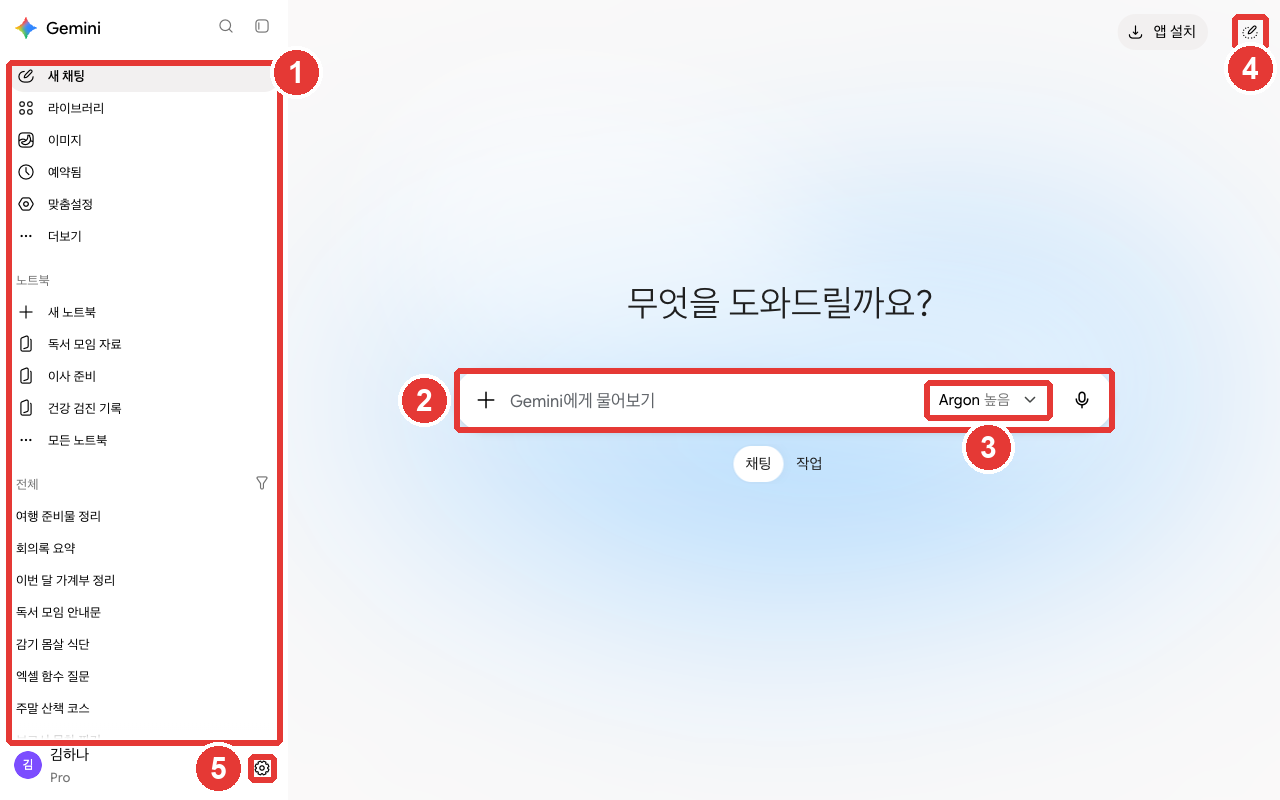
Names, chat titles, and notebook titles in this screenshot have been replaced with examples (Google AI Pro). The red numbers match the numbers in the table below.
It is easy if you divide the screen into five areas.
| No. | Area | Location | What It Does |
|---|---|---|---|
| ① | Sidebar | Left | New chat, past chats, notebooks |
| ② | Text box | Center | Type questions, use "+" for files and tools |
| ③ | Model button | Right of text box | Choose the model and thinking level |
| ④ | Temporary chat (임시 채팅) | Top right | Chat without saving history |
| ⑤ | Settings (설정) | Bottom left | Usage, subscription, theme, privacy |
Source: Checked directly on the Gemini web screen[1:1]
Notebooks in ① is where you group materials and chats by topic. We cover it in Chapter 6.
Below the text box, the Chat (채팅) and Task (작업) switch lets you choose between a normal conversation and a task where you hand off a whole job. We cover tasks in Chapter 8, so leave it on Chat for now.[1:2][2]
You do not need to know everything right away. Just typing a question in the text box and sending it is enough. Come back to this chapter for the rest when you need it.
Quick check
Someone opening Gemini for the first time feels overwhelmed by all the menus and doesn't know where to start. What is the best advice?
The Sidebar — New Chats and Past Conversations
From top to bottom, the left sidebar has the following items.[1:3]
- Search for chats (채팅 검색) (magnifying glass): Find past conversations by keyword.
- New chat (새 채팅): Open a new conversation. Click here when you change topics (Chapter 1).[3]
- Library (라이브러리) · Images (이미지): View the files and pictures you uploaded or created in one place (Chapter 4).
- Scheduled (예약됨): View tasks set to run automatically at a chosen time.
- Customize (맞춤설정): Add skills (saved instructions for requests you make often) and connected apps (Google apps like Gmail and Drive that you use together with Gemini). We cover these in Chapter 7.
- Notebooks (노트북): Group materials and chats by topic. Includes New notebook (새 노트북) and All notebooks (모든 노트북).
- All (전체): The list of conversations you have had so far. The most recent chat is at the top.
At the very bottom, you will find your account name, your plan (for example, "Pro"), and the gear icon for Settings (설정).[1:4]
You can fold and unfold the sidebar with Close sidebar (사이드바 닫기) (the square icon) at the top left.[1:5]
When showing your screen to others, fold the sidebar first. Even the titles in your chat list can reveal what you have been asking.
Quick check
The Text Box and the + Menu
Type your question in the "Ask Gemini (Gemini에게 물어보기)" text box and send it.[1:6][3:1] Click "+" (Upload and tools (업로드 및 도구)) on the left side of the text box to see files and tools.[1:7]
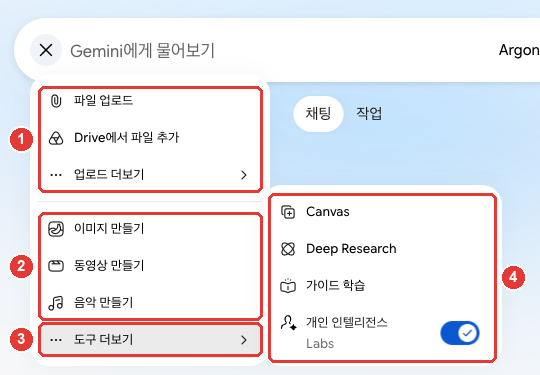
The red numbers match the numbers in the table below. ④ opens when you hover your mouse over ③ More tools (도구 더보기).[1:8]
| No. | Menu | What It Does |
|---|---|---|
| ① | Upload files (파일 업로드) · Add files from Drive (Drive에서 파일 추가) | Send your files along with a prompt |
| ② | Create image (이미지 만들기) · Create video (동영상 만들기) · Create music (음악 만들기) | Create pictures, videos, or music |
| ③ | More tools (도구 더보기) | Expand the rest of the tools |
| ④ | Canvas | Edit documents or apps together in a side screen |
| ④ | Deep Research | Search multiple sources and get a long report |
| ④ | Guided Learning (가이드 학습) | Learn step by step like studying with a tutor |
Source: Checked directly on the Gemini web screen[1:9]
It looks like a lot of menus, but at first you only need to know Upload files (파일 업로드). We cover the rest one by one starting in Chapter 4.
You can upload up to 10 files at a time. See Chapter 4 for size limits.[4]
Click the microphone (Voice input (음성기록)) on the right side of the text box to speak your prompt instead of typing.[1:10]
Editing a Sent Question
If you want to fix a question you already sent, click Edit text (텍스트 수정) (the pencil icon) next to your question. After editing, click Update (업데이트) and Gemini will generate a new answer.[3:2] This is useful when you realize later that you left out a condition. You do not have to retype the whole question from scratch.
For example, if you sent the prompt below and forgot to mention "to a coworker," edit the question and get a new answer.
Write a short message asking to move next Tuesday's meeting to Thursday.Quick check
You sent "Write a message to move the meeting to Thursday," but forgot to say "for a coworker." How can you fix your sent prompt and get a new reply?
The Model Button — Model and Thinking Level
Click the model button on the right side of the text box (for example, "Argon High (Argon 높음)") to choose the model and thinking level.[1:11] The model is the type of AI that creates the answer, and the thinking level is how long it thinks things through before answering.
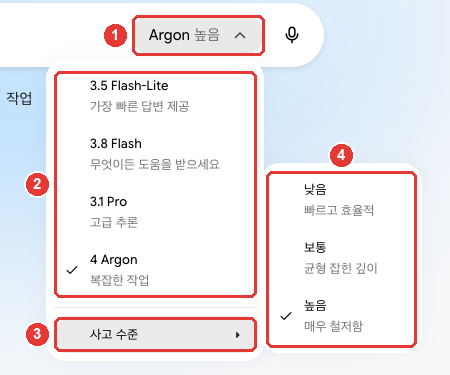
This is the Google AI Pro screen. Clicking ① the model button opens ② the model list, and hovering over ③ Thinking level (사고 수준) expands ④ the three levels. The checkmark shows what is currently selected.[1:12]
Choosing a Model
| Model | Screen Description | When to Use |
|---|---|---|
| Flash-Lite | Fastest answers (가장 빠른 답변 제공) | Short, easy questions |
| Flash | Get help with anything (무엇이든 도움을 받으세요) | Most everyday tasks |
| Pro | Advanced reasoning (고급 추론) | Complex questions, hard coding |
| Argon | Complex tasks (복잡한 작업) | Very hard and complex work |
Source: Gemini web screen and Google Help[1:13][2:1]
The number in front of a model name (such as 3.8 Flash) is the version number. Version numbers change often, so remember each model by its role rather than the number.[2:2]
Free accounts cannot choose a model manually. Gemini automatically picks a model that fits your question, or answers with Flash-Lite.[2:3] You need a paid plan (a Google AI plan) to switch models yourself. A lock icon on a model means you need to upgrade your plan to use it.[2:4]
Thinking Level — How Deeply Should It Think?
Thinking level (사고 수준 ▸) has three steps.[1:14][2:5]
| Thinking Level | Screen Description | When to Use |
|---|---|---|
| Low (낮음) | Fast and efficient (빠르고 효율적) | Simple questions |
| Medium (보통) | Balanced depth (균형 잡힌 깊이) | Tasks that need some thought |
| High (높음) | Very thorough (매우 철저함) | Hard tasks that need multiple steps |
Source: Gemini web screen and Google Help[1:15][2:6]
If you do not choose one, the default is Low (낮음).[2:7] Some Korean help pages call the middle level "중간," but the label on the Korean screen is "보통."[1:16]
When to Turn It Up
More advanced models and higher thinking levels use more of your usage limit.[2:8] So you do not need to keep them at the highest setting all the time. Normally, use the default (Low) or a lighter setting. Move up one step only when an answer feels shallow or wrong. Making the AI think longer does not always produce a better answer either (Stage 1 Chapter 5).[5]
Keep two things in mind.[2:9]
- Once you pick a model, it stays in that conversation. Even if you come back to that chat later, it uses the same model and thinking level.
- To see which model answered, click More (더보기) (the three dots) below the answer and select See response details (응답 세부정보 보기).
If you hit your usage limit on a paid plan, the chat continues with Flash-Lite.[2:10] If answers suddenly get shorter, check See response details.
Before handing off a hard task, you can ask like this to judge whether it is worth raising the thinking level.
I am about to ask you to find items we can cut from our team's 3-month budget sheet.
First tell me whether this requires thinking through multiple steps or can be answered simply.
If it takes multiple steps, just list the steps in the order you would check them.
Quick check
A paid plan user says, "To get good answers, you should always keep it on the biggest model and 'High'." Which explanation is right?
Temporary Chat — Conversations That Leave No History
Click Temporary chat (임시 채팅) at the top right to start a conversation that does not stay in your history.[1:17][3:3] Temporary chats do not appear in your sidebar chat list or in Gemini Apps Activity (Gemini 앱 활동) (your saved chat history).[3:4]
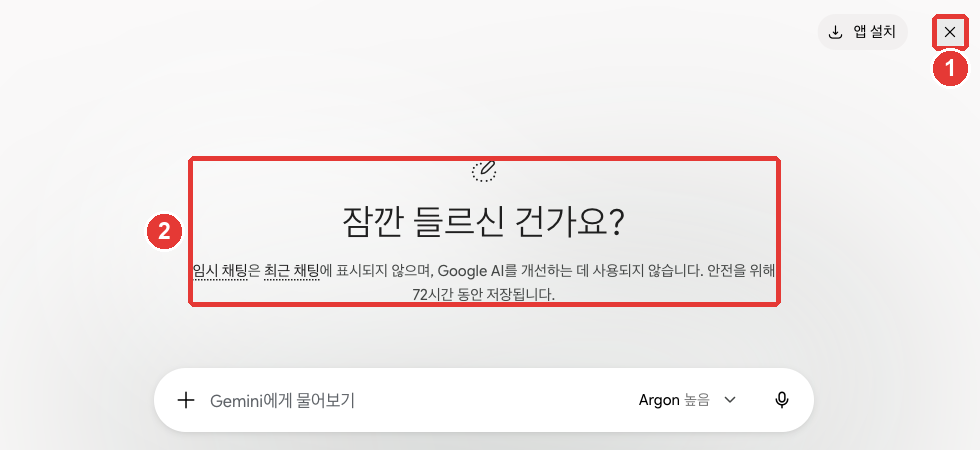
When you turn on Temporary chat, ② the notice appears, and the top-right icon changes to ① Close (×). Click × to return to a normal chat.[1:18]
Use Temporary chat in situations like these:
- When you want to ask a question without leaving it in your chat list
- When you want a fresh answer without the influence of past chats or your custom settings
In exchange, there are things you cannot do.[3:5]
- Once you leave a temporary chat, you cannot view that conversation again. Copy any answer you need before leaving.
- You cannot use Connected Apps like Gmail or Drive.
- You cannot get personalized responses tailored to your info, and you cannot leave feedback (thumbs up or down) on answers.
- It only works on a personal Google Account. It is not available on work or school accounts.
Even temporary chats are kept in your account for 72 hours. The on-screen notice explains this is "for safety." However, they are not used to train Google's AI models.[1:19][6] So even in a temporary chat, do not enter sensitive information like passwords or government ID numbers (Stage 1 Chapter 9). We cover detailed privacy settings in Chapter 9.
Quick check
You really like a travel plan you got in a temporary chat. What should you do before leaving the temporary chat?
The Settings Screen — Account, Preferences, and Privacy
Click the gear icon Settings (설정) at the bottom left to open a menu divided into three groups.[1:20]
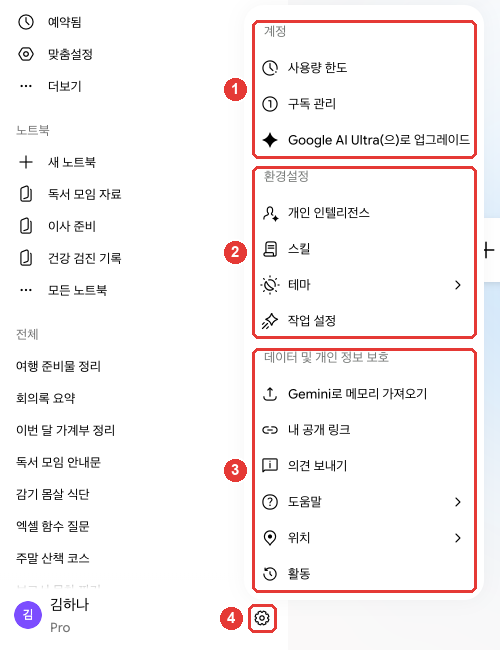
Names and chat titles in this screenshot have been replaced with examples. ①, ②, and ③ in the table match the numbered groups in the picture.[1:21]
| Group | Menu | What It Does |
|---|---|---|
| ① Account (계정) | Usage limits (사용량 한도) · Manage subscription (구독 관리) | Check how much you used, manage your plan (Chapter 1) |
| ② Preferences (환경설정) | Personal Intelligence (개인 인텔리전스) · Skills (스킬) | Answers tailored to your info, manage skills |
| ② Preferences (환경설정) | Theme (테마) · Task settings (작업 설정) | Light or dark screen, task handoff settings |
| ③ Data & privacy (데이터 및 개인 정보 보호) | Import memory to Gemini (Gemini로 메모리 가져오기) | Bring over memories from another AI |
| ③ Data & privacy (데이터 및 개인 정보 보호) | My public links (내 공개 링크) · Activity (활동) | Manage shared links, chat history settings |
| ③ Data & privacy (데이터 및 개인 정보 보호) | Send feedback (의견 보내기) · Help (도움말) · Location (위치) | Report a problem, help center, check location |
Source: Checked directly on the Gemini web screen[1:22]
Two items are worth checking once when you start:
- Theme (테마): By default, it follows your device's light or dark setting. You can switch to a dark screen here, and the choice is saved in that browser.[7]
- Activity (활동): Clicking this opens Gemini Apps Activity (Gemini 앱 활동) in a new tab. This is where you decide how your chat history is saved. We cover it in detail in Chapter 9.[1:23]
There is no separate menu for choosing the screen language. On the web, Gemini follows your browser or device language.[8] Regardless of the screen language, if you ask in Korean or English, it replies in that language.[8:1]
Quick check
Your Gemini screen is in English, and you want to change it to Korean. How do you do that on the web?
Try It Yourself
- On the home screen, find and click the five places: the sidebar, the text box, the model button, Temporary chat (임시 채팅), and Settings (설정).
- Send one short question, then use Edit text (텍스트 수정) to add one more condition and get a new answer.
- Click More (더보기) → See response details (응답 세부정보 보기) below the answer to check which model replied.
- Turn on Temporary chat (임시 채팅), ask a question, exit, and check that it did not stay in your chat list.
- Go to Settings (설정) → Theme (테마), switch to the dark theme, and switch it back.
Continuing project (Preparing a Book Club): Continuing from the preparation list you got in Chapter 1, ask: "Rearrange this list in date order." If you do not like the answer, edit your question with Edit text (텍스트 수정) and get a new one.
Summary
- The screen is divided into five areas: the sidebar, the text box, the model button, Temporary chat (임시 채팅), and Settings (설정).
- Open a new chat in the sidebar, and find past conversations using Search for chats (채팅 검색) and the All (전체) list.
- File uploads and creation tools are gathered under "+" in the text box. You can upload up to 10 files at once.
- The models are Flash-Lite, Flash, Pro, and Argon, and the thinking levels are Low, Medium, and High. Higher settings use more of your usage limit. Free accounts cannot choose them manually.
- Temporary chats do not stay in your chat list, but they are kept in your account for 72 hours. Once you leave, you cannot view them again.
- Settings (설정) has three groups: Account, Preferences, and Data & privacy. The screen language follows your browser language.
Key Terms
| Term | One-line meaning |
|---|---|
| Sidebar | The area on the left side of the screen where your chat list and menus are gathered |
| Model | The type of AI that creates the answer, such as Flash or Pro |
| Thinking Level | How long the AI thinks things through before answering |
| Temporary Chat | A conversation that does not stay in your chat list or activity history |
| Gemini Apps Activity | The place where your Gemini chat history is collected and managed |
Finished this chapter?
Progress is saved only in this browser. See your progress on the full table of contents.
Next chapter: Chapter 3. Managing Conversations
References (8)
Checked directly on the Gemini web screen (Google AI Pro, Korean). Home screen greeting "How can I help you? (무엇을 도와드릴까요?)", text box "Ask Gemini (Gemini에게 물어보기)", "Upload and tools (업로드 및 도구)" (+), model button and "Voice input (음성기록)", top-right "Install app (앱 설치)" and "Temporary chat (임시 채팅)" icons, and "Chat (채팅)" / "Task (작업)" switch below the text box. Temporary chat notice: "Temporary chats won't appear in your recent chats and won't be used to improve Google AI. For safety, they are stored for 72 hours. (임시 채팅은 최근 채팅에 표시되지 않으며, Google AI를 개선하는 데 사용되지 않습니다. 안전을 위해 72시간 동안 저장됩니다.)" Sidebar items: "Search for chats (채팅 검색)", "Close sidebar (사이드바 닫기)", "New chat (새 채팅)", "Library (라이브러리)", "Images (이미지)", "Scheduled (예약됨)", "Customize (맞춤설정)", "Notebooks (노트북)", "All (전체)", and account name, plan badge, and "Settings (설정)" at the bottom. + menu items: "Upload files (파일 업로드)", "Add files from Drive (Drive에서 파일 추가)", "More uploads (업로드 더보기)", "Create image (이미지 만들기)", "Create video (동영상 만들기)", "Create music (음악 만들기)", "More tools (도구 더보기)", and under "More tools": "Canvas", "Deep Research", "Guided Learning (가이드 학습)", "Personal Intelligence (Labs) (개인 인텔리전스(Labs))" (on 2026-10-30, these tools were on the first level of the + menu). Model menu: "3.5 Flash-Lite — Fastest answers (가장 빠른 답변 제공)", "3.8 Flash — Get help with anything (무엇이든 도움을 받으세요)", "3.1 Pro — Advanced reasoning (고급 추론)", "4 Argon — Complex tasks (복잡한 작업)", and thinking levels "Low — Fast and efficient (낮음 — 빠르고 효율적)", "Medium — Balanced depth (보통 — 균형 잡힌 깊이)", "High — Very thorough (높음 — 매우 철저함)". Settings menu: "Account (계정)" ("Usage limits (사용량 한도)", "Manage subscription (구독 관리)"), "Preferences (환경설정)" ("Personal Intelligence (개인 인텔리전스)", "Skills (스킬)", "Theme (테마)", "Task settings (작업 설정)"), "Data & privacy (데이터 및 개인 정보 보호)" ("Import memory to Gemini (Gemini로 메모리 가져오기)", "My public links (내 공개 링크)", "Send feedback (의견 보내기)", "Help (도움말)", "Location (위치)", "Activity (활동)"). "Activity" opens in a new tab as "Gemini Apps Activity (Gemini 앱 활동)". Korean Help Center UI labels: "Edit text (텍스트 수정)", "Update (업데이트)" (13275745), "See response details (응답 세부정보 보기)" (18648722). (checked on 2026-10-30; screenshots, + menu, and temporary chat checked on 2026-10-31) ↩︎
Google Help, "About Gemini models". "Gemini Flash-Lite: A fast, cost-efficient model built for quick answers to everyday questions and lightweight tasks." / "Gemini Pro: An advanced reasoning model designed for complex prompts, sophisticated coding, and in-depth problem-solving." / "Gemini Argon: Top-tier intelligence, dynamic deep reasoning, and the highest performance for complex workflows." / "Auto or Flash-Lite*" / "If you have a Google AI plan you can manually switch models in both Chat Mode and Task Mode." / "Higher-tier models marked with a lock icon require an eligible plan upgrade" / "Low: Provides fast, concise answers for straightforward queries." / "High: Allows the model to carefully process and reason through complex, multistep prompts." / "If you don’t select a thinking level, it will default to Low." / "More advanced models and higher thinking levels require more of your usage." / "If you have a Google AI plan and reach your usage limit, your chat will continue with Flash-Lite." / "Gemini will continue to use that model and thinking level during the current conversation including if you later return to that same conversation." / "From the menu, select See response details ." / "Access to specific Gemini models, thinking levels, and task features varies depending on your plan and your remaining available usage." The Help Center states that automatic model selection is the default, but the model menu on the Pro account checked for this guide did not have an "Auto (자동)" item. support.google.com (checked on 2026-10-30) ↩︎
Google Help, "Use Gemini Apps". "In the text box at the bottom, enter your question or prompt." / "To start a new chat, at the top left, click New chat" / "You can start a temporary chat that won’t appear in your Gemini Apps Activity or your recent chats." / "A personal Google Account. This feature is not available for users signed in to a work or school Google Account." / "When you leave the temporary chat, you’ll no longer have access to that chat, and it won’t appear in your recent chats." / "Use Connected Apps and other integrated services that require the Keep Activity setting to be turned on." / "Get personalized responses." / "If you want to revise your prompt, you can edit it, and Gemini will regenerate the response." support.google.com (checked on 2026-10-30) ↩︎
Google Help, "Upload & analyze files in Gemini Apps". "Up to 10 files (subject to availability) can be uploaded in the same prompt. When uploading a folder, each file inside will count towards this limit." / "Each video can be up to 2 GB. All other supported file types can be up to 100 MB." support.google.com (checked on 2026-10-30) ↩︎
"Argon High (Argon 높음)" in the screenshot was chosen just to show the menu in this guide. Argon only appears on Pro and Ultra plans (Chapter 1). ↩︎
Google Help, "Gemini Apps Privacy Hub". "Temporary chats and chats you have when Keep Activity is off are retained with your account for 72 hours and used to:" / "Temporary chats are not used to train Google’s AI models." support.google.com (checked on 2026-10-30) ↩︎
Google Help, "Use Dark theme in Gemini Apps". "By default, the color scheme for the Gemini app matches the color scheme of the device you’re on." support.google.com (checked on 2026-10-30) ↩︎
Google Help, "Change Gemini's language". "The Gemini web app uses the language set in your browser or device language settings." / "Regardless of this setting, Gemini Apps can understand and reply in any supported language when you type your prompt or speak in Gemini Live." support.google.com (checked on 2026-10-30) ↩︎