第4章 檔案與創作 — 上傳檔案、Canvas、圖片·影片·音樂
選讀 需要的時候再讀。跳過也能跟上後面的章節。一句話總結:透過輸入框的「+」,你可以上傳檔案來拿到摘要和分析,在 Canvas 裡一起修改文件和應用, 還能生成圖片、影片、音樂。用 Gemini 做出的媒體裡會帶有「由 AI 生成」的標記。別人分享的應用裡,不要填入密碼。
介面以2026年10月的網頁版為準,圖片是付費方案(Google AI Pro)的韓語介面。這一章的功能裡,像生成影片這樣需要有付費方案才能用的,都標註了「付費」。
上傳檔案
上傳文件、表格檔案、照片、影片這類檔案,就可以根據它們的內容得到回答。可以請它做摘要、問你好奇的地方、或者交辦分析。[1] 點輸入框的「+」,選擇「上傳檔案(파일 업로드)」。Google Drive 裡的檔案,透過「從 Drive 新增檔案(Drive에서 파일 추가)」匯入(第2章)。[1:1][2]
檔案一次最多可以上傳10個。一般只是幾個文件或照片的話,不用在意上限。[1:2]
能上傳的量(點選展開)
| 專案 | 上限 |
|---|---|
| 一次上傳的檔案數 | 最多10個(視情況而異) |
| 單個影片 | 最多2GB |
| 其他單個檔案 | 最多100MB |
| 影片總時長 | 5分鐘(Pro·Ultra 為1小時) |
| 音訊總時長 | 10分鐘(Pro·Ultra 為3小時) |
上傳資料夾時,資料夾裡的檔案也會一個個計數。出處:Google 幫助中心[1:3]
要匯入 Drive 裡的檔案,有兩樣東西需要事先開啟。[1:4]
- 「保留活動記錄(활동 기록 보관)」(把我的對話儲存在帳號裡的設定,第3章)
- Google Workspace(Gmail、Drive 這類 Google 應用的組合)與 Gemini 的連線(第7章)
如果還沒連線,也可以先把 Drive 檔案下載到自己的電腦,再用「上傳檔案」上傳。
上傳表格檔案,還可以生成圖表。 在網頁上上傳表格檔案後,請它生成圖表試試。做出的圖表可以放大檢視,並改成你想要的樣子。[1:5]
請用上傳的家庭記賬檔案,把這個月的支出按專案畫成柱狀圖。
花得最多的三個專案,請各用一句話單獨點出來。有三點需要注意。[1:6]
- 大檔案可能會漏掉一部分。 想要更好的結果,請把它拆成內容少的小檔案再上傳。一次能讀的量,請看第1章的方案表。
- 檔案分析另有按小時計算的上限。 上傳太多碰到上限時,請等到過一段時間重新解除。
- 上傳的檔案會佔用 Gemini 應用的儲存空間。 這個空間和 Drive 容量分開計算。
儲存空間滿了的時候(點選展開)
如果彈出「要上傳檔案,請先刪除資料(파일을 업로드하려면 데이터를 삭제하세요)」,就說明空間滿了。在「設定(설정)」→「活動(활동)」裡清除以前的活動,空間就會騰出來。含有影片、照片的對話佔用的空間更多。[1:7]
上傳檔案之前,請先看一遍那個檔案裡有沒有別人的個人資訊(第1階段第9章)。
理解檢查
你把很厚的報告 PDF 整個上傳並得到了總結,但後半部分內容好像漏掉了。先試什麼辦法?
Canvas — 一起修改文件和應用
Canvas(畫布)是把文件或應用單獨放進一個視窗,和 Gemini 一起修改的功能。可以做文件、應用、幻燈片、程式碼。[3] 點輸入框「+」→「更多工具(도구 더보기)」→「Canvas」,寫下你想做的東西併發送(第2章)。[3:1][2:1]
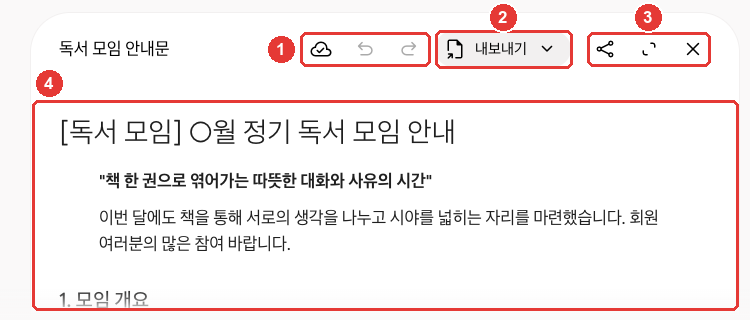
這是練習時做的通知。在本指南確認的介面上,文件視窗是在對話裡開啟的。點 ③ 的「全屏(전체 화면)」可以放大檢視。[2:2]
| 編號 | 按鈕 | 作用 |
|---|---|---|
| ① | 「更改已儲存(변경사항이 저장됨)」·「上一版本(이전 버전)」·「下一版本(다음 버전)」圖示 | 檢視儲存狀態,在前後版本之間切換 |
| ② | 「匯出(내보내기)」 | 匯出到 Docs 等外部 |
| ③ | 「分享(공유)」·「全屏(전체 화면)」·「關閉(닫기)」圖示 | 生成連結、放大檢視、關閉 |
| ④ | 文件正文 | 直接修改,或選中一部分請 Gemini 修改 |
圖示名稱是把滑鼠移上去後彈出的名稱。出處:在 Gemini 網頁介面上親自確認[2:3]
第一次開啟時,會彈出「點選任意位置即可直接輸入和修改,或選中文字請 Gemini 做出更改。(아무 곳이나 클릭하여 직접 입력하고 수정하거나, 텍스트를 선택하여 Gemini에게 변경을 요청하세요.)」的提示。[2:4] ④ 正文你可以直接修改,也可以選出要改的部分交給 Gemini。
像幻燈片這樣需要特定格式時,就在問題裡這麼寫。[3:2] 比如可以這樣請求。
請幫我做一份下個月讀書會的通知。要包含日期、地點、要讀的書、需要準備的東西,
並寫成一頁的文件。
在 Canvas 裡能做的事如下。[3:3]
- 改動的內容會自動儲存。 用上一版本、下一版本按鈕,可以重新檢視之前儲存的樣子。
- 可以只改一部分。 用滑鼠拖選要改的部分,再寫下要改什麼。
- 文件可以直接改長度和語氣。 點「調整長度(길이 변경)」·「調整語氣(어조 변경)」就行。
- 可以轉換成別的形式。 用做好的文件,可以生成幻燈片、測驗、資訊圖(把資訊整理成圖畫的一頁資料)、網頁、音訊概覽(把文件變成對話形式的語音來聽)等。目前未滿18週歲的人不能使用這個功能。
- 可以匯出到外部。 可以匯出到 Docs,幻燈片可以匯出為 Google Slides 或 PDF。
做應用時,可以在 Canvas 右上角直接檢視和修改程式碼(讓應用運轉的指令)。點「顯示控制檯(콘솔 표시)」,還能看到應用執行時留下的錯誤記錄。[3:4] 一開始不懂也沒關係。要改的地方,用說話的方式請 Gemini 改就行。 要給應用加入生成文字、圖片這類 AI 功能,必須是已登入且滿18週歲以上的人。[3:5]
用 Canvas 做出的東西,會隨那個對話一起被刪除(第3章)。要長期使用的文件,請匯出到 Docs 裡。
理解檢查
想讓 Canvas 做的通知裡,其他地方不動,只把第二段改短。最合適的辦法是什麼?
分享 Canvas 應用時和收到時
用 Canvas 做的應用也可以生成分享連結。這時比分享對話要更小心。 即使你自己不做應用,也可能有人發來一個 Canvas 應用,說「請用這個連結報名」。所以收到時的注意事項也要了解。
由多人共享資料的應用,任何拿到連結的人都可以檢視並修改這個應用的資料。[3:6][4] 做出有儲存功能的應用時,Gemini 會一併建立資料庫(存放資料的地方)。 多人共享資料的應用,會儲存在公開的資料庫裡。所以任何有連結的人都可以檢視和修改。[4:1] 比如,你做了一個收集聚會成員聯絡方式的應用,並把連結傳出去,收到連結的任何人都能看到那些聯絡方式。收集個人資訊的應用,請不要分享。
對別人發來的應用,要像對待陌生郵件一樣保持懷疑。 你填進應用的資訊,應用的建立者能看到,拿著連結的其他人也可能看到。Google 這樣提醒。[4:2]
- 對要你填寫密碼或付款資訊的應用,要格外小心。
- 要求相機、麥克風許可權的應用,也要小心。
- 不要下載來自不可信來源的應用。
- 看起來危險的應用,可以透過頁面下方的連結舉報。
收到別人分享的 Canvas 連結,只能在網頁(gemini.google.com)上開啟,在手機 App 裡打不開。[3:7]
理解檢查
你打開了陌生人發來的 Canvas 應用連結,頁面上寫著「請輸入密碼以登入」。該怎麼辦?
生成圖片
用文字描述,Gemini 就會為你畫圖。畫圖的模型是 Nano Banana(奈米香蕉)。[5] 點輸入框「+」→「生成圖片(이미지 만들기)」,或者在側邊選單「圖片(이미지)」裡選模板(預先準備好的框架),也可以直接寫下描述。[5:1][2:5]
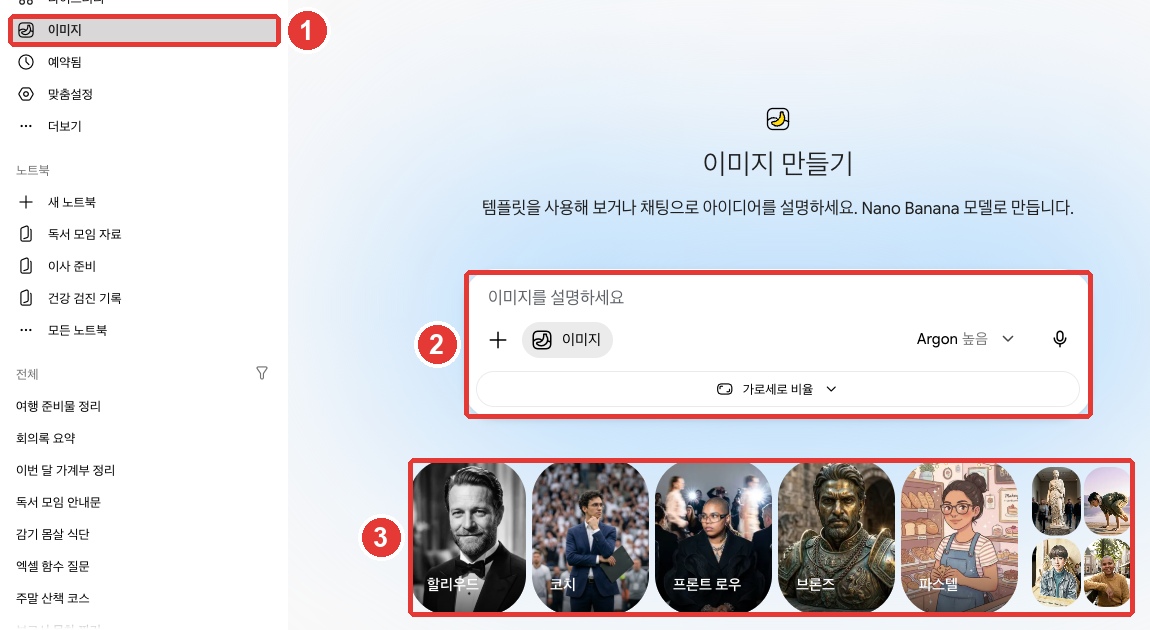
① 點側邊選單「圖片(이미지)」後,可以在 ② 輸入框裡描述圖畫,或者選 ③ 模板開始。輸入框下面的「長寬比(가로세로 비율)」用來選圖畫的形狀(橫向和縱向長度的比例)。[2:6]
請它畫好的要點如下。[5:2]
- 用「畫」「做」這類說明要做什麼的詞開頭。
- 把畫風(像照片、水彩、漫畫等)、什麼東西在哪裡做什麼,寫得詳細一點。
| 不夠好的請求 | 更好的請求 |
|---|---|
| 「貓的畫」 | 「請用水彩的感覺,畫一隻在窗邊打瞌睡的橘色貓。畫成午後陽光照進來的場景。」 |
更好的請求把畫風、主角、地點、氛圍都告訴了它,所以需要請它重畫的情況就少了。
做好的圖可以透過對話來修改。 在側邊選單「資料庫(라이브러리)」裡開啟圖畫,點下面的「聊天(채팅)」,寫下要改的地方。也可以上傳我的照片來修改,或者把幾張合在一起生成新圖。[5:3]
只生成圖畫,要滿13週歲以上;要連修改也做,則必須滿18週歲以上。[5:4][6]
因方案而不同的地方(點選展開)
理解檢查
你只說了「貓的畫」,結果出來的不是想要的畫。哪種請求更好?
生成影片·音樂
生成影片(付費)
用 Gemini Omni(Gemini 全能)像聊天一樣生成和修改影片。可以混合文字、圖片、影片來描述。[7] 個人帳號必須有 Google AI 方案才能用。[7:1] 點輸入框「+」→「生成影片(동영상 만들기)」,寫下你想要的影片。[7:2][2:7] 和生成圖畫一樣,寫清楚什麼東西在哪裡做什麼就行。比如,試著這樣寫:「幫我做一個小狗在海邊追著球跑的影片」。
生成時需要知道的幾點如下。
- 可以上傳參考資料。 最多可以上傳1個影片和5張照片。[7:3]
- 生成要花幾分鐘。 生成期間那個對話不能用,所以請新開一個聊天去做別的事,再回來。[7:4]
- 透過對話來修改。 可以請它刪除或替換物體,改變相機角度或場景。[7:5]
- 預設是橫屏。 上傳參考照片或影片的話,會沿用它們的比例。[7:6]
- 做好的影片可以釋出到 YouTube 或下載。[7:7]
上傳的照片,只用我有權使用的。 違反條款或侵犯他人權利,帳號可能會被終止。[7:8]
生成音樂
用 Lyria(莉莉婭)描述一首曲子,它就會生成音樂和歌詞。[8] 請點輸入框「+」→「生成音樂(음악 만들기)」。[8:1][2:8]
- 必須滿18週歲以上,並且「保留活動記錄(활동 기록 보관)」是開著的。[8:2]
- 長度可以在**短版(約1分鐘)或完整版(約2~3分鐘)**中選擇,也可以選是否有歌聲和曲風。[8:3]
- 要生成完整長度的曲子,必須把模型換成 Pro(第2章)。[8:4]
- 曲子可以下載成帶封面圖的影片(MP4)或只有聲音的檔案(MP3)。[8:5]
- 能生成的曲子數量有上限。超過時會有通知。[8:6]
音樂也最好用「寫」「作曲」開頭,並寫上曲風和樂器。[8:7]
請作一首讀書會開始時播放的輕柔曲子。用原聲吉他和鋼琴,
不要歌詞,做得短一點。生成圖片、音樂、影片會消耗很多用量。影片消耗得最多(第1章)。
理解檢查
用免費帳號使用 Gemini 的朋友想試試「生成影片」。哪種說法是對的?
確認是不是 AI 生成的 — 水印
用 Gemini 生成或修改的圖片、影片、音樂裡,會帶有**「由 AI 生成」的標記**。[9][8:8]
標記大致有兩種。
- 隱藏標記:眼睛看不見。代表是 SynthID 水印。後面要講的確認功能讀的就是這個標記。
- 可見水印:疊加顯示在圖畫、影片上的標記。在韓國用免費、Plus、Pro 生成就會帶上。在韓國,關掉這個標記的設定只有 AI Ultra 訂閱者才能看到。[9:1]
詳細說明(點選展開)
| 標記 | 看不看得見 | 作用 |
|---|---|---|
| SynthID 水印 | 看不見 | 用來識別是不是 Google AI 生成的隱藏標記 |
| Content Credentials(內容憑證) | 看不見 | 記錄它是在哪裡、怎樣生成的 |
| 可見水印 | 看得見 | 疊加在圖畫、影片上的標記 |
在韓國,不是 AI Ultra 就不能關掉可見水印。 雖然有開關水印的「媒體水印(미디어 워터마크)」設定,但在韓國,只有 AI Ultra 訂閱者才能看到。[9:3] 所以用免費、Plus、Pro 生成的圖畫和影片,以及音樂的影片畫面,都會帶上可見水印。這個設定只改變可見水印,隱藏標記(SynthID、Content Credentials)依然保留。[9:4]
詢問收到的圖是不是 AI 生成的
想知道收到的圖畫、影片、聲音是不是 AI 生成的,就上傳到 Gemini 裡問一問。[10:1]
這張照片是 AI 生成的嗎?有幾點需要注意。[10:2]
- 只能識別 Google AI 生成的東西。 即使顯示沒有隱藏標記,也可能是用其他公司的 AI 生成的。
- 截圖請緊貼圖畫裁剪後再上傳。把好幾幅圖拼在一張裡上傳,準確度會下降。
- Content Credentials(記錄製作過程的資訊)不會斷定「是 AI 生成的」。 它只顯示出處和經歷,判斷要由我來做。
- 檔案一次確認一個。 大小和次數的上限在下面的框裡。
不要只相信工具,也請自己看一看。看看文字有沒有亂碼,手、牙齒這類小地方有沒有怪異,影子對不對。用 Google 圖片搜尋去找原圖,也是一個辦法。[10:5]
理解檢查
你把收到的照片上傳給 Gemini,問「這是 AI 做的嗎?」,它說沒有 Google 的隱藏標記(SynthID)。該怎麼理解?
親自試一試
- 上傳家裡的表格檔案(記賬本等),說「請按專案畫一個柱狀圖」。請用不含個人資訊的檔案。
- 用「Canvas」做一份一頁的通知,只拖選一段,說「再短一點」來修改。
- 用「生成圖片(이미지 만들기)」做一幅水彩感覺的圖,在「資料庫(라이브러리)」裡開啟它,請它改一下顏色。
- 把剛做好的圖上傳到新聊天,問「這幅圖是 AI 生成的嗎?」。
連續任務(籌備讀書會):上傳作業裡的示例會議紀要檔案,拿到摘要後,用「Canvas」做出通知草稿。把通知匯出到 Docs 裡存好。
小結
- 透過輸入框「+」→「上傳檔案(파일 업로드)」,一次最多上傳10個。影片最大2GB,其他檔案最大100MB。
- 大檔案可能會漏掉一部分。上傳的檔案會佔用和 Drive 分開計算的 Gemini 應用儲存空間。
- Canvas 把文件、應用、幻燈片放進單獨的視窗一起修改。可以只選一部分來改,也可以回到之前的版本。
- 多人共享資料的 Canvas 應用,任何收到連結的人都能檢視和修改資料。別人發來的應用裡,不要填入密碼、付款資訊。
- 圖片用 Nano Banana 生成,並透過對話修改。只生成要滿13週歲,連修改也做要滿18週歲以上。
- 影片(Gemini Omni)需要有付費方案。音樂(Lyria)的完整長度曲子,必須把模型換成 Pro。
- 用 Gemini 生成的媒體裡帶有隱藏標記(SynthID)。在韓國,能關掉可見水印的只有 AI Ultra。
術語表
| 術語 | 中文名稱 | 一句話解釋 |
|---|---|---|
| Upload | 上傳 | 把我裝置裡的檔案傳到服務上 |
| Canvas | 畫布 | 把文件、應用放進單獨的視窗,和 Gemini 一起修改的功能 |
| Infographic | 資訊圖 | 用圖畫和圖表整理資訊的一頁資料 |
| Nano Banana | Nano Banana | Gemini 的圖片生成模型 |
| Gemini Omni | Gemini Omni | Gemini 的影片生成模型 |
| Lyria | Lyria | Gemini 的音樂生成模型 |
| Watermark | 水印 | 表明是誰、用什麼生成的標記 |
| SynthID | SynthID | 隱藏在 Google AI 生成的媒體裡的標記 |
這一章讀完了嗎?
學習記錄只儲存在這個瀏覽器中。整體進度可以在 全部目錄中檢視。
下一章:第5章. 記憶與個性化設定
參考資料(10 則)
Google 幫助中心,「Upload & analyze files in Gemini Apps」(韓語版「Gemini 앱에서 파일 업로드하고 분석하기」)。"You can upload documents, spreadsheets, notebooks, photos, videos, and more to Gemini Apps to get answers, summaries, and insights about your content." / "To add files from your Drive, you need to have Keep Activity on and connect Google Workspace to Gemini Apps." / "Up to 10 files (subject to availability) can be uploaded in the same prompt. When uploading a folder, each file inside will count towards this limit." / "Each video can be up to 2 GB. All other supported file types can be up to 100 MB." / "Total video length can be up to 5 minutes. Upgrade to Google AI Pro or Google AI Ultra to extend total upload length to 1 hour." / "Total audio length can be up to 10 minutes. Upgrade to Google AI Pro or Google AI Ultra to extend total upload length to 3 hours." / "You can ask the Gemini web app to create a chart based on your uploaded spreadsheet(s), zoom in to explore the chart, and customize the chart for your needs." / "This limit is independent from your Google Drive or Google Workspace storage limit." / "Important: Chats or Gems with uploaded files such as videos, photos, or files from Google Drive or NotebookLM take up more storage space in Gemini Apps." / "There are rolling limits for how much you can upload and analyze files in a period of time. After some time, the limit will reset, and you will be able to upload and analyze files again." / "For better results, upload smaller files with less content, or upgrade to Google AI Pro or Google AI Ultra for a larger 1 million token context window." 韓語介面名稱「파일을 업로드하려면 데이터를 삭제하세요」「활동」。support.google.com (確認日期 2026-10-31) ↩︎
在 Gemini 網頁介面(Google AI Pro,韓語)上用練習用的對話親自確認(對話在拍完後刪除)。Canvas 文件視窗在對話裡開啟,上方按鈕為「변경사항이 저장됨」(更改已儲存)「이전 버전」(上一版本)「다음 버전」(下一版本)「내보내기」(匯出)「공유」(分享)「전체 화면」(全屏)「닫기」(關閉),第一次開啟時的提示 "직접 또는 Gemini로 수정 — 아무 곳이나 클릭하여 직접 입력하고 수정하거나, 텍스트를 선택하여 Gemini에게 변경을 요청하세요." Canvas 專案是可開可關的選單項,開啟後輸入框上會出現「Canvas」標記。「이미지」(圖片)介面 "템플릿을 사용해 보거나 채팅으로 아이디어를 설명하세요. Nano Banana 모델로 만듭니다.",輸入框「이미지를 설명하세요」(描述圖片),「가로세로 비율」(長寬比),第一次開啟時的提示視窗 "Nano Banana 2 사용"(使用 Nano Banana 2)。輸入框「+」(「업로드 및 도구」)選單「파일 업로드」「Drive에서 파일 추가」「업로드 더보기」「이미지 만들기」「동영상 만들기」「음악 만들기」「도구 더보기」→「Canvas」。側邊選單「이미지」「라이브러리」。「設定」選單裡沒有看到「미디어 워터마크」(媒體水印)(Pro 帳號)。(確認日期 2026-10-31) ↩︎
Google 幫助中心,「Create docs, apps & more with Canvas」(韓語版「Canvas로 문서, 앱 등 만들기」)。"You can collaborate with Gemini in Canvas to create or edit a doc, app, slides, or code. You can also turn your creation into an Audio Overview, quiz, or other format." / "Tip: To have Gemini use a specific format or document type, like a slide deck, include this instruction in your prompt." / "You can use the prompt text box to ask Gemini to make updates to your app or directly edit the code. Changes in Canvas are auto-saved." / "To view your saved versions, at the top, click Previous Version or Next Version ." / "To open text in a new Google Doc: Click Export to Docs." / "To find errors and logs from the preview, at the top right of the Canvas panel, click Show console ." / "Use the cursor to select the section that you want to edit." / "Important: To add AI to your app, you must be signed in to Gemini Apps and be 18 or over." / "To adjust the tone of text: Click Change tone and select how casual or formal you want it to be." / "To generate an infographic, click Infographic ." / "Create something based on a Canvas doc Important: For now, this feature isn’t available to users under 18." / "To open slides in Google Slides: Click Export to Slides. You can also choose to export slides as a PDF." / "Anyone with that public link can view and edit data associated with the app." / "Shared links only open in gemini.google.com. You can’t open shared Canvas content in the Gemini mobile app." 韓語介面名稱「이전 버전」「다음 버전」「콘솔 표시」「길이 변경」「어조 변경」「Docs로 내보내기」。support.google.com (確認日期 2026-10-31) ↩︎
Google 幫助中心,「Canvas safety & security in Gemini Apps」(韓語版「Gemini 앱의 Canvas 안전 및 보안」)。"When you create an app with Canvas that requires persistent data storage, Gemini Apps creates a firestore database instance for you." / "Anyone with the public link to a multi-user app can view and edit all data associated with the app." / "Any info that you share with the app is visible to the app creator and may be visible to anyone else with the public link." / "Use caution if the app requests access to your device’s camera and microphone." / "If the app will share data between users, the data is in a public database and can be seen or edited by anyone with a public link to the app." / "Be extremely wary of any app that asks you for sensitive info like passwords or payment details." / "Do not download apps created or shared by untrustworthy sources." / "If you get a public link to a Canvas app that you feel is unsafe, you can report unsafe apps through the link at the bottom of the page." support.google.com (確認日期 2026-10-31) ↩︎
Google 幫助中心,「Generate & edit images with Gemini Apps」(韓語版「Gemini 앱으로 이미지 생성 및 수정하기」)。"For paid subscribers, Nano Banana Pro is also available to regenerate images." / "To generate and edit images, you must be 18 or over" / "To generate images, you must be 13 (or the applicable age in your country) or over." / "Download images at at 2K resolution with a Google AI plan or at 1K without an AI plan." / "Nano Banana Pro: Available with a Google AI Plan, this option is available when you have the Gemini model set to Pro and want to redo an image when additional detail is needed." / "Choose a template or enter your prompt to generate an image with Nano Banana 2." / "On the top left, click Open Sidebar Library ." / "Upload multiple images and ask Gemini to create a new image based on your uploaded images." / "If you reach your daily quota of Nano Banana 2 images, you can’t redo any additional images with Nano Banana Pro." / "Start your prompt with words like draw, generate, and create." / "Gemini Apps may remove images for prompts when our systems detect a possible violation of Google's Terms of Service, including the Prohibited Use Policy." 韓語介面名稱「이미지」「라이브러리」「채팅」。support.google.com (確認日期 2026-10-31) ↩︎
13週歲這個標準,各國可能不同。看起來違反條款的圖畫可能會被刪除。依據是下面的「Generate & edit images with Gemini Apps」幫助文件。 ↩︎
Google 幫助中心,「Generate videos with Gemini Apps」(韓語版「Gemini 앱으로 동영상 생성하기」)。"Gemini Omni makes creating and editing videos as easy as having a conversation." / "Blend text, images, and video to bring your ideas to life" / "You must have rights to any images that you upload." / "To use this feature with a personal account, you must have a Google AI plan." / "For text prompts, the default is Landscape. If you upload a reference image or video, the aspect ratio will match your uploaded content." / "In the text box, enter a prompt of the video you want to generate." / "You can upload one video and up to 5 images." / "While your video is being generated, you can’t interact with the same chat. You can start a new chat and come back to view your video later." / "Changing camera angles." / "Click Share on YouTube or Download video ." / "The violation of the Prohibited Use Policy or the rights of others could result in the termination of your account." 韓語介面名稱「동영상 만들기」。support.google.com (確認日期 2026-10-31) ↩︎
Google 幫助中心,「Generate music with Gemini Apps」(韓語版「Gemini 앱으로 음악 생성하기」)。"Describe the track you have in mind, Gemini Apps will create music and lyrics." / "Be 18 years of age or older." / "Have Keep Activity on." / "Choose whether your track has vocals or not." / "Select a genre for your track." / "Important: To create a full track, switch the model to “Pro”" / "At the bottom of the text box, tap Upload & tools Create music ." / "Define the length of your track by choosing between short (about 1 minute) or full (about 2-3 minutes)." / "Each generated track will have an embedded digital watermark to help identify it as AI-generated." / "There are limits for how many tracks you can create with Lyria. You’ll get a notification when you’ve exceeded the limit." / "Start your prompt with words like write, compose, or create." 韓語介面名稱「음악 만들기」。support.google.com (確認日期 2026-10-31) ↩︎
Google 幫助中心,「Manage watermark settings in Gemini Apps」(韓語版「Gemini 앱에서 워터마크 설정 관리하기」)。"This setting controls visible watermarks across all visual media you create with Gemini, including images, videos, and music." / "If you are in India, South Korea, or Vietnam, you'll only see this setting if you have an AI Ultra subscription." / "Otherwise you'll automatically see visible watermarks applied to all visual media you create with Gemini Apps." / "Music: The watermark will appear on the video or visual player that is created with your music track." / "This setting only controls the visible watermark. It doesn’t affect SynthID watermarks or Content Credentials for media you create with Gemini Apps." / "SynthID: All AI-generated media created or edited with Gemini Apps includes an invisible SynthID watermark." 韓語介面名稱「미디어 워터마크」。support.google.com (確認日期 2026-10-31) ↩︎
Google 幫助中心,「Verify AI-generated images, videos, and audio」(韓語版「AI 생성 이미지, 동영상, 오디오 확인하기」)。"You can only choose a single image, video, or audio file to verify at a time, and it should have a file size of 100 MB or less." / "Content Credentials: A technology that acts like a digital passport, documenting the digital content's origin and history, and is used for both AI and non-AI content." / "Videos need to be less than 90 seconds each, and audio files need to be less than 1 hour each" / "If you're taking a screenshot of an image to verify, make sure to crop tight around the image to get maximum accuracy, and don’t upload a collage of multiple distinct images." / "While other companies have started to adopt SynthID watermarks, Gemini can currently only recognize content created by Google AI tools." / "If a SynthID watermark isn’t detected, it means the image or video wasn’t created or edited by Google AI, but it could have been created by other AI systems." / "Tell you if an image, video, or audio file is definitely AI-generated, but you can use the origin and history information with the content itself to make informed decisions." / "There’s a usage quota of approximately 10 image checks, 10 video checks (up to 5 minutes total), and 10 audio checks (up to 3 hours total) within any 24-hour rolling window." / "Reverse image search: Use reverse image search tools (e.g., Google Images) to find original sources or similar images." support.google.com (確認日期 2026-10-31) ↩︎