Chapter 10. Voice and Phone — Ask Out Loud, Faster on Your Phone
Optional Read this when you need it. You can skip it and still follow the later chapters.One-line summary: The microphone in the input box types out what you say (dictation), while the sound wave icon lets you talk back and forth with Claude (voice mode). On your phone, you can open Claude faster with widgets (small shortcut tiles you place on your Home Screen), shortcuts (an iPhone feature that bundles several actions into one button), and the Lock Screen, and pass message or email drafts straight to your apps.
Screenshots reflect the web version as of October 2026. Button locations and settings menu names may differ slightly on the phone app, desktop app, or across different screens.
Dictation vs. Voice Mode
There are two features for speaking. Their names sound similar, but they do different jobs.[1][2]
| Dictation | Voice mode | |
|---|---|---|
| Button | Microphone on the right side of the input box | Sound wave icon next to the microphone |
| What it does | Turns your speech into text and sends it | Ask out loud and listen to the answer |
| Claude's reply | Comes as text | Comes as a spoken voice |
| Best for | When a long question feels tedious to type | When your hands are busy, or when talking helps you organize your thoughts |
Use dictation when exact wording matters. Both your question and the answer stay as text so you can read them again. Use voice mode when you want a back-and-forth conversation.
Both features are available on the free plan.[1:1][2:1]
Quick check
You want to ask questions out loud and hear Claude's answers spoken back to you. Which feature should you use?
Try Dictation
This section explains dictation on the phone app (iPhone and Android).[1:2] You can also use dictation in Cowork (Chapter 8) on the desktop app.[2:2]
- Open a new chat in the Claude app.
- Tap the microphone on the right side of the input box.
- The first time you use it, choose the language you will speak.
- Speak as you normally would.
- Tap the arrow to send. Tap "X" if you do not want to send it.
Try saying something like this:
Tell me three science experiments I can do at home with my elementary school kid this weekend.
Only use supplies found in the kitchen.
Dictation supports 12 languages, including Korean. Languages other than English are still in beta. To change the language, tap your initials in the top right and choose Voice Input Language (음성 입력 언어).[1:3]
Names of people or places may be transcribed wrong. After sending, read over your question in the chat window once.[1:4]
On a Mac — Quick Entry
If you do not use a Mac, you can skip this part.
If you use the Claude desktop app on a Mac, try double-tapping the Option key. A Claude input box opens right away, no matter what app you are using.[3] You can ask a question without stopping your work.
- Drag across part of your screen to attach a screenshot, or click an app window to send its contents along.[3:1]
- It works on every plan, including free, but only on the Mac desktop app. The app must be running, at least in the background.[3:2]
More details (click to expand)
This is handy when you want to ask right away while looking at an unfamiliar table or error window.
Explain in simple terms what each number on the screen I just attached means. Also tell me which ones I should pay attention to.Quick check
Using dictation on your phone, you spoke and sent a question that included someone's name. What is a good thing to do next?
Try Voice Mode
Voice mode is still in beta. You can use it on the web, desktop app, and phone app, but it is built to work best on your phone.[2:3]
On the web and desktop app
First, check where the buttons are. At ⑧ in the bottom right of the input box, the microphone (dictation) and sound wave icon (voice mode) sit side by side.[4]
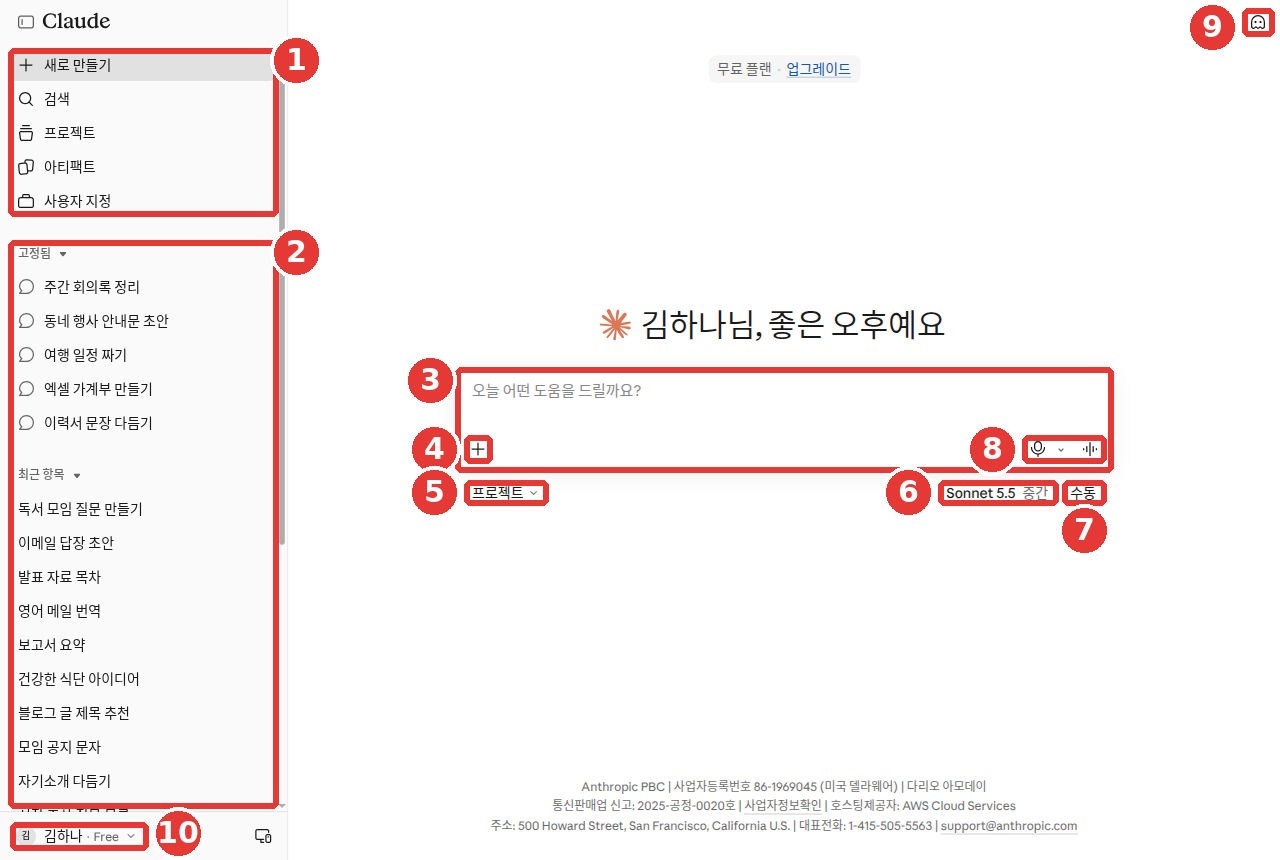
Names and chat titles in this screenshot have been replaced with examples (free plan). Only ⑧ is used in this chapter. The rest of the numbers are explained in Chapter 2.
- Open a new chat.
- Click the sound wave icon in the bottom right of the chat window.
- As you speak, your words appear automatically in the input box. When you finish speaking, Claude replies.
- To end, click Stop (중지) in the bottom right.
On the phone app
- Tap the sound wave icon next to the microphone in the input box.
- Pick a voice you like.
- Start speaking.[2:4]
Two Ways to Listen
- Hands-free mode: This is on by default. Claude listens continuously and replies when you pause. It works best in a quiet place.
- Push-to-talk mode: Hold the button while you speak, and release it when you finish. It is more accurate in noisy places or when other people are talking nearby.[2:5]
If Claude goes off track, just start speaking. Claude stops and listens. If you have several questions, ask them one by one rather than all at once.[2:6] Asking one at a time keeps the answers shorter and easier to follow by ear.
Here is a good request to try out loud:
I have a job interview next week. Act as the interviewer and ask me questions one by one.
After I answer, briefly tell me one thing I did well and one thing to improve, then move to the next question.
The reply will sound roughly like this (example — click to expand) (click to expand)
This example was written for this guide. Actual replies vary depending on the service and the moment.
Sure, let's start the interview. First question: could you briefly introduce yourself?
After you answer, it continues like this:
What you did well was stating clearly right at the start why you applied. One thing to improve is that the story about your experience ran a bit long. Try picking just one example and keeping it brief. Now for the second question: what has been your most rewarding moment at work?
Check if you got a good reply: Does it ask only one question at a time? After your answer, does it briefly mention just one good point and one point to improve? Does it avoid dumping a whole list of questions at once?
Good to Know
- Voice conversations also count toward your plan's usage limit (Chapter 1).
- Even if you switch between text and voice in the same conversation, your earlier context carries over. For things that need exact typing, like web addresses, you can type them in the middle of the chat.
- Voice mode starts with the model you last used in text chat, and you can switch models during the conversation. However, Claude Fable is not yet available in voice mode.[5]
- Connected tools (such as Gmail or Google Calendar) also work in voice mode.[6] Connecting tools is covered in Chapter 7.
- In the new interface, you can use voice mode in any conversation, including ones where Claude is working on a task.[2:7][7]
Quick check
You are using voice mode in a noisy cafe and Claude keeps mishearing you. What can you do?
Change the Voice and Language
You can only choose Claude's voice from a few preset options. This is to prevent anyone from cloning or impersonating another person's voice.[2:8]
- Web and desktop app: Go to Settings (설정) → General (일반) and look under Voice (음성). Under Language (언어), you will also find Style (스타일) and Speed (속도).[4:1][8] Click a voice to preview it.
- Phone app: During voice mode, tap the settings button in the bottom left to choose the voice and speaking speed.[2:9]
You need to set your speaking language separately. Changing the app's display language does not change the voice language.[2:10] On this screen, choose it under Settings (설정) → General (일반) → Voice (음성) → ③ Language (언어).[4:2] Languages other than English are in beta. You can also ask Claude during a conversation, "Please speak in Korean" (or another language).[2:11]
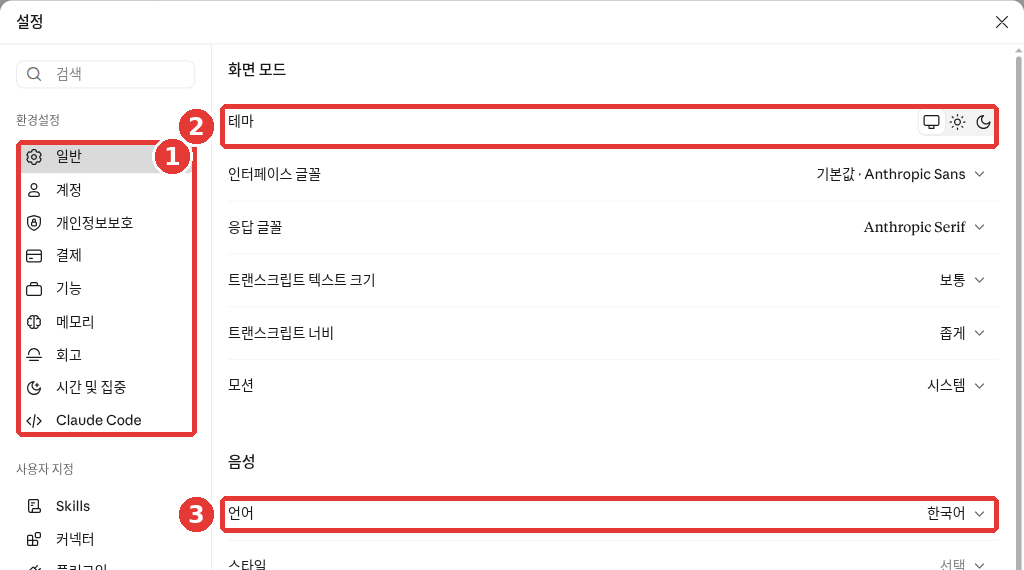
This screenshot shows the free plan. The red numbers match the numbered items below.
- ① General (일반) is selected in the left menu.
- ② Theme (테마): Switches the screen between light and dark. It is unrelated to voice.
- ③ Language (언어): The language spoken in voice mode. Style (스타일) and Speed (속도) follow right below.[4:3]
Quick check
You changed the app's screen language to Korean, but voice mode still speaks in another language. Why is that?
Voice History and Privacy
Voice conversations are saved as text. Conversations in voice mode are turned into text transcripts and saved in your chat history just like regular chats.[2:12]
Dictation recordings are not kept. After your speech is turned into text, the audio recording is deleted and is not used for training.[1:5] However, the transcribed text is treated like a regular chat. It follows the chat retention period and may be used for training if you have allowed training.[9] We covered training settings in Chapter 9.
Spoken conversations can be heard by people nearby. They can hear both your questions and Claude's answers.
- On the subway, in a cafe, or in an office, wear earphones or use dictation quietly.
- Do not say out loud the sensitive information covered in Stage 1, Chapter 9. It is easier to let things slip when speaking than when typing.
Quick check
You want to use voice mode on the subway to talk about a hospital appointment. What is the best way to handle it?
Faster on Your Phone — Widgets, Shortcuts, and Lock Screen
You can call up Claude without hunting for the app. All of these count toward your usage limit.[10][11]
iPhone (iOS 18 and above)
- Ask Claude (Claude에 물어보기): Ask a question without opening the app. You can use it from Spotlight search (the search box that appears when you swipe down from the middle of the Home Screen), Siri, and the Share menu. For example, you can select text and send it straight to Claude through the Share menu.
- Widget: Place the Claude widget on your Home Screen or Today View (the screen at the far left of your Home Screen) to open a new chat, start dictation, or take and send a photo with a single tap.
- Analyze Photo with Claude (Claude로 사진 분석): Add it to Control Center (the set of buttons that appears when you swipe down from the top right of the screen) or the Lock Screen to take and send a photo without unlocking your phone.
- Open Claude: Add it to the Lock Screen, Control Center, or the Action button (a button on the side of some iPhones) to open Claude right away.[10:1][12]
Ask Claude and Shortcuts use the default model shown when you open the app.[10:2]
Build a "Summarize Button" with Shortcuts
You can build your own button with the iPhone Shortcuts app. Follow this example from the help guide.[10:3]
- In the Shortcuts app, tap "+" to create a new shortcut.
- Add the Share action and choose the types of content it will accept.
- Add the Ask Claude (Claude에 물어보기) action.
- Type a prompt inside it. For example:
Summarize the following text in three lines: [Shortcut Input] - Give it a name (for example, "Summarize with Claude" (Claude로 요약)) and add it to the Share Sheet.
Now you can select text in any app, tap the Share button, and choose "Summarize with Claude".
Android (Android 8.0 and above)
Press and hold an empty spot on your Home Screen, open Widgets (위젯), and place the Claude widget. It has three buttons.[11:1]
- Chat button: Opens a new conversation right away.
- Camera button: Takes a photo and sends it to Claude.
- Microphone button: Opens a new conversation and starts dictation.
Quick check
You got a notice that you hit your usage limit. Can you keep asking questions through the iPhone widget or "Ask Claude"?
Connect with Phone Apps — Messages, Mail, Calendar, and Maps
Claude on the phone app can connect with other apps on your phone to help you get things done. This works on all plans.[13][14]
| iPhone | Android | |
|---|---|---|
| Messages, Mail, Calendar | Yes | Yes |
| Location, Maps | Yes | Yes |
| Reminders | Yes | No |
| Alarms, Timers | — | Yes |
For messages and emails, Claude only creates a draft. Claude shows a pre-filled card, and tapping it opens your Messages or Mail app. You read and edit the content, then press Send yourself. Claude does not read your existing messages or emails, and it does not access your contacts directly.[13:1]
Try asking like this:
Write a draft email to my team lead saying I will be 30 minutes late to tomorrow morning's meeting because of a doctor's appointment.
Keep it short and polite.
Once the draft opens in your Mail app, check the recipient and content before sending. Unlike the fake "I sent it" reply we saw in Chapter 9, here it is only sent when you actually tap Send.
You Control Permissions
The first time Claude tries to use your location or calendar, it asks for permission. Choose between Allow once, Always allow, or Don't allow.[13:2] To change this later, look in your phone's settings.
- iPhone: Settings (설정) → Claude
- Android: Settings (설정) → Apps (앱) → Claude → Permissions (권한)[13:3][14:1]
Features not yet available in Korea (click to expand)
There is also a feature that reads health data, but it is in beta, requires a Pro or Max plan, and is available in the US only.[13:4]
Quick check
In the mobile app, you asked Claude to write an email telling your manager you will be late, and your mail app opened. What should you do next?
Try It Yourself
1. Same Question, Two Ways
Ask the question below once using the microphone (dictation), and once in a new chat using the sound wave icon (voice mode).
I have eggs, tofu, and green onions in the fridge. Tell me two side dishes I can make in 15 minutes.Then ask yourself: Did dictation write down what you actually said? Which felt easier—listening to the answer or reading it?
2. Interrupt While Claude Is Speaking
In voice mode, ask for a long explanation, then say "Hold on, make it shorter" while Claude is still speaking. Check whether Claude stops and gives a shorter answer.
3. Put One Shortcut on Your Phone
Place the Claude widget on your Home Screen on iPhone or Android. Tap the microphone button and check that dictation opens right away.
Continuing Exercise (Preparing a Book Club): In voice mode, say, "Help me practice a 30-second opening greeting for my book club." Have Claude listen to your greeting and point out one thing to improve.
Summary
- The microphone is dictation: it turns your speech into text and sends it, and the reply comes as text. This chapter explained it based on the phone app.
- The sound wave icon is voice mode: ask out loud and listen to the answer. It is in beta and works best on a phone.
- Voice mode defaults to hands-free; switch to push-to-talk when it is noisy. It counts toward your usage limit.
- Set your speaking language separately from the app display language. On this screen, go to Settings (설정) → General (일반) → Voice (음성) → Language (언어).
- Voice conversations are saved as text transcripts. Dictation audio is deleted, but the transcribed text follows your training settings.
- Open Claude quickly with Ask Claude, Shortcuts, widgets, and the Lock Screen on iPhone, or with widgets on Android.
- Claude drafts messages and emails, and you press Send yourself. Change permissions in your phone's settings.
Glossary
| Term | One-line meaning |
|---|---|
| Dictation | A feature that turns your speech into typed text |
| Voice mode | A feature for talking back and forth with Claude out loud |
| Hands-free | A mode where Claude replies when you pause, without pressing a button |
| Push-to-talk | A mode where Claude listens only while you hold down the button |
| Beta | A test version of a feature released before the final launch |
| Transcript | A written record of what was said out loud |
| Widget | A small shortcut box you place on your Home Screen |
| Shortcut | An iPhone feature that bundles several actions into a single button |
| Permission | Approval you give an app to use things like your location or calendar |
Finished this chapter?
Progress is saved only in this browser. See your progress on the full table of contents.
Next chapter: Chapter 11. Hands-on Practice
References (14)
Anthropic Help Center, "Use dictation on Claude Mobile". "Dictation is available to all Claude users (Free, Pro, Max, Team, and Enterprise plans). Support for languages other than English is in beta." / "Dictation allows you to speak your prompts instead of typing them when using Claude for iOS or Android." / "Tap the microphone icon on the right side of the chat input field." / "Your prompt will automatically appear as text in the chat window." / "We will not retain a copy of your speech input or use it for training our generative models." support.claude.com (checked on 2026-10-26) ↩︎
Anthropic Help Center, "Use voice mode". "but is built to work best from your phone." / "Tap the sound wave symbol in the lower right corner of the chat window to activate voice mode:" / "Tap the voice mode icon (sound wave symbol next to the microphone icon) in the text input field:" / "Note: Voice conversations count toward your regular usage limits based on your subscription plan." / "In hands-free mode, Claude listens continuously and responds to natural pauses in your speech." / "On the web and desktop: Go to Settings > Capabilities and scroll down to Voice settings." / "When you turn on voice mode, it starts with the model you last used in text chat" / "Note: Claude Fable is not currently available in voice mode." / "Your previous context carries over, so you don't lose anything when you switch." / "On the Free plan you can connect one tool, and paid plans can connect more." / "This prevents voice cloning or impersonation." / "Changing your app's display language doesn't change your voice language, so set it here." / "Textual transcripts of your audio conversations are saved in your chat history just like text conversations." / "In the new Claude experience, voice mode works in any conversation, including ones where Claude is working on a task." / "In Claude Cowork and Claude Code, dictation is available but voice mode isn't." support.claude.com (checked on 2026-10-26) ↩︎
Anthropic Help Center, "Use quick entry with Claude Desktop on Mac". "Quick entry is available to all Claude users (free, Pro, Max, Team, and Enterprise plans) using Claude Desktop on macOS." / "Instant access: Double-tap the Option key to open Claude from any app." / "Visual context: Capture screenshots or click application windows to share what you're working on." / "The voice dictation shortcut is disabled by default because it takes over your Caps Lock key." / "Claude Desktop needs to be running on your Mac, but it can run in the background." / "Screen recording: Required to capture screenshots and share application windows." / "You can review or change these permissions in System Settings > Privacy & Security." support.claude.com (checked on 2026-10-26) ↩︎
Verified directly on the Claude web interface (free plan, Korean). Language (언어), Style (스타일), and Speed (속도) under Settings (설정) → General (일반) → Voice (음성). (checked on 2026-10-26) ↩︎
Anthropic Help Center, "Use voice mode". "Note: Claude Fable is not currently available in voice mode." (checked on 2026-10-26) ↩︎
The voice mode help page notes that you can connect one tool on the free plan. ↩︎
The same help article also includes a line stating that in Cowork (Chapter 8), dictation is available but voice mode is not. ↩︎
The help article points to Settings > Capabilities (기능). This may vary depending on your screen. ↩︎
Anthropic Privacy Center, "What personal data is collected when using dictation on the Claude mobile apps?". "If you have allowed us to use your chats or coding sessions to improve Claude, the transcribed text may be used in accordance with your privacy settings." privacy.claude.com (checked on 2026-10-26) ↩︎
Anthropic Help Center, "Use Claude app intents, shortcuts, and widgets on iOS". "The features described in this guide are available on iOS 18 and above." / "You can use this intent on its own to quickly ask Claude questions or give it tasks without opening the Claude app." / "The Claude widget provides quick access to chat and voice features directly from your Home Screen or Today View." support.claude.com (checked on 2026-10-26) ↩︎
Anthropic Help Center, "Use the Claude widget on Android". "The Claude Android widget is available on Android 8.0 Oreo and above." / "Note: All interactions started through the widget will count toward your usage limit." support.claude.com (checked on 2026-10-26) ↩︎
Anthropic Help Center, "Access Claude for iOS on your Lock Screen, Control Center, and Action button". "Quickly access Claude for iOS functionality from your Lock Screen, Control Center, or Action button on iOS." support.claude.com (checked on 2026-10-26) ↩︎
Anthropic Help Center, "Use Claude with iOS apps". "This feature is supported on all Claude plans and works with iOS system apps (Messages, Mail, Calendar, Maps, Reminders, and Location Services), as well as compatible third-party apps." / "Review the pre-filled content and make any changes if needed." / "Messages/Email: Claude does not read existing messages or emails, only creates new content." / "Contacts: Claude does not have direct access to your contacts." / "You’ll be prompted to approve the action with three options: Allow once, Always allow, or Don't allow." / "These permissions can be managed at any time in your device settings by going to Settings > Claude." / "Health features are currently in beta, require a Pro or Max plan, and are available in the US only." support.claude.com (checked on 2026-10-26) ↩︎
Anthropic Help Center, "Use Claude with Android apps". "This feature is supported on all Claude plans and works with your device's native and third-party apps" / "Reminders: These are exclusively available on Claude for iOS, so Claude can’t create and manage reminders on Android." / "These permissions can be managed at any time in your device settings by going to Settings > Apps > Claude > Permissions." support.claude.com (checked on 2026-10-26) ↩︎