Chapter 9. Privacy and Safety — Knowing Where Your Chats Go
Required Read this to follow this stage.One-line summary: A single switch called "Help improve our AI models" decides whether the chats you send to Claude are used for AI training. Chats you delete are also erased from the server within 30 days. This chapter also shows you where to find data export, account deletion, reporting, and crisis support.
The screens shown here are from the web version as of October 2026. Because both a new and an old settings layout are in use, menu names and locations may differ depending on your screen.
What you shouldn't type in is the same for every AI. We already covered that in Stage 1, Chapter 9, "What Not to Put In". In this chapter, we only look at how Claude handles the chats you have already put in.
Deciding Whether Your Chats Are Used for Training — "Help improve our AI models"
Model training is when an AI company gathers people's chats to teach the next AI to do a better job. In Claude, there are three main cases where your chats are used for training.[1]
- When you allow them to be used for training
- When an automated system that detects harmful content flags a chat for safety review[2]
- When you send feedback like a thumbs up or thumbs down under an answer[3]
You can decide the first one yourself. We could not verify from the docs whether this switch is turned on or off at the start. So open your settings and check it yourself.
How to Find the Switch
- Click your name at the bottom left and open Settings (설정).
- Click Privacy (개인정보보호) in the left menu.[4]
- Turn the ② "Help improve our AI models" switch on or off. Even on the Korean screen, this line appears in English.[4:1][5]
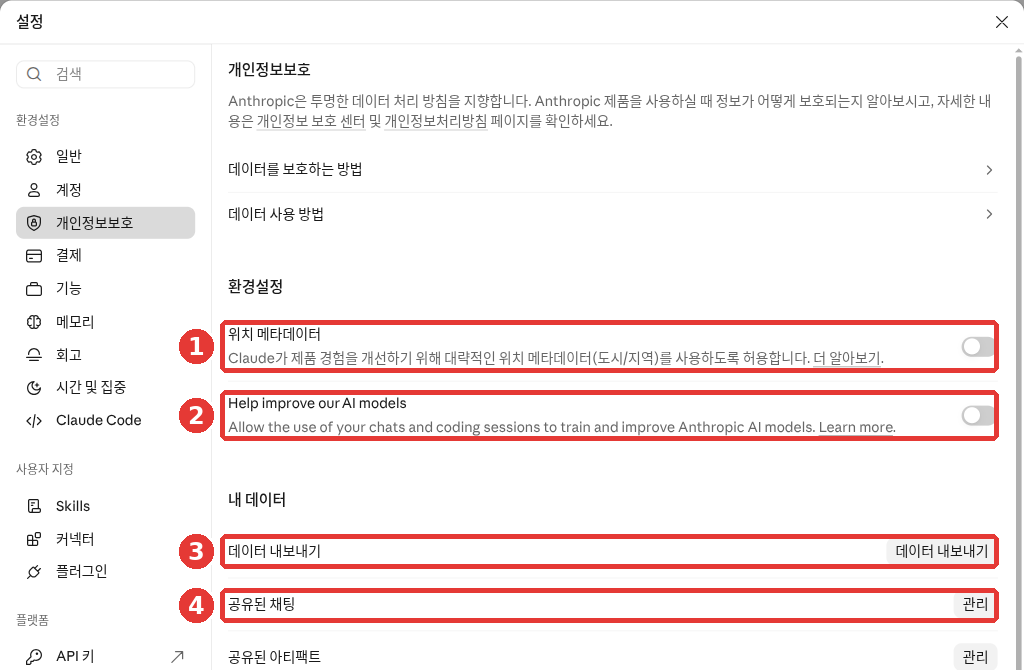
This is the free plan screen. The red numbers match the numbers in the list below.
- ① Location metadata (위치 메타데이터): Decides whether to let Claude use your rough location (city or region). We look at this below under "How Location Is Used".[4:2]
- ② Help improve our AI models: Decides whether to let Claude use your chats for training.[4:3]
- ③ Export data (데이터 내보내기): Downloads your history as a file. We look at this below under "Downloading Your Data".[4:4]
- ④ Shared chats (공유된 채팅) → Manage (관리): Shows the chats you have shared by link (Chapter 3).[4:5]
Below that, you will also find Shared artifacts (공유된 아티팩트), Uploaded files (업로드한 파일), My feedback (내 피드백), and Memory settings (메모리 설정), each with a Manage button.[4:6]
The mobile app follows the same steps. Tap your name → Settings → Privacy → the same switch. Menu names in the app may differ slightly from the web.[2:1]
What Changes When You Turn It Off
- New chats will not be used for training going forward.
- Previously saved chats are also left out of future training runs.
- However, your data stays in training that has already started and models that have already been built.
- Chats flagged by safety systems may still be used for safety improvements even if you turn the switch off.[2:2]
What Gets Used When You Leave It On
The entire chat can be used for training. Files you upload to the chat and your chat settings are included too. On the other hand, raw files from places like Google Drive connected through connectors (Chapter 7) are not included. However, if you copy and paste that content directly into the chat box, it can be included.[1:1]
Before your chats are used for training, they are automatically separated from your account details like your email address.[3:1] Anthropic states that it does not sell your data and that Claude has no ads.[6]
For Chats You Don't Want to Leave Behind From the Start
Use an Incognito chat (시크릿 채팅). You open it with the ghost button at the top right of the home screen. You can find how to start one in Chapter 3.
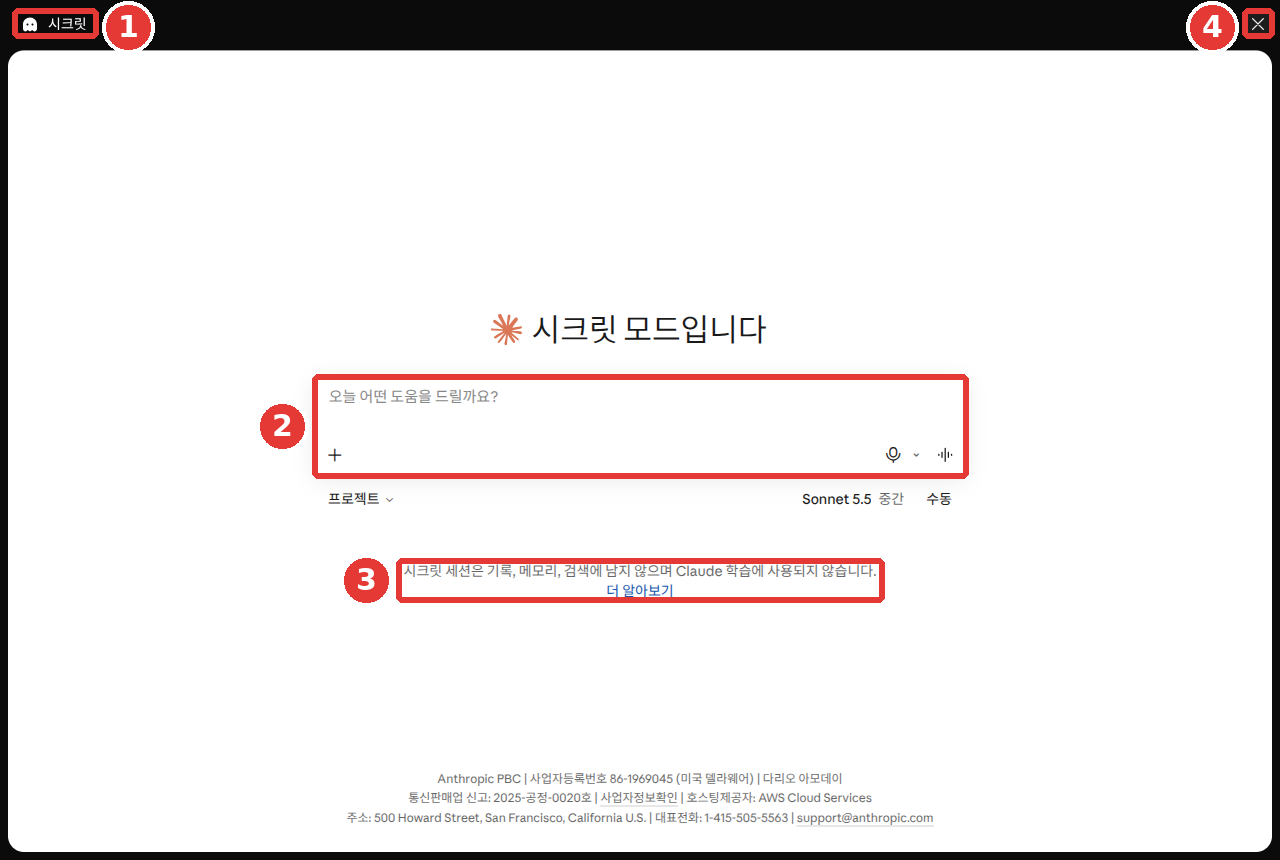
This is the free plan screen. ③ The notice says: "Incognito sessions aren't saved to history, memory, or search, and aren't used to train Claude."[4:7] Even if you leave the training switch on, Incognito chats are not used for training.[1:2] To finish, click ④ ✕.
Not being saved to your history is different from being kept on the server. Incognito chats are still kept on the server for 30 days by default.[7]
Don't click thumbs up or thumbs down lightly. When you send feedback, that entire chat is stored for up to 5 years. It may also be used for training.[8] If you shared sensitive information in a chat, it is better to choose another way instead of using the feedback buttons.
Quick check
Because you often talk about family health, you don't want your future chats used to train AI models. What should you do?
How Long Does It Stay? — Retention Periods
How long a chat stays depends on the situation.[9]
| Situation | How long it stays |
|---|---|
| Chats you deleted | Removed from history right away; erased from servers within 30 days |
| Chats allowed for training | Up to 5 years, separated from your account |
| Chats where you sent thumbs up/down | Up to 5 years |
"Separated from your account" is our wording for "de-identified" (with identifying information removed) in the help docs.[9:1]
Keep two things in mind when reading this table.
- The 5-year retention only applies to chats you newly started or resumed after turning the switch on.
- Deleted chats are not used for future training.[9:2]
Rare cases — rule violations and legal retention (click to expand)
- Chats flagged for breaking the usage rules (Anthropic's rules on what you must not do) stay longer. Chat content is kept up to 2 years, and safety scores (the risk ratings the safeguards gave that chat) up to 7 years.[9:3]
- Chats may be kept longer when required by law or needed to settle disputes.[9:4]
Delete any chats you do not want to keep. Deleted chats will not be used for future training. However, memories created from those chats still remain, so delete them separately as shown in Chapter 5.[10] We covered how to delete chats in Chapter 3.
Quick check
You have a chat you don't want to keep, and you don't want it used for future training either. What should you do?
Who Sees Your Chats?
By default, Anthropic employees cannot view your chats. There are two exceptions. One is when you send a chat as feedback, and the other is when they need to check if usage rules are being followed. Even during a review, only a small, designated safety team looks at what is needed. Your data is automatically encrypted (scrambled so others cannot read it) both while moving across the internet and while stored.[11]
Even for chats allowed for training, only a small number of staff working on training can view them. Even so, think carefully before putting in highly sensitive details like national ID numbers, card numbers, health records, or passwords.[12]
How Location Is Used
When looking up nearby results through web search—like "good restaurants near me"—Claude can use your internet connection address (IP address) to get your rough location at the city or region level. On this screen, the ① Location metadata switch under Privacy controls this.[4:8] On the mobile app, you manage location permissions in your phone's settings. However, estimating your country or region to protect security and prevent abuse cannot be turned off.[13]
If You See an Unfamiliar Device
Under Settings → Account (계정), look at Active sessions (활성 세션)—or Where you're logged in (로그인된 위치), depending on your screen—to see the devices signed in to your account. The table shows the device, location, when it was created, and when it was updated.[4:9] If you see a device you don't recognize, click ⋮ next to it → Terminate (종료) to cut it off right away.[14]
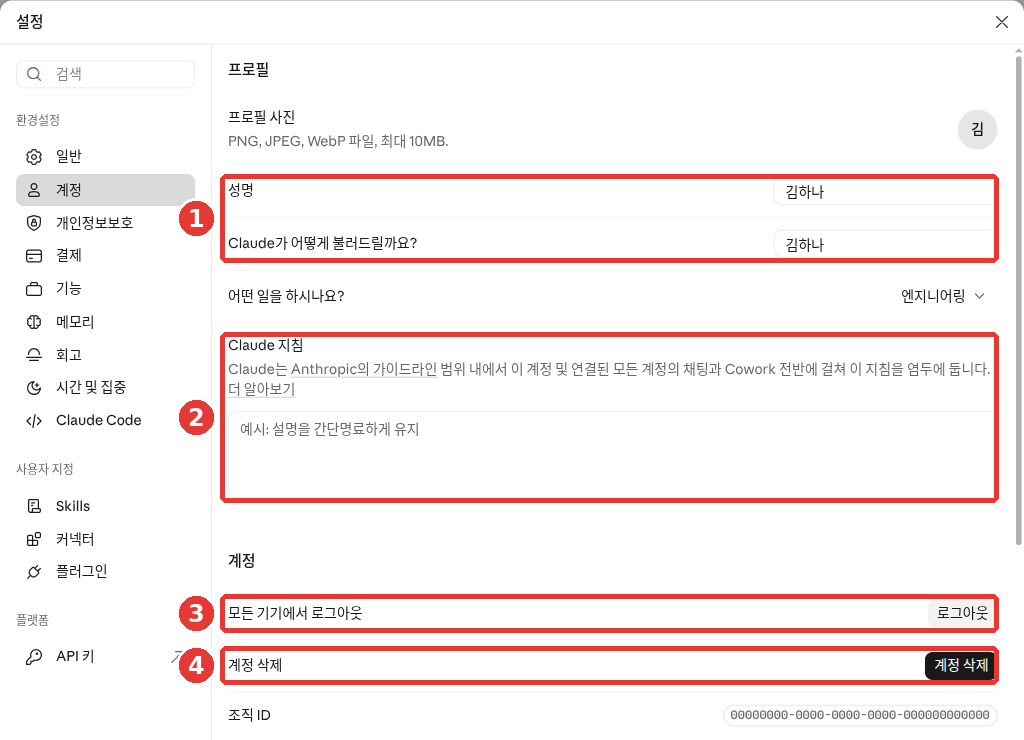
This is the free plan screen. The Active sessions table is further down the page, so it does not appear in the picture.[4:10] If you are not sure which device it is, you can cut them all off at once with ③ Log out of all devices (모든 기기에서 로그아웃).[4:11] We look at ① your name and ② instructions in Chapter 5. Since Claude does not have its own password (Chapter 1), check the security of the email or Google account you use to sign in. You can find the details in Chapter 3.
Quick check
You want to paste medical records and your national ID number into a chat and ask Claude to organize them. What is the best approach?
Downloading Your Data
Data export lets you receive your chat history and account information so far as a file. People use it to make a backup before deleting an account. Individual users on Free, Pro, and Max plans can all use it.[15]
- On the web or desktop app, open Settings → Privacy.[4:12]
- Click the ③ Export data button shown in the earlier picture.
- When it is ready, a download link arrives at your account email.
- Click the link while signed in to download your file.
Here are a few things to keep in mind.
- You cannot export data from the mobile app. Use the web or desktop app.
- The link expires 24 hours after it arrives. If you miss it, just request it again.
- You cannot import exported data into another personal account.[15:1]
The downloaded file contains all of your chats. Do not download it on a public computer, and do not upload it to a folder shared with others.
On company plans (Team and Enterprise), an administrator must turn this on before you can export your own data.[15:2]
Quick check
You want to back up your chats before deleting your account, and you normally use only the mobile app. What should you do?
Deleting Your Account
Deleting your account is permanent. You will lose access to your chats, projects, and saved materials, and you cannot bring the account back. If there are chats you want to keep, export your data first.[16]
If you use Pro or Max, cancel your subscription first. Cancel the subscription, wait until your current billing period ends, and then delete the account.[16:1] We covered canceling a subscription in Chapter 1.
Here are the steps to delete your account on each device.[16:2]
- Web: Your name at the bottom left → Settings → Account → ④ Delete account (계정 삭제) in the picture above[4:13]
- iPhone: Settings → Profile (프로필) under Account → Delete account → Delete (삭제)
- Android: Top-left menu → Bottom-left initials → Profile → Delete account under Account actions (계정 작업) → I Understand (동의합니다)
If you have multiple accounts made with the same email address, you must tell support exactly which account to delete when you contact them.[16:3] If you have been using Claude inside another service like Slack, you need to ask that service to delete your account.[17]
Quick check
Someone on a paid (Pro) plan wants to delete their account. What should they do first?
When AI Gets It Wrong — Wrong Answers and Fake "I Sent It" Claims
Claude can also give answers that sound convincing but are wrong. This is called a hallucination. You learned the habit of double-checking in Stage 1, Chapter 9. With Claude, there are three things to keep in mind in particular.[18]
- Even quotes that look authoritative may be made up without any basis in fact.
- Do not trust Claude as your single source of truth. The more important the advice, the more carefully you should check it.
- For answers from web search, open the sources Claude linked yourself (Chapter 6).
When Claude Says "I Sent the Email"
Even if Claude says "I sent the email" or "I transferred the file," it may not have actually done so. Claude cannot use tools you haven't connected. Yet sometimes it still claims it did.[19]
So ask yourself these questions. Did I connect a tool to do this job? Is it really in my Sent folder? If you cannot verify it, it is safer to ask only for a draft from the start.
Write an email telling my teammates that tomorrow's meeting moved to 3 PM.
Don't send it—just show me the subject line and body so I can copy and send it myself.
That way, you get the final check on what goes out.
Quick check
The AI says, "I sent the email to your teammates." What is the smartest thing to do?
Safeguards, Reporting, and Appeals
Claude has safeguards that filter out harmful content.[20]
- Models that spot harmful content
- Filters that can block answers
- Stronger filters applied temporarily to users who repeatedly break the rules
The help docs openly state that these safeguards are not foolproof. That means they might block a harmless question or miss something they should have blocked.[20:1]
When You Get a Warning or Your Account Is Suspended
If your prompt looks like it breaks the usage rules, you will get a warning. If you break the rules repeatedly or sign up from an unsupported region, your account may be suspended.[21]
If you think your account was suspended by mistake, you can submit an appeal.
- Log in to claude.ai using your suspended account as is. You must be logged in to see the form.
- Click the "Submit an appeal" (이의 제기 제출) link in the help article to open and fill out the appeal form.
Even with a suspended Free, Pro, or Max account, you can still log in to export your data or delete your account. However, the range of data you can export may be limited.[21:1]
When You See Problematic Content
If you see problematic content in a chat someone else shared, click the Report (신고) button on that screen.[22]
- There is also a separate reporting form.
- Copyright and trademark issues use a different process.
- If you repeatedly send baseless reports, your ability to submit reports may be suspended. You will receive a warning before that happens.[22:1]
Quick check
You think your account was suspended by mistake. How do you submit an appeal?
Getting Help in Hard Times
If you are physically hurt or in immediate danger right now, contact emergency services right away instead of Claude. You can also go to the nearest emergency room. The help docs give 911 in the US and Canada and 112 in much of Europe as examples.[23]
If a chat touches on topics like emotional distress or self-harm, a banner showing crisis helplines and a safety plan may appear on your screen. A separate detection system brings up this banner, not Claude itself.[23:1]
- You decide whether to use the banner. Whether you use it or not, there is no penalty to your account.
- Once the banner appears, it will not show up again for about 2 hours.
- You can find support services anytime at claude.findahelpline.com. It picks and shows options that match your location.
- Anthropic does not send your chats to helplines.[23:2]
The banner may also include a safety plan tool from a nonprofit group called Koko. It helps you build a short plan you can pull out during tough moments. It takes about 5 minutes, is free, and does not require your name.[23:3]
If it feels too hard to handle alone, it is okay to start simply by talking to someone.
Quick check
A friend was talking through a tough time with Claude and saw a helpline banner pop up. They are worried clicking it might hurt their account. What should you tell them?
Try It Yourself
1. Check Your Training Settings
Open Settings → Privacy and see if ② "Help improve our AI models" is turned on. Change it to what you want, and if you have the mobile app, check that it shows the same setting there too.
2. Look Over Your Logged-In Devices
Scroll down in Settings → Account to look at Active sessions (or Where you're logged in). Do you recognize every device? If you see one you don't know, terminate it right away.
3. Get a Personal Checklist From Claude
I'm using Claude on a personal account.
I want to check if my chats are used for training and clean up chats I don't need.
Make me a checklist (☐) of the items I should check myself in the settings screen.
Don't make up menu names you aren't sure about—just write "check on screen" instead.
Compare the checklist you get with this chapter. If a menu name differs, the name shown on your screen is the right one.
Ongoing project (Preparing a Book Club): Check how "Help improve our AI models" is set under Settings → Privacy. Decide how you want to keep this setting if you upload real club materials to your "Book Club" project.
Summary
- You decide whether your chats are used for training under Settings → Privacy → "Help improve our AI models". Open it yourself to check the initial setting.
- Even if you turn it off, data stays in models already built, and chats flagged by safety systems may still be used.
- Incognito chats are not used for training. Sending a thumbs up or thumbs down keeps that chat for up to 5 years.
- Deleted chats are erased from servers within 30 days. Chats allowed for training can stay for up to 5 years.
- Employees cannot view your chats by default. Cut off unfamiliar devices under Active sessions.
- Data export works only on the web and desktop app, and the link expires after 24 hours. Account deletion cannot be undone, and paid subscriptions must be canceled first.
- Verify any "I sent it" claims yourself. If your account is suspended by mistake, log in to submit an appeal.
- In a dangerous situation, contact emergency services first. You can find support services at claude.findahelpline.com.
Glossary
| Term | One-line meaning |
|---|---|
| Model training | Teaching the next AI using collected chats |
| Model improvement | The setting that decides whether your chats are used for training |
| Incognito | A chat that isn't saved to history or used for training |
| Feedback | Letting the service know if an answer was good with a thumbs up or down |
| Retention | How long data is kept before being erased |
| Encryption | Scrambling data so others cannot read it |
| IP address | The address of a device connected to the internet, which reveals your rough region |
| Export | Receiving your entire history as a file |
| Session | A signed-in state on a single device |
| Hallucination | When an AI makes up something that sounds convincing but is wrong |
| Appeal | Asking for another look when your account was suspended by mistake |
| Helpline | A service where you can talk to a trained person during hard times |
Finished this chapter?
Progress is saved only in this browser. See your progress on the full table of contents.
Next chapter: Chapter 10. Voice and Mobile
References (23)
Anthropic Privacy Center, "Is my data used for model training?". "You choose to allow us to use your chats and coding sessions to improve Claude, learn more here" / "It does not include raw content from connectors (e.g. Google Drive), including remote and local MCP servers, though data may be included if it’s directly copied into your conversation with Claude." / "Your Incognito chats are not used to improve Claude, even if you have enabled Model Improvement in your Privacy Settings." privacy.claude.com (checked on 2026-10-26) ↩︎
Anthropic Privacy Center, "How do I change my model improvement privacy settings?". "Under Help Improve our AI models, click the button to toggle it off/on" / "we will stop using your previously stored chats and coding sessions in future model training runs." / "Your data will still be included in model training that has already started and in models that have already been trained" / "If our safety classifiers flag your conversations, they may still be used to improve our internal trust and safety models" privacy.claude.com (checked on 2026-10-26) ↩︎
Anthropic Privacy Center, "How Do You Use Personal Data in Model Training?". "You’ve explicitly provided materials to us (e.g.via our thumbs up/down feedback button), or" / "we will automatically de-link them from your user ID (e.g. email address) before it’s used by Anthropic." privacy.claude.com (checked on 2026-10-26) ↩︎
Verified directly on the Claude web screen (Free plan, Korean). "Help improve our AI models — Allow the use of your chats and coding sessions to train and improve Anthropic AI models." / "시크릿 세션은 기록, 메모리, 검색에 남지 않으며 Claude 학습에 사용되지 않습니다." (checked on 2026-10-26) ↩︎
In the Korean help docs, it is called "AI 모델 개선 지원" (Support AI model improvement). ↩︎
Anthropic Privacy Center, "Updates to our Privacy Policy". "We don’t sell your data, Claude remains ad-free, and you can control whether your conversations are used to improve Anthropic’s AI models." privacy.claude.com (checked on 2026-10-26) ↩︎
Anthropic Help Center, "Use incognito chats". "While incognito chats aren't saved to your chat history, they are retained for either 30 days (default), or longer in accordance with your organization's custom data retention setting (available for Enterprise plans)." support.claude.com (checked on 2026-10-26) ↩︎
Anthropic Privacy Center, "Is my data used for model training?". "we will store the entire related conversation, including any content, custom styles or conversation preferences, in our secured back-end for up to 5 years." privacy.claude.com (checked on 2026-10-26) ↩︎
Anthropic Privacy Center, "How long do you store my data?". "Deleted from our back-end storage systems within 30 days" / "we may retain your data in a de-identified format for up to 5 years in our model training pipelines." / "This retention period only applies to new or resumed chats after the model training setting has been enabled." / "Additionally, if you delete a chat from your chat history, it will not be used to train future models." / "We retain inputs and outputs for up to 2 years and trust and safety classification scores for up to 7 years" / "In all cases, we may retain chats and coding sessions as required by law, to resolve disputes, or as necessary to combat violations of our Usage Policy." privacy.claude.com (checked on 2026-10-26) ↩︎
Anthropic Help Center, "Use Claude’s chat search and memory to build on previous context". "When a conversation is deleted, including under a retention period, memory entries generated from it aren’t removed, but you can delete individual memories while memory is on." support.claude.com (checked on 2026-10-26) ↩︎
Anthropic Privacy Center, "How does Anthropic protect the personal data of Claude users?". "Limited Access: By default, Anthropic employees cannot access your conversations unless:" / "Encryption: Your data is automatically encrypted both while in transit, and stored (at rest)." privacy.claude.com (checked on 2026-10-26) ↩︎
Anthropic Help Center, "I would like to input sensitive data into my chats with Claude. Who can view my conversations?". "Access is limited to a small number of personnel involved in model training." / "we also recommend being thoughtful about sharing highly sensitive personal details such as:" support.claude.com (checked on 2026-10-26) ↩︎
Anthropic Privacy Center, "Does Claude use my location?". "Claude may use your IP address to determine coarse-grained location (city/region level)." / "Claude's access to location data for non-web surfaces (e.g. the mobile app and browser extension) are managed at the device level." / "This use is necessary to protect our users and business and cannot be toggled off." privacy.claude.com (checked on 2026-10-26) ↩︎
Anthropic Help Center, "Managing your active sessions". "Scroll to the Active sessions section (called Where you're logged in in the updated Settings layout)." / "terminate it right away and consider changing your password." support.claude.com (checked on 2026-10-26) ↩︎
Anthropic Help Center, "Export your Claude data". "Data exports are available to individual Claude users on Free, Pro, and Max plans." / "It's not possible to run an export from Claude for iOS or Android." / "You must be signed in to your account to download your data using this link." / "The download link will expire 24 hours after delivery." / "Exported data can't be imported into another personal Claude account, and we don't support migrating data between personal accounts." / "you can export your own data once an organization Owner or Primary Owner turn this on." support.claude.com (checked on 2026-10-26) ↩︎
Anthropic Help Center, "Delete your Claude account". "You'll lose access to your conversations, projects, and other saved data, and you can't recover the account afterward." / "Wait until the end of your current subscription period." / "If you have multiple accounts associated with the same email address, you'll need to specify which accounts you want to delete when you contact us." support.claude.com (checked on 2026-10-26) ↩︎
Anthropic Privacy Center, "Deleting Claude accounts". "you will need to request account deletion through that third party service provider." privacy.claude.com (checked on 2026-10-26) ↩︎
Anthropic Help Center, "Claude is providing incorrect or misleading responses. What’s going on?". "Claude can display quotes that may look authoritative or sound convincing, but are not grounded in fact." / "Users should not rely on Claude as a singular source of truth and should carefully scrutinize any high-stakes advice given by Claude." / "When working with web search results, users should review Claude's cited sources." support.claude.com (checked on 2026-10-26) ↩︎
Anthropic Help Center, "Claude is producing links that don’t work and falsely claiming that it has sent emails or produced external documents. What’s going on?". "Even if it claims otherwise, Claude does not have access to other tools or software that are not explicitly integrated, including email, word processors, or file transfers." support.claude.com (checked on 2026-10-26) ↩︎
Anthropic Help Center, "Our Approach to User Safety". "We may temporarily apply enhanced safety filters to users who repeatedly violate our policies" / "These features are not failsafe, and we may make mistakes through false positives or false negatives." support.claude.com (checked on 2026-10-26) ↩︎
Anthropic Help Center, "Safeguards warnings and appeals". "we warn users if we believe their prompts are violating our Usage Policy." / "Account creation from an unsupported location" / "If you feel your account has been wrongly suspended or terminated, please go to claude.ai, log in with your banned account, and fill out the appeal form linked below." / "Important: You must be logged in to access the appeal form." / "you can still log in at claude.ai to export your data or delete your account." support.claude.com (checked on 2026-10-26) ↩︎
Anthropic Help Center, "Report, block, and remove content from Claude". "Use the “report” button on the shared content." / "If you believe content violates Anthropic’s usage policies or local laws and should be removed or restricted, you can report it through this form." / "We will provide a warning before suspension." support.claude.com (checked on 2026-10-26) ↩︎
Anthropic Help Center, "Crisis Helpline Support in Claude". "please contact emergency services (such as 911 in the US and Canada, or 112 in much of Europe) or go to your nearest emergency room." / "This banner is surfaced by a separate detection system, not from Claude directly." / "there are no consequences for your account based on your decision to access resources." / "After you see the banner, it won’t appear again for about two hours" / "The resources shown are selected based on your location to provide relevant, local support options." / "Anthropic doesn’t send your conversations to helplines or to Koko." / "It takes about five minutes. You’re guided one step at a time, and you decide what goes in it." support.claude.com (checked on 2026-10-26) ↩︎