Chapter 3. Managing Chats — Finding, Organizing, Sharing, and Hiding
Required Read this to follow this stage.One-line summary: When you finish a chat, rename or delete it. To find a past chat, look in your list or ask Claude to find it for you. To show a chat to someone else, invite specific people or use a public link. When you don't want to leave a record, use an incognito chat.
The screens shown here are from the web version as of October 2026. Because the new Claude screen that combines chat and Cowork is rolling out gradually, your screen may look different. In the mobile app, menu locations are slightly different.
In Stage 1, you learned when it is good to open a new chat. That is when the topic changes, when it keeps forgetting your first instructions, or when the chat gets too long (Stage 1, Chapter 6). The same applies to Claude. In this chapter, you will see how to handle the chats that pile up.
Renaming and Deleting Chats
Rename your chats in your own words so you can find them easily later. Here is how you do it on the web.
- Find the chat under Starred (고정됨) or Recents (최근 항목) in the side menu.[1]
- Hover your mouse over the chat and click the "⋯" (three dots) button on the right.[1:1]
- Choose Rename (이름 변경) or Delete (삭제).[1:2] For deleting, click one more time in the confirmation pop-up.[2]
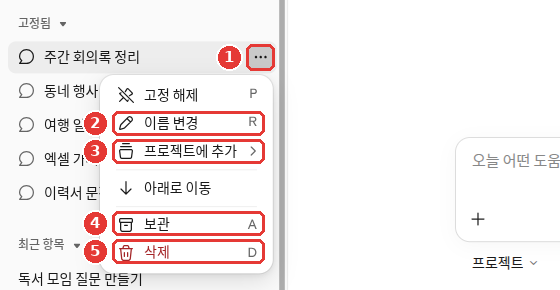
The chat title in this screen was changed to an example (free plan). The red numbers match the numbers in the list below.[1:3]
- ① "⋯": The button that appears when you hover your mouse over a chat.
- ② Rename (이름 변경): Changes the chat title into your own words.
- ③ Add to project (프로젝트에 추가): Puts the chat into a project. We will look at projects in Chapter 7.
- ④ Archive (보관): Sets the chat aside from the list. This is a different menu from deleting.
- ⑤ Delete (삭제): Erases the chat.
The same menu also has Unstar (고정 해제, or Star) and Move down (아래로 이동).[1:4] Starred chats gather in the Starred (고정됨) list in the side menu.
To delete multiple chats at once (click to expand)
The Help Center also explains how to delete multiple chats at once. In the full chat list (Chats and tasks, 채팅 및 작업), click "⋮" → Select (선택), check the chats you want to delete, or click Select all (모두 선택) at the top.[2:1] Menu names may vary depending on your screen.
On a mobile phone, the method is slightly different.[2:2]
- iPhone: Touch and hold the chat in your chat list.
- Android: Tap "⋮" in the top right of an open chat. For multiple chats, tap the checklist icon in the top right of the list and delete them with the trash can icon.
Here are a few things to know before you delete.
- A deleted chat disappears from your list right away. It is also erased from the company's servers within 30 days.[2:3] There is no way to restore it in the Help Center. Think one more time about whether it is okay to erase before you click.
- Even if you delete a chat, the memories created from that chat remain. You have to delete memories (things Claude remembers about you) separately.[3] We will look at how to delete them in Chapter 5.
Quick check
Your chat list in the sidebar has gotten too long. You want to clear away chats from an event that ended, but you might check them again next year. What should you do?
Finding Past Chats
There are two ways to find a past chat.
First, find it in the list. Skim through the Recents (최근 항목) list in the side menu. There is also a Search (검색) button near the top of the side menu.[1:5] Quick questions and longer tasks gather together in one Recents (최근 항목) list.[4] If you rename titles in your own words, you will find them much faster here.
Second, ask Claude to find it for you. If you are on a paid plan (Pro, Max, Team, or Enterprise), just ask in a new chat. It works on the web, desktop, and mobile apps.[5]
Find the chat from last week where I asked about Excel functions. Summarize the functions you told me about back then.When Claude searches your past chats, it shows up in the chat as a tool call (Claude pulling out a feature to use). Past chats used in the answer are attached as links (citations) back to the original chats.[5:1] Click the link to open the original chat. You can check right away whether Claude brought the wrong chat.
Keep the search range in mind too. A project is a workspace that groups the materials and chats you use for one piece of work (Chapter 7). If you have never made a project, all your chats right now are outside projects.[5:2]
- If you ask outside a project, it searches across all chats outside projects.
- If you ask inside a project, it searches only within chats inside that project.
- This search does not find older Cowork tasks (records of tasks you handed off whole, Chapter 8). Look for those tasks by name in Recents (최근 항목).[4:1]
To stop Claude from searching your past chats, go to Settings > Memory (설정 > 메모리, or Settings > Your Claude) and turn off Search and reference chats (채팅 검색 및 참조).[5:3]
If you don't see the switch (click to expand)
The Help Center states that this switch is under Settings > Your Claude or Settings > Memory (설정 > 메모리).[5:4] On the free account used to take the screenshots for this chapter, this switch was not visible. That is because searching past chats is a paid plan feature.[1:6] It may vary depending on your screen.
Quick check
On a paid plan, you open a new chat and say, "Find the chat from last week where I asked about Excel formulas." What happens?
Showing a Chat — To Specific People
There are two ways to show a chat to other people. One is inviting specific people, which lets only the people you choose see it, and the other is a public link, which lets anyone with the link see it. Inviting specific people is the default method.[6] Let's look at this one first.
In the new screen, a chat is also called a "session" (세션). That is why the menu is named Share session (세션 공유). This is a different meaning from the "session limit" (5-hour usage) in Chapter 1. Send invites from the web. You cannot send them from the mobile app yet.[6:1]
- Click the ▾ menu next to the chat title at the top and choose Share session (세션 공유). When the artifact pane on the right (the pane that shows documents and other things Claude made, Chapter 4) is not open, you can also open it with the Share (공유) button in the top right.
- Type the recipient's email in the Add people by email (이메일로 사람 추가) box.
- Click Invite (초대하기).[7]
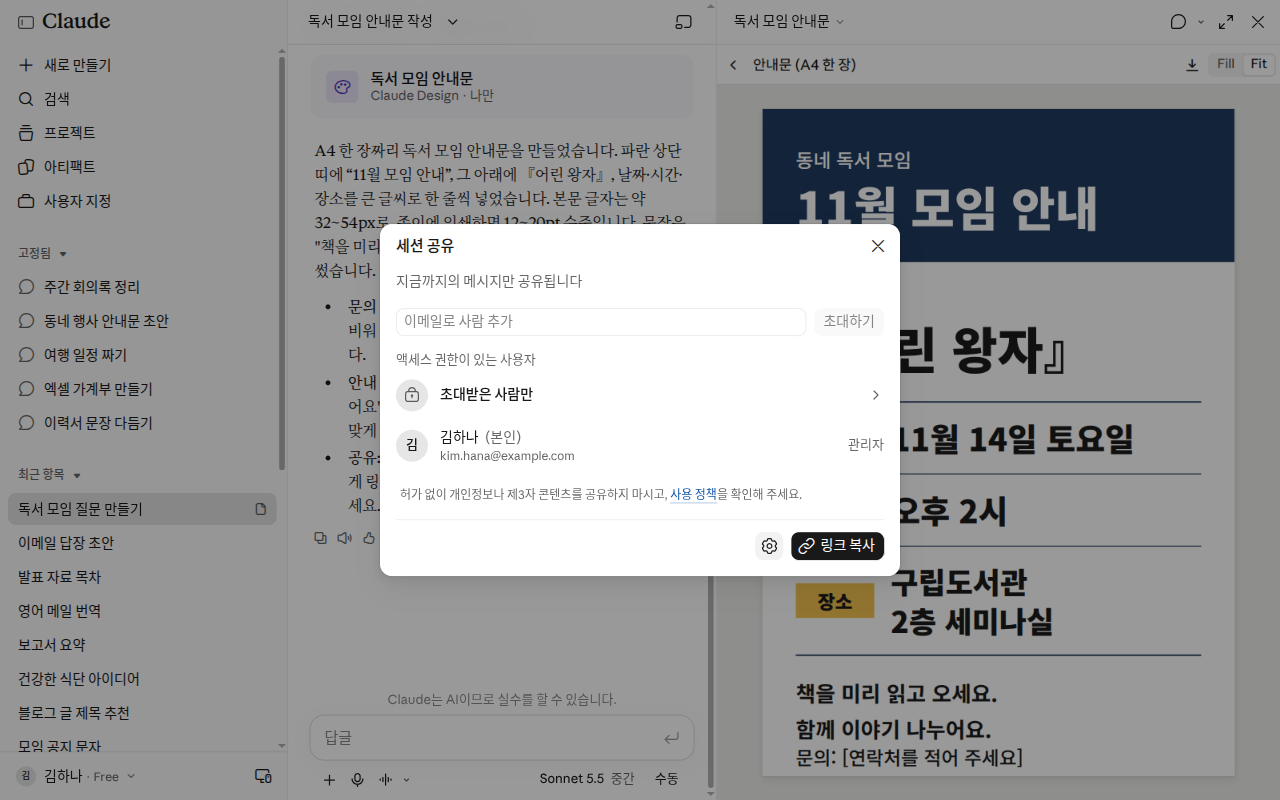
Names and emails in this screen were changed to examples. The window was closed without inviting anyone.
The recipient gets an email with your name, the chat title, and a link to open it. This works on all plans, including the free plan.[6:2]
This method has these characteristics.[6:3]
- It only opens with the invited email. Even if the recipient forwards the email, no one else can open it.
- They can only view it. Recipients cannot continue the chat, copy it to their own account, or download files from it.
- You can also invite people who don't have a Claude account. They can view it once they create a free account.
Sharing is like taking a picture of that moment (a snapshot).[8] Messages you exchange after sharing are not visible to the recipient. To show new messages too, click Update shared chat (공유 채팅 업데이트) in the share window.[6:4]
Attached files are not included in the shared copy either. Only you can continue to see the files.[8:1]
When you want to stop showing it, click Turn off (끄기) in the share window. The link is blocked for everyone right away. Deleting the chat also blocks the link.[6:5] You can view all the chats you have shared so far in one place and turn them off one by one.[6:6] Go to Settings > Privacy (설정 > 개인정보보호) and click Manage (관리) next to Shared chats (공유된 채팅).[1:7]
More to know about invites (click to expand)
Quick check
Public Links — So Anyone Can View
Anyone who has a public link can open it — anyone at all. They do not need a Claude account. Just like with invites, they can only view it.[9] This works only on individual plans (Free, Pro, and Max). Company plans (Team and Enterprise) can only share within their organization.[9:1]
You also create a public link from Share (공유) on the chat screen. Open the Share session (세션 공유) window above, then follow the on-screen instructions to create the link. The steps are described a little differently depending on the screen and the article. For example, an older Help Center article explains that clicking Share (공유) and then clicking Share (공유) one more time in the pop-up creates a link.[8:2]
Remember just one rule before using a public link. In the exact words of the Help Center, "treat a public link as public."[9:2] If you wouldn't post it on the internet, don't make it a public link either.
- Even if you send it to just one person, it is public. The recipient can forward it or post it somewhere. There is no way to restrict it so only specific people can see it.
- Search engines are asked not to show it. However, that does not stop the link from spreading or someone from making a copy.
- Turning it off blocks the link right away. However, it cannot erase copies or screenshots someone else already made.
Chats that contain files Claude made for you directly, such as Excel or Word files (Chapter 4), cannot be shared publicly on individual plans.[10]
Compare a poor example and a better example.
- Poor example: Turning a chat about family health advice into a public link and sending it to a sibling.
- Better example: Inviting your sibling's email to the same chat.
There is one difference. Anyone can open a public link if your sibling forwards it, whereas an invite only opens with your sibling's email. Before sharing, skim through the chat once to make sure there is no personal information like names or phone numbers (Stage 1, Chapter 9).
Quick check
You want to show a chat about family health to just one sibling. What is the better way to share it?
Leaving No Record — Incognito Chat
For a chat you don't want to leave in your history, like picking out a gift, use Incognito chat (시크릿 채팅). It works on all plans, including the free plan.[11]
- Open a new chat outside of a project. A regular new chat where you have not picked a project is fine.[11:1]
- Click the ghost icon (Use incognito mode, 시크릿 모드 사용) in the top right of the screen.[1:8]
- When the border of the screen turns black and the Incognito (시크릿) label appears in the top left, it has started.[1:9][12]
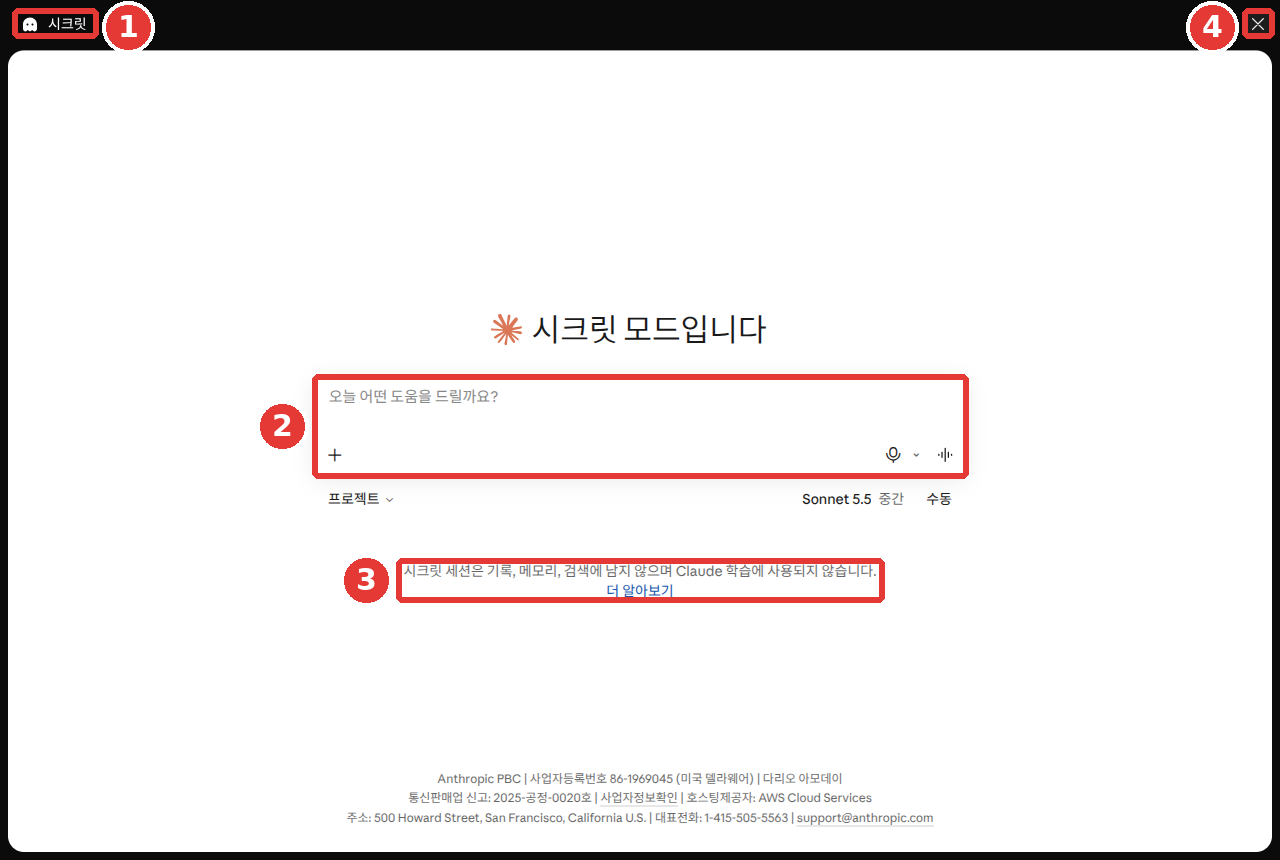
This is the free plan screen. The red numbers match the numbers in the table below.[1:10]
| Number | Location | Name | What it does |
|---|---|---|---|
| ① | Top left | Incognito (시크릿) | Shows that you are in an incognito chat |
| ② | Center | Input box | Surrounded by a dashed line to distinguish it from a normal chat |
| ③ | Below input box | Notice | Explains that no record is kept |
| ④ | Top right | ✕ | Exits the incognito chat |
③ The notice reads as follows: "Incognito sessions aren't saved to history, memory, or search, and aren't used to train Claude." ("시크릿 세션은 기록, 메모리, 검색에 남지 않으며 Claude 학습에 사용되지 않습니다.")[1:11]
Here are the characteristics of an incognito chat.[11:2]
- It is not saved to your chat history or memory. It does not remain in your side menu chat list.
- It is not used for training. This chat is not used for training to make the AI better.
- It does not use existing memory either. However, it does use profile information like personal preferences you have set up.
- You cannot turn it into a normal chat. Once closed, you cannot reopen it either. Copy any answers you need to keep before closing.
This does not mean "it leaves no trace anywhere." While it is not saved to your history, it is retained for 30 days by default.[11:3] Do not put information like passwords into an incognito chat either.
In the new screen, Claude cannot create files or run code in an incognito chat.[11:4] Running code means Claude runs a small program itself to do calculations or work with files. Creating Excel or Word files for you also depends on this, so do that kind of work in a regular chat. Creating files is covered in Chapter 4.
Why can't it create files in an incognito chat? (click to expand)
Even if you are using the new Claude screen, incognito chats open in the previous screen style.[11:5] The story of the previous screen is in Chapter 2.
Keeping the Chat and Turning Off Memory Only
Sometimes you want to keep the chat record, but stop Claude from using its memories about you. In that case, turn off Memory (메모리) in the "+" menu before sending your first message in a new chat. You cannot change it after starting the chat.[13] You cannot use incognito chat inside a project. The ghost icon does not appear either. Inside a project, you can use this method instead.[11:6]
| Incognito chat (시크릿 채팅) | Chat with only memory turned off | |
|---|---|---|
| In the chat list | Does not remain | Remains |
| Uses or adds to memory? | No | No |
| In past chat searches later | Does not show up | Shows up |
| Inside a project | Cannot use | Can use |
| Where to turn on | Ghost icon in top right | "+" → turn off Memory (메모리) |
Source: Anthropic Help Center[11:7][13:1]
If you want to get a fresh answer without any memories about you, try asking like this in an incognito chat.
Assume you know nothing about me, and recommend three good exercises for someone in their 50s to learn for the first time, along with their pros and cons.The answer you get will look roughly like this (example — click to expand) (click to expand)
This is an example created for this guide. Actual answers vary by service and occasion.
Here are three good exercises for someone in their 50s to learn for the first time.
Exercise Pros Cons Walking Costs almost nothing and you can start right away Takes a long time to feel the results Swimming Easy on the joints You have to go to a pool and pay a fee Stretching / Yoga Makes the body flexible and helps with balance Hard to learn the moves at first If you have an existing health condition, talk with a doctor before starting.
Check if you got a good answer: Are there exactly three? Are both pros and cons included? Since it is an incognito chat, is it free of personal details like your job or where you live?
Quick check
You got a family gift list in an incognito chat and want to look at it again later. What should you do?
Managing Logged-in Devices
The last way to protect your chats is to make sure your account is not left open on someone else's device. Have you ever logged in to Claude on a public computer or someone else's phone? If so, check where you are logged in.
When you log in on the web, your login lasts for 28 days. If you use Claude during that time, it extends for another 28 days from then.[14] That means a computer where you forgot to log out can stay open for quite a long time.
Seeing where you are logged in[15]
- Click your name in the bottom left and choose Settings (설정).[1:12]
- Go to Account (계정).
- Scroll down to Active sessions (활성 세션). In the updated Settings screen, it appears as Where you're logged in (로그인된 위치).
You will see the device and browser, approximate location, and when it was last used. If there is a device you don't recognize, click "⋮" → Terminate (종료) next to it. It logs out of that device right away. If you see an unfamiliar location or device, disconnect it immediately and check your account security.[15:1]
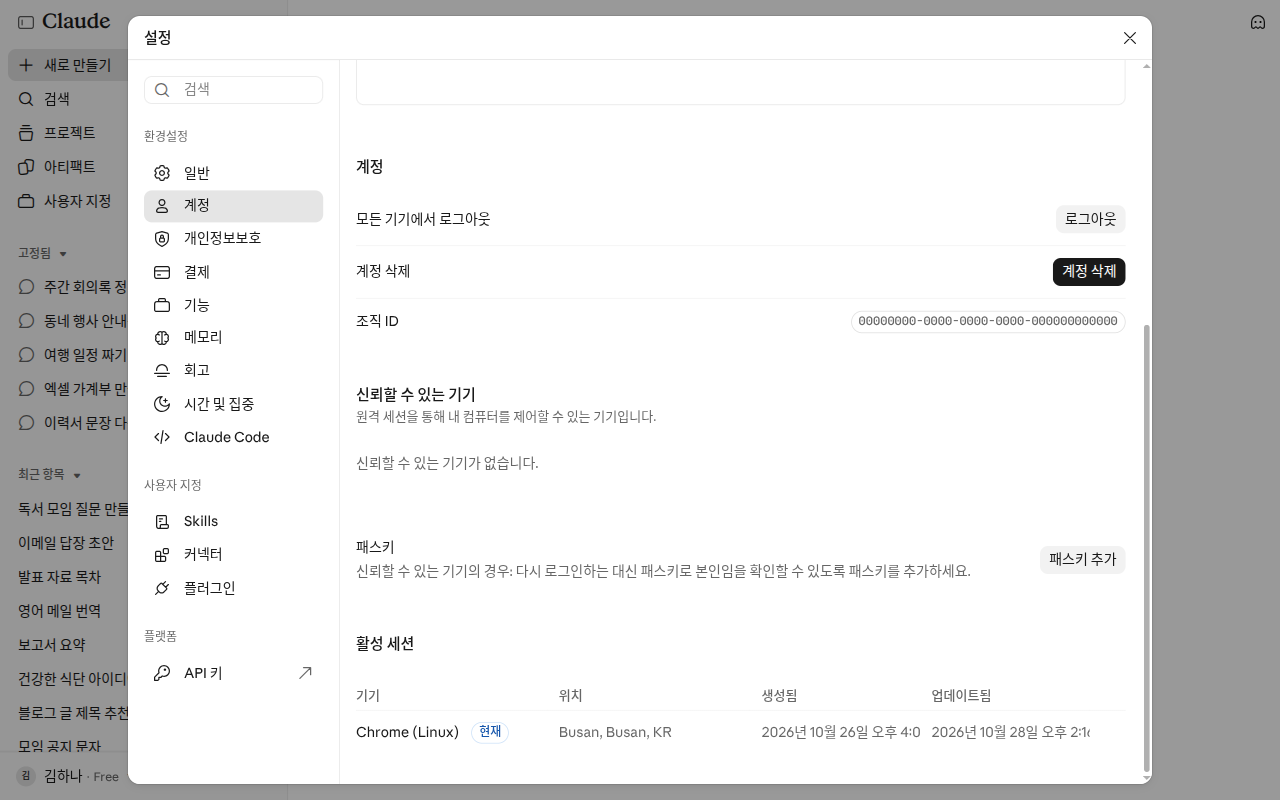
The location and organization ID in this screen were changed to examples. The device you are currently using has a Current (현재) label. Because there was only one device on this screen, the "⋮" → Terminate (종료) menu was not visible.
Logging out of all devices at once[14:1]
In the same Settings > Account (설정 > 계정), click Log out of all devices (모든 기기에서 로그아웃) and confirm.[1:13][16] You will be logged out right away from everywhere you were logged in, including the web, mobile, and desktop apps.[14:2] This feature only works on the web. It is not in the mobile app yet.
Quick check
You spot a device you don't recognize in your list of logged-in devices. What should you do?
Try It Yourself
- Ask "Recommend three family trip destinations for next month," and rename that chat to "Family Trip Ideas".
- If you are on a paid plan, ask "Find the chat where we talked about a family trip" in a new chat. Check if the link attached to the answer opens the original chat. If you are on the free plan, find it using Search (검색) or the Recents (최근 항목) list in the side menu.
- Turn on Incognito chat (시크릿 채팅) with the ghost icon, ask any question, and close it. Check that the chat is not in your side menu list.
- Open the list of logged-in devices in Settings > Account (설정 > 계정) and check that there are no unfamiliar devices.
Ongoing Task (Preparing a Book Club): Rename the book club chat you had in Chapter 1 to "Book Club Prep".
Summary
- Rename and delete chats from "⋯" next to a chat. A deleted chat disappears right away and is erased from the servers within 30 days.
- Even if you delete a chat, memories created from it remain. Delete memories separately.
- Find past chats in the Recents (최근 항목) list or Search (검색), or ask Claude to find them if you are on a paid plan.
- Inviting specific people opens only with that email. Anyone can open a public link, so treat it as public.
- Sharing is a snapshot of that moment. Click Update shared chat (공유 채팅 업데이트) to show new messages.
- An incognito chat is left out of history, memory, and training, but is retained for 30 days. To keep the chat and leave out only memory, turn off "+" → Memory (메모리) before your first message.
- Check logged-in devices in Settings > Account (설정 > 계정), and Terminate (종료) any unfamiliar devices.
Glossary
| Term | One-line meaning |
|---|---|
| Snapshot | A saved picture of how something looked at a single moment |
| Public link | A shared address that anyone with the link can open |
| Incognito chat | A temporary chat that is not saved to history or memory |
| Memory | Things Claude remembers about you |
| Tool call | Claude pulling out a feature like search to use |
| Session | The state of being logged in on one device |
| Recents | The list where chats and tasks gather on the new screen |
Finished this chapter?
Progress is saved only in this browser. See your progress on the full table of contents.
Next chapter: Chapter 4. Files and Artifacts
References (16)
Verified directly on the Claude web screen (free plan, Korean). "이름 변경" / "프로젝트에 추가" / "보관" / "삭제" / "시크릿 모드입니다" / "시크릿 세션은 기록, 메모리, 검색에 남지 않으며 Claude 학습에 사용되지 않습니다." / "모든 기기에서 로그아웃" (checked on 2026-10-26) ↩︎
Anthropic Help Center, "Delete or rename a conversation". "Find the conversation in the left sidebar, or click "Chats and tasks" to see your full chat history." / "Click the checkbox on the left side of additional conversations you want to delete, or click "Select all" at the top." / "Touch and hold the conversation." / "Open your chat list and tap the checklist icon in the top right corner." / "When you delete a conversation, it's removed from your conversation history immediately and deleted from our back-end systems within 30 days." support.claude.com (checked on 2026-10-26) ↩︎
Anthropic Help Center, "Use Claude’s chat search and memory to build on previous context". "When a conversation is deleted, including under a retention period, memory entries generated from it aren’t removed, but you can delete individual memories while memory is on." support.claude.com (checked on 2026-10-26) ↩︎
Anthropic Help Center, "Claude Cowork and chat are one Claude". "One conversation list: Your quick questions and longer tasks live together in Recents." / "Search doesn't include older Cowork tasks." support.claude.com (checked on 2026-10-26) ↩︎
Anthropic Help Center, "Use Claude’s chat search and memory to build on previous context". "Searching past chats is available to users on paid plans (Pro, Max, Team, and Enterprise plans) on the web, Claude Desktop, and Claude Mobile apps." / "When Claude searches your previous chats, you will see this reflected in your current chat as a tool call." / "Individual project conversations (searches are limited to within each specific project)." / "When Claude references previous conversations through search, you'll see citations linking back to the original chats, along with the option to delete specific conversations." / "Yes, navigate to Settings > Your Claude (or Settings > Memory in the older Settings layout) and switch the toggle next to Search and reference chats off." support.claude.com (checked on 2026-10-26) ↩︎
Anthropic Help Center, "Share a chat with specific people". "This is the default way to share a chat and keeps it private to the people you choose." / "Sharing with specific people is available on all plans (Free, Pro, Max, Team, and Enterprise) on claude.ai." / "If someone forwards the email, the link won't open for anyone else." / "Recipients can't continue the chat, copy it to their account, or download files from it." / "Pending invites expire after 30 days if they aren't opened." / "There's a limit on how many people you can invite in a day." / "open the share dialog and click "Update shared chat."" / "To stop sharing the chat entirely, click "Turn off" in the share dialog." / "You can also review everything you've shared from Settings > Privacy under Shared chats." / "Sharing with specific people is available on claude.ai on the web." support.claude.com (checked on 2026-10-26) ↩︎
Verified directly in the window opened via ▾ next to the chat title → Share session (세션 공유). "지금까지의 메시지만 공유됩니다", Add people by email (이메일로 사람 추가), Invite (초대하기), People with access (액세스 권한이 있는 사용자), Only invited people (초대받은 사람만), Copy link (링크 복사). The Help Center calls the same places People with access (액세스 권한이 있는 사람) and Send (보내기). The chat used for the screenshot was deleted after taking it (checked on 2026-10-28, web, Free plan) ↩︎
Anthropic Help Center, "Share and unshare chats". "While chats are always private by default, you can easily create snapshots of your conversations to share via direct link." / "Click the "Share" button in the pop out to create a shareable link." / "If you share a chat that contains an attached file, the file itself is not included in the shared snapshot and remains private." support.claude.com (checked on 2026-10-26) ↩︎
Anthropic Help Center, "Public links for shared chats". "Public links are available on Free, Pro, and Max plans." / "Anyone with the link can open it. No Claude account is required." / "The simple rule: treat a public link as public." / "there's no way to limit a public link to specific people." / "It can't remove copies, screenshots, or archives someone else already made." support.claude.com (checked on 2026-10-26) ↩︎
Anthropic Help Center, "Create and edit files with Claude". "Disabled public sharing of conversations that include any file artifacts from the code execution and file creation feature for free, Pro, and Max users." support.claude.com (checked on 2026-10-26) ↩︎
Anthropic Help Center, "Use incognito chats". "Incognito chats are temporary conversations that aren't saved to your chat history or to Claude’s memory." / "Incognito chats are not used for training." / "While incognito chats aren't saved to your chat history, they are retained for either 30 days (default), or longer in accordance with your organization's custom data retention setting (available for Enterprise plans)." / "The interface will indicate you're in an incognito chat with a black border and “Incognito chat” label in the upper left corner." / "Yes, Claude can access this information within an incognito chat." / "Once closed, incognito chats cannot be reopened." / "Incognito mode is currently only available for chats outside of projects, so you won't see the ghost icon when starting a chat within a project." / "If you have the new Claude experience, incognito chats open in the previous chat experience, so Claude can't create files or run code in them." support.claude.com (checked on 2026-10-26) ↩︎
The Help Center states that it shows a black border and an "Incognito chat" label. The label name may vary depending on your screen. ↩︎
Anthropic Help Center, "Use Claude’s chat search and memory to build on previous context". "Unlike an incognito chat, the chat stays in your chat history and Claude can still find it when searching past chats from your other conversations." / "You need to turn memory off before you send the first message." support.claude.com (checked on 2026-10-26) ↩︎
Anthropic Help Center, "How do I log out of all active sessions?". "When you log in via claude.ai, this creates a session with a duration of 28 days." / "This option is not currently available in the Claude mobile apps for iOS or Android." / "This action will immediately sign you out of your account across all devices where you were previously logged in, including:" support.claude.com (checked on 2026-10-26) ↩︎
Anthropic Help Center, "Managing your active sessions". "Scroll to the Active sessions section (called Where you're logged in in the updated Settings layout)." / "Click the three-dot menu (⋮) next to that session." / "terminate it right away and consider changing your password." support.claude.com (checked on 2026-10-26) ↩︎
In the Help Center, it is written as the Log Out (로그아웃) button. ↩︎