Chapter 2. Exploring the Screen — Where Everything Is
Required Read this to follow this stage.One-line summary: On the Claude screen, you only need to know four places: the left sidebar (past chats), the center message box (where you ask questions and the "+" button), the model menu below the message box (model and effort), and your name at the bottom left (settings). At first, just using the message box is enough.
The screen shown here is based on the web version as of October 2026, and the screenshots show the free plan in Korean. Claude is currently rolling out a new screen gradually, so yours might look different. If a button name on your screen is different, look for a similar name.
The New Claude Screen vs. the Old Screen
This guide is based on Claude's new screen. The account used for the screenshots also has the new screen. Compare the home screen image below with your own screen.
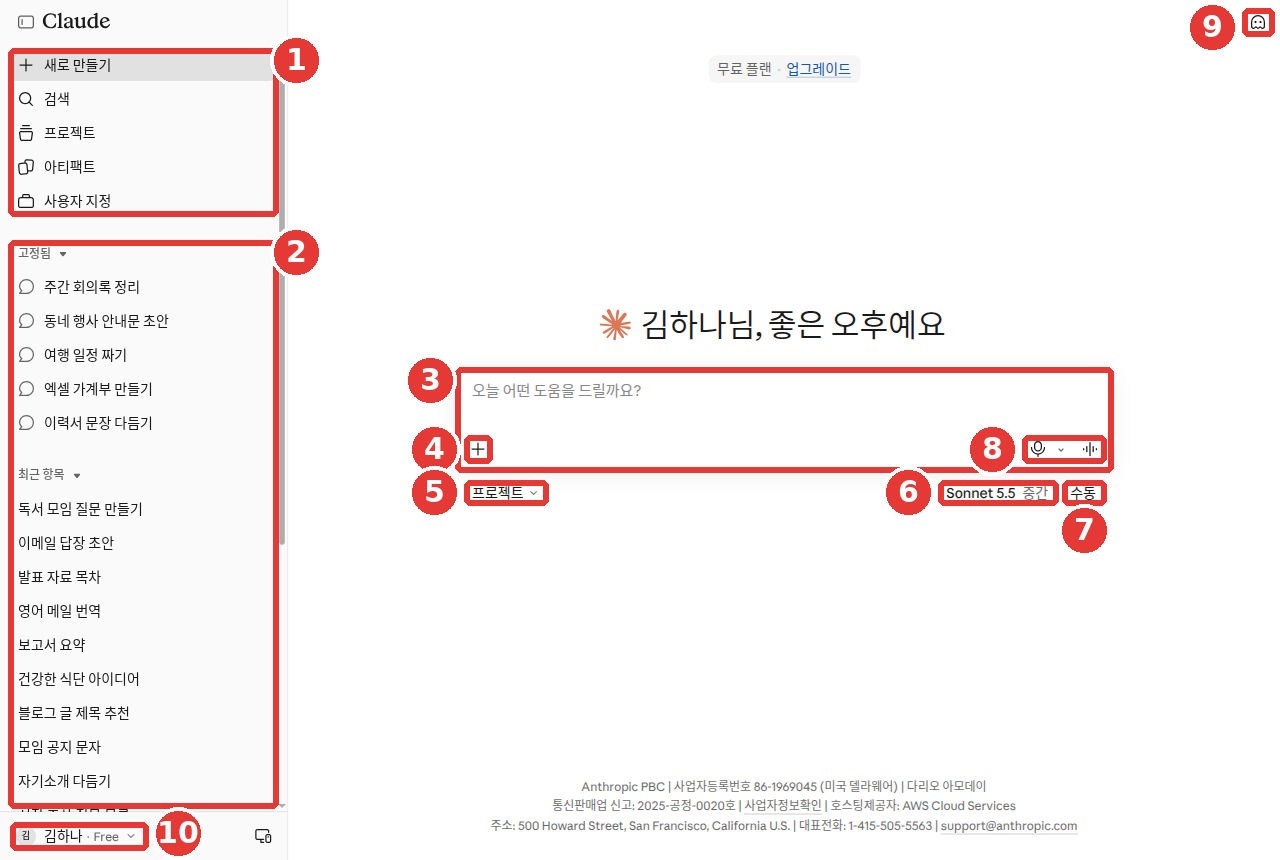
Names and chat titles in this screenshot have been replaced with examples (free plan). The red numbers match the numbers in the table in the "Sidebar" section below.
On the new screen, regular chats and Cowork (a feature where you hand Claude a whole multi-step task, Chapter 8) are usually combined into a single conversation. So you do not need to pick a mode before you start. Just type in the message box.[1]
There are three things to notice in the picture.
- ③ There is no mode selector such as "Chat" or "Cowork" around the message box.[2]
- There is no switch to turn web search on or off either. Claude searches the web on its own when needed.[2:1][1:1]
- ② Past chats are all in one list under "Recents (최근 항목)".[2:2]
Claude is currently changing its screen step by step. So your screen may look different from the picture. If it looks very different, open the box below.
If you are using the old screen (click to expand)
On the old screen, regular chat ("Chat") and "Cowork" were separate. The new screen is rolling out gradually to the web, desktop app, and mobile app, starting with Pro and Max plans.[1:2] Even on the same plan, the timing differs from person to person.
If you are on the Pro or Max plan, look at the message box. If you see "Chat" and "Cowork" options, you are still on the old screen.[1:3] You cannot tell this way on the free plan. Not seeing this choice in the message box does not necessarily mean you have the new screen.
You do not need to do anything. It will switch automatically when your turn comes. Once it changes to the new screen, you cannot go back to the old screen.[1:4]
| What changes | Old screen | New screen |
|---|---|---|
| Message box mode | Choose between "Chat" and "Cowork" | No need to choose |
| Web search | Has an on/off toggle switch | Searches on its own when needed, without a switch |
| Chat list | — | Quick questions and long tasks together in "Recents" |
Source: Anthropic Help Center[1:5]
This guide explains things based on the new screen, and marks differences from the old screen in expandable boxes or footnotes like this.
Quick check
You see a toggle to choose between "Chat" and "Cowork" in the input box. What does this mean?
Sidebar — The Way to Past Chats
On the left side of the screen is the sidebar (side menu). Your list of past chats and several menus are gathered here. Here is what each number in the home screen picture above points to.[2:3]
| No. | Location | Name | What it does |
|---|---|---|---|
| ① | Top of sidebar | "New chat (새로 만들기)", "Search (검색)", "Projects (프로젝트)", "Artifacts (아티팩트)", "Customize (사용자 지정)" | Start a new chat, find chats, use various features |
| ② | Sidebar | "Starred (고정됨)", "Recents (최근 항목)" | List of past chats (Chapter 3) |
| ③ | Center | Message box "How can I help you today? (오늘 어떤 도움을 드릴까요?)" | Where you type your questions |
| ④ | Bottom left of message box | "+" | Add files, connectors, and more |
| ⑤ | Below message box, left | "Project (프로젝트)" | Choose a project (Chapter 7) |
| ⑥ | Below message box, right | "Sonnet 5.5 Medium (Sonnet 5.5 중간)" | Model and effort menu |
| ⑦ | Next to ⑥ | "Manual (수동)" | Permission mode (whether to ask first) |
| ⑧ | Right of message box | Microphone and sound wave icons | Dictation, voice mode (Chapter 10) |
| ⑨ | Top right | Ghost icon | Incognito mode (Chapter 3) |
| ⑩ | Bottom left | "Hana Kim · Free (김하나 · Free)" | Account menu (Settings, Language, "Get help") |
At the top center, you can see "Free plan · Upgrade (무료 플랜 · 업그레이드)". The greeting changes from time to time, like "Hello! (안녕하세요!)" or "Good afternoon, Hana Kim (김하나님, 좋은 오후예요)".[2:4]
Find your past chats using ① "Search" or the ② list.[2:5][3]
When the name differs from the Help Center (click to expand)
The Help Center says you can view all past chats under "Chats and tasks" (채팅 및 작업).[3:1] That menu did not appear on the screen used for this guide.[2:6] It may vary depending on your screen.
Even on the Korean screen and in the Korean Help Center, some menus appear in English as-is (for example, "Skills").[1:6][2:7] Do not be surprised if you see English on your screen.
You cannot completely disable the sidebar. You can only open and close it.[4] If the screen feels cramped, keep it closed and open it when you need to find a past chat.
Quick check
The Message Box and the + Menu
Type a question in the center message box and press the send button to start a conversation. Click the "+" button at the bottom left of the message box or type "/" in the message box to see more features and commands.[5]
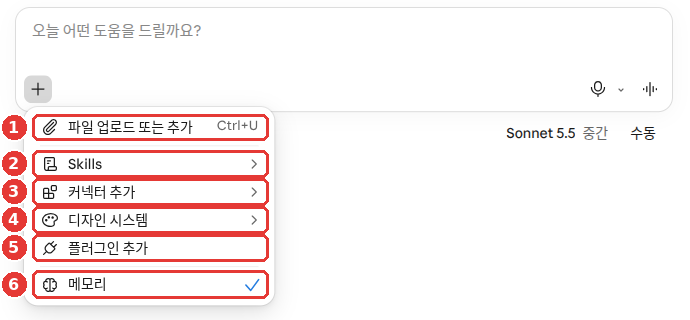
This is the free plan screen. The red numbers match the numbers in the list below.[2:8]
- ① "Upload or add files (파일 업로드 또는 추가)": Upload documents or photos from your computer. You can also drag and drop files into the message box (Chapter 4).[6]
- ② "Skills", ③ "Add connectors (커넥터 추가)", ④ "Design system (디자인 시스템)", ⑤ "Add plugins (플러그인 추가)": Menus that attach extra features to Claude. Skills, connectors, and plugins are covered in Chapter 7.
- ⑥ "Memory (메모리)": If there is a checkmark, it is turned on (Chapter 5).
At first, knowing just ① is enough.
"Research" (리서치), which investigates a topic at length and gives you a report, is also in the "+" menu. You can also type /deep-research in the message box (Chapter 6).[1:7] Because Research is available on paid plans and up, it did not appear in the free account menu above.[7][2:9]
Below the message box, ⑦ "Manual (수동)" is the permission mode. It is visible on free accounts too.[2:10] Claude does more than write answers. While working, it may use a new tool or open a new website. The permission mode sets whether Claude asks you first at those moments, and how much it works on its own.
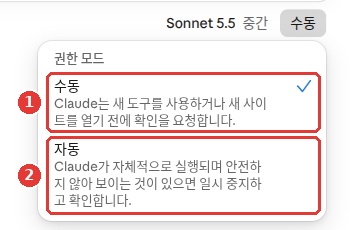
- ① "Manual (수동)": "Claude asks for confirmation before using a new tool or opening a new site." This is the default for free accounts.[2:11]
- ② "Auto (자동)": "Claude runs on its own and pauses to check with you if something looks unsafe."[2:12]
On Pro and Max, the default is "Auto" (자동).[1:8] At first, it is safer to leave it on "Manual". That is because Claude will ask you first before using a new tool or opening a new website. When you give it a task with big consequences, like sending messages, stay close and watch what it does. See Chapter 8 for details.[1:9]
You do not need to memorize every menu. If you are not sure what you can do, just ask Claude directly.
Tell me five things I can ask you to do on this screen right now. Also include one example sentence for how to ask for each one.Quick check
You want to see more options in the input box, like uploading files. What should you do?
The Model Menu — Choosing Model, Effort, and Thinking
On the web and desktop app, the current model name and effort level appear below the message box (⑥ "Sonnet 5.5 Medium" in the home screen picture). On the mobile app, they appear at the top of the screen.[5:1][2:13] Click this name to open the model menu. According to the Help Center, you set three things here.[8]
| What you set | Meaning |
|---|---|
| Model | Which Claude you are chatting with |
| Effort (노력) | How much care it puts into a single reply |
| Thinking (생각) | Whether it goes through a step-by-step reasoning stage before replying |
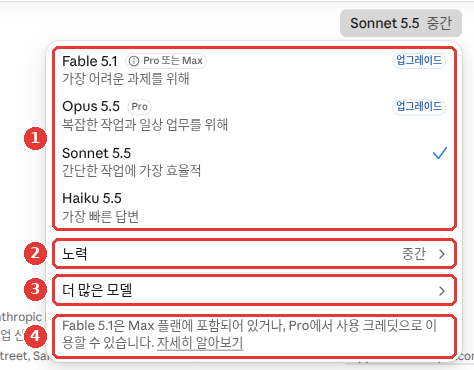
This is the free plan screen. The red numbers match the numbers in the list below.[2:14]
- ① Model list: On a free account, you can only choose Sonnet 5.5 and Haiku 5.5. "Upgrade (업그레이드)" appears next to Fable 5.1 and Opus 5.5.
- ② "Effort (노력)": Sets how much care Claude puts into each reply (see "Effort" below).
- ③ "More models (더 많은 모델)": View models not shown in the main list.
- ④ Note: "Fable 5.1 is included in the Max plan, or available on Pro with usage credits."
In this free account menu, a separate Thinking toggle did not appear. Only ② "Effort" was there.[2:15] The Thinking toggle may appear depending on your plan and model.
You can change these settings at any time during a chat. The change applies starting with the next reply.[8:1]
Choosing a Model
Claude has several models of different sizes and personalities. Click the model name to switch, and look under "More models" (더 많은 모델) for models not in the main list.[8:2]
Model names change often. Several new models came out in 2026 alone.[9] So this guide refers to models by their role. Here are the names for each role and availability by plan (as of October 26, 2026).
| Role | Name (family) | Free | Pro | Max |
|---|---|---|---|---|
| Highest-performing model | Fable | No | Usage credits only | Up to 50% of weekly limit |
| Large model | Opus | No | Yes | Yes |
| Fast model | Sonnet | Yes | Yes | Yes |
| Smallest, fastest model | Haiku | Yes | Yes | Yes |
Source: Anthropic pricing page and Help Center[7:1][10][9:1]
Check for yourself what you can choose on your account right now. Just click ⑥, the model name below the message box. On a free account, you can only choose Sonnet and Haiku.[2:16]
The "usage credits" and "50%" in the Fable row are about paid plans. If you are on the free plan, you can skip this.
- Usage credits (사용 크레딧) are pay-as-you-go usage separate from your plan's limit. On Pro, the highest-performing model is not included in your plan limit, so it uses these credits from the very start.[10:1]
- On Max, "up to 50%" does not mean you get extra limit. It means you share the same weekly limit with other models, and you can spend up to half of it on the highest-performing model.[10:2]
Models also get removed from the list over time. Historically, Anthropic has retired most models about a year after release.[11] If a new model replaces an old one and its tone feels unfamiliar, show Claude a few past chats you liked and ask it like this.[11:1]
Look over a few past conversations that I really liked, and write instructions for yourself that I can give you going forward.
Summarize my preferences for tone, reply length, and format so they come through clearly.
Effort — How Much Care Should It Take?
The higher the Effort (노력), the more thorough the reply. In exchange, it takes longer and reaches your usage limit faster.[8:3]
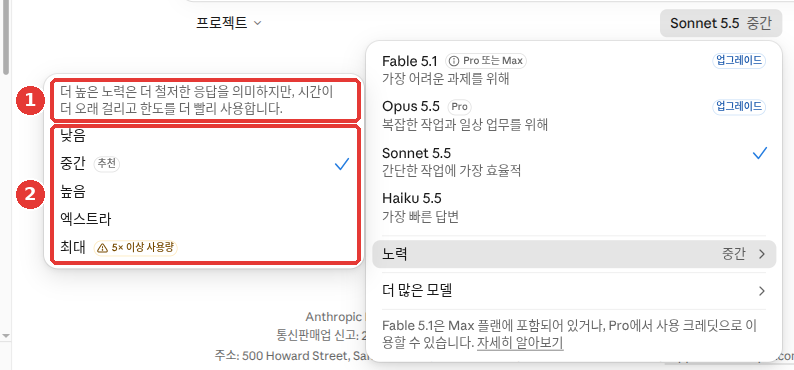
This is the free plan screen (Sonnet 5.5). ① The notice at the top says: "Higher effort means more thorough responses, but takes longer and uses your limit faster."[2:17] ② There are five levels.
| Effort | Good for |
|---|---|
| "Low (낮음)" · "Medium (중간)" | Everyday tasks |
| "High (높음)" | Balance of quality and speed |
| "Extra (엑스트라)" | Long coding tasks, multi-step tasks done on its own |
| "Max (최대)" | Tasks needing the deepest analysis |
Source: Anthropic Help Center[8:4], level names from screen[2:18]
Next to "Max (최대)" is a "5×+ usage (5× 이상 사용량)" warning. It means it can use more than five times as much of your limit, so only pick it when you really need it.[2:19]
Each model marks its recommended effort level. On this screen, it is "Recommended (추천)" next to "Medium (중간)".[8:5][2:20] Most of the time, you can leave it as is.
When the name differs from the Help Center (click to expand)
Thinking — Should It Reason Before Replying?
When you turn on Thinking (생각), Claude breaks down the problem, plans an approach, and weighs different paths before replying.[8:9] This is also called extended thinking (확장 사고).[5:2]
First, check whether your screen has the toggle. This toggle may appear depending on your plan and model. It did not appear in the free account menu used for this guide.[2:21] It is fine if there is no toggle. Changing "Effort" above is enough to adjust how carefully Claude writes its reply. In this section, just learn what "Thinking" is.
If you have the toggle, here is how to turn it on or off: click the model name, hover over "Effort", and flip the "Thinking" (사고, or "Extended" (확장)) toggle on or off.[8:10] Thinking and Effort are separate settings. You can use any combination of the two.[8:11] On some newer models, Thinking cannot be turned off.[8:12]
When Thinking is on, you will see a "Thinking (사고)" indicator counting time while Claude prepares its answer. Click the "Thinking" section above the reply to read a summary of how Claude thought through the problem.[8:13] Reading this summary lets you check what path Claude took to reach its conclusion. Sometimes Thinking stops midway with a message saying the rest is unavailable. When that happens, try rephrasing your question from a different angle.[8:14]
When Should You Turn It Up?
For everyday tasks, the default is enough.[8:15] For math calculations, long document analysis, or multi-step problems, try raising Effort or turning on Thinking.[8:16] Whichever setting you choose, describing your problem specifically is what matters most (Stage 1, Chapter 4).[8:17]
Try asking the same question while changing only the Effort level. You will immediately feel the difference between a quick answer and a thorough one.
Show me step by step how much an office worker earning 3 million KRW a month needs to save each month to gather 20 million KRW in 3 years, split into two cases: without savings interest and with savings interest.The reply will look roughly like this (example — click to expand) (click to expand)
This is an example created for this guide. Actual replies vary depending on the service and when you ask.
1. Without considering interest
- 3 years is 36 months.
- 20,000,000 KRW ÷ 36 months = about 555,556 KRW
- That is about 18.5% of a 3,000,000 KRW monthly salary.
2. Considering savings account interest
- Let's calculate assuming an annual interest rate of ○%.
- The money deposited in the first month earns interest for 36 months, the second month's money for 35 months … and the last month's money for 1 month.
- We find the amount where total principal (monthly deposit × 36) plus total interest (○○ KRW) equals 20,000,000 KRW.
- Saving about ○○ KRW per month is enough. Because interest is added, it is slightly less than in case 1.
Actual interest rates vary by product, so try recalculating with the rate of the account you plan to open.
Check if you got a good reply: Did it split the answer into two cases? Does it show the calculation line by line? Did it state what interest rate (%) it assumed? For case 1, try dividing it once yourself on a calculator.
Quick check
Notice That the Model Switched During a Chat
Sometimes you may see a notice saying "the model switched". This is rare. Most questions are unaffected.[12] Several models automatically run safety checks on questions. If Claude judges a request to fall into a very narrow high-risk area, it hands the question off to another model to answer. Handing off like this is called a fallback (passing to a backup model).[12:1]
Here is what happens when the model switches.[12:2]
- A notice appears, and the reply is labeled with the name of the model that answered. Automatic switching is turned on by default.
- It stays on the switched model for the rest of that conversation. You can switch it back to the original model yourself. However, if the flagged content remains in the chat, it may switch again. Try editing your earlier message and sending it again.
If you do not want automatic switching, go to Settings → "Capabilities (기능)" and turn off "Switch models when a message is flagged (메시지가 플래그 지정되면 모델 전환)".[2:22] "Flagged" means the message was caught by the safety check. If you turn it off, the conversation pauses instead of switching models, and you choose what to do yourself.[12:3]
What kinds of questions get flagged (click to expand)
- Targets include offensive hacking techniques or biological risks like viruses and toxins. The highest-performing model is also among the models that run these checks.[12:4]
- It can also switch because of content you did not type yourself. The safety check looks at memory, connected apps, web search results, and uploaded files together.[12:5]
- If your question is harmless and you think it was flagged by mistake, let them know using "Send feedback" (피드백 보내기).[12:6]
Quick check
You asked an ordinary question, but a safety check triggered a notice saying the model was switched. What should you do if it seems like a mistake?
The Settings Screen — Language and Appearance
Click your name at the bottom left (⑩ in the home screen picture) to open the account menu.[13][2:23]
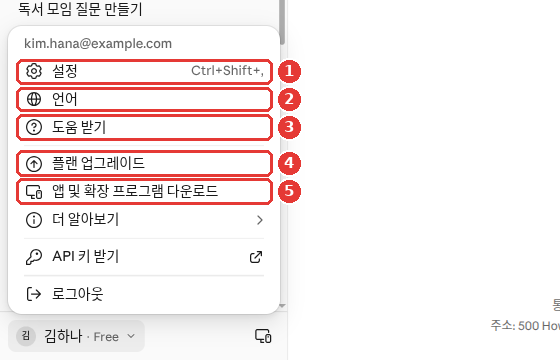
The name and email in this screenshot have been replaced with examples (free plan). The red numbers match the numbers in the list below.[2:24]
- ① "Settings (설정)": Opens the Settings screen.
- ② "Language (언어)": Changes the display language.
- ③ "Get help (도움 받기)": Contact customer support (Chapter 1).[14]
- ④ "Upgrade plan (플랜 업그레이드)": Switch to a paid plan (Chapter 1).
- ⑤ "Download apps & extensions (앱 및 확장 프로그램 다운로드)": Download the desktop app, mobile app, and more.
Click ① "Settings" to open the Settings screen. Menus are lined up vertically on the left.
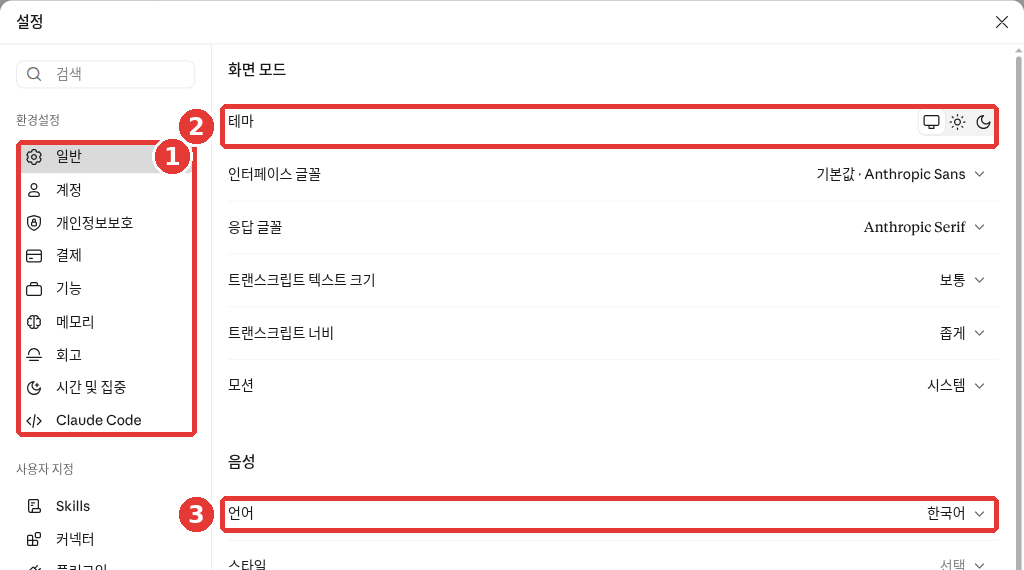
This is the free plan screen. The red numbers match the numbers in the text below.[2:25]
Among the ① left menus, you only need to know a few at first.[2:26]
| Settings menu | What you do here | More details |
|---|---|---|
| "General (일반)" | Theme (light/dark), fonts, voice language | This chapter |
| "Account (계정)" | Your name, "Claude instructions (Claude 지침)", logged-in devices | Chapter 3, Chapter 5 |
| "Privacy (개인정보보호)" | Shared chats, export data | Chapter 3, Chapter 9 |
| "Billing (결제)" | Change or cancel plan, receipts | Chapter 1 |
| "Capabilities (기능)" | Automatic model switching | This chapter |
| "Memory (메모리)" | What Claude remembers | Chapter 5 |
| "Time & focus (시간 및 집중)" | Break reminders, quiet hours | Chapter 5 |
Source: Screen[2:27], Anthropic Help Center[15][12:7][16][17]
Instructions that apply to every chat go in "Claude instructions (Claude 지침)" under "Account".[2:28] Paid plans also have a "Usage" (사용량) screen where you can check your remaining limit (Chapter 1).[18] It did not appear in the Settings menu of this free account.[2:29]
Changing the display language: Choose it under ② "Language" in the account menu.[19][2:30] The web and desktop apps are available in 11 languages, including Korean.[19:1] Regardless of the display language, Claude replies in the language you type in. Even if your screen is in English, if you ask in Korean, it answers in Korean.[19:2] The language used in voice mode is set separately. Choose it in Settings → "General" → "Voice (음성)" under ③ "Language" (Chapter 10).[2:31]
Using dark mode: In Settings → "General" → "Appearance (화면 모드)", click one of the System, Light, or Dark icons under ② "Theme (테마)".[2:32] If you pick System, it follows your computer's or phone's setting.[4:1] If the text is hard to read, try changing "Interface font (인터페이스 글꼴)" or "Response font (응답 글꼴)" in the same section.[2:33] The Help Center notes that you can also pick "Dyslexic Friendly" (난독증 친화적) as a font. It may vary depending on your screen.[4:2]
When the name differs from the Help Center (click to expand)
Settings menu names may vary depending on your screen.
- The Help Center says instructions that apply to all chats are in "Your Claude" in the new Settings layout.[1:10] "Your Claude" did not appear on this account; "Claude instructions (Claude 지침)" under "Account" was in its place.[2:34]
- For voice language, the Help Center directs you to Settings → "Capabilities" → Voice → "Spoken language (음성 언어)".[19:3]
Quick check
Your parents' Claude screen is in English, and they want to ask questions in Korean. What should you tell them?
Try It Yourself
- Compare the home screen picture with your own screen. If they look very different, expand and read the "If you are using the old screen" box.
- Click the "+" button in the message box, read through the menu items one by one (you do not need to click them), and close it.
- Click the model name below the message box to check your current model and see which Effort level has "Recommended (추천)" next to it.
- Send the savings calculation question above once with Effort set to "Low (낮음)" and once with it set to "High (높음)", then compare the replies. If you see a Thinking toggle, click the "Thinking (사고)" box to read the summary too.
- In Settings → "General", switch "Theme" to Dark, then set it back to whichever you like best.
Summary
- On the new Claude screen, chat and Cowork are combined into a single conversation, so you do not pick a mode. This guide is based on the new screen (notes on the old screen are in expandable boxes).
- The sidebar holds past chats, and your name at the bottom left holds Settings, Language, "Get help", and "Upgrade plan". You cannot disable the sidebar, only open and close it.
- Use "+" or "/" in the message box to open features like uploading files or Research. "Manual" and "Auto" below the message box set the permission mode.
- Choose the model and effort level from the model menu below the message box (the Thinking toggle appears depending on your plan and model). Free accounts can only pick Sonnet or Haiku. For everyday tasks, the recommended setting is enough.
- Questions judged to be in a high-risk area may be answered by a different model instead. You can tell from the notice and model label, and you can turn this off in Settings → "Capabilities".
- Change the display language under "Language" in the account menu, and change dark mode and fonts in Settings → "General". Settings menu names may vary depending on your screen.
Glossary
| Term | One-line meaning |
|---|---|
| Cowork | A feature where you hand off multi-step tasks as a whole (Chapter 8) |
| Sidebar | The vertical menu attached to the left side of the screen |
| Recents | The list of recent chats and tasks |
| Effort | The setting that decides how much care Claude puts into a single reply |
| Extended Thinking | Going through a step-by-step reasoning stage before replying |
| Usage Credits | Pay-as-you-go usage paid for separately from your plan's limit |
| Fallback | Having another model step in and answer a question flagged by safety checks |
| Dyslexic Friendly | A font designed for people who find text difficult to read |
Finished this chapter?
Progress is saved only in this browser. See your progress on the full table of contents.
Next chapter: Chapter 3. Managing Conversations
References (19)
Anthropic Help Center, "Claude Cowork and chat are one Claude". "With the new Claude experience, you ask for all of it in the same conversation, with no mode to choose." / "The new Claude experience is rolling out gradually, starting with Pro and Max plans on web, desktop, and mobile." / "If you're on a Pro or Max plan and your message box still shows "Chat" and "Cowork" options, you don't have it yet." / "One conversation list: Your quick questions and longer tasks live together in Recents." / "Web search: There's no web search toggle. Claude searches the web when it helps." / "Research: Type /deep-research, or click the “+” button below the chat input, then choose “Research.”" / "Auto (default on Pro, Max, and Team plans): Claude keeps working without stopping to ask about each step, and automated safety checks run before it takes an action." / "For work with real consequences, like sending messages or changing important files, stay close and review what Claude does." / "Instructions for Claude: Set preferences that apply to every conversation in Settings > Your Claude (or Settings > Account in the older Settings layout)." support.claude.com (checked on 2026-10-26) ↩︎
Verified directly on the Claude web screen (free plan, Korean). No "Chat" or "Cowork" selector and no web search toggle around the message box "How can I help you today? (오늘 어떤 도움을 드릴까요?)", sidebar "Starred (고정됨)" and "Recents (최근 항목)", "+" menu "Upload or add files (파일 업로드 또는 추가)", "Skills", "Add connectors (커넥터 추가)", "Design system (디자인 시스템)", "Add plugins (플러그인 추가)", "Memory (메모리)", "Permission mode (권한 모드)" "Manual (수동)" and "Auto (자동)", model menu (free plan can only select Sonnet 5.5 and Haiku 5.5, no Thinking toggle), Effort "Low (낮음)", "Medium (중간)" (Recommended), "High (높음)", "Extra (엑스트라)", "Max (최대)", account menu, Settings → "General (일반)" → "Theme (테마)" and "Voice (음성)" → "Language (언어)", Settings → "Account (계정)" → "Claude instructions (Claude 지침)", Settings → "Capabilities (기능)" → "Switch models when a message is flagged (메시지가 플래그 지정되면 모델 전환)". (checked on 2026-10-26) ↩︎
Anthropic Help Center, "Delete or rename a conversation". "Find the conversation in the left sidebar, or click "Chats and tasks" to see your full chat history." support.claude.com (checked on 2026-10-26) ↩︎
Anthropic Help Center, "Customizing your appearance settings". "Select from Light, Match System, and Dark under Color mode." / "Select from Default, Match System, and Dyslexic Friendly." / "It's not currently possible to completely disable the sidebar." support.claude.com (checked on 2026-10-26) ↩︎
Anthropic Help Center, "Get started with Claude". "You can click the "+" button in the lower left or type "/" to view additional options and commands" / "displayed either below your text input (on web and desktop) or at the top of your screen (on mobile)." / "You can also choose how much effort Claude puts into each response and whether it uses extended thinking." support.claude.com (checked on 2026-10-26) ↩︎
Anthropic Help Center, "Upload files to Claude". "Click the "+" button in the lower left corner of the chat box" support.claude.com (checked on 2026-10-26) ↩︎
Anthropic pricing page. In the model comparison table, the Fable row shows " No Usage credits 50% of weekly limits* 50% of weekly limits* " (columns = Free/Pro/Max 5x/Max 20x), the Opus row is not on Free, and the Sonnet and Haiku rows are on Free. The Research row is not on Free and starts from Pro. claude.com (checked on 2026-10-26) ↩︎
Anthropic Help Center, "Change the model, effort, and thinking settings". "The model menu next to the send button controls three settings: which Claude model you're chatting with, how much effort it puts into each response, and whether it uses thinking." / "The selected model and effort level appear next to the send button." / "Click "More models" to view additional options." / "You can change the model, effort level, or thinking setting at any point in a conversation. Changes apply starting with Claude's next response." / "Higher effort means more thorough responses, but they take longer and use more tokens, so you'll reach your usage limits faster." / "Each model has a recommended effort level, marked as "Default" in the menu:" / "Extra high (xhigh) is designed for long-running coding and agentic tasks" / "Thinking lets Claude spend more time breaking down problems, planning solutions, and exploring different approaches before responding." / "Thinking and effort are separate settings, and you can use any combination of the two." / "Switch the "Thinking" (or “Extended”) toggle on or off." / "Click the "Thinking" section to view Claude's thought process summary and problem-solving approach." / "Occasionally, you may notice that Claude's thinking stops before it's complete, with a message stating that the rest of Claude's thought process is not available." / "For everyday tasks, the defaults work well." / "Whichever settings you choose, be specific about your problem or question." The list of models where Thinking cannot be turned off differs slightly between the English and Korean versions. support.claude.com (checked on 2026-10-26) ↩︎
Anthropic Help Center, "Release notes" (2026 entries). "We just launched Claude Haiku 5.5, the cheapest, fastest, and most capable small model we’ve released" / "Sonnet 5.5 is a faster, lower-cost complement to Claude Opus 5.5." / "It performs at the level of Claude Fable 5.1 on most work and costs 40% less to run than Opus 5." / "We just launched Claude Fable 5.1 and Claude Mythos 5.1, the world’s most advanced models for coding and knowledge work." support.claude.com (checked on 2026-10-26) ↩︎
Anthropic Help Center, "Claude Fable models on your plan". "On Pro plans, standard seats on Team plans, and standard seats on seat-based Enterprise plans, Fable models run on pay-as-you-go usage credits from the start, since they aren’t included in your plan's usage limits." / "No. You can use up to 50% of your weekly limit on Fable models, but your use of other models draws from the same usage limits and you can never use more than your weekly limit." support.claude.com (checked on 2026-10-26) ↩︎
Anthropic Help Center, "Adapt to new model personas after deprecations". "historically Anthropic has deprecated most models around a year after their initial release." / "you can ask Claude to review some of the conversations you’ve most appreciated and to craft instructions for itself based on those." support.claude.com (checked on 2026-10-26) ↩︎
Anthropic Help Center, article explaining why the model switched during a conversation (the article title includes the current model name, so it is omitted in this guide). "Offensive cybersecurity techniques, such as building exploits, malware, or attack tooling." / "so a block can be triggered by content you didn't type." / "You’ll see a notice explaining that the model switched, and the response will be labeled with the model that answered." / "Editing your previous message before retrying often helps." / "With automatic model switching off, a blocked request pauses the conversation instead of switching models." / "Use "Send feedback" to report it." support.claude.com (checked on 2026-10-26) ↩︎
Anthropic Help Center, "How do I sign up for the Pro plan?". "Navigate to Settings > Billing and click the “Upgrade plan” button." Open Settings via your initials (or name) at the bottom left → "Settings (설정)". support.claude.com (checked on 2026-10-26) ↩︎
Anthropic Help Center, "How to get support". "Click your initials or name in the lower left corner and select “Get help” from the menu." support.claude.com (checked on 2026-10-26) ↩︎
Anthropic Help Center, "Cancel your Pro or Max subscription". "Navigate to Settings > Billing and click the “Cancel” button." support.claude.com (checked on 2026-10-26) ↩︎
Anthropic Help Center, "Managing your active sessions". "Scroll to the Active sessions section (called Where you're logged in in the updated Settings layout)." support.claude.com (checked on 2026-10-26) ↩︎
Anthropic Help Center, "Share a chat with specific people". "You can also review everything you've shared from Settings > Privacy under Shared chats." support.claude.com (checked on 2026-10-26) ↩︎
Anthropic Help Center, "Usage limit best practices". "you can navigate to Settings > Usage to view progress bars showing how much of your five-hour session and weekly usage limits you’ve consumed." support.claude.com (checked on 2026-10-26) ↩︎
Anthropic Help Center, "How to use Claude in your preferred language". "Claude is available in multiple languages on web and desktop applications." / "Go to the "Language" section." / "Claude will converse with you in the language you use." / "go to Settings > Capabilities, then find Voice > Spoken language and choose a language." support.claude.com (checked on 2026-10-26) ↩︎