Chapter 7. Projects, Connectors, and Skills — Attaching Materials and Tools to Claude
Optional Read this when you need it. You can skip it and still follow the later chapters.One-line summary: Bundle materials and instructions for the same work into a project. Connect other apps like email and calendar with connectors, and save tasks you do the same way every time as skills. A package that bundles all three by job role is a plugin.
The screens shown here are from the web version as of October 2026. A new layout combining chat and Cowork (a feature for handing Claude a whole task, Chapter 8) is rolling out gradually, so menu locations and names may vary on your screen. The screenshots in this chapter are from the free web plan. We use the menu names shown in the screenshots. Other names used in the help center are collected in the footnotes.
You will use two places in the side menu in this chapter: "Projects (프로젝트)" and "Customize (사용자 지정)."[1] They are marked as ③ and ④ in the screenshots below.
Projects — Materials and Instructions in One Place
A project is a workspace for a single type of work. Each project has its own chat history and knowledge (a place to store reference materials).[2] For example, upload a report template file to a "Company Weekly Report" project. Every chat you open inside it will start already knowing that template.
You can create projects on the free plan too. Free accounts can create up to 5 projects.[3][4]
How to Create and Fill a Project
- Open ③ "Projects" (
claude.ai/projects) in the side menu. Click ① "New Project (새 프로젝트)" in the upper right.[1:1][3:1][5] - Enter a name and description. Claude cannot read the project name or description. Put anything needed for your work into the project knowledge or instructions.[3:2]
- On the right side of the project screen, click "+" under Project knowledge (프로젝트 지식) to upload files or text. Anything you upload here is used across all chats in that project.[3:3]
- In "Set project instructions (프로젝트 지침 설정)," write the rules to follow in this project and click "Save instructions (지침 저장)."[3:4]
- To move an existing chat into the project, click the arrow next to the chat name → "Add to project (프로젝트에 추가)."[3:5]
If you only need a file for the current chat, upload it directly to that chat instead of adding it to project knowledge. That keeps your project knowledge from getting cluttered.[6]
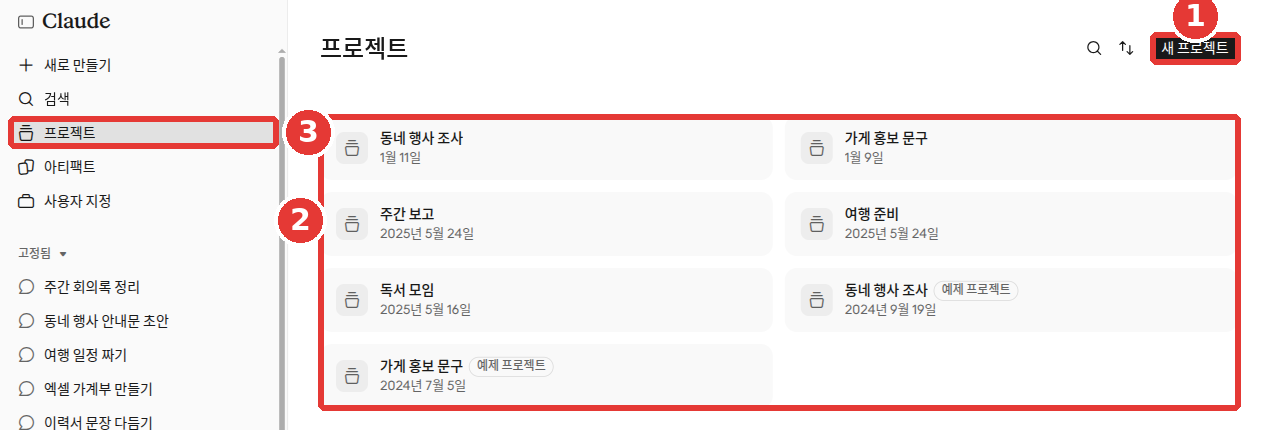
Project names and chat titles have been replaced with examples in this screenshot (free plan). The red numbers match the numbered list below.
- ① "New Project" — Creates a new project
- ② Project list — Shows the projects you made along with their dates
- ③ Side menu "Projects" — Opens this screen
Some items in the list are labeled "Example project (예제 프로젝트)."[1:2] Don't be surprised if you see projects you didn't create.
The instructions from Chapter 5 apply to all chats. Project instructions apply only to chats inside that project.[7][8]
Chats in the Same Project Do Not Automatically Share Their Contents
Even inside the same project, what you say in one chat does not carry over in full to the next chat. Put anything that other chats also need to know into the project knowledge.[3:6] For example, if you decided yesterday that "tables should have three columns," a new chat today might know that if memory is turned on. But if it is a rule that must always be followed, write it in the project instructions or knowledge. Then every chat will know it.
Memory is kept separate for each project. Inside a project, Claude uses that project's memory together with your memory from chats outside of projects. It does not use memory from other projects.[3:7] If you want to keep a project completely separate, turn off "Use account memory (계정 메모리 사용)" in the project screen's memory settings.[3:8] Memory itself is covered in Chapter 5.
When You Have Lots of Materials — RAG
When you have a lot of materials, try this: give your files clear, easy-to-recognize names, and mention the document name when you ask a question. That helps Claude narrow down where to look.[9]
From the "2026 Q3 Sales Report" file, pull out only the sales by region in a table.On paid plans, when your project knowledge grows close to the limit, Claude automatically switches to a method that searches for and reads only the needed parts (RAG, Retrieval Augmented Generation). There is nothing you need to turn on or off.[9:1]
More details (click to expand)
Once it switches to RAG, the amount you can add to a project expands by up to 10 times.[9:2]
Tips for Staying Organized
- Start with one specific task. Instead of one giant project for everything, start with a narrow project like "Weekly Report." You can always add more materials as you use it.[6:1]
- Replace old materials from time to time. If outdated files stay in your project knowledge, you may get outdated answers. Skim through your knowledge list occasionally and update it.[6:2]
Other things to know (click to expand)
- Star a project to find it quickly in the side menu.[3:9]
- You can archive finished projects. You cannot delete an archived project right away. "Unarchive (보관 해제)" it first, then delete it.[3:10]
- Sharing projects with other people is only available on Team and Enterprise (company) plans.[2:1]
- New version of Projects (beta): A new style where one project works like a single conversation is rolling out to some users first. Even when you move over, your instructions, files, and chat history carry over as they are.[2:2] Because this feature is only open to some users right now, this chapter explains how projects work today.
Putting a Reusable Template into Project Instructions
In Stage 1, Chapter 8, you turned a successful request into a reusable template where you only swap out the blanks. Try putting that template into your project instructions. Then you won't have to paste the template into every chat.
In chats in this project, organize the work notes I send into a weekly report.
- Make a three-column table: "Done / In Progress / Next Week's Plan"
- Write one line per item
- Do not make up anything not in the notes; mark it as [Needs check]
What the reply roughly looks like (Example — click to expand) (click to expand)
This is an example created for this guide. Actual replies vary depending on the service and the moment.
For example, if this week's note is "Sent quotes to two places. Swapping website photos. Client meeting next week," you will get a reply like this:
Done In Progress Next Week's Plan Sent quotes to two places Swapping website photos Client meeting (date [Needs check])
Check if you got a good result: Did it come back as a three-column table? Is each item one line? Did anything not in your notes sneak in? Is [Needs check] attached to missing details like the date?
Now, in any new chat inside this project, all you need to paste is this week's notes.
Quick check
You want every chat in a Project to follow the rule "Make tables with three columns." Where should you write that rule?
Connectors — Connecting Other Apps
A connector links Claude to the apps and services you use. Once connected, Claude can bring in data from them and even take actions inside those services.[10] For example, if you connect Google Calendar, you can ask, "Tell me when I'm free next week." You don't have to copy and paste your schedule.
Connectors are available to all users, including free users, on the web, desktop, and mobile.[10:1]
How to Connect
- Click "+" at the bottom left of the message box and choose ③ "Add connectors (커넥터 추가)."[1:3][11] You can also go to "Customize" in the side menu → the "Connectors (커넥터)" tab.[1:4]
- Pick the service you want and click "Connect (연결)" or "Install (설치)." Log in to that service and approve the permissions.[10:2]
- In each chat, use "+" → "Connectors" to turn the services you want to use on or off for that chat.[10:3]
Once connected, test it with a simple request.[12]
Can you access my Google Calendar? Show me just my schedule for next Monday.If your schedule appears, it is connected properly.
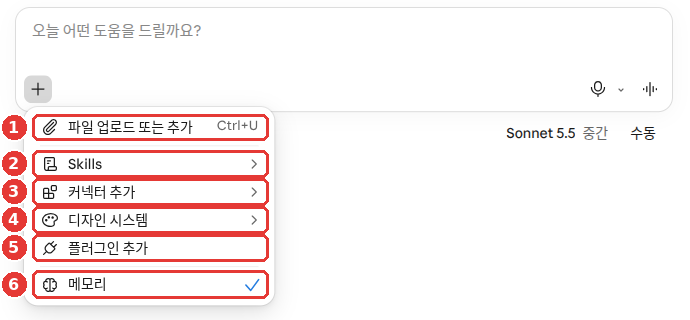
This is from the free plan. We use three items from this menu in this chapter:
- ② "Skills" — Opens the skills list
- ③ "Add connectors" — Connects other apps
- ⑤ "Add plugins" — Adds plugins
⑥ "Memory (메모리)" is covered in Chapter 5.
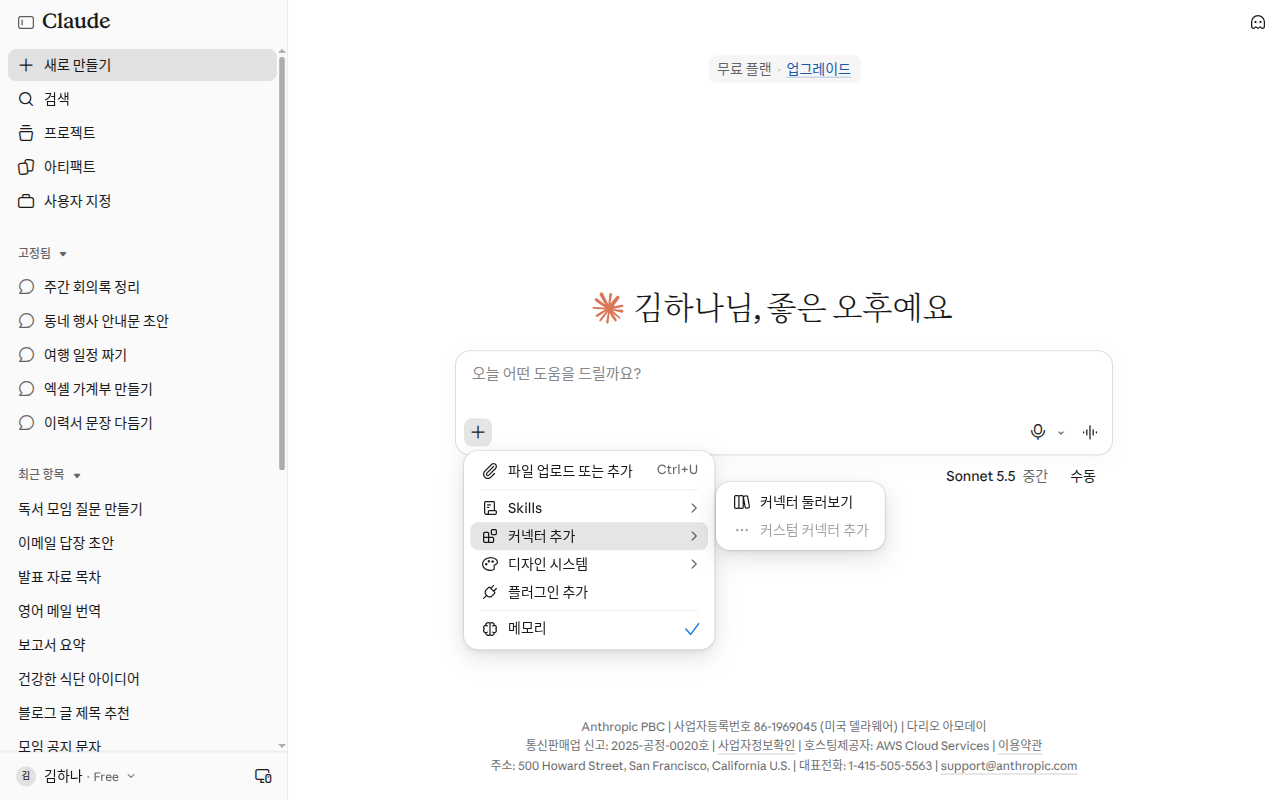
This is a free account screen with no connectors connected yet. Because of that, only "Browse connectors (커넥터 둘러보기)" appears instead of on/off switches for each service. "Add custom connector (커스텀 커넥터 추가)" was grayed out and could not be clicked.[13]
Installing connectors on a phone is still in beta. If you connect them on the web or desktop first, you can use them as-is the next time you log in to the mobile app.[10:4]
What to Know Before Connecting
- Connect only services you trust, and only what you need. When you connect a service, Claude can read and even change data within your account's permissions.[10:5] Ask yourself before connecting: Is this a trustworthy service? Do I really need it for this task?
- Connecting doesn't let you see things you couldn't see before. If you don't have permission to open a file in that service, the connector can't open it either.[10:6]
- To disconnect or view permissions, go to "Customize" → "Connectors."[10:7]
- Data from connected apps is not used to train models. Connected apps cannot see your other conversations.[14] Training settings as a whole are covered in Chapter 9.
Common Examples — Google and Microsoft 365
The Gmail, Google Calendar, and Google Drive connectors are available to all users on the web and desktop.[15]
- By default, Claude asks you first every time before sending or replying to emails, or sharing, moving, or trashing Drive files.[15:1]
- If you want a Google Doc, say the name clearly. If you just say "document," Claude creates a downloadable file instead.[15:2]
- Claude cannot read the contents of Gmail attachments. In Drive documents, it reads only text and does not process images.[15:3]
- Data brought in through a connector is stored along with that chat. If you delete the chat, that data is deleted too.[15:4]
Compare a weak example with a better one:
Organize the meeting notes into a document.Create a Google Doc from these notes. Title it "October Team Meeting Minutes."You need to say "Google Doc" like in the second example for a Google Doc to be created in Drive.
The Microsoft 365 connector works on all plans, including Free. However, only work or school accounts can be connected. Personal accounts like @outlook.com do not work.[16] Your company administrator also needs to grant consent first.[16:1]
Connectors That Open a Screen Inside the Chat
An interactive connector opens that app's interface right inside your chat. For example, if you ask about project status, an Asana task board opens inside the conversation. You can check off tasks right there.[17] Connectors labeled "Interactive (대화형)" in the connector list work this way.[17:1]
Claude may also bring up a connected app on its own when it fits, even if you don't mention the app by name.[14:1]
- If two or more apps fit, Claude won't quietly pick one behind the scenes. You choose which one to use.[14:2]
- There are no ads or paid placements in app suggestions.[14:3]
- Before booking or buying anything on your behalf, Claude checks with you first.[14:4]
A custom connector lets you link directly via URL to a service that Anthropic has not verified. Free users can add up to 1. Only connect sources you trust.[10:8] For most people, the connectors in the directory are plenty.
Quick check
You are about to try Connectors, which link Claude to other apps, for the first time. What is the safe way to connect them?
Tool Permissions — What and How Much Should You Let Claude Use?
A single connector contains several tools (individual actions the connector can perform, such as "read email" or "send email").
Turn Off Tools You Won't Use
You can turn off specific tools in the "Search and tools (검색 및 도구)" menu inside a chat.[17:2] For example, if you only want Claude to read and summarize your emails, turn off the "send" tool. That prevents any email from being sent by mistake (our tip).
Be careful if you see "Allow always (항상 허용)" when a custom connector asks for permission. Only click it for tools you trust enough to run without you watching.[18]
When You Have Many Connectors — "Tool access"
There is a limit to how much text Claude can read at once in a single conversation (the context window from Stage 1, Chapter 1). In this chapter, we call this conversation space. Each connector takes up some of this conversation space. So the more connectors you keep turned on, the less room Claude has for your actual work.[19] You can choose how connectors are loaded in "+" → "Connectors" → "Tool access (도구 액세스)."[19:1]
| Option | When to use |
|---|---|
| "Auto (default) (자동(기본값))" | Most of the time. Claude chooses automatically |
| "Always available (항상 사용 가능)" | When you have fewer than 10 connectors you use all the time |
| "On demand (필요할 때)" | When you have 10 or more connectors, or when chats get long |
"Always available" uses more conversation space right from the start. "On demand" may take one extra step to find the right connector.[19:2] This choice applies only to that chat.[19:3]
When Using Research
Research (covered in Chapter 6) uses tools from your enabled connectors without asking each time.[20] Before starting Research, leave on only the connectors you want it to use. Narrowing down what Claude can read ahead of time keeps unrelated materials from getting mixed in (our tip).
Quick check
After connecting more than ten apps, your chats keep hitting the length limit quickly. What should you do?
Skills — Saving Your Way of Working
A skill is a bundle of instructions and materials that makes Claude do a specific task the same way every time.[21] For example, if you save the rule "Company reports use this order and this font" as a skill, Claude will follow that method every time you make a report. You can try making one yourself below in "Making Your Own Skill."
Skills are available on Free, Pro, Max, Team, and Enterprise plans. However, file creation must be turned on. Go to Settings (설정) → "Capabilities (기능)" and turn on "Code execution and file creation (코드 실행 및 파일 생성)."[22][21:1][23]
Built-in Skills and Your Own Skills
- Built-in skills included by Anthropic (creating Excel, Word, PowerPoint, and PDF files) are used automatically without you having to call them by name.[23:1] These are what Claude uses when creating files in Chapter 4.
- You can turn skills on or off in the side menu under "Customize" → the "Skills" tab.[1:5] Claude will not use skills that are turned off.[23:2]
- Simple skills can be made with plain text alone, no coding required.[21:2] A skill is a single folder that holds instruction text and material files. You bundle this folder into a ZIP file (a compressed file that packs several files into one) and upload it with "Upload skill (스킬 업로드)."[23:3][24] On the screen shown in this chapter, there is an "+ Add (+ 추가)" button in the upper right of "Customize."[1:6] You don't need to make the folder yourself. Just ask Claude to make it for you, as shown below.
- Skills installed from the skills directory cannot be edited.[25]
If Claude doesn't seem to be using a skill, ask for it by name.[23:4]
Use my "Company Report Template" skill to turn these notes into a presentation.If a skill you made keeps getting ignored, try editing the skill's description. Claude reads this description to decide when to use the skill.[26]
- Write specifically when the skill should be used.[26:1]
- Include the words you normally use when making a request—like "organize meeting minutes" or "summarize meeting notes" (our tip).
- Descriptions can be up to 200 characters long.[26:2]
Making Your Own Skill — Just Ask in Plain Words
If you find yourself repeating the same explanation every time you do a task, that explanation is a great candidate for your first skill.[27] For example, if you always say, "Put meeting minutes in the order of decisions, action items, and owners."
You don't have to write a skill file by yourself. Open a new chat and ask Claude to build it with you.[28]
I want to make a skill that organizes meeting minutes. Ask me one question at a time about what you need.Claude will ask you a few questions—like what this skill should do, what a good result looks like, and when you use it. Answer as specifically as you can. If you have a good example or a template file, upload it too. Seeing a real example helps Claude understand what you want much more accurately.[28:1]
How you save a finished skill may vary depending on your screen. If you don't see a save button, ask Claude to zip the skill folder for you. Then upload that ZIP file using "Upload skill" above.[23:5] If you want to change something later, just ask Claude in plain words. You can also highlight the text you want to change in the skill file open beside the chat and click "Edit with Claude (Claude로 편집)."[26:3]
How Skills Differ from Instructions, Projects, and Connectors
| Feature | When it is used |
|---|---|
| Instructions | Always, in every chat |
| Project | Always, inside that project |
| Skill | Only when doing related work |
| Connector | When Claude needs to reach another app |
Instructions apply broadly to all your chats, while a skill is loaded only when relevant.[21:3] A project is background knowledge that is always loaded inside that project.[21:4] If a connector lets Claude reach a tool, a skill teaches Claude how to use that tool well.[21:5] Because skills are loaded only when needed, having many skills saved takes up less room in your chat.[21:6]
In short, a project holds the materials to know, and a skill holds the steps to follow.[28:2] You can use both together—for instance, keeping client records in a project and the steps for preparing a consultation in a skill.
Things to Watch Out For
- Only install skills from sources you trust. The biggest risks with skills are prompt injection (hidden instructions that manipulate Claude) and data exfiltration (leaking your data outside).[23:6] You learned about prompt injection in Stage 1, Chapter 9.
- You can also create a skill by recording your screen. Record yourself doing a task, and Claude builds a skill from it. This works only in Cowork (the feature for handing off whole tasks, which you will learn in Chapter 8) on the Mac app for Pro, Max, and Team plans, and recordings can run for about 10 minutes.[26:4] Do not show passwords or sensitive screens while recording.
Quick check
You downloaded an "Automatic Report Writer" Skill (a file that packages a way of working) made by someone on the internet. What should you think about before installing it?
Plugins — Bundles by Job Role
A plugin bundles skills, connectors, and sub-agents (helper Claudes that handle part of a larger job on the side) into a single package.[29] Plugins are ready for different types of work, such as sales, finance, legal, marketing, and HR.[29:1] Instead of finding and connecting everything one by one, you add a whole set that fits your job at once.
Here is an analogy for the three features in this chapter (our analogy): connectors are the hands that reach other apps, skills are the know-how for doing the work, and plugins are the work kit that bundles both together.
Plugins are available on paid plans (Pro, Max, Team, and Enterprise) only.[29:2]
How to Add and Use Plugins
- Open ④ "Customize" in the side menu.[1:7] You can find skills, connectors, and plugins together in one directory here.[25:1]
- Go to the ① "Plugins (플러그인)" tab → ② "Explore (탐색)," pick a plugin, and click "Add (추가)."[1:8][30]
- Type
/or click "+" in chat or Cowork to see the skills included in your plugins. Pick one to use it.[29:3]
A plugin you install comes with a general way of handling tasks. Your team's templates and steps may be different.[31] If you click "Customize (커스터마이징)" in the upper right when viewing an installed plugin, a Cowork task (one job handed to Claude) opens to edit that plugin. Click "Let's go (시작하기)" to adjust it together with Claude.[29:4] Menu names may vary by screen. Show Claude real examples of what you use and ask it to adapt the plugin:
I uploaded three quotes our team sent last month. Update the quote skill in this plugin to follow this template and tone.The more you tailor a plugin to your actual work, the more useful it becomes.[31:1]
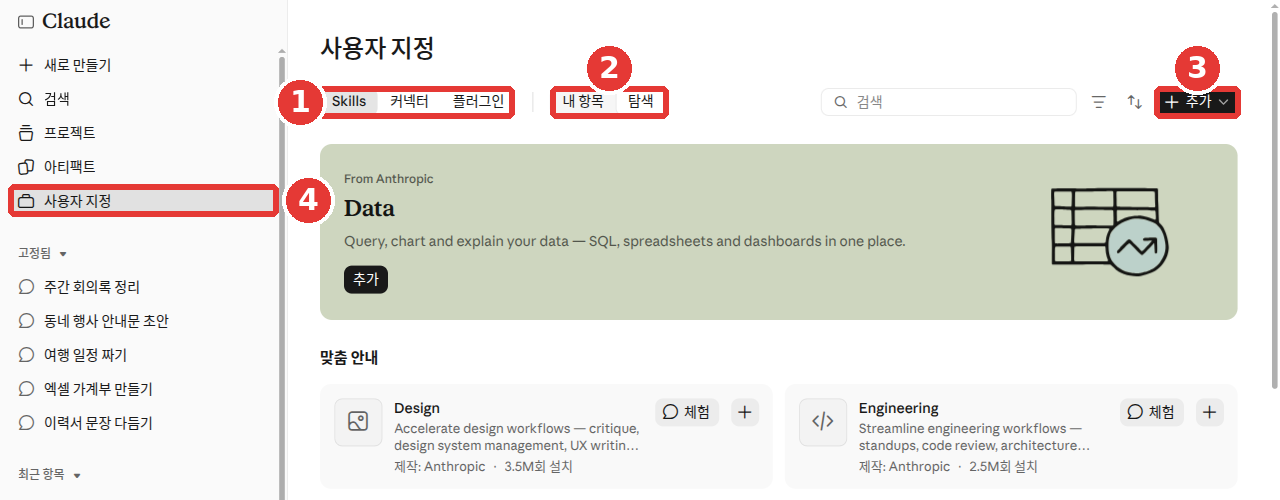
This is from the free plan. The red numbers match the numbered list below.
- ① "Skills," "Connectors," "Plugins" — Tabs to choose what to view
- ② "My items (내 항목)," "Explore" — What you have already added and new items to browse
- ③ "+ Add" — Button to add a new item
- ④ Side menu "Customize" — Opens this screen
Under "Explore," you can see skills and plugins made by Anthropic, along with a "Try (체험)" button.[1:9] On the free plan screen, the "Plugins" tab and "Add plugins" in the "+" menu are also visible.[1:10] However, the help center lists plugins as a paid-plan feature.[29:5]
- Added plugins are saved to your account. You can use them in web chat, the Chat tab in the desktop app, and Cowork.[29:6]
- Some features (such as sub-agents) do not run in regular chat and appear grayed out there. They run in Cowork, which is covered in Chapter 8.[29:7]
- Only install plugins from sources you trust. Depending on the plugin, parts of it may run on your computer with the same permissions as other programs.[29:8]
Quick check
You installed a sales plugin, but the price quotes it creates don't match your team's template. What should you do?
Watch and Learn More
These are official intro videos made by the company. Screens and feature names may differ from the explanations in this chapter.
All videos below are in English. Click Settings (the gear icon) on the YouTube video → Subtitles/CC → Auto-translate to watch with translated subtitles. The videos play right inside this page.
Projects are now a conversation with Claude · Claude · For those who want to see how Projects have changed (Sep 2026, 1 min)
Creating custom Skills with Claude · Anthropic · For those who want to see an example of Claude asking questions to build a skill for you (Oct 2025, 1 min)
The first video introduces the new style opened to some users first, in which one project is used as "a single conversation." If your screen looks different from the video, follow the instructions in this chapter.
Try It Yourself
- Click "New Project" to create a "Weekly Report" project, and paste the template from earlier into the project instructions. If there is no instructions box, save the template as text and upload it to project knowledge.
- Open a new chat inside the project, write five rough lines about what you did this week, and send it. Check if the table comes out following your instructions.
- Open one more new chat inside the project, and before sending your first message, click "+" → turn off "Memory" (Chapter 5). Then ask, "What did I say in the previous chat?" Confirm that a chat with memory turned off does not know what was said in the earlier chat.
- Go to "Customize" → the "Connectors" tab → "Explore" and browse what services are available. If you connected one, try turning off a tool you won't use under "Search and tools."
- Go to "Customize" → the "Skills" tab → "My items" and check if the built-in skills are turned on.
Continuing Exercise (Preparing a Book Club): Before uploading, open members.csv to check that there is no real personal information like names or phone numbers. Next, create a "Book Club" project, upload the four sample files (memo-next-month.txt, minutes-last-meeting.txt, members.csv, fees.csv) to "Project knowledge," and put the one-line instruction from Chapter 5 into the project instructions. In a new chat inside the project, send only "Write a draft announcement for November" and see if the details from the memo and meeting minutes are included.
Summary
- A project is a workspace that bundles chats, knowledge, and instructions. Free users can create up to 5 (according to the help center).
- Claude cannot read the project name or description. Even inside the same project, chat contents do not carry over in full, so put anything that all chats need to know into knowledge or instructions.
- On paid plans, when materials grow large, Claude automatically switches to RAG. Give your files easy-to-recognize names.
- A connector links Claude to other apps. Only connect services you trust, and remember that connecting doesn't let Claude see anything you couldn't already see.
- Turn off tools you won't use under "Search and tools," and switch "Tool access" to "On demand" when you have many connectors.
- A skill is a bundle that holds your way of working. It loads only when relevant, and you should only install skills from sources you trust.
- A plugin is a work kit that bundles skills, connectors, and sub-agents, and is available only on paid plans.
Glossary
| Term | One-line meaning |
|---|---|
| Project | A workspace with its own separate chat history and knowledge |
| Project knowledge | Reference materials shared across all chats in a project |
| RAG | A method that searches for and reads only the needed parts instead of all materials |
| Connector | A connection that links Claude to other apps and services |
| Tool | Each individual action a connector can perform |
| Tool access | A setting that decides when connectors are loaded into a chat |
| Skill | A bundle of instructions that makes Claude do a specific task the same way |
| Plugin | A job-specific package bundling skills, connectors, and sub-agents |
| Sub-agent | A helper Claude that handles part of a larger job on the side |
| Prompt injection | An attack that tricks AI using instructions hidden inside materials |
Finished this chapter?
Progress is saved only in this browser. See your progress on the full table of contents.
Next chapter: Chapter 8. Cowork — Handing Off Whole Tasks
References (31)
Verified directly on the Claude web screen (free plan, Korean UI). Side menu "Projects (프로젝트)" and "Customize (사용자 지정)" / "New Project (새 프로젝트)" and "Example project (예제 프로젝트)" badge on the "Projects" screen / "Skills," "Add connectors (커넥터 추가)," and "Add plugins (플러그인 추가)" in the "+" menu / "Skills," "Connectors (커넥터)," and "Plugins (플러그인)" tabs, "My items (내 항목)" and "Explore (탐색)," "+ Add (+ 추가)," and "Try (체험)" on the "Customize" screen (checked on 2026-10-26) ↩︎
Anthropic Help Center, "What are projects?". "Projects allow you to create self-contained workspaces with their own chat histories and knowledge bases." / "For users on Team and Enterprise plans, projects can be shared with other members of your organization" / "Nothing is lost or deleted in the move." support.claude.com (checked on 2026-10-26) ↩︎
Anthropic Help Center, "How can I create and manage projects?". "Free users can create a maximum of five projects." / "Click "+ New Project" in the upper right corner." / "Give your project a name and description (note that Claude will not have access to these details)." / "Anything you upload to this space will be used across all of your chats within that project." / "Claude will use these instructions for all the chats within the project." / "Note: Context is not shared across chats within a project unless the information is added into the project knowledge base." / "While working in a project, Claude uses the project's memory alongside your memory from chats outside of projects, but not memory from other projects." / "There is no way to delete archived projects at this time (you must unarchive it first)." support.claude.com (checked on 2026-10-26) ↩︎
This may differ from what is described on the pricing page, so check your own screen. ↩︎
In the help center, this appears as "+ New Project (+ 새 프로젝트)." ↩︎
Claude Academy "Claude 101" course, "Introduction to projects". "Simply upload it during the conversation and it stays separate from your project knowledge. It's a perfect way to share context or examples without cluttering the knowledge base." / "Begin with a specific use case rather than trying to create one project for everything. You can always add more content as you go." / "Outdated documents can lead to outdated responses. Review and update your project knowledge periodically." academy.claude.com (checked on 2026-10-26) ↩︎
Anthropic Help Center, "Understanding Claude's personalization features". "These instructions only apply to chats within that project." support.claude.com (checked on 2026-10-26) ↩︎
Different help articles state differently whether project instructions are available on the free plan. ↩︎
Anthropic Help Center, "Retrieval augmented generation (RAG) for projects". "RAG for projects is available on paid plans (Pro, Max, Team, and Enterprise)." / "When your project knowledge approaches the context window limit, Claude will automatically enable RAG mode to expand your project's capacity by up to 10x while maintaining quality responses." / "When asking questions, you can reference specific documents by name to help Claude focus its search." support.claude.com (checked on 2026-10-26) ↩︎
Anthropic Help Center, "Use connectors to extend Claude's capabilities". "Connectors let Claude access your apps and services, retrieve your data, and take actions within connected services." / "Web connectors are available for all users on Claude, Cowork, Claude Desktop, and Claude Mobile (iOS and Android)." / "If someone can't access a specific file, channel, or record in the source system, the connector can't reach it from Claude either." / "Only connect services you trust and need for your workflows." / "Installing connectors on mobile is currently in beta—Claude Desktop and web remain the primary path for custom connectors." / "Free users are limited to one custom connector." support.claude.com (checked on 2026-10-26) ↩︎
In the help center, this appears as "Connectors (커넥터)" → "Manage connectors (커넥터 관리)," and it also notes that you can type
/. ↩︎Claude Academy "Claude 101" course, "Connecting your tools". "Return to Claude and try a simple request, like "Can you access my [tool name]?"" academy.claude.com (checked on 2026-10-26) ↩︎
Verified directly in the message box "+" → "Add connectors (커넥터 추가)" submenu. Items are "Browse connectors (커넥터 둘러보기)" and "Add custom connector (커스텀 커넥터 추가)" (grayed out) (checked on 2026-10-28, web, Free plan) ↩︎
Anthropic Help Center, "How Claude suggests connected apps". "Your data from that app isn’t used to train Claude’s models, and the connected app can’t see your other conversations." / "Claude doesn’t silently default to one over the other; you choose which app to use, and Claude proceeds from there." / "There are no sponsored rankings, no paid placements, and no advertising." / "Before Claude books, buys, or reserves something on your behalf, it checks with you first." support.claude.com (checked on 2026-10-26) ↩︎
Anthropic Help Center, "Use Google Workspace connectors". "By default, Claude asks for your approval before each of these actions." / "Asking for a generic "doc" or "deck" without naming Google creates a local file instead." / "Attachment content is not directly accessible through Gmail (metadata only)." / "This data is retained with its associated chat, so you can delete any retrieved data by deleting the chat." support.claude.com (checked on 2026-10-26) ↩︎
Anthropic Help Center, "Connect to Microsoft 365". "The Microsoft 365 connector is available on all Claude plans: Free, Pro, Max, Team, and Enterprise." / "Personal Microsoft accounts (such as @outlook.com, @hotmail.com, or @live.com) can't be used." / "In every tenant, a Microsoft Entra Global Administrator also needs to grant a one-time consent." support.claude.com (checked on 2026-10-26) ↩︎
Anthropic Help Center, "Use interactive connectors in Claude". "You can check off tasks, update statuses, and keep chatting with Claude—all in one place." / "Individual users: You can disable specific connector tools via the "Search and tools" menu in your conversation." support.claude.com (checked on 2026-10-26) ↩︎
Anthropic Help Center, "Get started with custom connectors using remote MCP". "only click "Allow always" when using a server and tool that you trust to run unsupervised." support.claude.com (checked on 2026-10-26) ↩︎
Anthropic Help Center, "Manage Claude’s tool access". "Each connector takes up space in a conversation." / "Best for: Fewer than 10 connectors you use constantly." / "Trade-off: Claude may take an extra step to find the right connector before using it." / "Your selection only applies to that conversation. You can change it at any time." support.claude.com (checked on 2026-10-26) ↩︎
Anthropic Help Center, "Use research on Claude". "During research, Claude can use tools from your connectors automatically, without asking for approval each time." support.claude.com (checked on 2026-10-26) ↩︎
Anthropic Help Center, "What are skills?". "Skills are available for users on Free, Pro, Max, Team, and Enterprise plans. This feature requires code execution to be enabled." / "Anyone can create skills by writing instructions in Markdown—no coding required for simple skills" / "Custom instructions apply broadly to all your conversations. Skills are task-specific and only load when relevant" / "Projects provide static background knowledge that's always loaded when you start chats within them." / "MCP connections give Claude access to tools, while skills teach Claude how to use those tools effectively." / "Claude determines which skills are relevant and loads the information it needs to complete that task, helping to prevent context window overload." support.claude.com (checked on 2026-10-26) ↩︎
In the updated Settings layout, this is called "Create and edit files (파일 생성 및 편집)." ↩︎
Anthropic Help Center, "Use skills in Claude". "Navigate to Settings > Capabilities and ensure that Code execution and file creation (called Create and edit files in the updated Settings layout) is enabled." / "You don't need to explicitly invoke them—Claude determines when each skill is needed based on your request." / "Toggle any skill on or off using the switch next to it. Disabled skills won't be available to Claude." / "Upload a ZIP file containing your skill folder." / "Try being more explicit in your request (e.g., "Use my brand guidelines skill to create a presentation")." / "The most significant risks are prompt injection, which allows Claude to be manipulated to execute unintended actions, and data exfiltration" support.claude.com (checked on 2026-10-26) ↩︎
In the help center, this appears as "+ Create skill (+ 스킬 만들기)" → "Upload skill (스킬 업로드)." ↩︎
Anthropic Help Center, "Browse skills, connectors, and plugins in one directory". "Our unified directory brings skills, connectors, and plugins together in one place" / "Skills you install from the directory are view-only." support.claude.com (checked on 2026-10-26) ↩︎
Anthropic Help Center, "How to create custom skills". "Recording a skill is available on Pro, Max, and Team plans, in Cowork in Claude for Mac." / "A recording can run for about 10 minutes." / "This is critical—Claude uses this to determine when to invoke your skill (200 characters maximum)." / "Write clear descriptions: Claude uses descriptions to decide when to invoke your skill. Be specific about when it applies." / "Iterate on the description if Claude isn't using it when expected." / "When you're iterating on a skill with Claude in chat, you can edit the skill files directly where they open beside the conversation. Highlight the text you want changed, click "Edit with Claude," and type your request." support.claude.com (checked on 2026-10-26) ↩︎
Claude Academy "Introduction to Claude Cowork" course, "Get better results faster". "If you find you're explaining the same workflows to Claude multiple times, those will be the right opportunities for your first skills." academy.claude.com (checked on 2026-10-26) ↩︎
Claude Academy "Claude 101" course, "Working with skills". "The easiest way to create a custom Skill is through conversation with Claude itself." / "Claude will interview you about your workflow, asking things like: What should this skill do? What makes good output for this type of work? Can you give examples of when you'd use this skill?" / "Templates, style guides, brand assets, or examples of work you're proud of all help Claude understand exactly what you're looking for." / "projects store knowledge, skills perform tasks" academy.claude.com (checked on 2026-10-26) ↩︎
Anthropic Help Center, "Use plugins in Claude". "Plugins are available to all paid plans (Pro, Max, Team, Enterprise)." / "Each plugin bundles skills, connectors, and sub-agents into a single package" / "Claude includes a growing library of plugins for common knowledge work—including sales, finance, legal, marketing, HR, engineering, design, operations, data analysis, and more." / "Select the plugin you want, then click "Add."" / "Type "/" or click the "+" button to see the available skills from your plugins, in chat and in Cowork." / "You can add and use plugins in chat on the web, the Chat tab in Claude Desktop, and Claude Cowork." / "Hooks and sub-agents run in Cowork and Claude Code, not in chat, so they appear grayed out in chat." / "Only install plugins from sources you trust." / "This opens a new Cowork task with a prompt asking Claude to customize the plugin you chose." / "Click “Let's go” to start working with Claude to adjust the plugin's Skills and connectors to match how you work." The Korean help center writes this as "Customize (커스터마이징)" → "Let's go (시작하기)." support.claude.com (checked on 2026-10-26) ↩︎
In the help center, this appears as the "Discover (발견)" tab. ↩︎
Claude Academy "Introduction to Claude Cowork" course, "Plugins: Encode your team's expertise". "A plugin from the marketplace is a strong default, not a final answer." / "The more you shape it to your team's actual work, the more leverage it produces." academy.claude.com (checked on 2026-10-26) ↩︎