Chapter 5. Memory and Personalization — So You Don't Have to Introduce Yourself Every Time
Optional Read this when you need it. You can skip it and still follow the later chapters.One-line summary: Write rules you always want Claude to follow in Instructions, and let Memory remember what it learns about you as you chat. You will learn how to view, edit, and turn off what Claude remembers. We will also look at break reminders that help you rest when you have been chatting for a long time.
The screens are based on the web version from October 2026, and the screenshots show the Free plan. If a menu name looks a little different on your screen, look for a similar name. The difference comes from the new screens being rolled out gradually.
Three Ways to Tell Claude About Yourself
In Stage 1, Chapter 4, you learned that a good prompt includes context. However, typing "I run a neighborhood side-dish shop" in every new chat is a hassle. As we saw in Stage 1, Chapter 6, a new conversation normally starts without knowing anything about you.
Claude has three features that save you this trouble.
| Feature | Who sets it | Analogy |
|---|---|---|
| Instructions | You write them yourself | An order note taped to the shop wall |
| Memory | Claude saves it as you chat | A shop owner who remembers a regular's taste |
| Referencing past chats | Claude looks them up when you ask | Flipping through past ledgers |
You do not need to set up all three perfectly from day one. You can adjust them one by one as you use Claude.
Quick check
You run a side-dish shop. In every new chat, you keep typing "Reply politely and put the conclusion first." Which feature should you use?
Instructions — Rules for All Conversations
Instructions are rules you write yourself for Claude to always follow. Anything you write here applies to all your conversations with Claude.[1]
Here is how to open it:[1:1]
- Click your name in the bottom-left corner.
- Select "Settings (설정)" → "Account (계정)".[2]
- Type your rules in box ②, "Claude instructions (Claude 지침)".[2:1]
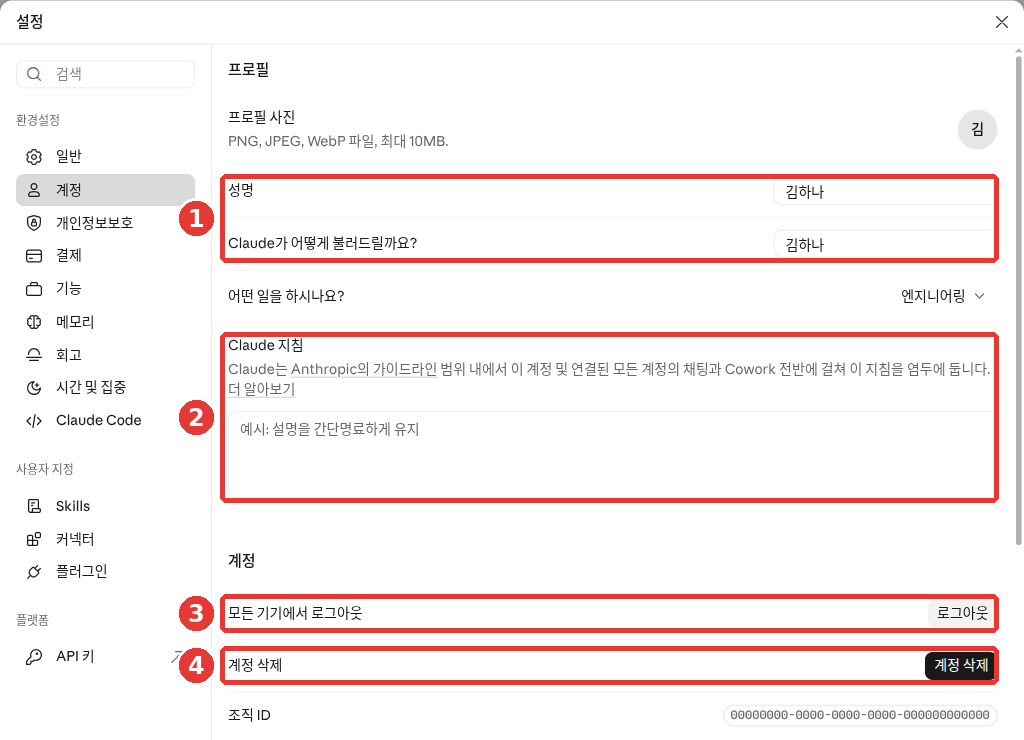
The name and email in this screenshot have been replaced with examples (Free plan). The red numbers match the numbered list below.
- ① "Full name (성명)" · "What should Claude call you? (Claude가 어떻게 불러드릴까요?)" — The name Claude will use to address you
- ② "Claude instructions (Claude 지침)" — The box where you write rules that apply to all conversations
- ③ "Log out of all devices (모든 기기에서 로그아웃)"
- ④ "Delete account (계정 삭제)"
Above box ②, a note explains that Claude keeps these instructions in mind across your chats and Cowork (a feature for handing off whole multi-step tasks, Chapter 8).[2:2] Inside the empty box, faint placeholder text says "Example: Keep explanations brief and to the point (예시: 설명을 간단명료하게 유지)".[2:3]
If you see "Your Claude" instead of "Account (계정)" in Settings (click to expand)
In the official help docs, this box appears under "Settings" → "Your Claude" → "Instructions".[1:2] If your account has the new Settings layout, it may look like that. Follow the name shown on your screen.
If you are not sure what to write, pick just the parts from the five elements in Stage 1, Chapter 4 that stay the same every time.
I am a shop owner in my 50s running a neighborhood side-dish shop. I don't know computer terms well.
- Please answer politely, and explain hard words in parentheses.
- Give me a one-line conclusion first, and then explain.
- If you are not sure about something, don't make it up—just say you don't know.
Compare a vague example with a better one.
- Vague example: "Please answer kindly."
- Better example: "Explain hard words in parentheses. Give me a one-line conclusion first."
The better example is specific about what Claude should do.
Once you have written your instructions, open a new chat and send a short question. Ask yourself: "Is the tone right? Did the conclusion come first?"
You do not need to fill out your instructions completely on the first day. As you use Claude, you will notice yourself asking it to fix the same things over and over. Things like "Give me the conclusion first" or "Keep tables to three columns at most." Those exact requests are what you should copy into your instructions.[3] Once you write them down, you will not have to repeat them in your next chat.
For rules you only need for a specific task, it is better to put them in project instructions rather than your account-wide instructions. Project instructions only apply to chats inside that project.[1:3] We cover projects in Chapter 7.
Quick check
In every chat, you want hard words explained in parentheses. You also have separate rules just for writing price quotes. How should you split them up?
Memory — What Claude Remembers as You Chat
Memory is a feature where Claude remembers things it learns about you during your conversations. Claude saves memories by topic while you are chatting. It does not summarize everything at once after a conversation ends.[4] So if you say "The deadline changed," your very next chat will already know that fact.
On Free, Pro, and Max plans, it is turned on by default across the web, desktop, and mobile apps. There is nothing you need to turn on.[4:1]
In Stage 1, Chapter 6 and in other AI courses, you learn that "every new conversation starts from scratch."[5] In Claude, when Memory is turned on, a new conversation can start already knowing what you have told it before. If you want to see Claude start from a completely blank slate, turn off "+" → "Memory (메모리)" before sending your first message in a new chat. Claude will not use its memories in that chat.[6] You will find the exact steps below under "Turning Off Memory for a Single Chat".
If you are on a work plan (click to expand)
On work plans (Team and Enterprise), an administrator must enable it first, and it stays off for each member until they turn it on themselves.[4:2]
What Claude Remembers
Claude remembers everyday context that helps it work with you.[4:3]
- Your role and the work you do
- People and places that come up in your work and life
- Your preferred communication and working styles
- Details of ongoing tasks and projects
Claude saves many of these on its own. If there is something you definitely want it to keep, just say "Please remember this."[4:4]
Please remember this: I run a side-dish shop in Seoul, and my customers are mostly in their 40s to 60s.
When I ask for promotional copy, please tailor it to this customer group.
What Claude Does Not Remember
By default, Claude does not save sensitive topics such as health, race, religion, politics, or gender identity.[7] If you do not want to explain these every time, you can turn on "Include sensitive topics in memory (민감한 주제를 메모리에 포함)" under "Settings (설정)" → "Memory (메모리)".[2:4][7:1][8] It is turned off by default.[2:5]
Claude will not save government ID numbers, criminal records, financial account numbers, or immigration status even if you ask it to.[7:2] However, that does not mean it is safe to type such information into a chat. Before you type, take a moment to recall Stage 1, Chapter 9.
Inside a project, Claude builds a separate memory just for that project. It does not use memories from other projects.[4:5] We will look at this in detail in Chapter 7.
Quick check
You are about to tell Claude, "Remember this: my bank account number is…" What is the best thing to do?
Viewing and Editing What Claude Remembers
You can see for yourself what Claude remembers about you. All memory settings are gathered on one screen under "Settings (설정)" → "Memory (메모리)".[2:6]
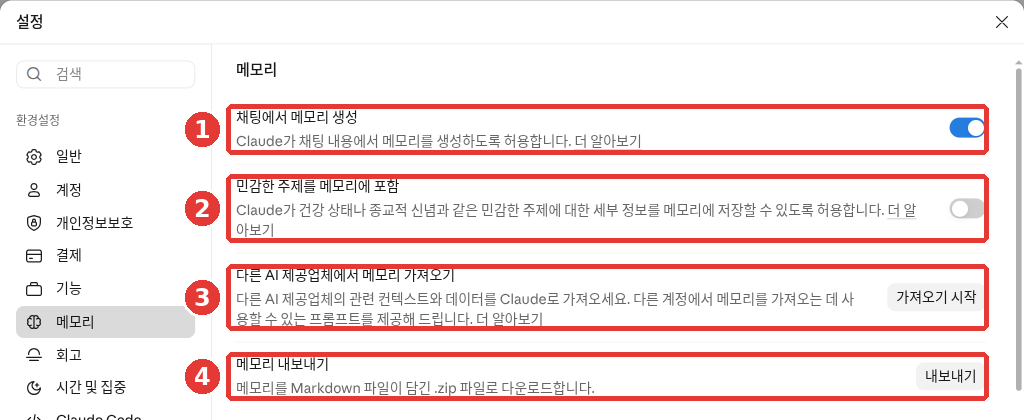
This screenshot is from a Free plan account. The red numbers match the numbered list below.
- ① "Memory from chats (채팅에서 메모리 생성)" — The switch to turn Memory on or off
- ② "Include sensitive topics in memory (민감한 주제를 메모리에 포함)" — The switch that lets Claude remember topics like health or religion
- ③ "Import memory from other AI providers (다른 AI 제공업체에서 메모리 가져오기)" — Brings over memories from another AI service
- ④ "Export memory (메모리 내보내기)" — Downloads your memories as a file
Near the bottom of this screen, you will find a list of saved memories.[2:7] Click any topic to read it, then click the pencil icon to edit it or "Delete (삭제)" to remove it.[9][8:1]
At the very bottom of the list, there is also an input box that says "Tell Claude what you'd like to change (Claude에게 변경할 내용을 알려 주세요)".[2:8] You do not even have to go to the Settings screen. If you tell Claude what to change right in a chat, the update will apply starting from your next conversation.[9:1]
Please forget that I run a side-dish shop. I closed the shop last month.Once you open the memory list, ask yourself: "Is anything here wrong? Is there anything I don't want Claude to keep?"
Deleting a Chat Does Not Delete Its Memories
Here is one thing that is easy to mix up. Even if you delete a conversation, the memories created from that conversation are not deleted.[9:2] If there is something you want to erase, go to the list in "Settings" → "Memory" and delete that memory separately.
This explanation is based on the current memory system. A small number of work plans still use an older version of memory.[9:3] If your screen looks different, follow what is on your screen.
Quick check
Claude remembers that you still run a side-dish shop, even though you closed it last month. What should you do?
Turning Off Memory — Pausing and Resetting
The master switch for Memory is ① "Memory from chats (채팅에서 메모리 생성)" under "Settings" → "Memory".[2:9][6:1][8:2] When you click the switch to turn it off, you will be asked to choose between two options.[6:2]
- "Pause memory (메모리 일시 중지)" — Keeps your existing memories as they are. However, Claude will neither use them nor create new ones.
- "Reset memory (메모리 재설정)" — Permanently deletes all memories, including project memories. This cannot be undone.
If you just want to take a break from Memory, choose Pause memory. If you choose Reset memory, you will start from scratch even if you turn Memory back on later.[6:3]
Turning Off Memory for a Single Chat
You can also leave Memory turned on overall and turn it off just for your current chat.[6:4] This is the same method you saw in "Keeping the Chat and Turning Off Memory Only" in Chapter 3. This chapter goes over it again.
- Open a new chat.
- Click the "+" button in the message input box.
- Click ⑥ "Memory (메모리)" at the bottom of the menu to turn it off. When a checkmark appears on the right, Memory is on.[2:10]
- Send your first message.
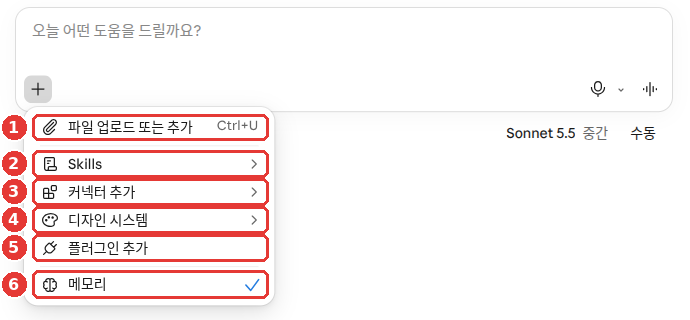
This screenshot is from the Free plan. The item we use in this chapter is ⑥ "Memory". The rest are covered in Chapter 4 and Chapter 7.
You can only turn it off before you send your first message. Once the conversation starts, you cannot change it.[6:5]
A chat started this way is different from an incognito chat in Chapter 3. A chat with only Memory turned off still stays in your chat history.[6:6] If you do not want to leave a chat history either, use an incognito chat.
| What you choose | Memory | Chat history |
|---|---|---|
| Turn off "+" → "Memory" | Neither used nor created | Kept |
| Incognito chat | Not saved | Not kept |
Quick check
You want Claude to stop using its memories about you for a while, then turn them back on later. Which option should you pick?
Referencing Past Chats
You can also ask Claude things like, "Remember what we talked about last time?" On paid plans (Pro, Max, Team, and Enterprise), Claude can search your past conversations and build on them.[10] This is the same feature as "asking Claude to find it for you" in Chapter 3. Here, we focus on how it differs from Memory. Memory is notes Claude has written down in advance, while this feature digs through your past chats directly each time you ask.
Just ask naturally.
Do you remember the promotional copy for my shop that we made last time? Let's pick up from there and polish it.When Claude searches your past chats, an indicator showing that it used a tool will appear in your current chat.[10:1] Conversations that Claude references will include a link back to the original chat.[10:2] Click the link to check whether Claude found the right conversation.
Here are a few things to keep in mind:
- Conversations inside a project are only searched within that project.[10:3]
- If you want to turn this off, switch off "Search and reference chats (채팅 검색 및 참조)" under "Settings" → "Memory".[10:4][11] Because this is a paid plan feature, this switch does not appear in our Free plan screenshots.[2:11]
- How to search past chats yourself from the sidebar is covered in Chapter 3.
Quick check
On a paid plan, you gathered chats inside a "New Menu" Project. Where should you ask if you want Claude to find ad copy you wrote there and keep working on it?
Importing and Exporting Memory
If you switched to Claude from another AI service, you can bring over the memories you built up there. This is available on all plans on the web and desktop app.[12]
- Export your memories from your previous AI. Open the Anthropic Help Center article "Import and export your memory from Claude" and you will find a recommended prompt. It is an English prompt starting with "I'm moving to another service and need to export my data." Copy it in full and send it to the AI you used before. It is fine to send it in English as is. The answer you get back is your exported memories.[12:1]
- Open the import tool in Claude. Go to "Settings" → "Memory" and click "Start import (가져오기 시작)" next to ③ "Import memory from other AI providers (다른 AI 제공업체에서 메모리 가져오기)".[2:12][8:3]
- Paste the text. Paste the exported text into the box and click "Add to memory (메모리에 추가)".[12:2]
- Check the result. When it finishes, click "See what Claude learned about you (Claude가 나에 대해 학습한 내용 보기)" to review what was added.[12:3]
Before importing, you can edit the prompt or the text to leave out sensitive information.[12:4] It is safer not to include anything you do not want stored in the first place.
Keep two things in mind:
- This is an experimental feature. Imported memories may not always transfer cleanly.[12:5]
- Personal details unrelated to work may not be kept.[12:6]
Conversely, if you want to export Claude's memories, go to "Settings" → "Memory" and click "Export (내보내기)" next to ④ "Export memory (메모리 내보내기)". It will download a .zip file containing a Markdown file (a simple text-only document format).[2:13] You can also ask Claude directly in a chat like this:[12:7]
Write out your memories of me verbatim, exactly as they appear in your memory, without changing a single word.Save the response as a file on your computer to keep as a backup.
Quick check
You want to import memories from another AI into Claude, but you don't want to bring over health-related notes. What should you do?
Break Reminders and Quiet Hours
Memory and instructions are settings that fit Claude to you. You can also set the time you spend using it to suit you. When you are chatting with AI, it is easy to lose track of time. Claude has two features to help with this. They are available in beta (a test feature before official release) on Free, Pro, and Max plans.[13]
You can find them under "Settings (설정)" → "Time and focus (시간 및 집중)".[2:14][14]
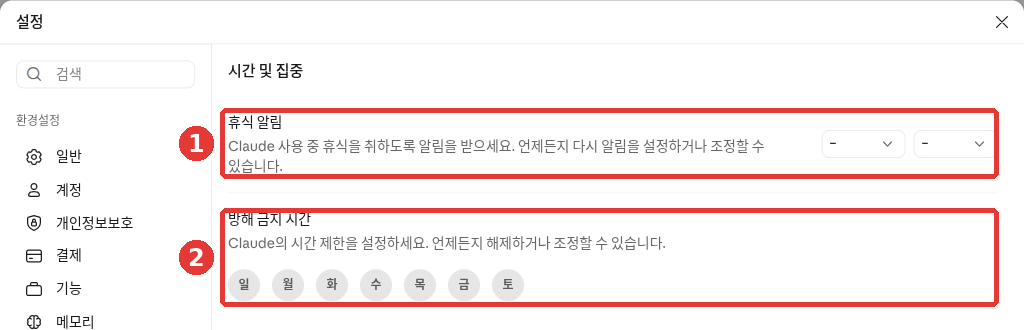
This screenshot is from the Free plan. The red numbers match the numbered list below.
- ① Break reminders (휴식 알림) — Pick the hours and minutes.[2:15] Once you have used Claude for that long, a reminder pops up. You can stop, snooze it for later, or dismiss it and keep going.[13:1]
- ② Quiet hours (방해 금지 시간)[15] — Pick the days you want to set aside to focus on other things.[2:16]
Once you set these on the web or desktop, they apply to the mobile app as well.[13:2]
Neither of these is a hard lock that forces you to stop. You can always click "Continue (계속)" and keep working.[13:3] They are also separate from your plan's usage limits.[13:4] Usage limits are covered in Chapter 1.
Quick check
You often end up chatting with Claude late into the night and want help keeping track of your screen time. What is a good way to do that?
Try It Yourself
- Open the list under "Settings" → "Memory" and read what Claude remembers about you. Edit or delete anything that is wrong.
- In "Settings" → "Account" → "Claude instructions", write one line of context about yourself and three rules, just like the example above.
- Open a new chat and send only: "Recommend three things to do this weekend." Check whether the tone and format follow your instructions.
- Open another new chat, turn off "+" → "Memory" before your first message, and send the exact same question. Compare how the two answers differ.
Ongoing project (Preparing a Book Club): Add a one-line rule you always want for your announcements into "Claude instructions". For example: "When writing an announcement, always put the date, place, and what to bring at the very top." You can move this line into your project instructions in Chapter 7.
Summary
- Instructions are rules you write yourself, and they apply to all conversations. Enter them under "Settings" → "Account" → "Claude instructions". Put rules for a specific task in project instructions instead.
- Memory saves details by topic while you chat with Claude. It is turned on by default for Free, Pro, and Max plans.
- Sensitive topics are not saved by default, and things like ID numbers or bank account numbers are never saved even if you ask.
- View and edit your memories under "Settings" → "Memory". Deleting a chat does not delete its memories, so delete those separately.
- When turning off Memory, Pause memory keeps existing memories, while Reset memory erases everything. To turn off Memory for just one chat, click "+" → "Memory" before your first message.
- On paid plans, Claude can search past chats and build on them.
- Bring over memories from another AI using "Start import" (an experimental feature). Download your own memories using "Export".
- Set break reminders and quiet hours under "Settings" → "Time and focus". They are reminders, not hard locks.
Glossary
| Term | One-line meaning |
|---|---|
| Instructions | Rules you write down so they apply to all your conversations |
| Memory | A feature where Claude remembers things it learns about you during chats |
| Pause memory | Keeping existing memories while stopping Claude from using them or creating new ones |
| Reset memory | Permanently erasing all saved memories |
| Search and reference chats | A feature that searches past conversations to use in your current answer |
| Memory import | A feature that transfers memories built up in another AI over to Claude |
| Time and focus | Settings for break reminders and quiet hours (called Wellbeing in newer help docs) |
| Quiet hours | A feature for setting aside specific days or hours to focus on other things |
Finished this chapter?
Progress is saved only in this browser. See your progress on the full table of contents.
Next chapter: Chapter 6. Search and Research
References (15)
Anthropic Help Center, "Understanding Claude's personalization features". "Any instructions you add here will be applied to all of your conversations with Claude." / "Select "Settings," then "Your Claude" (or "Account" in the older Settings layout)." / "These instructions only apply to chats within that project." support.claude.com (checked on 2026-10-26) ↩︎
Verified directly on the Claude web interface (Free plan, Korean). "Claude instructions (Claude 지침)" under "Settings (설정)" → "Account (계정)": "Claude keeps these instructions in mind across all chats and Cowork for this account and any linked accounts, within Anthropic's guidelines (Claude는 Anthropic의 가이드라인 범위 내에서 이 계정 및 연결된 모든 계정의 채팅과 Cowork 전반에 걸쳐 이 지침을 염두에 둡니다.)" / "Settings (설정)" → "Memory (메모리)": "Memory from chats (채팅에서 메모리 생성)", "Include sensitive topics in memory (민감한 주제를 메모리에 포함)", "Import memory from other AI providers (다른 AI 제공업체에서 메모리 가져오기)", "Export memory (메모리 내보내기)" ("Downloads your memory as a .zip file containing a Markdown file (메모리를 Markdown 파일이 담긴 .zip 파일로 다운로드합니다.)") / "Memory (메모리)" in the "+" menu / "Settings (설정)" → "Time and focus (시간 및 집중)": "Break reminders (휴식 알림)", "Quiet hours (방해 금지 시간)" (checked on 2026-10-26) ↩︎
Claude Academy course "Introduction to Claude Cowork", lesson "Standing context: Global instructions and projects". "Your global instructions don't need to be complete on day one." / "those are global-instruction candidates." academy.claude.com (checked on 2026-10-26) ↩︎
Anthropic Help Center, "Use Claude’s chat search and memory to build on previous context". "Memory is on by default for Free, Pro, and Max plans on the web, Claude Desktop, and Claude Mobile" / "On Team and Enterprise plans, owners control whether memory is available, and it's off for each member until they turn it on." / "Claude saves memory as a set of individual topics as you chat, rather than summarizing conversations after they end." / "Your role, projects, and professional context" / "Claude uses the project's memory alongside your memory from chats outside of projects, but not memory from other projects." support.claude.com (checked on 2026-10-26) ↩︎
Claude Academy course "AI capabilities and limitations", lesson "Working Memory". "Then open a brand-new conversation and ask a question that assumes it remembers what you taught it. Watch it start from zero." academy.claude.com (checked on 2026-10-26) ↩︎
Anthropic Help Center, "Use Claude’s chat search and memory to build on previous context". "navigating to Settings > Your Claude and turning on Memory from chats" / "Reset memory: Permanently deletes all memories including project memories." / "You need to turn memory off before you send the first message." / "Unlike incognito chats, they stay in your chat history." / "Claude won't use what it remembers about you in that chat, and nothing from the chat is saved to memory." support.claude.com (checked on 2026-10-26) ↩︎
Anthropic Help Center, "Use Claude’s chat search and memory to build on previous context". "By default, Claude does not store topics related to personal or sensitive subject matter" / "Turn on Include sensitive topics in memory in Settings > Your Claude" / "This includes government ID numbers, criminal history, financial account numbers, and immigration status." support.claude.com (checked on 2026-10-26) ↩︎
In the official help docs, this menu appears under the new Settings layout name, "Settings" → "Your Claude" (for example, the memory list is under "Manage (관리)" next to "Your memory"). If your account has received the new Settings layout, it may look like that. Follow the name shown on your screen. ↩︎
Anthropic Help Center, "Use Claude’s chat search and memory to build on previous context". "Select any topic to read it, then use the edit icon to change it or select "Delete" to remove it." / "Tell Claude what you'd like it to remember, change, or forget, and the update applies to your next conversation." / "When a conversation is deleted, including under a retention period, memory entries generated from it aren’t removed" / "A small number of Team and Enterprise organizations still use the legacy memory from chats experience." support.claude.com (checked on 2026-10-26) ↩︎
Anthropic Help Center, "Use Claude’s chat search and memory to build on previous context". "Searching past chats is available to users on paid plans (Pro, Max, Team, and Enterprise plans) on the web, Claude Desktop, and Claude Mobile apps." / "When Claude searches your previous chats, you will see this reflected in your current chat as a tool call." / "When Claude references previous conversations through search, you'll see citations linking back to the original chats, along with the option to delete specific conversations." / "Individual project conversations (searches are limited to within each specific project)." / "navigate to Settings > Your Claude (or Settings > Memory in the older Settings layout) and switch the toggle next to Search and reference chats off." support.claude.com (checked on 2026-10-26) ↩︎
The official help docs note that this switch is under "Settings" → "Your Claude", or under "Settings" → "Memory" in the older Settings layout. ↩︎
Anthropic Help Center, "Import and export your memory from Claude". "Memory imports are available for Free, Pro, Max, Team, and Enterprise plans on the web and Claude Desktop." / "I'm moving to another service and need to export my data." / "Paste the exported text from your previous AI provider into the text box and click the "Add to memory" button to submit it." / "Click the "See what Claude learned about you" button to start a new conversation" / "You can customize this prompt to exclude any sensitive information before importing into Claude." / "Claude may not retain imported personal details unrelated to work." / "Important: Memory imports are experimental and still in active development" / "Write out your memories of me verbatim, exactly as they appear in your memory." support.claude.com (checked on 2026-10-26) ↩︎
Anthropic Help Center, "Set break reminders and quiet hours". "Break reminders and quiet hours are in beta on Free, Pro, and Max plans." / "Go to Settings > Wellbeing (or Settings > Time and focus in the older Settings layout)." / "When you reach the amount you set, Claude shows a reminder. You can stop, snooze it, or dismiss it and keep going." / "Neither is a hard lock, so you can always continue past them." / "They’re separate from your plan’s usage limits." support.claude.com (checked on 2026-10-26) ↩︎
In the official help docs, this also appears under the new Settings layout name, "Wellbeing". It may vary depending on your screen. ↩︎
The Korean help documentation translates this as "조용한 시간". ↩︎