第10章 語音與手機——開口提問,在手機上更快
選讀 需要的時候再讀。跳過也能跟上後面的章節。一句話總結:輸入框裡的麥克風,會把你說的話記成文字(聽寫);聲波符號,讓你和 Claude 用說話的方式交流(語音模式)。 在手機上,用小元件(放在主螢幕上的小快捷方塊)、快捷指令(把多個動作合成一個按鈕的 iPhone 功能)、鎖屏介面能更快地開啟它,還可以把訊息、郵件草稿直接交給對應的應用。
畫面以 2026年10月的網頁版為準。手機應用和電腦應用的按鈕位置略有不同,設定選單的名稱也可能因畫面而異。
聽寫和語音模式
用說話來輸入的功能有兩種。名字很像,但做的事不一樣。[1][2]
| 聽寫(Dictation) | 語音模式(Voice mode) | |
|---|---|---|
| 按鈕 | 輸入框右側的麥克風 | 麥克風旁邊的聲波符號 |
| 做什麼 | 把我說的話變成文字發出去 | 用嘴問,用耳朵聽 |
| Claude 的回答 | 以文字形式送來 | 以聲音形式送來 |
| 適合什麼時候 | 懶得打一大段問題時 | 手忙著的時候,邊說邊理思路時 |
如果準確的句子很重要,請用聽寫。我的問題和回答都會以文字留下,可以再讀。需要來回交談時,請用語音模式。
理解檢查
想用說話來提問,也想用聲音聽回答。該用哪個功能?
試試聽寫
這一節講手機應用(iPhone、安卓)的聽寫。[1:2] 電腦應用的 Cowork(第8章)裡也可以用聽寫。[2:2]
- 在 Claude 應用裡開啟一個新聊天。
- 點輸入框右側的麥克風。
- 第一次用時,選擇要說的語言。
- 像平時一樣說話。
- 點箭頭髮送。不想傳送的話,點「X」。
請像下面這樣說說看。
這個週末,告訴我三個能和小學生孩子在家做的科學實驗。
材料只用廚房裡有的。
聽寫支援包括韓語在內的12種語言。英語以外的語言還是測試版(beta)。想換語言,點右上角的首字母,選「語音輸入語言(음성 입력 언어)」。[1:3]
人名、地名可能會被記錯。傳送之後,請讀一遍聊天視窗裡記下來的我的問題。[1:4]
在 Mac 電腦上——快速輸入
如果你不用 Mac,可以跳過這一部分。
如果在 Mac 上用 Claude 桌面應用,請試試連按兩下 Option 鍵。不管你正在用哪個應用,Claude 的輸入框都會馬上開啟。[3] 不用中斷手頭的事就能提問。
詳細說明(點選展開)
看著陌生的表格或錯誤視窗,想馬上提問時,很方便。
剛貼上去的畫面裡這些數字,各是什麼意思,用簡單的話給我解釋一下。其中哪些是我需要留意的,也告訴我。理解檢查
你用手機聽寫說了一個帶人名的問題併發送了。接下來做什麼比較好?
試試語音模式
語音模式還是測試版。網頁、電腦應用、手機應用裡都能用,但它是為了在手機上效果最好而做的。[2:3]
在網頁、電腦應用上
先看一下按鈕的位置。輸入框右下角的 ⑧ 處,麥克風(聽寫)和聲波符號(語音模式)並排放著。[4]
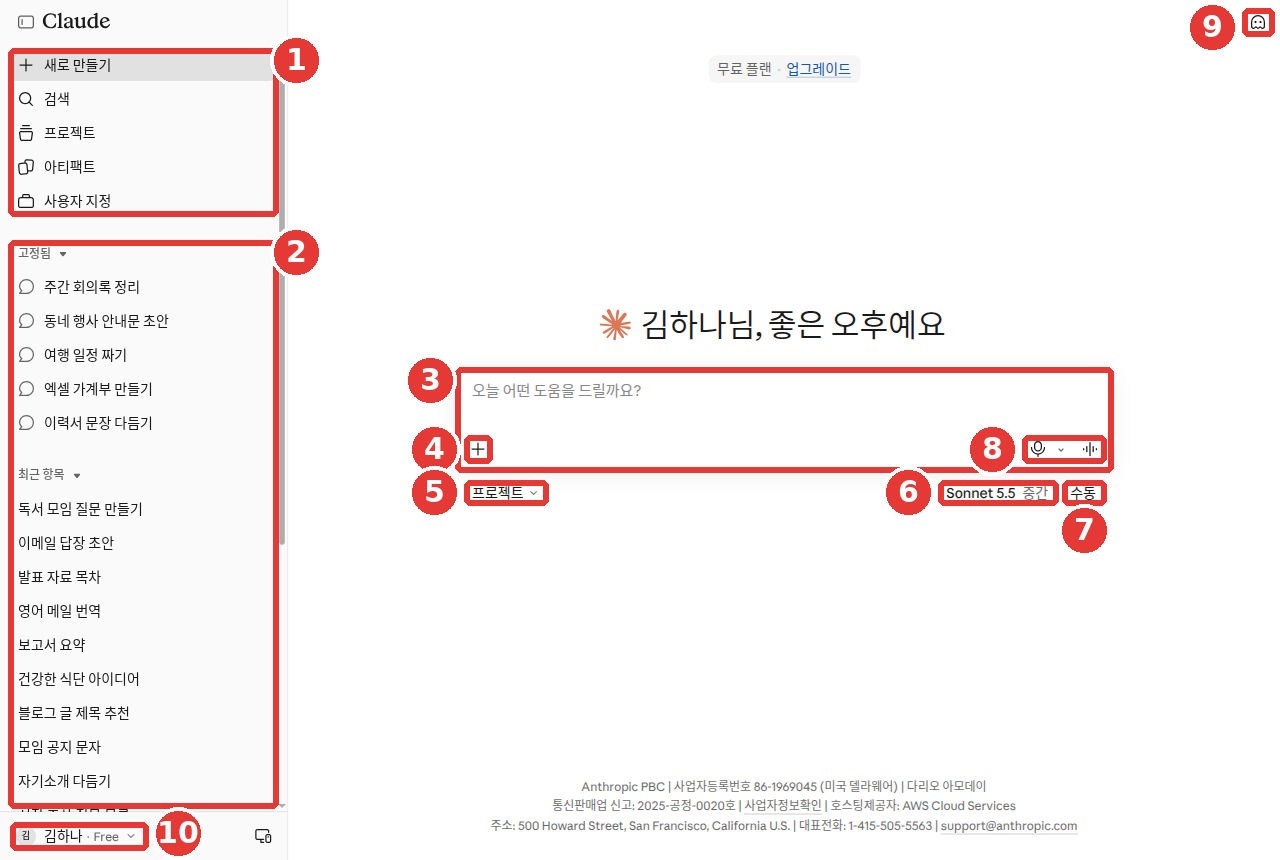
這是把名字、對話標題換成示例後的畫面(免費方案)。這一章用到的編號只有 ⑧ 一個。其餘的編號,在第2章裡說明。
- 開啟一個新聊天。
- 點聊天視窗右下角的聲波符號。
- 一開口說話,我說的話就會自動出現在輸入框裡。說完後,Claude 會回答。
- 想結束,點右下角的「停止(중지)」(Stop)。
在手機應用上
- 點輸入框裡麥克風旁邊的聲波符號。
- 挑一個喜歡的聲音。
- 開始說話。[2:4]
兩種聽的方式
- 擴音模式(hands-free):一開始就是開著的方式。Claude 一直聽著,我停下話來,它就回答。在安靜的地方效果最好。
- 按鍵說話模式(push-to-talk):說話時一直按住按鈕,說完就鬆手。在嘈雜的地方,或者旁邊有別人在說話時,更準確。[2:5]
如果 Claude 往奇怪的方向走了,直接開口說話就行。Claude 會停下來聽。如果有好幾個問題,不要一股腦說完,一個一個地問。[2:6] 一次只問一個,回答也會變短,用耳朵聽就更輕鬆。
很適合開口說的請求。
下週我有面試。你來當面試官,一個一個地向我提問。
我回答之後,請簡短地說一個好的地方、一個要改的地方,然後進入下一個問題。
拿到的回答大致是這樣(示例——點選展開)(點選展開)
這是本指南做的示例。實際的回答會因服務和每次的情況而不同。
好的,我們開始面試。第一個問題。請您簡單做一下自我介紹,可以嗎?
我回答之後,會這樣接下去。
好的地方是,您一開始就清楚地說了應聘的理由。要改的地方是,經歷的故事稍微有點長。請只挑一個例子,簡短地說一說。那麼,第二個問題。工作中最有成就感的時刻是什麼時候?
請確認有沒有拿對:它是一次只問一個問題嗎?我回答之後,它是只簡短地說一個好的地方、一個要改的地方嗎?它有沒有一下子甩出一整串問題?
需要知道的幾點
- 語音對話也計入方案的用量限額(第1章)。
- 在同一個對話裡,文字和說話來回切換,前面的內容也是接著的。 像網址這樣要準確輸入的東西,中途用文字輸入就行。
- 它從文字聊天裡最後用的模型開始,對話中可以更換。不過 Claude Fable 目前還不能在語音模式中使用。[5]
- 已連線的工具(Gmail、Google 日曆等)在語音模式裡也能用。[6] 工具連線在第7章講。
- 在新畫面裡,包括 Claude 正在做任務的對話在內,任何對話都可以使用語音模式。[2:7][7]
理解檢查
在嘈雜的咖啡館用語音模式,Claude 老是聽錯我的話。怎麼辦比較好?
更換聲音和語言
Claude 的聲音,只能在固定的幾種裡選。這是為了防止模仿或照搬某個人的聲音。[2:8]
- 網頁、電腦應用:在「設定(설정)」→「通用(일반)」的「語音(음성)」裡。「語言(언어)」下面還有「風格(스타일)」和「速度(속도)」。[4:1][8] 點一個聲音,可以先試聽。
- 手機應用:語音模式中點左下角的設定按鈕,選擇聲音和語速。[2:9]
要說的語言,需要另外設定。 就算把應用介面換成韓語,語音語言也不會變。[2:10] 在這個畫面裡,在「設定」→「通用」→「語音」→ ③「語言」裡選。[4:2] 英語以外的語言是測試版。對話中請它"用韓語說"也可以。[2:11]
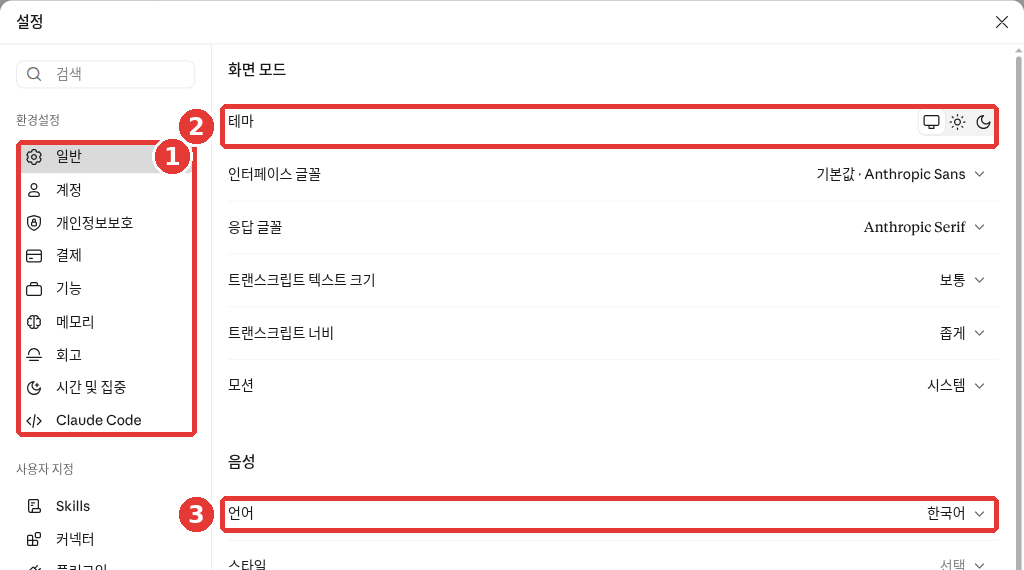
這是免費方案的畫面。紅色編號和下面列表的編號指的是同一個地方。
- ① 左側選單裡選中了「通用」。
- ②「主題」:把畫面切換成亮色、暗色。和語音無關。
- ③「語言」:用語音說話時使用的語言。它下面接著「風格」「速度」。[4:3]
理解檢查
把應用介面換成了韓語,但語音模式仍然用其他語言說話。為什麼?
語音記錄與個人資訊
語音對話也會以文字留下。 用語音模式進行的對話,會變成文字記錄,像普通對話一樣儲存在聊天記錄裡。[2:12]
聽寫的錄音不會保留。 把說話變成文字之後,錄音就會刪除,也不會用於訓練。[1:5] 不過,轉換出來的文字和普通對話一樣。遵循對話的儲存期限,如果你允許了訓練,就可能被用於訓練。[9] 訓練設定,在第9章看過了。
用嘴說的對話,旁邊的人也聽得到。 我的問題和 Claude 的回答,都聽得到。
- 在地鐵、咖啡館、辦公室裡,請戴上耳機,或者用聽寫安靜地輸入。
- 第1階段第9章講過的不該放進去的資訊,也不要出聲說出來。 用嘴說的時候,比打字更容易不經意說出口。
理解檢查
你想在地鐵裡用語音模式聊醫院預約的事。怎麼做比較好?
在手機上更快——小元件、快捷指令、鎖屏介面
不用找到應用再開啟,也能叫出 Claude。這些全都計入使用限額。[10][11]
iPhone(iOS 18 及以上)
- 「向 Claude 提問」(Ask Claude):不用開啟應用就能提問。可以在 Spotlight 搜尋(在主螢幕中間往下滑出現的搜尋欄)、Siri、分享選單裡使用。比如選中一段文字,透過分享選單直接發給 Claude。
- 小元件:把 Claude 小元件放在主螢幕或今日檢視(主螢幕最左邊的那一屏)裡,一個按鈕就能開啟新聊天、聽寫、拍照發送。
- 「用 Claude 分析照片」(Analyze Photo with Claude):放進控制中心(從螢幕右上角往下滑出現的按鈕集合)或鎖屏介面,不用解鎖就能拍照發送。
- 「Open Claude」:放進鎖屏介面、控制中心、操作按鈕(Action button,部分 iPhone 側面的按鈕),直接開啟 Claude。[10:1][12]
「向 Claude 提問」和快捷指令,使用的是開啟應用時顯示的預設模型。[10:2]
用快捷指令做一個"摘要按鈕"
用 iPhone 的快捷指令應用,可以做出我自己的按鈕。照著幫助文件裡的例子試試。[10:3]
- 在快捷指令應用裡點「+」,新建一個快捷指令。
- 加入分享(Share)動作,選擇要接收的內容型別。
- 加入「向 Claude 提問」動作。
- 在裡面寫上提示詞。例:
請把下面這段文字概括成三行:[快捷指令輸入] - 起個名字(例:「用 Claude 做摘要」),放進分享面板。
之後在任何應用裡,選中文字,點分享按鈕,選「用 Claude 做摘要」就行了。
安卓(Android 8.0 及以上)
長按主螢幕的空白處,在「小元件」裡找到 Claude 並放上去。有三個按鈕。[11:1]
- 聊天按鈕:直接開啟新對話。
- 相機按鈕:拍照發給 Claude。
- 麥克風按鈕:開啟新對話並開始聽寫。
理解檢查
出現了使用額度已用完的提示。用 iPhone 的小元件或「向 Claude 提問」,還能繼續提問嗎?
和手機應用連線——訊息、郵件、日曆、地圖
手機應用裡的 Claude,可以和手機裡的其他應用連線來幫忙做事。所有方案都可以。[13][14]
| iPhone | 安卓 | |
|---|---|---|
| 訊息、郵件、日曆 | 可以 | 可以 |
| 位置、地圖 | 可以 | 可以 |
| 提醒事項 | 可以 | 不可以 |
| 鬧鐘、計時器 | — | 可以 |
訊息和郵件,Claude 只做到草稿。 Claude 會給你看一張填好內容的卡片,點一下,訊息應用或郵件應用就會開啟。讀過內容、改好之後,傳送由我自己來按。Claude 不會讀已經收到的訊息或郵件,也不會直接進入通訊錄。[13:1]
請像下面這樣拜託它。
幫我寫一封發給組長的郵件草稿,說明明天早上的會議,我因為要去醫院看病,會晚到30分鐘。
要簡短、禮貌。草稿交給郵件應用之後,請確認收件人和內容再發送。和第9章裡看到的那種假的"已傳送"不同,在這裡,要我按下發送按鈕,才是真的發出去。
許可權由我來定
Claude 第一次要用位置或日曆時,會徵求你的同意。在允許一次(Allow once)、始終允許(Always allow)、不允許(Don't allow)裡選。[13:2] 以後想更改,請到手機的設定裡找。
在韓國還不能用的功能(點選展開)
也有讀取健康資料的功能,但它是測試版,只限 Pro、Max 方案,而且只在美國可用。[13:4]
理解檢查
你在手機應用裡請它寫一封給組長的遲到通知郵件,郵件應用就打開了。接下來該做什麼?
動手試試
1. 同一個問題,兩種方法
下面這個問題,一次用麥克風(聽寫),一次在新聊天裡用**聲波符號(語音模式)**來問。
冰箱裡有雞蛋、豆腐、大蔥。告訴我兩道15分鐘內能做好的小菜。然後問問自己。聽寫記下來的文字和我說的一樣嗎?聽回答和讀回答,哪一種更舒服?
2. 試著插話
在語音模式裡請它做一段長的講解,然後在 Claude 說話的過程中,說"等一下,再短一點"。確認 Claude 是不是停下來,然後簡短地重說一遍。
3. 在手機上放一個快捷入口
如果是 iPhone,就在主螢幕上放 Claude 小元件;如果是安卓,就放 Claude 小元件。點麥克風按鈕,確認聽寫是不是馬上開啟。
連續任務(準備讀書會):用語音模式說"陪我一起練習30秒左右的讀書會開場問候"。聽完我說的問候後,請它指出一個要改的地方。
總結
- 麥克風是聽寫:把說的話變成文字發出去,回答以文字送來。這一章按手機應用來講。
- 聲波符號是語音模式:用嘴問,用耳朵聽。這是測試版,在手機上效果最好。
- 語音模式預設是擴音,太吵的話改成按鍵說話。它計入使用限額。
- 要說的語言,和應用介面語言分開設定。在這個畫面裡是「設定」→「通用」→「語音」→「語言」。
- 語音對話會以文字記錄留下。聽寫的錄音會刪除,但轉換出來的文字,遵循訓練設定。
- iPhone 用「向 Claude 提問」、快捷指令、小元件、鎖屏介面,安卓用小元件,來更快地開啟。
- 訊息、郵件由 Claude 做草稿,傳送由我來做。許可權在手機設定裡更改。
術語整理
| 術語 | 中文名稱 | 一句話解釋 |
|---|---|---|
| Dictation | 聽寫 | 把說的話變成文字輸入的功能 |
| Voice mode | 語音模式 | 和 Claude 用說話來交流的功能 |
| Hands-free | 擴音 | 不用按按鈕,停下話來它就回答的方式 |
| Push-to-talk | 按鍵說話 | 只在按住按鈕期間才聽的方式 |
| Beta | 測試版 | 正式釋出前拿出來試用的功能 |
| Transcript | 文字記錄 | 把說過的內容轉成文字的記錄 |
| Widget | 小元件 | 放在主螢幕上的小快捷入口 |
| Shortcut | 快捷指令 | 把多個動作打包、一個按鈕就執行的 iPhone 功能 |
| Permission | 許可權 | 允許應用使用位置、日曆等的許可 |
這一章讀完了嗎?
學習記錄只儲存在這個瀏覽器中。整體進度可以在 全部目錄中檢視。
下一章:第11章. 實踐課題
參考資料(14 則)
Anthropic 幫助文件,「Use dictation on Claude Mobile」。 "Dictation is available to all Claude users (Free, Pro, Max, Team, and Enterprise plans). Support for languages other than English is in beta." / "Dictation allows you to speak your prompts instead of typing them when using Claude for iOS or Android." / "Tap the microphone icon on the right side of the chat input field." / "Your prompt will automatically appear as text in the chat window." / "We will not retain a copy of your speech input or use it for training our generative models." support.claude.com (確認日期 2026-10-26) ↩︎
Anthropic 幫助文件,「Use voice mode」。 "but is built to work best from your phone." / "Tap the sound wave symbol in the lower right corner of the chat window to activate voice mode:" / "Tap the voice mode icon (sound wave symbol next to the microphone icon) in the text input field:" / "Note: Voice conversations count toward your regular usage limits based on your subscription plan." / "In hands-free mode, Claude listens continuously and responds to natural pauses in your speech." / "On the web and desktop: Go to Settings > Capabilities and scroll down to Voice settings." / "When you turn on voice mode, it starts with the model you last used in text chat" / "Note: Claude Fable is not currently available in voice mode." / "Your previous context carries over, so you don't lose anything when you switch." / "On the Free plan you can connect one tool, and paid plans can connect more." / "This prevents voice cloning or impersonation." / "Changing your app's display language doesn't change your voice language, so set it here." / "Textual transcripts of your audio conversations are saved in your chat history just like text conversations." / "In the new Claude experience, voice mode works in any conversation, including ones where Claude is working on a task." / "In Claude Cowork and Claude Code, dictation is available but voice mode isn't." support.claude.com (確認日期 2026-10-26) ↩︎
Anthropic 幫助文件,「Use quick entry with Claude Desktop on Mac」。 "Quick entry is available to all Claude users (free, Pro, Max, Team, and Enterprise plans) using Claude Desktop on macOS." / "Instant access: Double-tap the Option key to open Claude from any app." / "Visual context: Capture screenshots or click application windows to share what you're working on." / "The voice dictation shortcut is disabled by default because it takes over your Caps Lock key." / "Claude Desktop needs to be running on your Mac, but it can run in the background." / "Screen recording: Required to capture screenshots and share application windows." / "You can review or change these permissions in System Settings > Privacy & Security." support.claude.com (確認日期 2026-10-26) ↩︎
在 Claude 網頁畫面(免費方案,韓文介面)上親自確認。「設定(설정)」→「通用(일반)」→「語音(음성)」裡有「語言(언어)」「風格(스타일)」「速度(속도)」。(確認日期 2026-10-26) ↩︎
Anthropic 幫助文件,「Use voice mode」。 "Note: Claude Fable is not currently available in voice mode." (確認日期 2026-10-26) ↩︎
語音模式的幫助文件寫道,免費方案可以連線一個工具。 ↩︎
幫助文件寫的是「設定」→「功能(기능)」。依畫面不同,可能有差異。 ↩︎
Anthropic 隱私中心,「What personal data is collected when using dictation on the Claude mobile apps?」。 "If you have allowed us to use your chats or coding sessions to improve Claude, the transcribed text may be used in accordance with your privacy settings." privacy.claude.com (確認日期 2026-10-26) ↩︎
Anthropic 幫助文件,「Use Claude app intents, shortcuts, and widgets on iOS」。 "The features described in this guide are available on iOS 18 and above." / "You can use this intent on its own to quickly ask Claude questions or give it tasks without opening the Claude app." / "The Claude widget provides quick access to chat and voice features directly from your Home Screen or Today View." support.claude.com (確認日期 2026-10-26) ↩︎
Anthropic 幫助文件,「Use the Claude widget on Android」。 "The Claude Android widget is available on Android 8.0 Oreo and above." / "Note: All interactions started through the widget will count toward your usage limit." support.claude.com (確認日期 2026-10-26) ↩︎
Anthropic 幫助文件,「Access Claude for iOS on your Lock Screen, Control Center, and Action button」。 "Quickly access Claude for iOS functionality from your Lock Screen, Control Center, or Action button on iOS." support.claude.com (確認日期 2026-10-26) ↩︎
Anthropic 幫助文件,「Use Claude with iOS apps」。 "This feature is supported on all Claude plans and works with iOS system apps (Messages, Mail, Calendar, Maps, Reminders, and Location Services), as well as compatible third-party apps." / "Review the pre-filled content and make any changes if needed." / "Messages/Email: Claude does not read existing messages or emails, only creates new content." / "Contacts: Claude does not have direct access to your contacts." / "You’ll be prompted to approve the action with three options: Allow once, Always allow, or Don't allow." / "These permissions can be managed at any time in your device settings by going to Settings > Claude." / "Health features are currently in beta, require a Pro or Max plan, and are available in the US only." support.claude.com (確認日期 2026-10-26) ↩︎
Anthropic 幫助文件,「Use Claude with Android apps」。 "This feature is supported on all Claude plans and works with your device's native and third-party apps" / "Reminders: These are exclusively available on Claude for iOS, so Claude can’t create and manage reminders on Android." / "These permissions can be managed at any time in your device settings by going to Settings > Apps > Claude > Permissions." support.claude.com (確認日期 2026-10-26) ↩︎