Chapter 6. Search and Research — Getting Up-to-Date Information with Sources
Optional Read this when you need it. You can skip it and still follow the later chapters.One-line summary: Use web search for things that happened today or information that changes often, and hand off big questions that need gathering and comparing multiple sources to Research. Either way, opening and checking the attached sources yourself is part of the deal.
The screens shown here are based on the web version as of October 2026. The new Claude interface is rolling out gradually right now, so menu names and locations may vary depending on your screen.
Web Search — Having Claude Look Things Up on the Internet
AI only knows things up to the point it was trained ("knowledge cutoff" in Stage 1, Chapter 1). So if you just ask about recent events like "this week's weather" or "the policy announced yesterday," it is easy to get a wrong answer. Web search is a feature that lets Claude find up-to-date information on the internet to answer you.[1] You can use it on the free plan too.[2]
There is nothing you need to turn on separately. The new interface has no web search toggle, and Claude searches on its own when it helps.[1:1][3] There was no "Web search (웹 검색)" in the "+" menu on a free account either.[4]
If you are using the older interface (click to expand)
In the older interface, click "+" at the bottom left of the input box and choose "Web search (웹 검색)". When it is on, a checkmark appears next to it. Click it again to turn it off.[1:2]
If you want to make sure it searches, try writing "Search the web" in your prompt.[1:3]
Search the web. Tell me the weather in Seoul this weekend broken down into Saturday and Sunday,
and show me the sites you used too.
For questions that need pictures, it sometimes shows images found through search next to the answer. There is no setting you need to turn on separately.[1:4]
Search here means internet search. Finding your past conversations is a different feature. See Chapter 3 and Chapter 5.
Quick check
You don't see a toggle to turn on web search on your screen. How can you make sure Claude checks the internet for this weekend's weather?
Giving It a Link to Read
If there is a web page you want Claude to read, paste the address (URL, the internet address attached to each web page). Then Claude reads the content of that page directly. This is called web fetch.[5] Web fetch only works when web search is available.[5:1] On the new screen, as you saw in the section above, there is nothing separate to turn on.
Read the article below and summarize in three lines only the parts that apply to a small restaurant like our shop.
https://www.example.com/news/12345
Having it summarize a long article in full uses up a lot of your usage limit.[5:2] On the free plan, your usage limit resets every 5 hours, and both search and fetch count toward this limit.[5:3] So think first about whether you need a full analysis or just the key points. Usage limits are covered in Chapter 1.
Quick check
If you paste a link to a long article and ask Claude to summarize the whole thing, what should you keep in mind?
The Habit of Checking Sources
Answers from web search come with citations (labels showing where the information came from). Every search answer includes citations, so you can verify the sources yourself.[1:5]
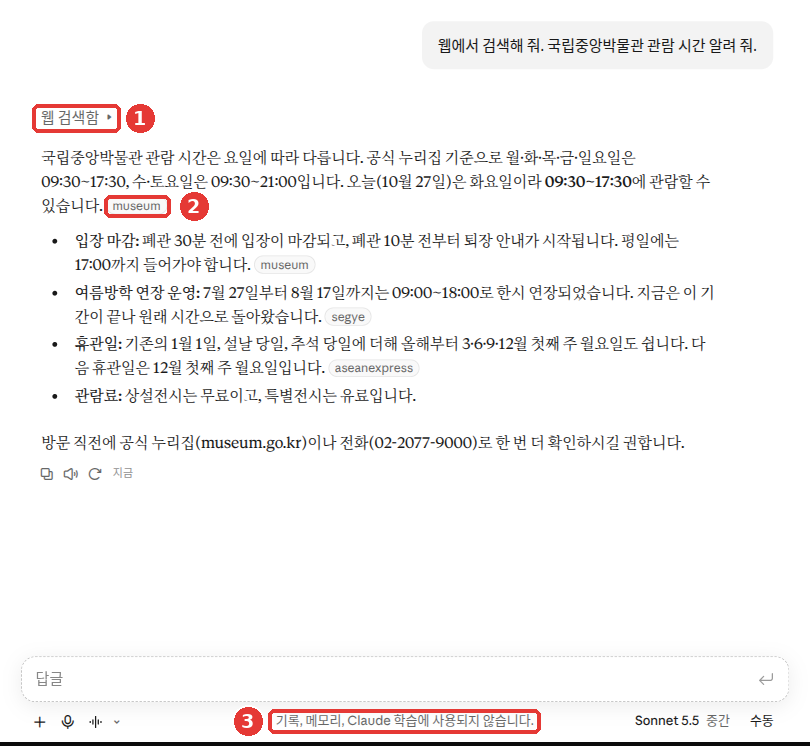
This screenshot was taken in incognito mode (free plan). The red numbers match the numbers in the list below.
- ① "Searched the web (웹 검색함)" — A label showing that Claude looked on the internet. Click it to expand what it searched for.
- ② Source badge — The small tag at the end of a sentence ("museum", "segye", etc.) is the site that sentence came from.
- ③ A notice that appears because this screen was captured in incognito mode. It has nothing to do with search, so you can skip it.[4:1]
If you click ① and expand it once more, you can see the search query Claude used and the list of sites returned in the search results.
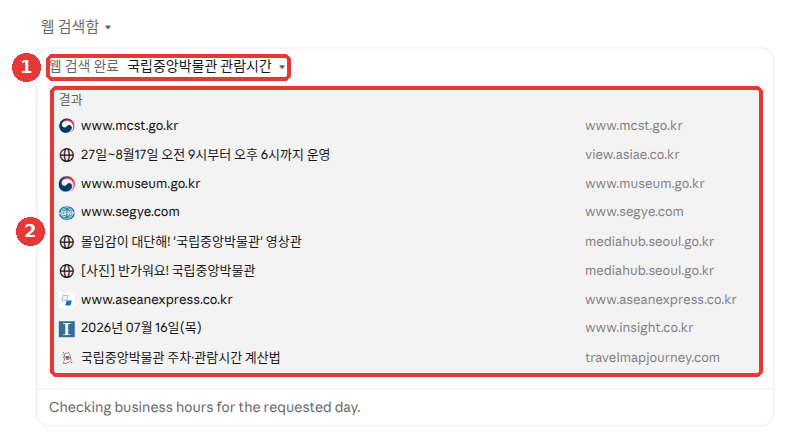
- ① The search query Claude actually used. It shortened your question to search.
- ② A list of 9 sites returned in the search results. It is a mix of government sites (mcst.go.kr, museum.go.kr), news articles, and personal sites.[4:2]
Skim through this list before reading the answer. You can gauge right away whether official sites are included.
When you hover your mouse over the ② source badge, an arrow appears and ① a small popup with the site address opens. Click the badge to open the original page in a new tab.[4:3]

However, just having a link attached does not make an answer right. As you learned in Stage 1, Chapter 9, open the link and check numbers, dates, and names against the original text. Once you open the link, ask yourself:
- Does the link open? Click the source to see if a real page comes up.
- Does the original text say that? Check whether the numbers and sentences in the answer are actually on the page.
- When was it written? Check the date to make sure it is not outdated information.
- Who wrote it? See whether it is an official agency or company page, or a personal blog.
If you do not like the sources, ask again like this:
Leave out personal blog sources from your last answer, and tell me again using only government or public agency sites.
Attach which page each piece of information came from.
For questions where location matters, like "good restaurants nearby," write the neighborhood name directly. If you don't, Claude may use a location guessed from your internet connection (IP address, a number assigned to each device connected to the internet). Then you may sometimes get results for the wrong area.[1:6]
Quick check
When a web search answer includes source links, what is the best habit to follow?
Research — Handing Off a Report
Research is a feature that digs deep into a single question. It runs multiple searches in a row and decides what to look into next based on what it finds.[6] It is available on paid plans (Pro, Max, Team, Enterprise) on the web, desktop, and mobile apps.[6:1]
If you are on the free plan, just skimming this section is enough. There are two key points. Write your question in detail, and check the numbers in the report you get against the sources. These two points apply just the same to web search.
How to Start
Type /deep-research in the input box, or click "+" below the input box → choose "Research".[3:1]
If you are using the older interface (click to expand)
In the older interface, click "+" at the bottom left of the input box → "Research". When a blue indicator appears below the input box, it is turned on.[6:2] Research requires web search to be turned on to work.[6:3]
Even on the Korean screen, "Research" may appear in English as is.
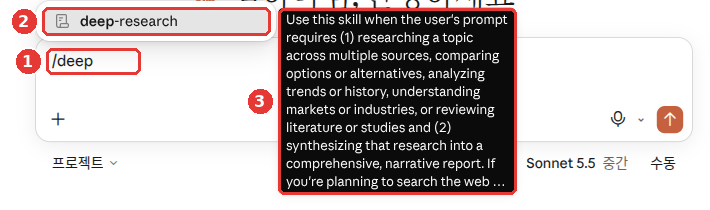
This is the free plan screen. ① Even when you type just /deep in the input box, ② "deep-research" pops up in the list. ③ Next to it is an English description of when to use the feature.[4:4] There was no "Research" in the "+" menu on a free account. Although the name showed up in the list, the help docs say Research is a paid plan feature.[6:4] So this guide has no screenshot of Research results. That is because we did not try sending one from a free account.
The more detailed your question, the better. Try putting in all five elements from Stage 1, Chapter 4.
Write a report comparing delivery app fees that a neighborhood side-dish shop can use.
- Audience: An owner running 1 shop
- What to compare: Brokerage fee, payment processing fee, advertising cost
- Format: A one-line conclusion at the very top, then a comparison table, and a list of sources at the end
- Prioritize 2026 materials, and mark any materials with unknown dates separately
The answer you get looks roughly like this (example — click to expand) (click to expand)
This is an example created for this guide. Actual answers vary by service and over time.
One-line conclusion: For an owner running 1 shop, App ○ is the best deal when you add up all three costs.
App Brokerage fee Payment fee Ad cost Source date App A ○% ○% From ○○ won/month Month ○, 2026 App B ○% ○% ○○ Date unknown Sources
- (Source link) — Month ○, Day ○, 2026
- (Source link) — Date unknown
Check if you got a good result: Did it come in the order of one-line conclusion → comparison table → source list? Are brokerage fees, payment fees, and ad costs all in the table? Did it prioritize 2026 materials and mark undated ones separately? For important numbers like fees, click the source links and check them yourself.
Research can take several minutes.[7] So spending time polishing your question before sending it is well worth it. If you are not sure what to ask, ask Claude in a regular chat first before turning on Research:[7:1]
I'm thinking about opening a small side-dish shop in my neighborhood. I want to investigate this using Research—help me refine what question I should ask. Also ask me about conditions I need to decide on, like budget, area, and timeframe.Try including conditions like budget, area, and timeframe.[7:2] Having conditions makes it easier for Research to find materials that fit your situation.
Good to Know
- It can use up your usage limit quickly. The limit is the same as regular chats. However, because it gathers multiple sources and writes a long answer, it uses up your limit faster.[6:5]
- If it does not seem to be using Research, tell it directly: "Claude, please use the research tool to..."[6:6]
- The model is fixed. Regardless of which model you picked, a specific model set for Research runs.[6:7]
The longer and more convincing a report looks, the easier it is to skip checking. Start with the numbers used in the conclusion and open the sources to verify them.
If you have connected other apps such as email or calendar (click to expand)
You can connect other apps such as email or calendar to Claude. Apps connected this way are called connectors (Chapter 7). If you have never connected one, you can skip this box.
- It also uses connected apps. If you have turned on connectors, it uses those tools automatically during Research without asking each time.[6:8]
- Starting on mobile searches only the web. It skips connectors without telling you separately. If you need materials from your connected apps too, start on the web or desktop.[6:9]
Quick check
You want to use Research to write a report comparing delivery app fees. What is a good thing to do before hitting send?
When to Use What
If you are unsure which feature to use, ask yourself before sending your question: "Can this be answered by looking it up once or twice? Does it need gathering multiple sources? Do I even need up-to-date information?"
Extended thinking is a feature that makes Claude think longer before answering. Where to turn it on is covered in Chapter 2.
You can choose among them like this:[8]
| In this case | What to pick | Example |
|---|---|---|
| One or two searches will give the answer | Web search | Weather, news, last night's game score |
| Needs deep reasoning without recent info | Extended thinking | Math problems, multi-angle analysis |
| Needs a report gathering multiple sources | Research | Comparing competing shops |
Research fits broad investigations that use tools five or more times over 1 to 3 minutes.[8:1]
If you turn on extended thinking and Research together, Claude plans its approach first and then gathers information broadly to produce a longer report.[8:2] The extended thinking toggle appears in the model menu depending on your plan and model (Chapter 2). If you see the toggle, leave it on and start Research. If you don't, using Research alone is fine.
Quick check
Which feature is the best fit for a question like "Who won last night's baseball game?"
Try It Yourself
- In a new chat, ask: "Search the web. Tell me about cultural events in my neighborhood this month." Write the name of your neighborhood directly.
- Open two of the sources attached to the answer yourself and check whether the event dates match the original text.
- Paste the address of an article you read recently and ask for a three-line summary.
- If you are on a paid plan, adapt the delivery app fee example above to fit your own work and send it with Research. Pick one number used in the conclusion of the report you get and find it in the source.
Continuing project (Preparing a Book Club): Ask "Search the web. Tell me how to reserve a seminar room at my neighborhood public library." Put in the name of your neighborhood directly. Open the sources yourself to check the operating hours and how to apply.
Summary
- Ask for up-to-date information with web search. It works on the free plan too.
- In the new interface, Claude searches on its own (in the older interface, "+" → "Web search (웹 검색)"). To make sure it searches, write "Search the web".
- If you paste an address, it reads that page. Long articles use up a lot of your usage limit.
- Even with citations attached, it can still be wrong. Open the link and check it against the original text.
- Hand off big questions to Research (paid). Start with
/deep-researchor "+" → "Research". - Use web search for simple facts, extended thinking for deep reasoning, and Research for gathering multiple sources.
Glossary
| Term | One-line meaning |
|---|---|
| Web Search | A feature where Claude finds up-to-date information on the internet to answer |
| Web Fetch | A feature that reads the content of a page from a pasted address |
| Citation | A label showing where the information in an answer came from |
| URL | The internet address attached to each web page |
| IP Address | A number assigned to each device connected to the internet; shows approximate location |
| Research | A feature that runs multiple searches in a row and organizes them into a report |
| Extended Thinking | A feature that makes Claude think longer before answering |
Finished this chapter?
Progress is saved only in this browser. See your progress on the full table of contents.
Next chapter: Chapter 7. Projects, Connectors, and Skills
References (8)
Anthropic Help Center, "Enable and use web search". "You can have Claude search the internet to provide you with up-to-date information and insights when using the following models:" / "A checkmark will appear next to “Web search” when it’s enabled." / "Note: If you have the new Claude experience, there's no web search toggle. Claude searches the web when it helps." / "If you want to ensure that Claude uses web search, include "Search the web" or "Use web search" in your prompt to Claude." / "Claude selects images from web search results, powered by Bing, and displays them alongside its text response." / "Every response includes citations, so you can easily verify sources yourself." / "Claude may use your location (inferred from your IP address) when responding to a request for localized results." support.claude.com (checked on 2026-10-26) ↩︎
Anthropic pricing page, Free plan description. "Search the web, create files, and run code" claude.com (checked on 2026-10-26) ↩︎
Anthropic Help Center, "Claude Cowork and chat are one Claude". "Web search: There's no web search toggle. Claude searches the web when it helps." / "Research: Type /deep-research, or click the “+” button below the chat input, then choose “Research.”" support.claude.com (checked on 2026-10-26) ↩︎
Verified directly on the Claude web interface (free plan, Korean). Input box "+" menu (no "Web search (웹 검색)" or "Research"), "Searched the web (웹 검색함)" label and source badges on an answer asked in incognito mode, www.museum.go.kr opening in a new tab when clicking the source, and "deep-research" appearing in the
/deeplist in the input box. (checked on 2026-10-27) ↩︎Anthropic Help Center, "Enable and use web search". "When “Web search” is toggled on, Claude can also retrieve content directly from web pages when provided with specific URLs." / "This can consume a significant portion of your usage limit, especially for lengthy content." / "As a free user, you have usage limits that reset every five hours." support.claude.com (checked on 2026-10-26) ↩︎
Anthropic Help Center, "Use research on Claude". "It runs multiple searches that build on each other and decides what to look into next based on what it finds." / "Research is available for users with paid Claude plans (Pro, Max, Team, or Enterprise) using Claude on the web, Claude Desktop, or Claude Mobile." / "Important: You must have web search turned on for research to function." / "Click the “+” button on the bottom left of your chat interface, then "Research." A blue indicator will appear on the bottom of the chat window." / "However, research sessions can use up your limits faster due to Claude retrieving multiple sources and providing comprehensive responses." / "In this case, you can steer and prompt Claude to use Research by saying “Claude, please use the research tool to…”" / "During research, Claude can use tools from your connectors automatically, without asking for approval each time." / "When you start research in Claude Mobile, Claude only searches the web and doesn’t use your connectors." / "Research runs on Claude Opus 5.5 and falls back to Claude Opus 4.8 when needed." support.claude.com (checked on 2026-10-26) ↩︎
Claude Academy "Claude 101" course, "Research for deep dives". "Include relevant constraints." / "a few minutes or more, depending on the question." / "If you're not sure how to frame your research question, you can even ask Claude to help you write a better Research prompt before enabling the feature." academy.claude.com (checked on 2026-10-26) ↩︎
Anthropic Help Center, "When should I use web search, extended thinking, and research?". "Web search is best for straightforward, factual queries that can be answered with one or two tool calls" / "Extended thinking shines when tackling complex reasoning tasks that don't require recent info from the web" / "Research is optimal for comprehensive information gathering requiring five or more tool calls over 1-3 minutes" / "Combining extended thinking with research allows Claude to both plan its approach thoughtfully and execute comprehensive information gathering" / "The research feature can synthesize information across multiple sources with proper citations and produces a longer final report." support.claude.com (checked on 2026-10-26) ↩︎