第8章 交代工作——任務、日程、Chrome 裡的 Gemini、安全守則
選讀 需要的時候再讀。跳過也能跟上後面的章節。一句話總結:需要多個步驟的事,請用輸入框下面的**「任務」(작업)交給它。想讓它在定好的時間自動執行,就設定日程**。 交代任務時,不要把登入·付款資訊寫進對話裡,要認真讀那些徵求許可的介面。 親自盯著,是最好的安全保障。
介面以 2026 年 10 月的網頁版為準,圖片是付費方案(Google AI Pro)的韓語介面。
任務——不是聊天,而是把整件事交出去
聊天是提問並拿到回答的地方。任務(Task)是把多步驟的事整件交出去的地方。[1] Gemini 會用已連線的應用、技能、過去的對話、我登入過的網站等資訊來處理工作(第7章)。[1:1]
幫助文件裡的例子是這樣的。[1:2]
- 總結或歸檔收件箱裡的新聞簡報,並在休假之後做出緊急待辦清單
- 機票·酒店價格降到預算以內時通知我
- 把附有出處的調查結果做成 PDF·文件·表格·演示資料檔案
要使用,必須同時滿足下面的條件。[1:3]
- 年滿 18 週歲,個人 Google 帳號(公司·學校帳號暫時不行)
- 訂閱 Google AI Pro 或 Ultra
- 「保留活動記錄」開啟,使用「個人智慧」(第5章)
- 只能在網頁、手機應用、Mac 應用上使用。這本指南使用的韓國帳號裡,「任務」是可以開啟的。[2][3]
開始任務
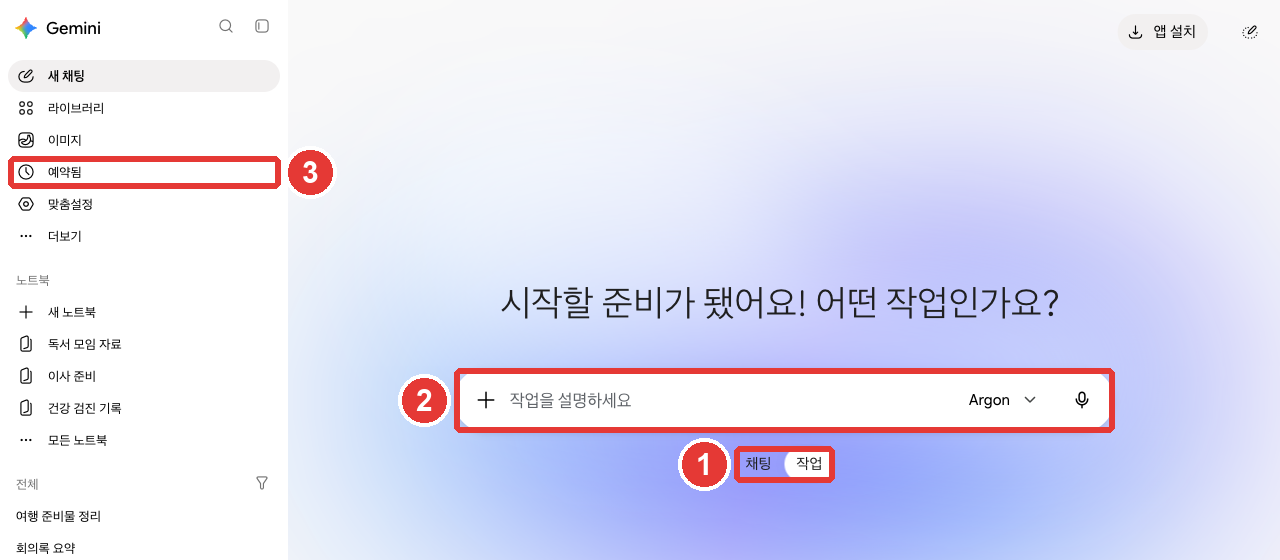
紅色編號和下面列表的編號是同一處。[2:1]
- ① 在輸入框下面的**「聊天」·「任務」**中點「任務」。
- ② 提示變成「描述任務」。寫下要交出去的事併發送。想一起使用技能,就用
@選擇,也可以附上檔案。[1:4] - ③ 設定了日程的任務,在側邊選單的**「已預約」**裡看(見下一節)。
第一次用,不知道該交什麼事的話,可以在任務輸入框裡寫**「採訪我」**。韓語版幫助文件說,輸入「設定」、「開始」、「採訪我」(설정、시작、물어봐 줘),它就會和你一邊對話,一邊一起做出第一個技能和任務。[1:5]
即使事情正在進行中,也可以在輸入框裡再寫指示來改變方向。已經做完的事會照舊繼續。[1:6]
把過去一週收到的郵件裡只挑出新聞簡報,把標題和一行核心內容整理成表格。
不要刪除或歸檔郵件,只給我看整理好的表格。像最後一行那樣,把不該做的事寫下來,有助於防止出現不想要的行為。
交出去的任務和側邊選單的對話列表顯示在一起,並用圖示告訴你進行狀態。[4] 任務也和聊天一樣會用掉用量。[1:7] 任務最多同時執行 15 個。 超過了就要等有任務結束。[1:8]
詳細說明(點選展開)
理解檢查
使用免費帳號的人,想用輸入框下方的「任務」來整理收件箱。會怎麼樣?
在定好的時間自動執行——日程
日程(Schedule)是讓 Gemini 在定好的時間自動做事的功能。[5] 有兩個名字相近的,請區分開。
| 聊天裡的日程 | 任務裡的日程 | |
|---|---|---|
| 作用 | 在固定時間收到摘要·訊息 | 在固定時間執行任務 |
| 需要的方案 | 條件裡沒有(正在逐步開放) | Google AI Pro·Ultra |
能開著的數量也有上限。聊天裡的日程最多 10 個,任務裡的日程最多 50 個。[6:1][5:2]
在聊天裡設定日程
通常在聊天裡把什麼時候、多久收一次一起寫上傳送就行。Gemini 會以日程摘要的形式回答。[6:2]
每天早上 7 點,幫我總結一下今天的天氣和上班路上值得了解的三條新聞。給任務設定日程
在任務裡,用三種方式決定時間。[5:3]
- 時間:一次、每小時、每天、每週、每月、每年
- 盯著 Gmail:來了符合條件的郵件時
- 盯著主題:新聞·金融·體育等主題出現新訊息時
「盯著」不適合非常緊急的事。 幫助文件舉的例子是「一放票就馬上告訴我」這類事。執行時間也不精確,只是大概的。[5:4]
在「已預約」裡管理
日程集中在側邊選單的**「已預約」**裡。這本指南的介面上有「測試版」標示、按狀態篩選的選單、「建立預約任務」按鈕。[2:2]
- 用「建立預約任務」親手建立的,只有時間日程。盯著郵件·主題的,要在任務對話裡用語言來建立。[5:5]
- 新的日程可以用「更多」 → 「立即執行」馬上試一下。[5:6]
- 長期沒有確認的日程,可能會自動暫停。介面上也出現了「部分未活動的預約任務已暫停」的提示。隨時可以重新開啟。[6:5][2:3]
理解檢查
想把「演出票放出來時馬上告訴我」這件事設成日程(持續關注)。按幫助文件,哪種說法是對的?
使用瀏覽器的任務和許可
購物、預訂旅行、預訂餐廳這類必須親自點選網站的事,也可以交出去。[1:10] 這時 Gemini 會使用兩種瀏覽器中的一種。[1:11]
- 我電腦裡的 Chrome:就是我現在在用的瀏覽器。
- 遠端瀏覽器:不在我的裝置上,而是在網路另一頭 Google 那邊的電腦(雲端,Cloud)上執行的 Gemini 專用瀏覽器。
| 我電腦裡的 Chrome | 遠端瀏覽器 | |
|---|---|---|
| 能進入的網站 | 包括我登入過的網站 | 在 Gemini 專用瀏覽器裡 |
| 使用的地方 | 只在電腦上 | 手機上只用這個 |
| 關掉裝置後 | 要開著 | 繼續進行 |
| 需要登入時 | — | 暫停,由我來接手 |
出處:Google 幫助文件[1:12]
用我電腦裡的 Chrome 做事時,如果關掉電腦,可能會轉到遠端瀏覽器上接著做。[1:13]
使用網路的任務預設每次都會先徵求確認。[1:14] 在設定裡改成「始終允許」,就會不問直接使用網路。[7]
徵求許可的介面
Gemini 在使用瀏覽器、修改應用裡的內容,或傳送可能敏感的資訊之前,會在任務對話裡徵求許可。[7:1] 可以選的回答是這樣的(幫助文件韓語版的名稱)。[7:2]
- 「不允許」:停下來。我拒絕的事,它不會換別的辦法再試。[1:15]
- 「允許一次」:只允許這一步。
- 「在此聊天中允許」:在這個任務對話結束之前一直允許。只出現在已連線的 Google 應用的操作上。
- 「始終允許」:在今後所有任務對話裡允許那個操作。點一次,設定就會改變,一直適用。
剛開始請只用**「允許一次」**。等習慣了它問的是什麼事,再放寬也不晚。
即使設成了「始終允許」,傳送訊息·購買·付款·提交網頁表單這類重要行為,仍會再次確認。 在傳送健康·金融·證件號碼之類的敏感資訊之前,也會停下來問你。[7:3][1:16] 想按應用分別改變許可方式,請進入「個性化設定」 → 「聯結器」,點應用,在「應用操作」旁邊選擇「始終允許」或「始終確認」。[7:4]
停下來並接手
如果 Gemini 做了你不喜歡的事,請馬上讓它停下來。在聊天裡點**「停止回答」,在瀏覽器裡點「親自控制」**。[1:17] 在需要輸入密碼或付款資訊的步驟,Gemini 會暫停,並請求你親自控制。[1:18]
任務設定
設定選單「任務設定」(第2章)裡有三項。[2:4][1:19]
| 專案 | 作用 |
|---|---|
| 「使用任務模式交付任務」 → 「停用」 | 關閉任務功能。上網記錄和遠端程式碼執行檔案會被刪除,日程會暫停(不會被刪除) |
| 「刪除遠端瀏覽器資料」 → 「刪除」 | 刪除遠端瀏覽器的 Cookie,並從網站退出登入 |
| 「刪除遠端程式碼執行資料」 → 「刪除」 | 刪除遠端電腦上留下的檔案等 |
出處:Gemini 網頁介面[2:5]
如果表裡的詞很陌生,可以這樣理解。
- Cookie:網站為了記住登入狀態之類的資訊,留在瀏覽器裡的小記錄。刪掉後,就會從那個網站退出登入。
- 遠端程式碼執行檔案·資料:看起來是 Gemini 在做事時,留在遠端電腦(Google 那邊的電腦)上的檔案。
即使關閉任務功能,已經建立的任務、對話、檔案也不會被刪除。[1:20]
理解檢查
任務進行中,Gemini 問「可以訪問這個網站嗎?」請求許可。這是第一次交給它的事,想謹慎一些。哪種回答最合適?
交出去之前——安全守則
任務是處於實驗階段的功能。幫助文件說,使用者親自盯著是最重要的安全保障。[1:21] 交出去之前,請遵守這五條。
- 不要把登入資訊、付款資訊、敏感資訊寫進任務對話裡。 需要的話,親自控制瀏覽器,直接輸入到網頁上。[1:22]
- 敏感的事不要設日程。 如果日程在我離線時執行,可能無法阻止它完成不想要的操作。[1:23]
- 認真讀徵求許可的介面和反過來問你的問題。 只交代可以放心交出去的事。[1:24]
- 小心第一次見到的網站·郵件裡的隱藏指示。 網頁或郵件裡可能藏著欺騙 AI 的句子。這叫作提示詞注入(Prompt injection,用隱藏的指示操縱 AI)。正在執行任務的 AI 如果讀到這樣的句子,可能會做出離譜的事,即使有安全保障,也無法攔住所有風險。[1:25][8]
- 把資料夾連線到 Mac 應用時,不要放入丟不起的檔案。 在 Mac 應用裡,可以把我電腦上的資料夾放進「已連線的資料夾」,讓任務使用。Gemini 只會看到放在這裡的資料夾·檔案。可是,Gemini 工作時刪除的檔案,可能無法找回。如果你不用 Mac 應用,這一條可以跳過。[9]
提示詞注入在第1階段也講過(第1階段第9章)。Google 也提醒,要小心不認識的人分享的 Gemini 對話或 Canvas 應用。[8:1]
理解檢查
據說任務在讀郵件時,可能被郵件裡隱藏的句子騙了,去做離譜的事。這種攻擊叫什麼?
Chrome 裡的 Gemini
在電腦的 Chrome 瀏覽器裡也可以喚出 Gemini。可以讓它總結你正在看的頁面、解釋難懂的概念,或者在頁面裡找答案。[10]
- 在電腦(Chromebook Plus·Mac·Windows)的最新版 Chrome 裡使用。[10:1] 只要年滿 18 週歲,支援地區列表裡有韓國,支援的語言裡也有韓語。[11]
- 必須登入 Chrome,在隱身模式下不能用。[10:2]
- 點 Chrome 上方的**「向 Gemini 提問」**,第一次要按照螢幕提示同意使用。[10:3]
- 預設會把當前標籤頁的內容發給 Gemini。在提問欄裡輸入
@還可以選擇其他標籤頁,最多可以一起傳送10 個開啟的標籤頁。[10:4] - 還沒有對所有人開放。正在分階段推送。[10:5]
- 代替你瀏覽網頁、一直做到加入購物車·預訂的自動瀏覽(auto browse),在韓國還不能用。[12]
這一節這本指南沒能在介面上確認,只是以幫助文件為依據寫的。
理解檢查
住在韓國的成年人想在電腦的 Chrome 裡使用 Gemini。哪種說法是對的?
親自試一試
- 點輸入框下面的「任務」,傳送「採訪我」,看看 Gemini 會建議什麼任務(付費方案)。
- 在聊天裡設定日程「每週一早上 8 點總結本週天氣」,在側邊選單的「已預約」裡確認後,用「更多」試著讓它暫停或刪除。
- 開啟設定 → 「任務設定」,讀一讀三個專案的名稱和說明(不用點選)。
- 在電腦的 Chrome 裡點「向 Gemini 提問」,讓它把你正在讀的一篇文章總結成三行。
連續任務(準備讀書會):設定一個日程「聚會前一天晚上 8 點,再告訴我一遍要準備的東西清單」。確認收到的清單和會議記錄裡要準備的東西是否一致,聚會結束後就把日程刪掉。
整理
- 「任務」是把多步驟的事整件交出去的地方。需要年滿 18 週歲·個人帳號·Google AI Pro 或 Ultra·「保留活動記錄」·「個人智慧」。最多同時執行 15 個。
- 日程有兩種。聊天日程最多開 10 個,任務日程最多開 50 個。在側邊選單的「已預約」裡管理。
- 使用網路的任務預設會徵求許可。剛開始只用「允許一次」,有異常就用「停止回答」或「親自控制」讓它停下來。
- 登入·付款資訊不要寫進對話,敏感的事不要設日程。小心隱藏的指示(提示詞注入),並盯著它執行的樣子。
- Chrome 裡的 Gemini 在電腦的最新版 Chrome 中,年滿 18 週歲的人在韓國也能用。正在分階段開放,所以可能還看不到。自動瀏覽目前只限美國。
術語整理
| 術語 | 中文名稱 | 一句話解釋 |
|---|---|---|
| Task | 任務 | 把多步驟的事整件交出去的功能 |
| Schedule | 日程 | 讓 Gemini 在定好的時間自動做事的設定 |
| Remote browser | 遠端瀏覽器 | 在雲端執行的 Gemini 專用瀏覽器 |
| Take control | 親自控制 | 我來接手 Gemini 正在使用的瀏覽器 |
| Prompt injection | 提示詞注入 | 在網頁·郵件裡藏下欺騙 AI 的指示的攻擊 |
| Auto browse | 自動瀏覽 | Chrome 裡的 Gemini 代替你瀏覽網頁的功能 |
這一章讀完了嗎?
學習記錄只儲存在這個瀏覽器中。整體進度可以在 全部目錄中檢視。
下一章:第9章. 個人資訊與安全
參考資料(12 則)
Google 幫助文件,《Manage your tasks & workflows in Gemini Apps》(韓語版《Gemini 앱에서 작업 및 워크플로 관리하기》). "Assign Gemini tasks to automate complex workflows and manage schedules for ongoing tasks." / "Save you money: Gemini can monitor and alert you when the prices of flights and hotels drop within your budget." / "Be 18 or over." / "Have a Google AI Pro or Ultra subscription. Learn how to upgrade." / "Have Keep Activity on." / "Opt in to Personal Intelligence." / "Available wherever Gemini Apps are supported, except in the European Economic Area, Nigeria, Switzerland, and the United Kingdom." / "Only available in the Gemini mobile app, the Gemini app on Mac, and the Gemini web app at gemini.google.com." / "Just enter “set up,” “get started,” or “interview me” in a task." 韓語版 "작업에 '설정', '시작' 또는 '물어봐 줘'를 입력하기만 하면 됩니다." / "If you close or turn off your device before the task is finished, or the device isn’t available, Gemini might use a remote browser to complete the task." / "Your schedules and tasks are paused and not deleted." / "직접 제어 모드: Gemini는 작업을 일시적으로 중지하고 사용자에게 브라우저를 '직접 제어'해 특정 유형의 정보(예: 비밀번호 또는 결제 세부정보) 입력 등 일부 작업을 직접 수행해 달라고 요청할 수 있습니다." / "Gemini updates its work without losing progress." / "You can have up to 15 tasks running at a given time." / "To interact with websites, Gemini can connect to the local Chrome browser on your desktop or use a separate remote browser in the cloud." / "If you use your local browser: Gemini has access to all the same sites that you do, including sites you’re signed into." / "If you use the remote browser: Gemini continues to work on your task even if you close your device, and only uses the remote browser on mobile devices. For certain steps, like signing in to a website, the task pauses until you take over and complete that step." / "After that, for every task that involves web browsing, Gemini will ask for confirmation first." / "Do not enter sign-in info, payment details, or info you may find sensitive directly into the task thread. If needed, take control of Gemini’s browser or the local browser. Then, enter relevant details directly on the webpage." / "If a schedule runs when you are offline, you may not be able to stop Gemini from completing an unintended action." / "Sending communications, modifying or deleting your data, making purchases, completing financial transactions, and filling out and submitting web forms." / "Gemini pauses and asks for your permission before it shares info you may find sensitive, such as your health information, financial details, or government ID numbers, with a website or connected app." / "If an AI agent reads these instructions while doing a task, it may be misled into doing unintended things." / "Deny or don’t allow an action: If you deny an action in a task thread, Gemini stops and doesn’t try another way to complete it." / "Gemini’s ability to handle tasks is experimental." / "Your active supervision is the most important way to protect against risk when you assign tasks to Gemini. Review confirmation requests and clarifying questions closely. Assign tasks to Gemini carefully and safely, and only give it tasks you're comfortable with." / "If Gemini is doing something you don't like, you can stop it by selecting Stop response in the chat or Take control over Gemini’s browser." / "Your tasks, threads, schedules, or any related files that Gemini updated or created will not be deleted." 韓語介面名稱 「대답 중지」「직접 제어」. support.google.com (確認日期 2026-10-31) ↩︎
在 Gemini 網頁介面(Google AI Pro,韓語)上親自確認。輸入框下面的「채팅」「작업」切換按鈕,點「작업」後標題 "시작할 준비가 됐어요! 어떤 작업인가요?" 和輸入框提示 "작업을 설명하세요"(幫助文件韓語版把按鈕叫作「할 일」)。側邊選單「예약됨」介面的「베타」標示、按狀態篩選的選單、「예약 작업 만들기」按鈕(幫助文件韓語版「예약된 작업 만들기」),提示 "비활성 상태의 일부 예약된 작업이 일시중지되었습니다"。設定 → 「작업 설정」介面的「작업 모드를 사용하여 작업 전달」(說明 "이 기능을 사용 중지하면 인터넷 사용 기록과 원격 코드 실행 파일이 삭제되고 예약된 작업이 중지됩니다",按鈕「사용 중지」)、「원격 브라우저 데이터 삭제」(說明 "쿠키가 삭제되고 웹사이트에서 로그아웃됩니다",按鈕「삭제」)、「원격 코드 실행 데이터 삭제」(按鈕「삭제」)。幫助文件寫的是在「設定 > 瀏覽器」裡刪除遠端瀏覽器資料,但這個介面的設定選單裡沒有「브라우저」。(確認日期 2026-10-31) ↩︎
歐洲經濟區·奈及利亞·瑞士·英國不能使用。出處是下面《Gemini 앱에서 작업 및 워크플로 관리하기》這份幫助文件。 ↩︎
Google 幫助文件,《Find & manage your tasks in Gemini Apps》(韓語版《Gemini 앱에서 할 일 확인 및 관리하기》). "Next to your task threads, check the icon for the progress of your tasks." / "Tasks are only listed in the side bar if you have Keep Activity on." / "If you delete a task thread, it also deletes the following:" support.google.com (確認日期 2026-10-31) ↩︎
Google 幫助文件,《Create & manage schedules for tasks in Gemini》(韓語版《Gemini에서 작업 일정 만들기 및 관리하기》). "A schedule acts as the automated trigger for a task, telling Gemini exactly when to step in and execute your instructions." / "Time-based: schedule tasks to run once, hourly, daily, weekly, monthly, or yearly." / "While Gemini has improved at monitoring and responding to events more quickly, monitors are still not ideal for tracking fast-moving data or performing time-critical tasks like “Let me know when tickets go on sale immediately so I can buy it.”" / "The option to create a schedule manually is only available for time-based schedules." / "Tip: To test your new schedule, hover over the schedule, then click More Run now ." / "Active schedules limit reached: The current limit for how many active schedules you can have for tasks is 50." / "Schedule run times vary: Scheduled tasks run times are approximate and may not run at the exact moment a time or event condition is met." support.google.com (確認日期 2026-10-31) ↩︎
Google 幫助文件,《Schedules in Gemini Apps》(韓語版《Gemini 앱의 일정》). "You can set a delivery time that works for your schedule. Gemini will prepare your content in the background so it’s ready by the scheduled time." / "Important: We’re gradually making this feature available to all personal Google Accounts, so it might not be available to you just yet." / "Have Keep Activity on. This feature isn't available when this setting is off." / "Important: You can have up to 10 active schedules at a time." / "If you aren’t receiving responses for a schedule, it may have been automatically turned off due to inactivity. You can turn the schedule on again at any time." / "Tip: In your prompt, provide details about when and how often you want to schedule the action." / "Responses for schedules are prepared in advance to guarantee timely delivery. As a result, rapidly changing data, like stock prices, won’t be the latest when you receive them. Schedules work best for daily summaries and wrap-ups." support.google.com (確認日期 2026-10-31) ↩︎
Google 幫助文件,《Manage browser & app permissions for tasks in Gemini》(韓語版《Gemini에서 작업에 대한 브라우저 및 앱 권한 관리하기》). "Gemini is designed to ask for your permission in the task thread before it uses a browser, makes a change in an app, or performs an action or shares info that you may find sensitive." / "Allow for this chat: Approves the action automatically for the rest of the current thread without changing your Connected Apps settings." / "This option is only available for connected Google products." / "Always allow: Gemini uses the web without asking." / "Always allow: Approves the action for the current thread and all future task threads. Selecting this automatically updates your preference to “Always allow” in your settings." / "Under “App actions,” next to the action, click the dropdown and select your permission preference:" / "To help prevent unintended actions and protect your data, Gemini is designed to apply built-in safeguards that confirm some actions with you even if you set a permission to “Always allow.”" 韓語版 선택지 이름 「허용 안함」「한 번 허용」「이 채팅에 허용」「항상 허용」「항상 확인」. support.google.com (確認日期 2026-10-31) ↩︎
Google 幫助文件,《How Gemini Apps help protect users from malicious content & prompt injection》(韓語版《Gemini 앱이 악성 콘텐츠 및 프롬프트 인젝션으로부터 사용자를 보호하는 방법》). "Prompt injection is an attempt to elicit an unintended or harmful response from generative AI tools." / "Use caution when interacting with shared content, like public Gemini Apps chats or Gemini Canvas web apps, from unknown providers" support.google.com (確認日期 2026-10-31) ↩︎
Google 幫助文件,《Assign tasks in the Gemini app on Mac》(韓語版《Mac의 Gemini 앱에서 작업 할당하기》). "Gemini can only view files or directories that you specifically add to the Connected folders toolbar." / "Don’t include any files that you don’t want Gemini to work with or which are too sensitive to lose. You may not be able to recover files once Gemini completes a task for them or is instructed to delete them." support.google.com (確認日期 2026-10-31) ↩︎
Google 幫助文件,《Use Gemini in Chrome》(韓語版《Chrome의 Gemini 사용하기》). "With Gemini in Chrome, you can get AI assistance in your browser to easily get key takeaways, clarify concepts, find answers and more." / "Important: Gemini in Chrome is not available to all users at this time." / "On a computer, you can also share up to 10 open tabs with Gemini." / "Use a Chromebook Plus, Mac, or Windows computer." / "Use the latest version of Chrome." / "Sign in to Chrome. This feature isn’t available in Incognito mode." / "You’ll need to opt in the first time you use Gemini in Chrome. To opt in, follow the onscreen instructions." / "To add an open tab directly in your prompt, enter @ and select the tab. You can also share up to 10 of your open tabs." 韓語版 버튼 이름 「Gemini에게 물어보기」. support.google.com (確認日期 2026-10-31) ↩︎
Google 幫助文件,《Gemini in Chrome availability》(韓語版《Chrome의 Gemini 사용 가능 여부》). "For users 18 or older, Gemini in Chrome is available in the following locales:" (列表中包含 "South Korea",支援語言列表中包含 "Korean")support.google.com (確認日期 2026-10-31) ↩︎
自動瀏覽只有在美國的年滿 18 週歲的人才能用。Google 幫助文件, 《Ask Gemini in Chrome to complete tasks for you with auto browse》(韓語版《Chrome의 Gemini에게 자동 탐색을 사용하여 작업을 완료하도록 요청하기》). "Be 18 or over and in the US." support.google.com (確認日期 2026-10-31) ↩︎