第7章 技能与已连接的应用 — 保存常做的请求,接着用 Google 应用
选读 需要的时候再读。跳过也能跟上后面的章节。一句话总结:每次都要写很长的请求,请保存成技能,用
/调出来用。现在在用的 Gems(放进指令做成的、我自己的 Gemini)从 2026年11月17日起会变成技能。 想问 Gmail·Drive·日历里的内容,就打开已连接的应用。连接之前,请先了解哪些信息会送到 Gemini 那里。
界面以 2026年10月的网页版为准,截图是付费套餐(Google AI Pro)的韩语界面。
技能 — 把常做的请求保存起来
技能(Skill)是做一次就能在任何聊天里重复使用的已保存指令。[1][2] 比如,“收到会议纪要,就按决定事项·待办事项·负责人的顺序整理”这个请求,如果你每周都要用,就保存成技能,以后只要叫它的名字就行。
技能有这些特点。[2:1]
- 容易调出来用。 在聊天输入框里输入
/,选择技能名称。[3] - 也会自动使用。 如果有适合当前问题的技能,Gemini 会识别并应用。
- 可以叠加使用。 一场聊天里可以同时用多个技能。
技能不需要付费套餐,可以在网页、手机应用、Mac 应用里使用。[1:1] 条件有三个。[1:2]
- 年满 18 周岁
- 登录
- 打开「保存活动记录(활동 기록 보관)」(把对话记录保存在我的账号里的设置,第9章)
打开技能界面
到侧边菜单「个性化(맞춤설정)」→ 上方的「技能(스킬)」标签页。如果看不到「个性化」,请先点「更多(더보기)」。[1:3][4] 也可以从设置菜单里的「技能」进入(第2章)。
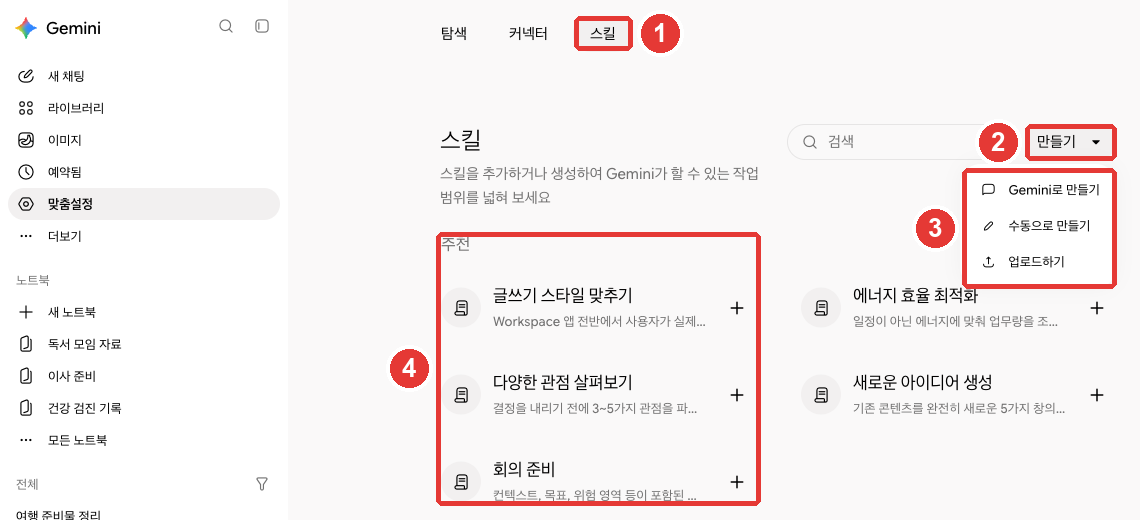
红色编号和下面列表里的编号是同一个位置。[4:1]
- ① 是「技能」标签页。提示语是“添加或创建技能,扩大 Gemini 能做的事情的范围”。
- ② 点「创建」,会出现 ③ 三种创建方式。
- 「用 Gemini 创建(Gemini로 만들기)」:用对话说明想要什么,Gemini 会和你一起做。如果是第一次,这个最容易。
- 「手动创建(수동으로 만들기)」:在空白表单里亲自写下名称·说明·指令。
- 「上传(업로드하기)」:上传技能文件(
SKILL.md)或装有该文件的文件夹。用于把其他服务做的技能带过来(仅限网页和 Mac 应用)。[2:2]
- ④ 是 Google 预先做好的推荐技能。 点「+」添加之后,也可以改成适合自己的样子来用。[1:4]
在聊天里说一句“请用这样的指令帮我创建一个技能”,也能创建。不过,打开·关闭·删除只能在「个性化」→「技能」里做。[1:5]
管理技能
在技能界面选中一个技能,再点「更多」就行。[1:6]
| 想做的事 | 菜单 |
|---|---|
| 暂时不用 | 「停用(비활성화)」 |
| 边对话边修改 | 「用 Gemini 修改(Gemini로 수정)」 |
| 保存到我的电脑 | 「下载(다운로드)」(.zip 文件) |
| 删除 | 「删除(삭제)」 — 无法恢复 |
出处:Google 帮助文档[1:7]
让它用一个已经关掉的技能时,Gemini 会问是否要重新打开。[1:8] 技能想做多少个都行。[5]
技能并不是和所有功能都能一起用。它可以和 Gmail·Drive 这类已连接的应用一起用,但目前还不能和 Canvas·Deep Research·视频·音乐创作·引导式学习一起用。[2:3]
理解检查
你每周都要冗长地请它把会议记录整理成同样的格式。想把这个请求保存下来,在任何聊天里都能调出来用,该用什么?
怎样写好技能
技能请当作简短的摘要便条来写,而不是长篇说明书。[6] Gemini 会先只看技能的名称和说明,判断它是否适合当前的问题。只有适合时,才会读完整的指令。[6:1] 所以,如果名称和说明含糊,需要的时候技能就不会被用上。
值得做的事,不必做的事
| 适合做成技能的事 | 不必做成技能的事 |
|---|---|
| 总是重复写同样的长请求 | 只做一次的事 |
| 每次都要修改答案的格式 | Gemini 本来就做得好的事 |
| 要靠手工在多个应用之间来回衔接 | 规则经常变的事 |
出处:Google 帮助文档[6:2]
写名称·说明·指令
- 名称以要做的事(动词)开头。 要写得让人看出它做什么,而不是它是什么。[6:3] 名称用英文小写,单词之间用连字符(-)连接(例:
summarize-meeting-notes)。[1:9] - 说明写 1~2 句话,并写明什么时候用。 不能超过 1,024 个字符。[6:4]
- 指令要写成适用于一类事,而不是一件事。 比如,不是针对“整理本周会议纪要”,而是针对“整理会议纪要”来写。[6:5]
- 用例子展示结果的样子,并写明缺少信息时怎么办。 这样 Gemini 编造或跳过没有的内容的情况就会减少。[6:6]
比较一下不够好的例子和更好的例子。
| 不够好的例子 | 更好的例子 | |
|---|---|---|
| 名称 | meeting-helper | summarize-meeting-notes |
| 说明 | 帮忙处理会议 | 收到会议纪要,就整理成决定事项·待办事项·负责人。在粘贴了会议纪要或会议备忘时使用 |
更好的例子,光看名称就知道做什么,说明里还有什么时候用。
在「手动创建」的指令栏里,可以这样写。
收到会议纪要,就按下面的顺序整理。
1. 已决定的事(每条一行)
2. 待办事项(待办事项 - 负责人 - 截止日期)
3. 下次会议时要再看的事
如果会议纪要里没有负责人或截止日期,不要编造,请写“需核实”。
不需要一开始就完美。用几次,再用「用 Gemini 修改」打磨就行。
理解检查
你创建了技能,但在需要的时候 Gemini 不太用它。最先该改哪里?
Gems 会变成技能
Gems 曾经是放进名称·指令·参考文件做成的我自己的 Gemini。 它在侧边菜单「更多」→「Gems」里。[7][4:2] 这个 Gems 会变成技能。 个人 Google 账号(年满 18 周岁)的时间安排如下。[2:4]
| 日期 | 会发生什么 |
|---|---|
| 2026年11月17日 | Gems 变成只读。可以看,但不能写、不能改、不能新建 |
| 2026年12月17日 | Gems 从 Gemini 里消失 |
出处:Google 帮助文档[2:5]
Gems 消失时,会自动重新做成技能。[2:6] 不过,自己先搬过去会更放心。
详细说明(点击展开)
自动迁移时会丢掉的东西
自动转换时,有些文件会丢掉。[2:9]
- 文件大小合计超过 100MB 时,从最大的文件开始丢掉。
- 技能不支持的文件(旧版 Office 文件 .doc·.xls·.ppt、音频·视频、.zip 这类压缩文件等)不会转移过去。
所以如果有舍不得的 Gem,请在 12月17日之前,把放进「知识(지식)」的文件下载下来。[2:10]
自己迁移的顺序
- 打开 Gem,把「知识」里的文件一个一个打开并下载。[2:11]
- 在「个性化」→「技能」→「创建」→「手动创建」里,把 Gem 的名称·说明·指令复制粘贴过去。[2:12][4:3]
- 想连文件一起搬过去,就按下面这样做。如果只搬指令就够了,这一步可以跳过。[2:13]
- 把刚做好的技能「下载」下来。会得到一个 .zip 文件(把多个文件打包成一个的压缩文件)。
- 打开 .zip 文件,里面有
SKILL.md。 - 把
SKILL.md移到装着第 1 步下载的 Gem 文件的文件夹里。文件夹名称必须和技能名称一致(例如summarize-meeting-notes)。 - 回到技能界面,在同一个技能旁边点「更多选项(옵션 더보기)」→「替换技能(스킬 바꾸기)」,把那个文件夹上传。
和 Gems 不同,技能没有“用这个技能聊过的对话”列表页面。 用过技能的对话,也混在侧边菜单的普通对话列表里。[2:14] 据说 Gems 的分享、放入 Drive 文件·笔记本的功能,会在“未来几周内”也加到技能里。[2:15]
理解检查
你用个人账号(25 岁)在用一个喜欢的 Gem。过了 2026 年 12 月 17 日,这个 Gem 会怎样?
已连接的应用 — 在 Gemini 里用 Gmail·Drive·日历
打开已连接的应用(Connected Apps)后,Gemini 会查找我的 Gmail·Drive·日历这类应用里的内容来回答。得到允许的话,还会帮忙修改或管理那些应用里的内容。[8] 比如可以这样问:“帮我找一封上个月收到的、告知读书会地点的邮件。”
已连接的应用界面
在侧边菜单「个性化」→「连接器(커넥터)」标签页里查看。[8:1][4:4]
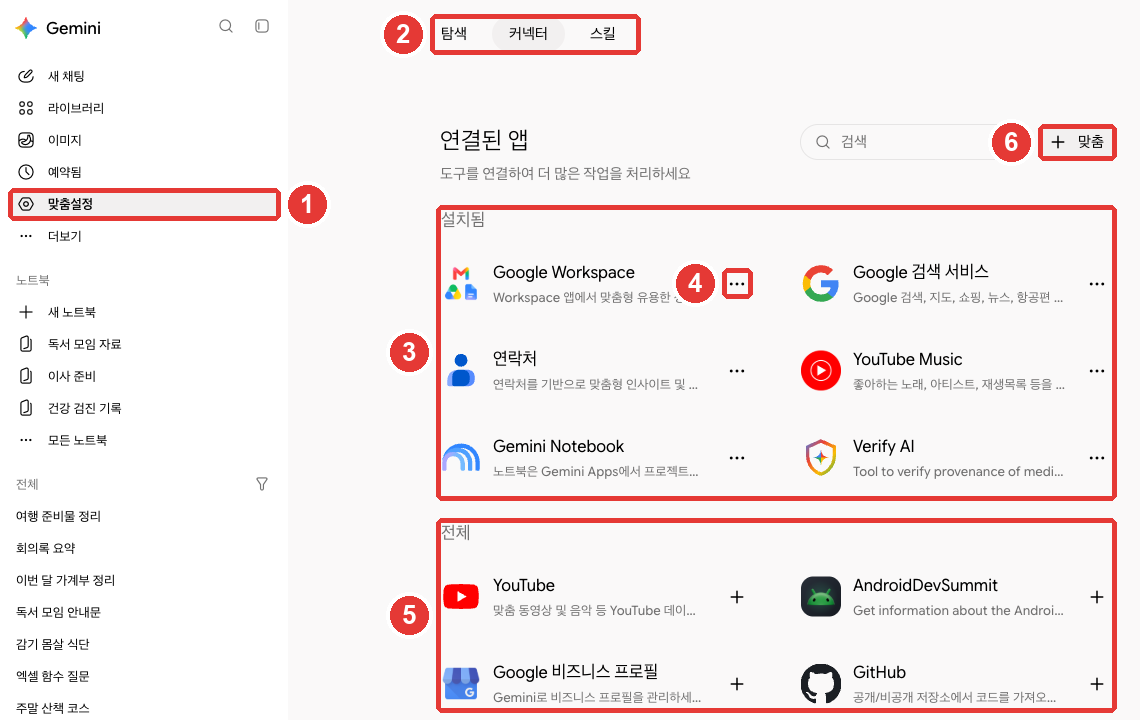
红色编号和下面列表里的编号是同一个位置。[4:5]
- ① 点侧边菜单「个性化」,② 选择「连接器」标签页。标题是「已连接的应用(연결된 앱)」。
- ③ **「已安装」**是已经连接的应用。在本指南使用的账号里,看到的是 Google Workspace·Google 搜索服务·联系人·YouTube Music·Gemini Notebook·Verify AI。
- ④ 点三个点,会出现「立即使用(지금 사용)」和「断开连接(연결 해제)」。
- ⑤ **「全部」**是还可以再连接的应用。用「+」连接。
- ⑥「+ 自定义(+ 맞춤)」看起来是把列表里没有的其他公司服务直接接上的菜单。只有在美国的用户才能用[9],所以初学阶段不用也没关系。
点应用名称,会打开详情界面。上面会写着能做什么、不能做什么,还有示例问题。[8:2] 连接一个「Google Workspace」,就能一起用 Gmail·Google Calendar·Docs·Drive·Keep·Tasks。[10][4:6]
看到的应用因人而异。 设备、国家、Gemini 应用的种类不同,列表也不同。[8:3]
先确认的两项设置
- 「保存活动记录」必须是开着的。 如果关着,在网页上就用不了已连接的应用。[8:4] 这项设置会在第9章里详细讲。
- Gmail 设置里的「其他 Google 产品中的智能功能(다른 Google 제품의 스마트 기능)」必须是开着的,Workspace 才能连接。连接不上时,先确认这一项,打开之后刷新 Gemini 再重新连接。[10:1]
好好提问的要领
- 每开一场新对话,都要说明去哪个应用里找。 比如“在邮件里”“在 Drive 里”“在日历里”。同一场对话的下一个问题里,就不用再说了。[10:2]
- 在输入框里输入
@并选择应用,就能准确指定要用哪个应用。[8:5] - 不要粘贴文档或邮件的地址(URL)。 而是写上内容里的词和应用名称。[10:3]
| 不够好的提问 | 更好的提问 |
|---|---|
| “总结一下这个文档(粘贴地址)” | “在 Drive 里找‘读书会章程’这份文档,只总结会费规定” |
更好的提问里,应用名称和要找的词都有了,所以 Gemini 选错文件的情况就会减少。
答案一定要核实。 它可能给出错误或过时的答案,比如明明有更新的邮件,却以旧邮件为依据回答。请点答案后面的来源,打开原来的邮件·文件看看。[10:4]
也有做不到的事
即使连接了 Workspace,下面这些事也做不到。[10:5]
- 读取 Docs·Gmail 里的批注和图片
- 读取 Drive 里的照片和视频
- 在 Drive 里创建文件夹、移动文件
- 统计 Drive 或 Gmail 里的项目数量,告知存储空间
不连接也能用的公开信息
Google 搜索、YouTube、Google 地图、机票·酒店的公开信息,不用另外连接,Gemini 也会用。没有我的许可,它不会打开我的个人信息。[8:6]
- YouTube:可以找到符合主题的视频,并询问视频内容。但不能保存到播放列表或发评论。[11]
- 地图:查找地点,并按交通方式获得路线指引。[12]
- 机票·酒店:帮你找到符合条件的机票和酒店。不会替你预订。[13]
搜索的公开信息,即使「保存活动记录」关着也能用,但地图·YouTube·机票·酒店需要它开着。[8:7]
当前使用的设备列表里没有的应用,在那台设备上就用不了。[8:8][14]
理解检查
连接 Google Workspace 之后,想让它总结 Drive 里的文档。哪种问法效果更好?
连接之前要知道的隐私事项
连接很方便,但是我的邮件和文件内容有一部分会送到 Gemini 那里。 连接之前请先了解下面这些。[15]
- 可能混有敏感内容。 已连接应用的数据里,可能含有健康·宗教这类敏感内容或机密。今后那个应用里新产生的数据,Gemini 也可能看到。
- 有一部分人可以看到。 已连接应用的数据中有一部分,会由人工审核员(包括受过培训的外部公司员工)查看。所以 Google 亲自提醒:含有审核员看到会让你为难的机密的应用,不要连接。
- 关于训练的说明如下。
- 不会直接用 Gmail 收件箱或 Drive 本身来训练 AI 模型。
- 但是,会用生成回答时用到的摘要·摘录·推断来训练。比如你问“帮我找一封告知读书会地点的邮件”,为了生成回答而提取出的那封邮件的摘要,就属于这一类。
- 如果邮件或文件很短,那份摘要有可能就是原文。
- 当「保存活动记录」开着时,混有已连接应用数据的活动,会用于包括 AI 训练在内的服务改进。
- 即使断开连接,对话记录也会留下。 即使断开应用连接,或删除那个应用的数据,「Gemini 应用活动」里的记录也不会被删除。记录需要另外删除(第9章)。
对于公司邮件,或者含有很多别人信息的 Drive,一开始就不连接是最简单的办法。只在需要的时候把需要的文件上传上去也行(第4章)。
理解检查
你把 Gmail 连接到 Gemini 使用过,后来断开了连接。这期间和 Gemini 的对话记录会怎样?
亲手试一试
- 在「个性化」→「技能」里添加一个像「从多种视角看问题」这样的推荐技能,在聊天里输入
/调出来用用看。 - 用「手动创建」做出这一章的会议纪要整理技能,粘贴练习用的会议备忘,确认结果。故意去掉负责人,看看会不会出现“需核实”。
- 如果你一直在用 Gems,就先把「知识」文件下载下来,再亲手把最舍不得的一个 Gem 迁移成技能。
- 在「连接器」标签页里确认我的账号连接了哪些应用,不需要的应用,用三个点 →「断开连接」断掉。
连续任务(准备读书会):用任务里的会议纪要示例来试验第 2 项的技能。亲自核对整理出的待办事项和负责人,和会议纪要是否一致。
小结
- 技能是保存起来、用
/(很快改成@)调出来用的指令。需要年满 18 周岁、登录、「保存活动记录」,不需要付费套餐。 - 在「个性化」→「技能」→「创建」里,用「用 Gemini 创建」·「手动创建」·「上传」来创建。打开、关闭、删除只能在这个界面里做。
- 好的技能很简短,名称以要做的事开头,说明里写明什么时候用。
- Gems 在 2026年11月17日变成只读,12月17日消失,并自动转换成技能。舍不得的 Gem,要提前下载它的文件。
- 已连接的应用在「个性化」→「连接器」里管理。每开新对话都要说明去哪个应用里找,答案用来源来核实。
- 已连接应用的数据有一部分会被人看到。含有机密的应用不要连接。即使断开连接,对话记录也要另外删除。
术语整理
| 术语 | 中文名称 | 一句话解释 |
|---|---|---|
| Skill | 技能 | 保存起来、在任何聊天里重复使用的指令 |
| SKILL.md | SKILL.md 文件 | 装着技能的名称·说明·指令的文件 |
| Gem | Gem | 放进指令·文件做成的、我自己的 Gemini。正在变成技能 |
| Connected Apps | 已连接的应用 | 把 Gmail·Drive 这类应用和 Gemini 连起来用的功能 |
| Connector | 连接器 | 管理已连接的应用的标签页名称 |
| Google Workspace | Google Workspace | Gmail·Docs·Drive·日历等 Google 办公应用的合集 |
| Human reviewer | 人工审核员 | 为改进服务而阅读一部分对话的人 |
这一章读完了吗?
学习记录只保存在这个浏览器中。整体进度可以在 全部目录中查看。
下一章:第8章. 把事情交给它做
参考资料(15 条)
Google 帮助文档,《Create & manage skills for Gemini Apps》(韩语版《Gemini 앱에서 스킬 만들기 및 관리하기》)。"Be 18 or over." / "Have Keep Activity on." / "Important: For now, skills are only available in the Gemini mobile app, the Gemini app on Mac, and the Gemini web app at gemini.google.com." / "Tip: Skills are available without a Google AI subscription and can be used in your chats." / "If you don’t find “Customize,” first click More ." / "On the Skills page, you can create a skill with help from Gemini, build one from a prefilled or blank template, or upload a skill file or a folder with a SKILL.md file and optional supported reference files." / "Tip: You can’t activate, deactivate, or delete a skill from a chat or task thread." / "Naming convention: The skill name inside SKILL.md must use all lowercase with words separated by a hyphen (such as my-new-skill)." / "If a skill is off and you ask Gemini to use it, Gemini will ask you if you want to turn it back on." / "Important: If you delete a skill, it can’t be undone." / "Click More Download . This downloads your skill in a .zip file." 韩语界面名称:「비활성화」「Gemini로 수정」「다운로드」「삭제」。 support.google.com (确认日期 2026-10-31) ↩︎
Google 帮助文档,《About the transition from Gems to skills》(韩语版《Gems에서 스킬로의 전환에 관한 정보》)。"Skills are reusable custom instructions that can help you automate tasks and save time in Gemini." / "Easy access: Use a skill by typing / (soon to be @) followed by the skill's name directly in any Gemini chat." / "Automatic use: Gemini automatically recognizes when a skill is relevant to your current prompt and applies it for you." / "Stackable: Combine multiple skills in a single chat to handle more complex tasks." / "You can create as many skills as you want, but only 100 can be active at a time." / "For now, the option to upload files to create skills is only available in the Gemini app on Mac and in the Gemini web app at gemini.google.com." / "Skills work with some but not all features. You can use them with Connected Apps like Workspace apps, but they do not yet work with features like Canvas and Deep Research." / "November 17, 2026: Gems transition to skills and become read only. You can still access your Gems, but can’t use or edit them, or create new ones." / "December 17, 2026: Gems are removed from Gemini Apps. You’ll no longer be able to access your Gems." / "If you’re under 18 and signed in to a personal Google account, your Gems will transition to skills at a later date. We’ll share more details soon." / "March 2027: Workspace business, enterprise, and non-profit accounts." / "June 2027: Workspace education accounts." / "As part of this change, Opal, our experiment for building mini apps, as well as Gems by Google Labs, will also go away at the same time in November." / "When we remove Gems, we’ll automatically recreate your Gems as skills." / "Skills have a 100 MB total size limit for files. If your Gem is larger than this when we transition it to a skill, we automatically remove the largest files first until it’s under the limit." / "Some file types are not supported in skills. When we transition your Gems to skills, these unsupported file types will not be included:" / "If the Gem has files under “Knowledge,” download your files." / "Copy and paste the name, description, and instructions from your Gem to your skill." / "On your computer, open the .zip file and move the SKILL.md file into the folder with your Gem files." / "Important: The name of the folder must match the name of the skill." / "Go back to the Skills page, and next to the same skill, click More options Replace skill ." 韩语版名称:「옵션 더보기」「스킬 바꾸기」。 / "Unlike Gems, skills don’t have a dedicated page that lists your recent chats with that skill." / "In the coming weeks, skills will have the features you loved in Gems, including the ability to share them with others and add files from Google Drive and notebooks from Gemini Notebook." support.google.com (确认日期 2026-10-31) ↩︎
帮助文档说
/很快会改成@。请用屏幕上看到的那个。出处是下面《Gems 转换为技能》的帮助文档。 ↩︎在 Gemini 网页界面(Google AI Pro,韩语)里亲自确认。侧边菜单「新聊天(새 채팅)」「资料库(라이브러리)」「图片(이미지)」「已安排(예약됨)」「个性化(맞춤설정)」「更多(더보기)」(展开后有「视频(동영상)」「Gems」)。「个性化」上方的标签页「探索(탐색)」「连接器(커넥터)」「技能(스킬)」。「技能」标签页的提示语 "스킬을 추가하거나 생성하여 Gemini가 할 수 있는 작업 범위를 넓혀 보세요"(添加或创建技能,扩大 Gemini 能做的事情的范围),「创建(만들기)」菜单「用 Gemini 创建(Gemini로 만들기)」「手动创建(수동으로 만들기)」「上传(업로드하기)」,「推荐(추천)」技能「匹配写作风格(글쓰기 스타일 맞추기)」「优化能源效率(에너지 효율 최적화)」「从多种视角看问题(다양한 관점 살펴보기)」「产生新想法(새로운 아이디어 생성)」「会议准备(회의 준비)」。「连接器」标签页的标题「已连接的应用(연결된 앱)」,提示语 "도구를 연결하여 더 많은 작업을 처리하세요"(连接工具,处理更多工作),「搜索(검색)」栏和「+ 自定义(+ 맞춤)」按钮,「已安装(설치됨)」Google Workspace·Google 搜索服务·联系人·YouTube Music·Gemini Notebook·Verify AI,「全部(전체)」YouTube·AndroidDevSummit·Google 商家资料·GitHub。已安装应用的三点菜单「立即使用(지금 사용)」「断开连接(연결 해제)」。「Google Workspace」详情界面的应用列表 Gmail·Google Calendar·Google Docs·Google Drive·Google Keep·Google Tasks。帮助文档里 Gems 知识文件栏的名称,在韩语版是「지식」。(确认日期 2026-10-31) ↩︎
不过,能同时开着的最多 100 个。 出处是下面《Gems 转换为技能》的帮助文档。 ↩︎
Google 帮助文档,《Write effective skills for Gemini Apps》(韩语版《Gemini 앱을 위한 효과적인 스킬 작성하기》)。"Keep your skills short and focused. Instead of long paragraphs of general explanation, focus on:" / "Check if a skill is relevant. Gemini only checks the skill’s name and description to determine if a skill is relevant for your task." / "Repeat prompts: You give Gemini the same instructions over and over, especially for complex tasks with long prompts." / "A one-off job: You only need to do it once and won't repeat it." / "Start with an action statement, or verb. Focus on what the skill does, not what it is." / "Keep the description focused. Make it as clear as possible and within the 1024 character limit." / "Instead of giving instructions that only apply to a specific task, give instructions that teach Gemini how to handle a type of task." / "Tell Gemini exactly what to do if a piece of information is missing. This prevents Gemini from making up or skipping important details." support.google.com (确认日期 2026-10-31) ↩︎
Google 帮助文档,《Use Gems in Gemini Apps》(韩语版《Gemini 앱에서 Gems 사용하기》)。"Enter a name and instructions for your Gem." support.google.com (确认日期 2026-10-31) ↩︎
Google 帮助文档,《Use & manage Connected Apps in Gemini》(韩语版《Gemini에서 연결된 앱 사용 및 관리하기》)。"With your permission, Gemini can also help you take actions, like editing and managing your content in other apps." / "When Keep Activity is off, Connected Apps won’t be available on gemini.google.com, iOS devices, or smart watches." / "To specify an app for Gemini to use, enter @ and select the app." / "At the top, click Connectors." / "On the app’s details page, you can find a connected app’s full description, supported and unsupported actions, and example prompts." / "The apps in Connected Apps settings vary by Gemini app, device, country, and more." / "Gemini won’t access your personal information or content in these services without your permission." / "Gemini can always use public information from Google Search, even if Keep Activity is off or you’re signed out." support.google.com (确认日期 2026-10-31) ↩︎
Google 帮助文档,《Connect & manage custom apps for Gemini Apps》。"Be 18 or over and in the US." / "Google does not control, monitor, or secure third-party MCP servers. You’re responsible for supervising the MCP server." support.google.com (确认日期 2026-10-31) ↩︎
Google 帮助文档,《Connect the Google Workspace app to Gemini Apps》(韩语版《Google Workspace 앱을 Gemini 앱에 연결하기》)。"For Gemini Apps to connect with Google Workspace, Smart features in other Google products must be turned on in your Gmail settings." / "Tip: Don’t paste the URL of a document or email in your prompt." / "For every new conversation, ask the Gemini app to get or add something from your personal Google Workspace explicitly." / "Gemini Apps can hallucinate responses or provide outdated information, like from an older email when there’s a more recent one." / "Access comments or images in Docs or Gmail" / "Access pictures and videos in your Drive" / "Manage content in your Drive, like create folders or move content between folders" / "Count items in your Drive or Gmail or tell you how much Drive or Gmail storage you have" support.google.com (确认日期 2026-10-31) ↩︎
Google 帮助文档,《Find & ask about YouTube content in Gemini Apps》(韩语版《Gemini 앱에서 YouTube 콘텐츠를 찾고 질문하기》)。"Gemini uses public information from YouTube to help you:" / "Take actions that impact your YouTube experience, like saving a video to a playlist or adding a comment on a video." support.google.com (确认日期 2026-10-31) ↩︎
Google 帮助文档,《Find places & get directions in Gemini Apps》(韩语版《Gemini 앱에서 장소 및 경로 찾기》)。"Get directions based on mode of transport and help you avoid things like tolls" support.google.com (确认日期 2026-10-31) ↩︎
Google 帮助文档,《Search for flights & hotels in Gemini Apps》(韩语版《Gemini 앱에서 항공편 및 호텔 검색하기》)。"Gemini uses public information from Google Flights and Google Hotels to help you:" / "Book a flight or hotel for you"(不能做的事的列表) support.google.com (确认日期 2026-10-31) ↩︎
帮助文档里也出现了 Dropbox 这类其他公司的应用,但也有只面向美国用户的应用。Google 帮助文档,《Manage files & folders in your Dropbox in Gemini Apps》。"Be 18 or over and in the US." support.google.com (确认日期 2026-10-31) ↩︎
Google 帮助文档,《About personalization with Connected Apps》(韩语版《연결된 앱을 통한 개인화에 관한 안내》)。"Data shared may relate to topics you find sensitive, like race, religion, and health, or confidential info." / "Keep in mind that if new data is added to these apps in the future, Gemini will have access to that data." / "Gemini does not train generative AI models directly on your Gmail inbox, Drive, Contacts, Calendar or other Workspace apps, on your Google Wallet and payments services, or on imagery or audio from your Google Photos library." / "To make our responses relevant, helpful, and high quality, we train our generative AI models off of these summaries, excerpts, generated media, and inferences." / "Gemini Apps activity, which includes data from apps you connect, is used to improve Google services for everyone, including by training generative AI models, if your Keep Activity setting is on." / "In some cases, for example, where the email or file is brief or particularly relevant to respond to the prompt, the summary may just be the email or file." / "When connected to Gemini, a subset of Connected Apps data processed by Gemini is reviewed by human reviewers (including trained service providers) to debug our services, help keep them safe, and improve them." / "Important: Please don't connect your apps to Gemini Apps if they contain confidential information that you wouldn’t want a reviewer to see." / "Disconnecting an app or deleting data in a connected app doesn’t delete any data from Gemini Apps Activity." support.google.com (确认日期 2026-10-31) ↩︎