Chapter 3. Touring the Screen — Title Bar, Changes, Files, and Session Details
Required Read this to follow this stage.In short: The Code tab lets you open multiple panes (windows) beside the chat. You use the buttons in the session title bar to open the Changes, Files, Terminal, and Browser panes, and check the session details pane to see in numbers what has changed. To see what changed, change history (Git, a tool that keeps a record of when and how files changed) must be turned on for the folder. In this chapter, you will ask Claude to turn it on for you.
This chapter is based on the Claude Code official docs and the macOS desktop app (Korean interface, paid account) checked on October 31, 2026. It uses the same organizer (organizer tool) folder and meeting notes you made in Chapter 2.
The Layout at a Glance
After you give Claude a few tasks, your screen looks like this.
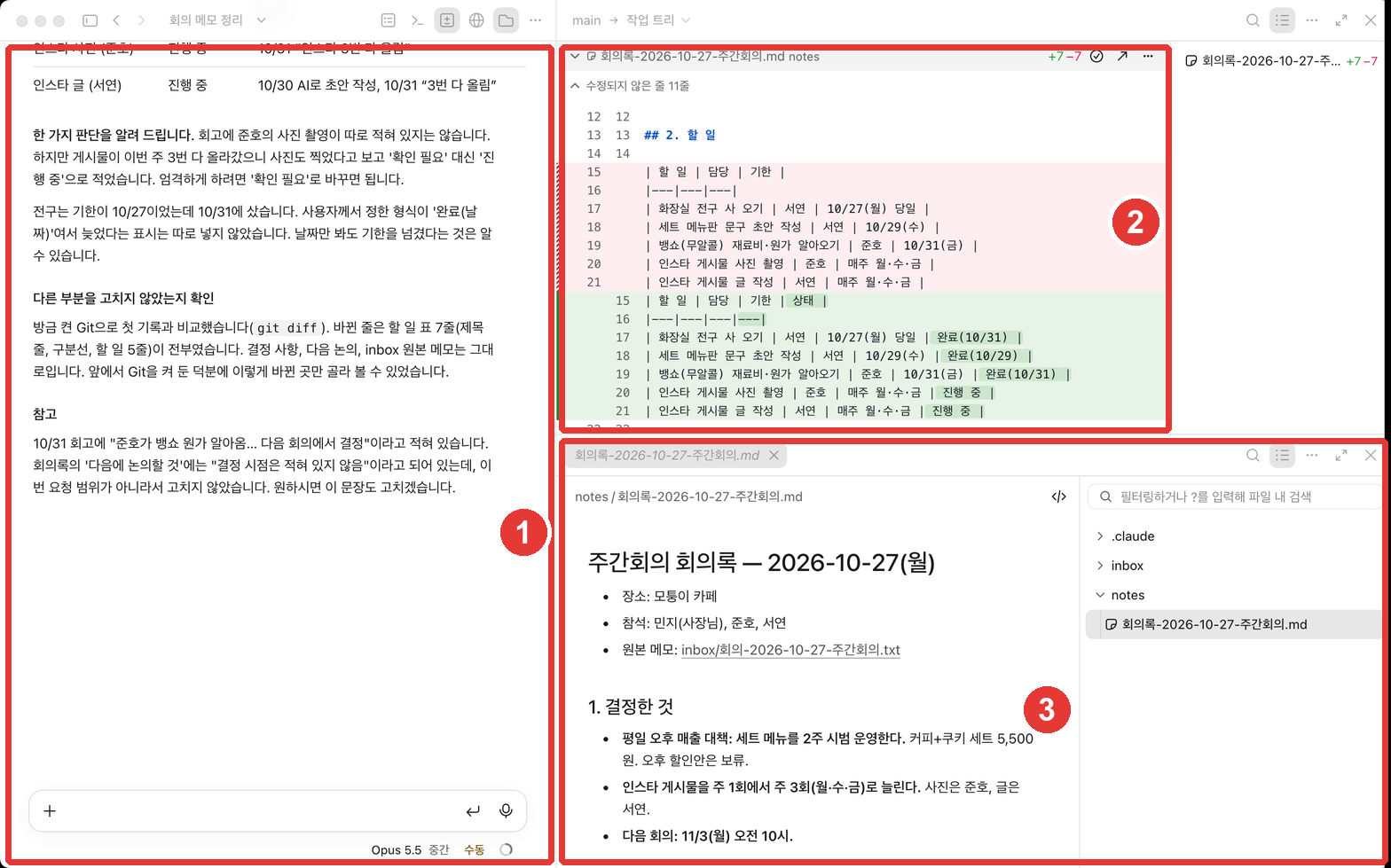
| Number | Pane | What you see |
|---|---|---|
| ① | Chat | Your requests and Claude's explanations |
| ② | Changes | Which lines in a file were deleted or added |
| ③ | Files | Open and read files inside the folder |
The Code tab is a screen where you arrange panes however you like — chat, changes, browser, terminal, files, and more.[1] Drag a pane's header to move it, and drag a pane's edge to resize it.[1:1] You do not need to open everything from the start. Just open panes one by one when you need them.
Quick check
In the Code tab, you want to read the conversation while keeping the file Claude edited open right next to it. How can you do that?
Buttons in the Session Title Bar
A row of buttons sits at the very top of the chat pane.

| Number | What it does |
|---|---|
| ① | Open and close the side menu (session list) |
| ② | Session title. Click it to rename the session |
| ③ | Open and close the session details pane |
| ④ | Terminal pane |
| ⑤ | Changes (diff) pane |
| ⑥ | Browser pane |
| ⑦ | Files pane |
| ⑧ | Open other panes that do not have a button here |
Source: Button names checked on the screen in this guide (menu bar View (보기) menu, 2026-10-31); roles from official docs[1:2][2]
If the icon-only buttons look confusing, hover your mouse over a button to see its name.[1:3] When the window is narrow, buttons that do not fit move into the ⑧ menu.[1:4]
The app automatically sets the session title (②) based on your first request. In this guide, it was named "Organize meeting notes (회의 메모 정리)". Click the title to change its name.[2:1]
The ① side menu lists all the sessions you have opened so far. Each session saves its own conversation and changes separately.[2:2] Chapter 8 covers how to use multiple sessions side by side.
Quick check
The buttons in the session title bar are only icons, so you can't tell what they do. What is the easiest way to find out?
Viewing Changes — You Need Change History (Git)
When you click the ⑤ Changes button with the folder from Chapter 2, you see this message.
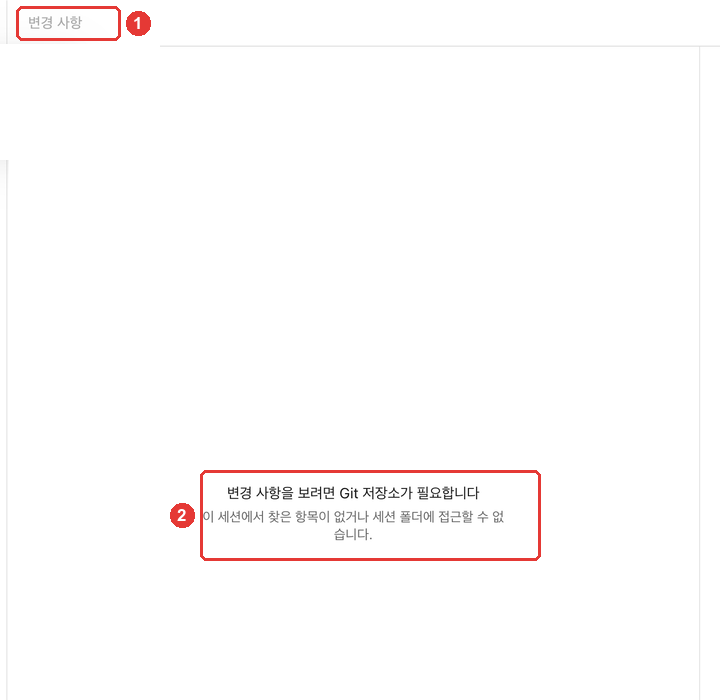
Git is a tool that records when and how your files changed. The Changes pane compares that record with your current files and shows the difference. So in a regular folder with no record, there is nothing to show.
Turning On Git
You do not need to know any Git commands. Just ask Claude to turn it on.
It says a Git repository is required to view changes. Turn on change history (Git) in this folder, and save the current files as the first record. Explain what you did in simple terms.If your computer does not have Git, install it from the official site (git-scm.com).[3]
In this guide, Claude turned on Git in the folder and saved the 5 memos and the meeting notes as the first record. Then the Changes pane showed "No changes to display (표시할 변경 사항이 없습니다)". That means nothing has changed since the first record.
Reading the Changed Lines
Now let's ask Claude to make a small edit to the meeting notes. This request adds a progress status to each to-do item based on the retrospective memos.
Add a 'Status' column to the to-do table in the meeting notes. Look at the 3 retrospective memos in inbox and write 'Done (date)' for finished items, or 'In progress' if not finished yet. For items not mentioned in the retrospectives, write 'Needs check', and do not change any other part.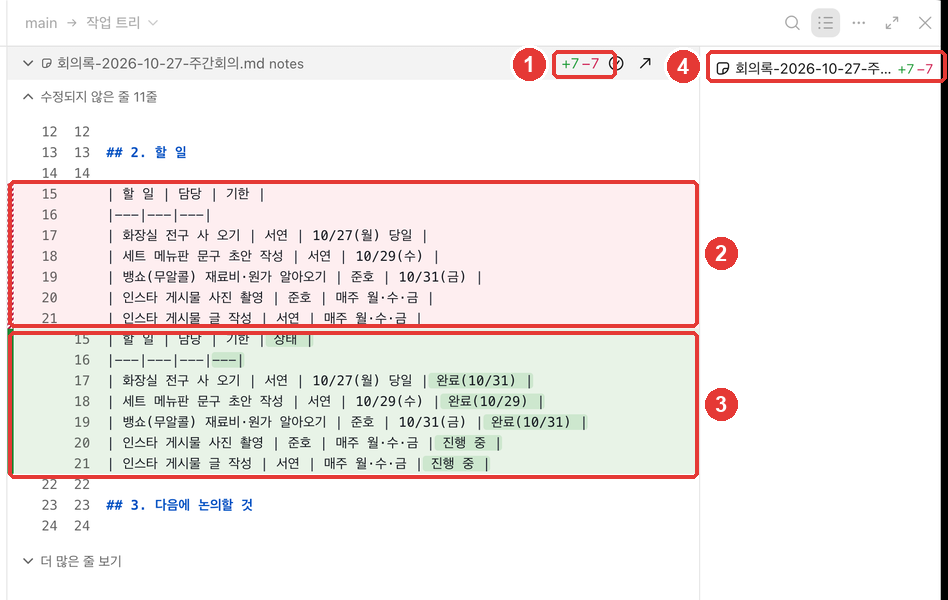
Red lines are deleted lines, and green lines are newly added lines. +7 −7 means 7 lines were added and 7 lines were deleted.
When a column is added to the end of a table row, Git counts that row as "deleted and rewritten." That is why all 7 rows of the to-do table appear once in red and once in green.
Thanks to this pane, you can see with your own eyes whether Claude followed "do not change any other part." If no lines outside the table appear in red or green, Claude followed your rule.
Check the parts where Claude made its own judgment
In this guide's walkthrough, Claude pointed out one judgment call up front. The retrospectives did not separately mention Junho's photo shoot, but since all 3 posts went up, Claude marked it as "In progress." It also added that if you want to be strict, you can change it to "Needs check." When you see an explanation like this, take a moment to check whether that judgment matches your standard. If it does not, just ask Claude in one line to fix it.
You can also open and close the Changes pane with the shortcut Cmd+Shift+D.[4]
Names saved in Git history
With every record, Git also saves the name and email address set in this computer's Git settings. On a work computer, your company account might be included. Check this before showing the history screen to others or uploading the folder.
Quick check
You open the Changes pane and see a message saying a Git repository is required to view changes. What should you do?
The Session Details Pane
Click the ③ button to open the session details pane beside the chat. It shows cards for where this session is running, what it changed, and how much context it has used.[5]
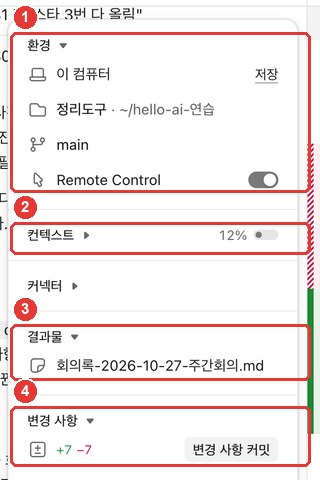
| Number | Card | What you see |
|---|---|---|
| ① | Environment (환경) | Where (this computer) and in which folder you are working |
| ② | Context (컨텍스트) | How much of this session's memory limit has been used |
| ③ | Artifacts (결과물) | Files created in this session |
| ④ | Changes (변경 사항) | Number of changed lines. Click the numbers to open the Changes pane |
Source: Card names checked on the screen in this guide (2026-10-31); roles from official docs[5:1][6]
The "main" on the Environment card is the name of the line of history (branch) you are working on right now. You do not need to worry about it for now.
Context is "how much the AI can see at once," which you learned in Stage 1 (Stage 1, Chapter 1). When it fills up, Claude automatically summarizes the conversation so far and keeps working.[7] Here is our recommendation: rather than tacking a new task onto a session whose percentage has climbed high, it is cleaner to start a new task in a new session.
The Commit changes (변경 사항 커밋) button in ④ saves your changes as a new record in Git. A commit means "saving one record." You do not need to click it for now. Recording and undoing changes are covered in Chapter 4.
Quick check
You want to see how much of Claude's working memory for this session has been used up. What should you look at in the Session Info pane?
The Files Pane — Opening Files You Made
Click the ⑦ Files button to open the Files pane along with the folder list. Click a file in the list to see its contents.
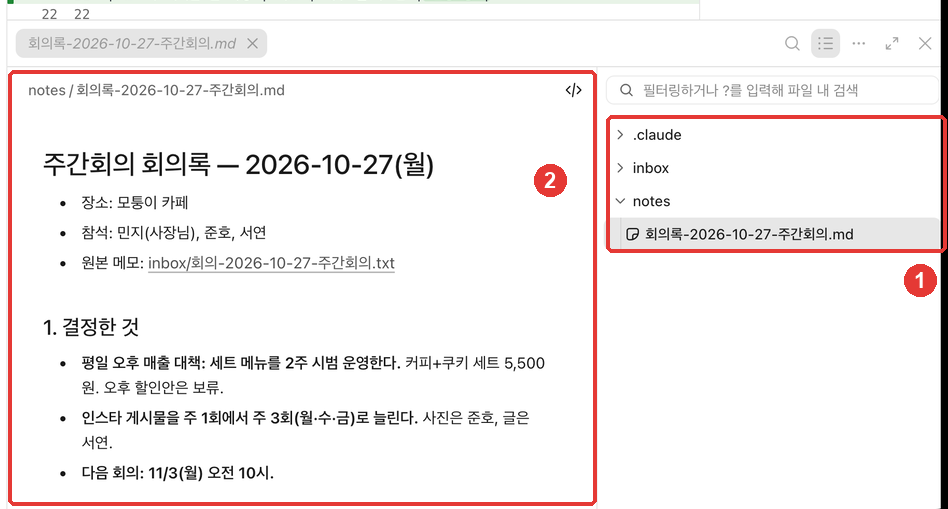
- You can also click a file path mentioned in the chat to open that file.[8]
- If the session is running on this computer, you can edit the file right inside the Files pane. Your edits are saved automatically.[8:1]
- You may see a
.claudefolder in the list. That is where Claude Code keeps settings for this folder, and we cover it in Chapter 6.
You can check the files Claude made right inside the app without opening Finder or File Explorer. Comparing your files against the original memos — which you did in Chapter 2 — can now happen on a single screen.
Quick check
You want to open the meeting notes Claude created right inside the app. Which way is right?
Terminal and Browser Panes, Plus Shortcuts
For the remaining two panes, you only need to know their names. There is no need to memorize them.
- Terminal (④): A pane where you type and run commands yourself. It opens in the same folder as Claude.[9] You do not need to use it at this stage. We cover the terminal in Chapter 10.
- Browser (⑥): A pane that opens web pages right inside the app.[1:5]
Common keyboard shortcuts (macOS) (click to expand)
You do not need to know the shortcuts. They get handy once you are used to them.[4:1]
| Shortcut | What it does |
|---|---|
| Cmd+Shift+D | Open and close the Changes pane |
| Ctrl+` | Open and close the Terminal pane |
| Cmd+Shift+B | Open and close the Browser pane |
| Cmd+\ | Close the current pane |
| Esc | Stop Claude's response |
| Cmd+Shift+M | Open the permission mode menu |
Source: Claude Code official docs[4:2]
Try It Yourself
- In your session from Chapter 2 (or a new session opened in the organizer folder), click the ⑤ Changes button. If it says Git is required, use the prompt above to ask Claude to turn it on.
- Send the request to add a 'Status' column to the meeting notes, and check in the Changes pane that no lines outside the table were changed.
- Open the ③ session details pane to check the context percentage and the number of changed lines.
- Open the meeting notes in the ⑦ Files pane and check whether the Status column matches the retrospective memos (light bulbs, copywriting, and cost calculation are Done; Instagram is In progress).
Follow-up exercise: Compare your result with this guide's result (ch3-minutes-status-column.txt). Even if the table looks a little different, you did great as long as the status values match the retrospectives.
Summary
- The Code tab lets you open the Changes, Files, Terminal, and Browser panes beside the chat. You open them with the buttons in the session title bar.
- To see changes, the folder needs Git (change history). Just ask Claude to turn it on.
- Red lines are deleted lines, and green lines are new lines. Use this view to verify that Claude followed "do not change any other part."
- The session details pane shows environment, context, artifacts, and changed line counts. When context fills up, Claude automatically summarizes and keeps going.
- In the Files pane, you can immediately open, check, and edit the files you made.
Key Terms
| Term | One-line meaning |
|---|---|
| Pane | A single window opened inside the Code tab — such as chat, changes, or files |
| Diff | A line-by-line comparison showing before and after an edit |
| Git | A tool that records when and how files changed |
| Commit | Saving the current state as a single record in Git |
| Context | How much Claude can remember at one time in a single session |
| Session rail | The session details pane showing environment, context, artifacts, and changed line counts |
Finished this chapter?
Progress is saved only in this browser. See your progress on the full table of contents.
Next chapter: Chapter 4. Permissions and Undoing
References (9)
Claude Code official docs, "Desktop application." "The Code tab is built around panes you can arrange in any layout: chat, diff, browser, terminal, file, plan, tasks, and subagent" / "Drag a pane by its header to reposition it, or drag a pane edge to resize it." / "To open another pane, click its icon button in the session's title bar. Hover to see each button's name, such as Terminal, Changes for the diff view, Browser, and Files." / "When the window is narrow: buttons that don't fit move into the menu" code.claude.com (checked on 2026-10-31) ↩︎
Claude Code official docs, "Desktop application." "Each session is an independent conversation with its own context and changes." / "To rename a session, open it and click the session title in the title bar." code.claude.com (checked on 2026-10-31) ↩︎
Claude Code official docs, "Desktop application" troubleshooting. "install Git" — the official docs guide users to install Git for features that require it (worktree). That the Changes pane requires a Git repository was verified on screen in this guide (2026-10-31). code.claude.com (checked on 2026-10-31) ↩︎
Claude Code official docs, "Desktop application" keyboard shortcuts table. "Toggle diff pane" / "Toggle Browser pane" / "Toggle terminal pane" / "Close focused pane" / "Stop Claude's response" / "Open permission mode menu" code.claude.com (checked on 2026-10-31) ↩︎
Claude Code official docs, "Desktop application." "The session details panel is a set of cards beside the chat that show where the session runs, what it changed, what it's running, and its context usage." code.claude.com (checked on 2026-10-31) ↩︎
Claude Code official docs, "Desktop application." "To open the diff view, click the line counts, such as +12 -1, in the Changes card of the session details panel." code.claude.com (checked on 2026-10-31) ↩︎
Claude Code official docs, "Desktop application." "When context fills up, Claude automatically summarizes the conversation and continues working." code.claude.com (checked on 2026-10-31) ↩︎
Claude Code official docs, "Desktop application." "To open a file Claude mentions, click its path in the chat." / "Local sessions: you can edit files inside the session's working directory" / "By default, your edits in the file pane save on their own" code.claude.com (checked on 2026-10-31) ↩︎
Claude Code official docs, "Desktop application." "The terminal opens in your session's working directory and shares the same environment as Claude" code.claude.com (checked on 2026-10-31) ↩︎