Chapter 5. How to Delegate Well — Be Specific, Plan First, Give a Checklist
Required Read this to follow this stage.One-line summary: In your request, write what to look at, what shape it should take, where to put it, and what counts as done. For big tasks, get a plan first in Plan (계획) mode, tweak it, and then let Claude start. Don't just take "done" for an answer. Ask for a checklist and evidence along with the result.
This chapter is based on the Claude Code official docs checked on October 31, 2026, and the macOS desktop app (Korean UI, paid account). In this chapter, you will create three templates (meeting notes, study notes, and weekly review) that form the backbone of your "Note Organizer (정리 도구)".
Be Specific
The official docs point out the most common reason a request doesn't go as planned. Information that Claude cannot know just by reading your folder is missing.[1] Things like decisions made in a meeting, your preferred format, or what "done" means to you fall into this category.
So include these four things in your request.
| What to write | Example |
|---|---|
| What to look at | The meeting memo in inbox |
| What shape | Decisions / To-dos (owner & due date) / Next topics |
| Where to put it | As a new file in the notes folder |
| What counts as done | Every to-do has an owner and a due date |
The official docs also say that if you state up front "what file to look at, what the symptom is, and what 'fixed' looks like," you can save yourself a round of corrections.[2]
Clean up the meeting memo.Read the meeting memo in inbox and organize it into meeting notes. Split it into three sections: Decisions / To-dos (owner and due date) / Next topics to discuss, and save it as a new file in the notes folder. Do not change the original memo.The second request is the one you used in Chapter 2. It is longer than the first, but it saves you from fixing the result two or three times.
When you want a thorough result
Say so. Claude reads requests cautiously and tends to build the smallest result that satisfies what you asked.[3] Expand the scope yourself by adding things like "include what to do when a field is blank" or "add one example for each."
Quick check
You want Claude to organize your meeting notes. Which request will save you the most cleanup work later?
When You Aren't Sure, Ask Claude to Interview You
It is okay if you haven't decided exactly what you want yet. Just ask Claude to ask you questions.[4]
I want to make a weekly review template to use every Friday, but I haven't decided on the details yet. Ask me questions one by one so I can answer them, and once everything is decided, save the result as review-template-draft.md.Claude will ask multiple-choice questions about the parts you haven't decided on yet. It keeps asking until your answers add up to a spec (a document describing what to build).[4:1] The finished draft file becomes your reference when you build the real thing next.
Quick check
You want to create a weekly review template, but you aren't sure what sections you need yet. What is a good way to start?
Plan First — Plan Mode
When a task is big, don't hand it over right away. Ask for the approach first. In Plan (계획) mode, Claude reads and explores your files and writes a plan, without changing any files.[5] The official docs also recommend starting complex tasks in Plan mode.[6]
Let's try it out. In a new session, change the mode below the input box to Plan (계획) (the permission mode menu from Chapter 4) and send this message.
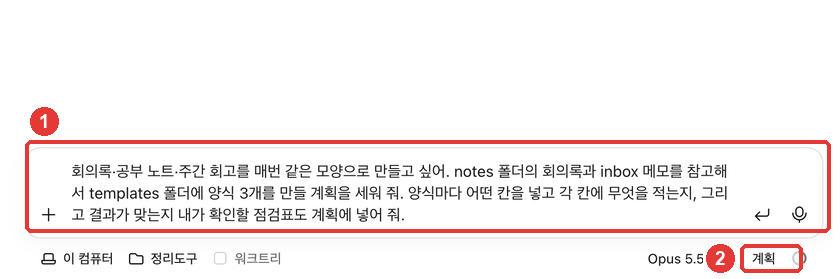
I want to write meeting notes, study notes, and weekly reviews in the same format every time. Look at the meeting notes in the notes folder and the memos in inbox, and make a plan to create 3 templates in the templates folder. In the plan, include what sections go into each template, what to write in each section, and a checklist I can use to verify the result.A moment later, the plan appears. The order goes like this: read the plan → if there is something to fix, "Edit… (수정…)" → if you like it, "Accept (수락)".
Reading the Plan Screen
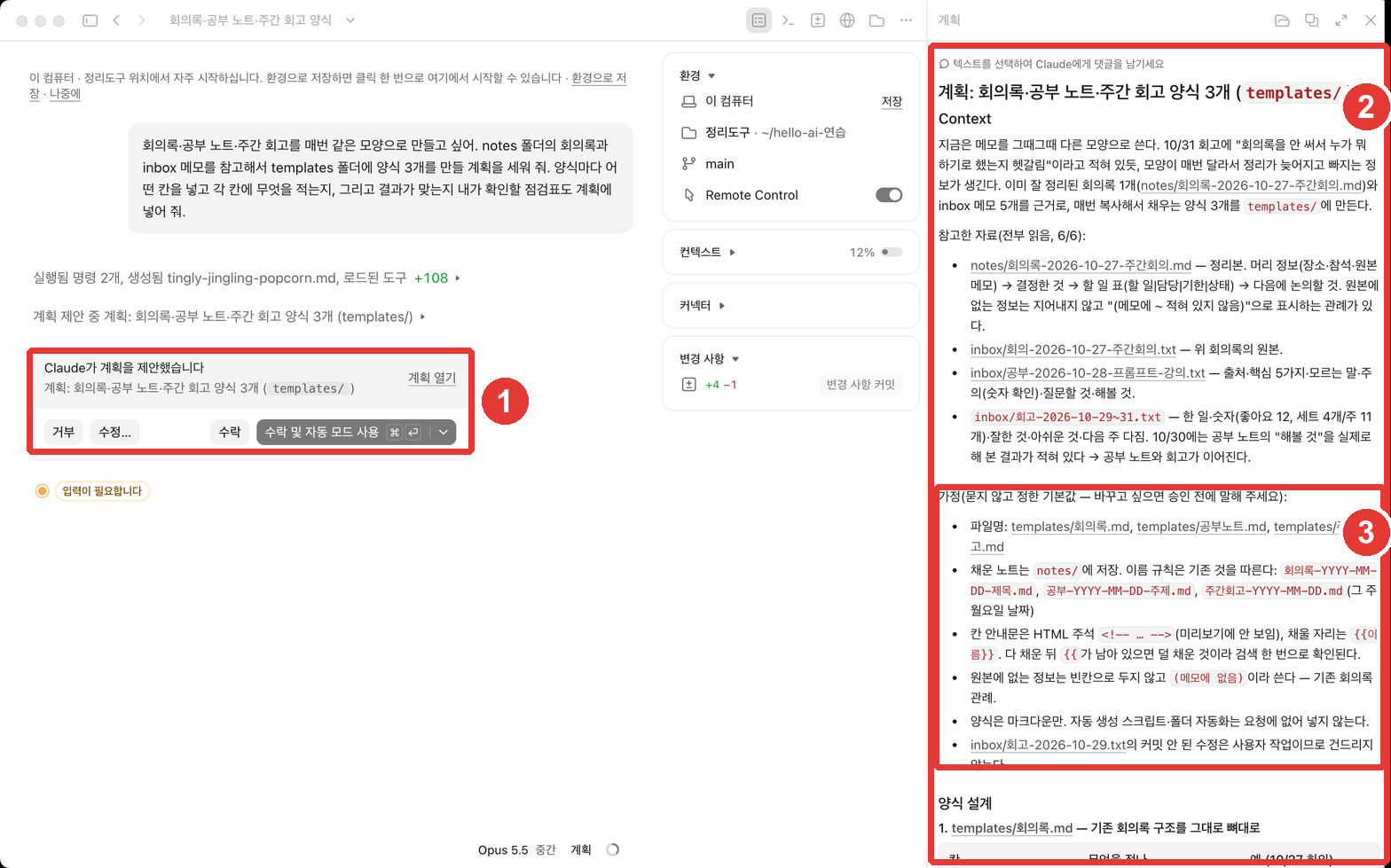
In the ① card, choose what to do with the plan.
| Screen label | What it does |
|---|---|
| Reject (거부) | Do not accept this plan |
| Edit… (수정…) | Write what to change and have Claude plan again |
| Accept (수락) | Approve, and confirm each edit one by one |
| Accept and use Auto mode (수락 및 자동 모드 사용) | Approve, and proceed in Auto mode |
Source: Screen labels checked in this guide (2026-10-31); behavior from the official docs[7]
In the ② Plan pane, read the full plan. At the top of the pane, there is a notice saying "Select text to leave a comment for Claude (텍스트를 선택하여 Claude에게 댓글을 남기세요)", so you can comment directly on any sentence that bothers you.
Make sure to read the ③ Assumptions (가정) section. In this exercise, Claude grouped file names, save locations, and how to mark blanks under "Defaults chosen without asking — tell me before approving if you want to change them." Before you approve is the cheapest time to fix things.
Editing the Plan
For the weekly review, you wanted three sections: what went well, what fell short, and what to try next. This way of splitting a review into three sections is called KPT. It stands for the first letters of Keep (what went well), Problem (what fell short), and Try (what to try).
Clicking "Edit… (수정…)" opens a box saying "What needs to be changed? (Optional) (무엇을 변경해야 하나요? (선택사항))".
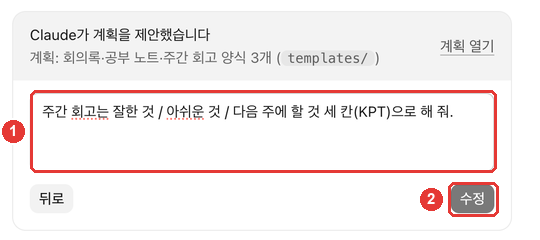
Write what to change and click "Edit (수정)", and Claude updates the plan and asks for approval again.
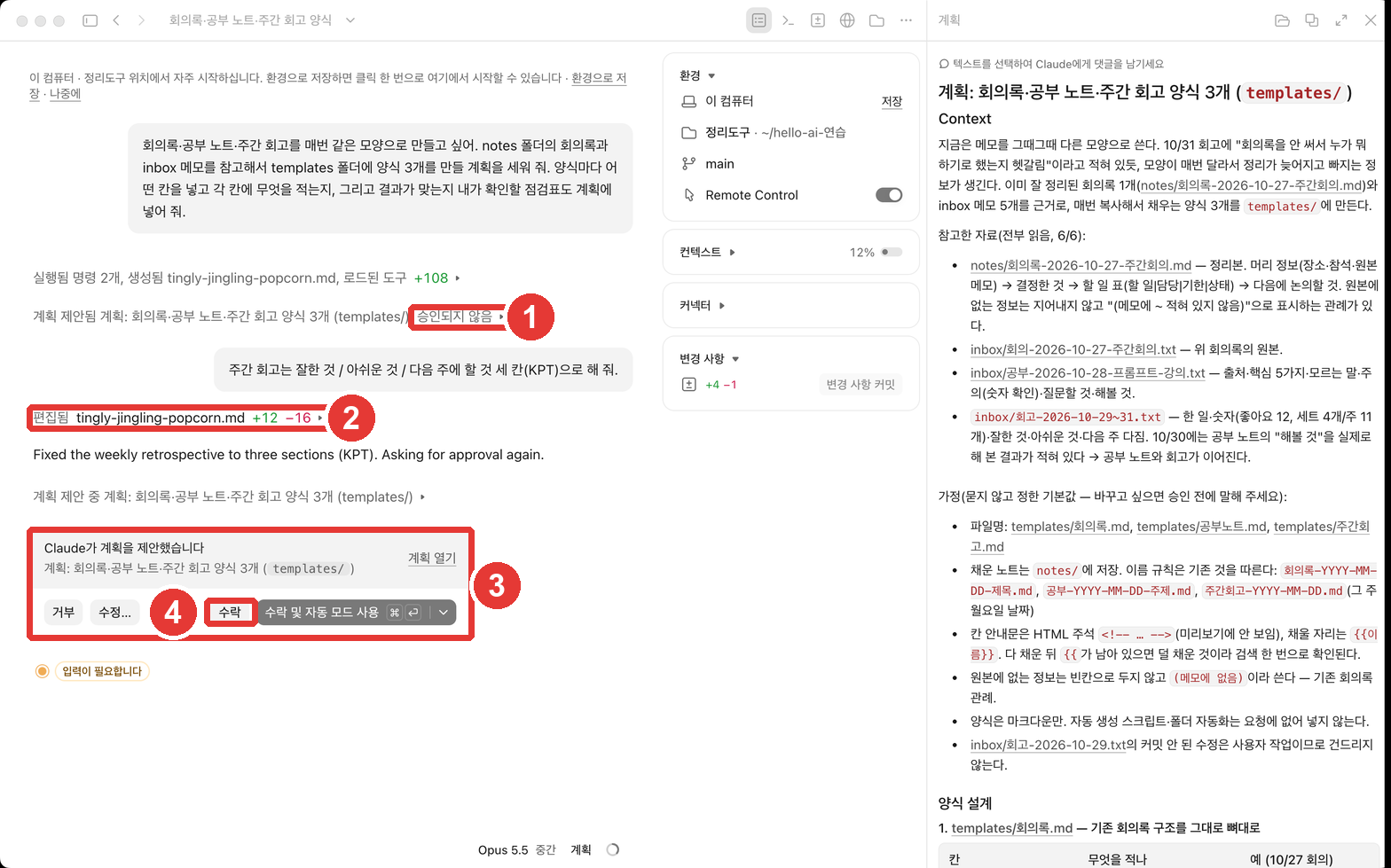
Approving and Running
This time, we clicked "Accept (수락)". Once you approve, Claude exits Plan mode, switches to the permission mode matching your choice, and starts editing files.[7:1] The mode at the bottom of the screen also switched from "Plan (계획)" to "Manual (수동)".
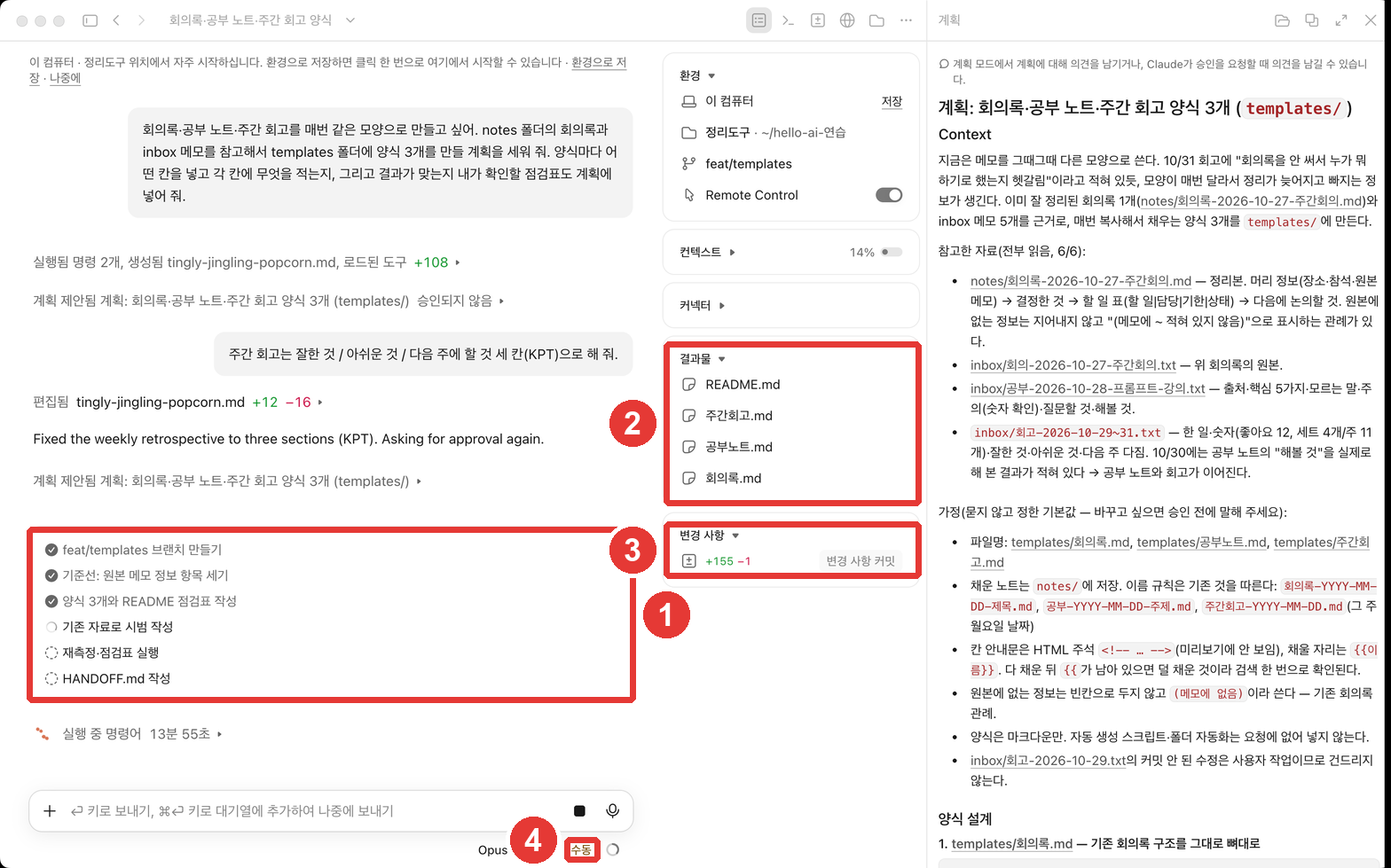
You can see "Create branch (브랜치 만들기)" and "Write HANDOFF.md (HANDOFF.md 작성)" in the ① to-do list. These steps came from personal instructions written in advance on the computer used to take this guide's screenshots. They usually do not appear on your screen, so you do not need to worry about them. You will learn how to write such instructions in Chapter 6.
Here are the templates that were created (the results from this guide's exercise).
- ch5-template-minutes.txt · ch5-template-study-notes.txt · ch5-template-weekly-review.txt
- ch5-template-README.txt — How to use the templates and the checklist
Just as requested, the weekly review template now has three sections: "What went well (Keep) / What fell short (Problem) / What to do next week (Try)". Each section comes with instructions on what to write and an example.
Quick check
There is a part you don't like in the plan Claude gave you in "Plan" mode. What should you do before approving it?
Give a Checklist — Evidence Instead of "All Done"
Claude stops when the work looks done. If it has no way to check whether the result is actually right, "looks done" is all you get. Then you become the person who has to inspect every single detail.[8]
So give Claude criteria that produce a clear pass or fail answer.[8:1] For code, that means tests. For organizing documents, a checklist does the job.
Write this week's review using the template. When you finish, check the checklist below one item at a time, and show me "Pass/Fail" for each item along with the line from the memo that proves it.
- Does each section have 1 to 3 items?
- Do the numbers (items sold, likes) match the memo?
- Did you avoid making up anything not in the memo?
The official docs say that whichever method you use, you should ask for evidence. Reading what Claude actually checked is faster and more accurate than a single line saying "All passed."[9] In this exercise, Claude also included a checklist in the template README.
Quick check
Claude simply said, "I finished writing the review." What next step do the official docs recommend?
Changing Direction Midway
Watch the first minute. If Claude goes the wrong way, stop it right away and correct course.[10]
- Stop: Press the Stop button or Esc. Everything done up to that point stays.[10:1]
- Rewind: Use
/rewindfrom Chapter 4. You can try a bold approach first and rewind if it doesn't work out, which takes the pressure off experimenting.[10:2] - Start fresh: If you corrected the same thing twice and it is still wrong, don't correct it a third time—start over. Two failed attempts stay in the conversation, and Claude keeps re-reading them. One new request that includes what you learned is almost always better.[10:3] In the desktop app, just open a new session.
Quick check
You asked Claude to fix the same part twice, and it is still wrong. What do the official docs recommend?
Try It Yourself
- In a new session, change the mode to "Plan (계획)" and send the three-template plan request above.
- Read the "Assumptions (가정)" section of the plan, and change at least one thing using "Edit… (수정…)" (for example, making the weekly review three KPT sections).
- Approve with "Accept (수락)" and check that the template files appear under outputs in the session info pane.
- Ask Claude to write this week's review using the template, and ask for the checklist results and evidence along with it.
Next step: Look again at the three lines of "rules you want to apply to both documents" that you wrote down in Chapter 4. In Chapter 6, you will save these rules in CLAUDE.md so Claude follows them without being told every time.
Summary
- In your request, write what to look at, what shape it should take, where to put it, and what counts as done.
- If you haven't decided yet, ask Claude to ask you questions.
- When a task is big, get the approach first in "Plan (계획)" mode. Read the "Assumptions (가정)" section, make changes with "Edit… (수정…)", and then click "Accept (수락)".
- Give clear pass-or-fail criteria (a checklist), and ask for evidence along with the result.
- Watch the first minute, and if two corrections still don't fix it, start fresh.
Glossary
| Term | One-line meaning |
|---|---|
| Plan mode | A mode that explores your files and proposes a plan without editing any files |
| Spec | A document describing what to build |
| Template | A pre-made structure you fill in the same way every time |
| KPT | A review method split into Keep (what went well), Problem (what fell short), and Try (what to try next) |
| Evidence | What was actually checked, given to you instead of just saying "all done" |
Finished this chapter?
Progress is saved only in this browser. See your progress on the full table of contents.
Next chapter: Chapter 6. Project Memory
References (10)
Claude Code official docs, "Best practices for Claude Code". "Claude built something different from what you had in mind, or it has to rediscover the same fact at the start of every session. It's missing information it can't get from reading the repo." code.claude.com (checked on 2026-10-31) ↩︎
Claude Code official docs, "Best practices for Claude Code". "If you name the file, describe the symptom, and say what "fixed" looks like up front, you usually save yourself a round of corrections later." code.claude.com (checked on 2026-10-31) ↩︎
Claude Code official docs, "Best practices for Claude Code". "Claude tends to read a request conservatively and build the smallest thing that satisfies it, since it can't see how much you were hoping for." code.claude.com (checked on 2026-10-31) ↩︎
Claude Code official docs, "Best practices for Claude Code". "When you don't know exactly what you want yet, you don't have to work it all out before you prompt. Ask Claude to interview you instead" / "Claude comes back with multiple-choice questions about the parts you haven't pinned down" / "It keeps asking until the answers add up to a spec." code.claude.com (checked on 2026-10-31) ↩︎
Claude Code official docs, "Choose a permission mode". "Plan mode tells Claude to research and propose changes without making them. Claude reads files, runs shell commands to explore, and writes a plan, but does not edit your source." code.claude.com (checked on 2026-10-31) ↩︎
Claude Code official docs, "Desktop application". "Start complex tasks in Plan so Claude maps out an approach before making changes." code.claude.com (checked on 2026-10-31) ↩︎
Claude Code official docs, "Choose a permission mode". "When the plan is ready, Claude presents it and asks how to proceed." / "Approving a plan exits plan mode and switches the session to the permission mode each approve option describes, so Claude starts editing." code.claude.com (checked on 2026-10-31) ↩︎
Claude Code official docs, "Best practices for Claude Code". "Claude stops when the work looks done." / "Give Claude something it can run that comes back pass or fail." code.claude.com (checked on 2026-10-31) ↩︎
Claude Code official docs, "Best practices for Claude Code". ""All tests pass" on its own tells you very little" / "reading the output is faster than rerunning the check yourself" code.claude.com (checked on 2026-10-31) ↩︎
Claude Code official docs, "Best practices for Claude Code". "Watch the first minute, press Esc the moment Claude drifts, and after two failed corrections run /clear and write a better prompt instead of a third." / "Esc stops Claude mid-action and keeps everything up to that point" / "That makes it low-risk to try the bolder approach first and rewind if it doesn't work out." / "a third correction mostly adds to a conversation that already contains two failed attempts for Claude to keep re-reading. /clear plus one new prompt that folds in what you learned works better almost every time." code.claude.com (checked on 2026-10-31) ↩︎