第4章 第一次會話
必讀 想跟著這個階段學下去,一定要讀這一章。一句話總結:進入要工作的資料夾,輸入
claude。在信任確認視窗裡選Yes,然後用說話的方式交代任務。要停下按Esc,要結束輸入/exit。
會話(Session)是從開啟 Claude Code 到結束為止的一整段對話。我們在第2章建好的資料夾裡,開啟第一次會話。
從資料夾開始
先移動到要工作的資料夾。然後輸入 claude。[1]
Mac·Linux 這樣輸入。
cd ~/hello-ai-practice/terminal
claude
Windows PowerShell 這樣輸入。
cd $HOME\hello-ai-practice\terminal
claude
順序很重要。 claude 會把當前所在的資料夾當作工作資料夾來啟動。啟動介面上也會顯示這個資料夾。[2] 如果在和工作無關的資料夾裡開啟,它就會對著那個資料夾裡的檔案幹活。
- 不太好的例子:一開啟終端就輸入
claude。 - 更好的例子:用
cd進入資料夾,用pwd確認後,再輸入claude。
理解檢查
啟動 claude 之前,要先做什麼?
信任確認視窗
在第一次開啟的資料夾裡,會先彈出這樣一個視窗。
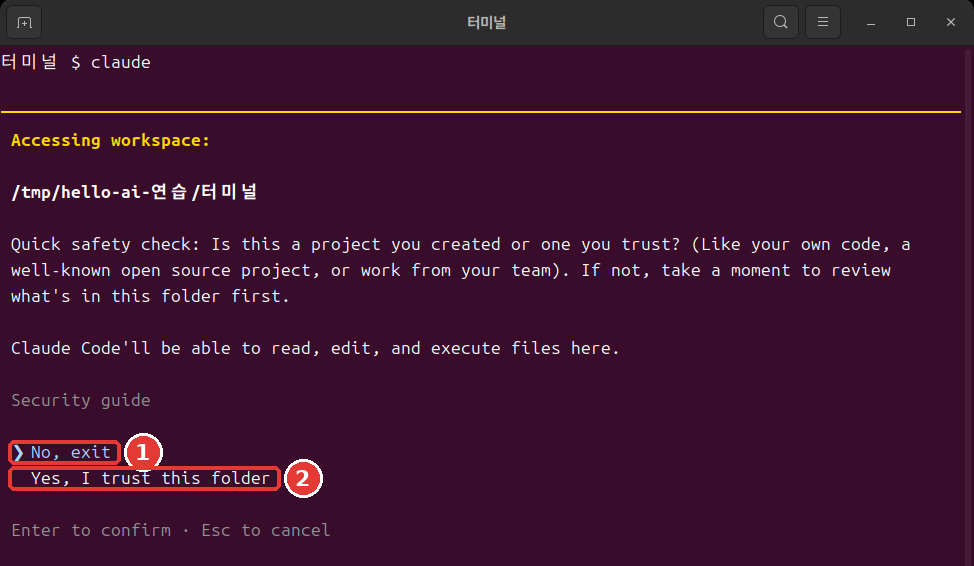
這是實際終端視窗的截圖。顏色和字型取決於你的終端設定。下面的文字框是把同一個介面用文字寫出來的。[3]
 Accessing workspace:

 ~/hello-ai-practice/terminal

 Quick safety check: Is this a project you created or one you trust? (Like your own code, a
 well-known open source project, or work from your team). If not, take a moment to review what's in
 this folder first.

 Claude Code'll be able to read, edit, and execute files here.

 Security guide

 ❯ No, exit
   Yes, I trust this folder

 Enter to confirm · Esc to cancel
意思是這樣的。"這是你自己建立的、或者你信任的資料夾嗎?如果不是,請先看看裡面有什麼。Claude Code 可以讀取、修改和執行這裡的檔案。"
如果在這裡直接按 Enter,程式就會退出。 因為 ❯ 標記停在 No, exit 上。按一次向下方向鍵,移到 Yes, I trust this folder,再按 Enter。在終端裡不能點選單來選擇。[4]
這個資料夾是你剛剛自己建的,可以信任。如果是從別人那裡拿到的資料夾,請先看看裡面的內容。
理解檢查
在第一次開啟的資料夾裡出現信任確認視窗時,直接按 Enter 會怎樣?
看懂啟動介面
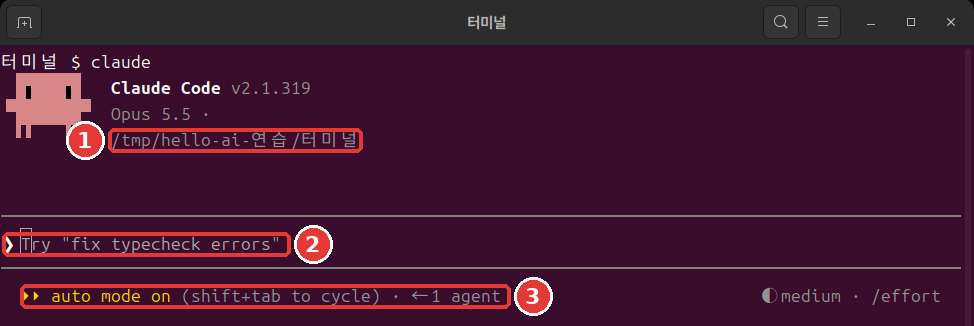
選了 Yes 之後,會出現這樣的介面。
 ▐▛███▛█   Claude Code v2.1.318
▝▜██████▀  Opus 5.5 · Claude 方案名稱
 ▝▝   ▝▝   ~/hello-ai-practice/terminal

▎ Auto mode is now Claude Code's default permission mode.
▎ Auto mode lets Claude handle permission prompts automatically. Claude checks each tool call for
▎ risky actions and prompt injection before executing, runs the ones it assesses as lower-risk, and
▎ blocks the rest.
▎ https://code.claude.com/docs/en/permission-modes

────────────────────────────────────────────────────────────
❯ Try "create a util logging.py that..."
────────────────────────────────────────────────────────────
  ⏵⏵ auto mode on (shift+tab to cycle)                ◐ medium · /effort
從上往下讀一讀。
- 最上面三行:版本、當前模型、工作資料夾。[2:1] 一定要看看資料夾是不是你以為的那個。
- Auto mode 說明:第一次執行時會看到的英文通知。現在不讀直接跳過也可以。重要的內容下面馬上用中文講。
❯那一行:輸入框。以Try開頭的文字是示例。你一輸入自己的文字,它就會消失。- 最下面一行:左邊是當前的許可權模式。許可權模式是 Claude 不用問你就可以做的事情的範圍。[5] 右邊的
medium在第13章講。
終端裡的 claude 以自動模式(auto)啟動。另有一個 AI 會提前檢查它的行動,攔下看起來危險的操作。不過,自動模式只是減少許可視窗,並不保證安全。[6]
一開始,最好親眼看著 Claude 要做什麼。按一次 Shift + Tab,切換到手動模式。[7] 最下面一行會變成這樣。
⏸ manual mode on · ? for shortcuts ◐ medium · /effort手動模式下,在修改檔案或執行命令之前,大多會先問你。[8] 模式在第7章詳細講。
詳細說明(點選展開)
理解檢查
關於 claude 在終端裡啟動時的自動模式(auto),下面哪種說法是對的?
第一個請求——做會議記錄
現在讓它幹活。像跟同事說話一樣寫就行。[9] 把這句話輸入到輸入框裡,按 Enter。
讀一下 inbox 裡的會議筆記,儲存成 minutes.md。回答只要一行。.md 是 Markdown 檔案。是用記事本也能開啟的文字檔案。
請求越具體越好。
- 不太好的例子:
幫我做會議記錄——讀什麼、放在哪裡,都得讓 Claude 去猜。 - 更好的例子:上面那句話——要讀的東西、儲存的位置、回答的長度都有了。
如果是手動模式,Claude 會讀取筆記,顯示檔案內容,然後這樣問你。
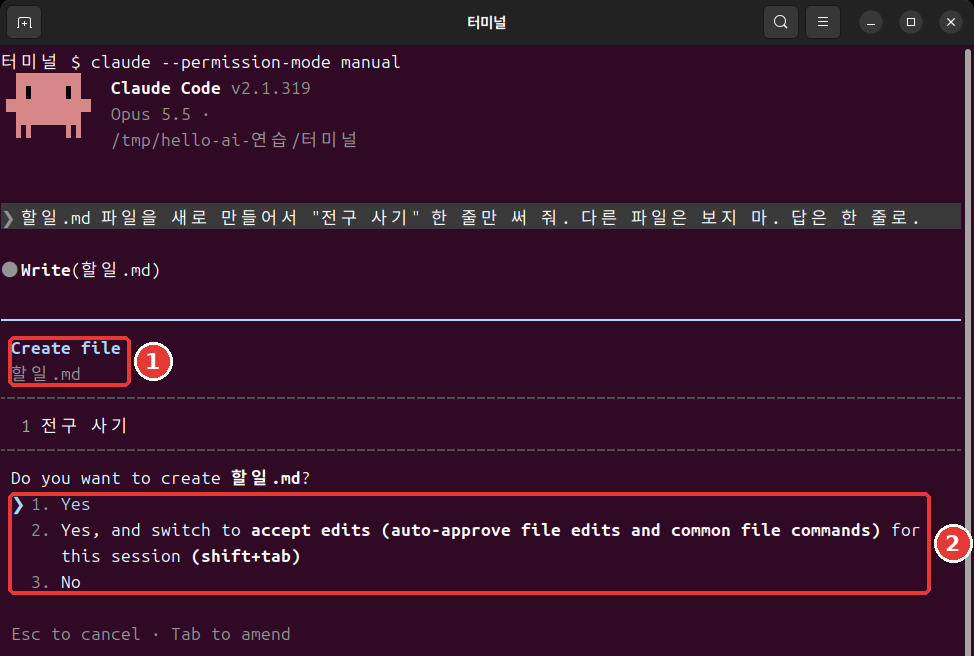
 Do you want to create minutes.md?
 ❯ 1. Yes
   2. Yes, and switch to accept edits (auto-approve file edits and common file commands) for this
      session (shift+tab)
   3. No

 Esc to cancel · Tab to amend
瀏覽一下內容,在 1. Yes 上按 Enter。[10] 2 號是讓這次會話裡修改檔案不再詢問的選項,3 號是拒絕。如果保持自動模式,可能不會出現這個視窗就直接儲存了。本指南的介面記錄是手動模式下的。
完成後,它會這樣回答。
● 已整理成 minutes.md。筆記裡的 10/27(週一)和 11/3(週一)在 2026 年的日曆上是星期二,所以在檔案裡標註了
  需要確認。
就算它提到星期幾的事,也不要驚訝。練習筆記裡的星期是編出來的,和日曆對不上。Claude 發現了這一點。回答的句子每次執行都可能不同。輸入框裡也可能淺淺地顯示出下一個請求的建議。不用也沒關係。
用同一份筆記做出的成果物在 ch4-minutes.txt 裡。可以和你自己的結果比一比。不需要一模一樣。
理解檢查
下面哪個更適合作為第一個請求?
交代任務與停下
會話就是對話。可以接著前面的事繼續交代。這次來修改檔案。
在 minutes.md 的最上面一行加上"草稿"這一行。回答只要一行。這次它會顯示要改動的行,然後問你。帶 + 的行是要新加入的行。
 1 +草稿
 2  # 街角咖啡館 每週例會 會議記錄
 3
 4  - **日期時間:** 10/27(週一)
在它下面會問 Do you want to make this edit to minutes.md?。要改動的行的樣子,取決於你的會議記錄。
許可視窗要讀完再選。這是你能核對它做的是不是你交代的事的時刻。
如果 Claude 跑偏了,就按 Esc。正在執行的操作會被取消,Claude 會等你的下一個指示。你隨時可以插話,改變方向。[11]
有一點要記住。即使停下了,到目前為止做過的事還在。[12] 已經儲存的檔案不會自動恢復原樣。怎麼撤銷,在第7章學。
理解檢查
Claude 正在工作時按下 Esc,會怎樣?
結束
在輸入框裡這樣輸入,按 Enter。[13]
/exit會回到終端的提示符。現在你已經在 Claude Code 外面了。確認一下檔案有沒有生成。
ls
cat minutes.md
如果在 PowerShell 裡文字顯示成亂碼,就用 Get-Content -Encoding UTF8 minutes.md 來看。
在空的輸入框裡按兩次 Ctrl + D 也能結束。[14] 一開始,用文字輸入的 /exit 最不容易搞混。怎麼繼續已經結束的對話,在第6章講。
現在來區分兩個地方。以後命令該輸入到哪裡,就靠這個來判斷。
- 終端:游標前面的符號是
%、$、>。cd、ls、claude輸入在這裡。 - Claude 輸入框:最前面是
❯,上下各有一條線。用說話方式提的請求和以/開頭的命令輸入在這裡。
把 /exit 輸入到終端裡會出錯。反過來,把 ls 或 cd 這樣的終端命令輸入到輸入框裡,它不會作為命令執行,而是變成發給 Claude 的話。後面章節裡說要"在終端裡"輸入的命令,如果你看到的是輸入框,就先用 /exit 出來再輸入。
理解檢查
結束 Claude Code 時,在輸入框裡輸入什麼命令?
動手試試
- 用
cd進入練習資料夾,用pwd確認。 - 開啟
claude,在信任確認視窗裡選Yes, I trust this folder。 - 在啟動介面上看資料夾和許可權模式。用
Shift + Tab切換到手動模式。 - 傳送做會議記錄的請求,讀完許可視窗後選
1. Yes。 - 讓它加上"草稿"那一行。
- 用
/exit出來,用cat檢視檔案。
問問自己。檔案生成了嗎?筆記裡的決定和待辦事項都一個不落地寫進去了嗎?有沒有混進筆記裡沒有的內容?把 AI 的結果和筆記對照的習慣,就從這裡開始。
小結
- 用
cd進入資料夾後再開啟claude。 - 信任確認視窗的預設選項是
No, exit。用向下方向鍵選Yes。 - 在啟動介面上看資料夾和許可權模式。終端以自動模式啟動,用
Shift + Tab切換。 - 請求裡要寫明讀什麼、存在哪裡。許可視窗讀完再選。
Esc是停下。到目前為止做過的事會留下。- 用
/exit結束,把結果和筆記對照。 - 符號是
%、$、>就是終端,是❯就是 Claude 輸入框。
術語整理
| 術語 | 中文名稱 | 一句話解釋 |
|---|---|---|
| Session | 會話 | 從開啟 Claude Code 到結束為止的一整段對話 |
| Permission mode | 許可權模式 | 不用詢問就可以做的事情的範圍 |
| Auto mode | 自動模式 | 另有一個 AI 提前檢查、減少許可視窗的模式 |
| Manual mode | 手動模式 | 大多會先詢問的模式 |
| Markdown | Markdown | 用符號寫標題和列表的文字檔案格式 |
這一章讀完了嗎?
學習記錄只儲存在這個瀏覽器中。整體進度可以在 全部目錄中檢視。
下一章:第5章 輸入技巧與命令
參考資料(14 則)
Claude Code 官方文件,「Quickstart」. "Open your terminal in any project directory and start Claude Code:" code.claude.com (確認日期 2026-11-06) ↩︎
Claude Code 官方文件,「Quickstart」. "The Claude Code prompt appears with the version, current model, and working directory shown above it." code.claude.com (確認日期 2026-11-06) ↩︎
本章和後面的圖,是在 Linux 終端裡用 Claude Code 2.1.319 截的。資料夾路徑是練習用的臨時資料夾,所以和你的介面不同;方案名稱已經遮住。介面上的資料夾路徑和方案名稱,按本課程改寫過。文字框是為了方便複製另外謄寫的。有些地方是從別的執行裡搬過來的,所以路徑或檔名可能和圖不一樣。 ↩︎
Claude Code 官方文件,「Terminal guide for new users」. "You can't click on things in the terminal. Use the arrow keys to move around." code.claude.com (確認日期 2026-11-06) ↩︎
Claude Code 官方文件,「Choose a permission mode」. "A permission mode sets which actions Claude can take in a session without asking you first." code.claude.com (確認日期 2026-11-06) ↩︎
Claude Code 官方文件,「Choose a permission mode」. "With Claude Code v2.1.283 or later, auto mode is the built-in starting permission mode for interactive terminal and VS Code sessions." / "A separate classifier model reviews actions before they run, blocking anything that escalates beyond your request, targets unrecognized infrastructure, or appears driven by hostile content Claude read." / "Auto mode reduces permission prompts but does not guarantee safety." / "When the flag, a settings file, or the built-in default selects
autobut auto mode isn't available to the session, Claude Code starts the session in Manual instead." code.claude.com (確認日期 2026-11-06) ↩︎Claude Code 官方文件,「Choose a permission mode」. "From
auto, the first press switches todefault, and the cycle then runsdefault→acceptEdits→plan." code.claude.com (確認日期 2026-11-06) ↩︎Claude Code 官方文件,「Choose a permission mode」. "In Manual mode, Claude Code stops and asks you before most actions that edit files, run shell commands, or reach the network." code.claude.com · 「Best practices for Claude Code」. "
Shift+Tabin the session cycles through the permission modes, Manual included, or start withclaude --permission-mode manualfrom your shell." code.claude.com (確認日期 2026-11-06) ↩︎Claude Code 官方文件,「Quickstart」. "Talk to Claude like you would a helpful colleague." code.claude.com (確認日期 2026-11-06) ↩︎
Claude Code 官方文件,「Quickstart」. "If it asks before making the change, select Yes to approve." code.claude.com (確認日期 2026-11-06) ↩︎
Claude Code 官方文件,「How Claude Code works」. "The running tool call is canceled and Claude waits for your next instruction." / "You can interrupt at any point to steer Claude in a different direction, provide additional context, or ask it to try a different approach." code.claude.com (確認日期 2026-11-06) ↩︎
Claude Code 官方文件,「Interactive mode」. "Stop the current response or tool call mid-turn so you can redirect. Claude keeps the work done so far." code.claude.com (確認日期 2026-11-06) ↩︎
Claude Code 官方文件,「Commands」. "Exit the CLI." code.claude.com (確認日期 2026-11-06) ↩︎
Claude Code 官方文件,「Terminal guide for new users」. "Type
exitor pressCtrl + Dtwice on an empty prompt to leave Claude Code." code.claude.com (確認日期 2026-11-06) ↩︎