Chapter 2. Starting Codex in the ChatGPT App — Opening a Folder and Handing Off Your First Task
Required Read this to follow this stage.One-line summary: Install the ChatGPT desktop app, pick Codex at the top left, and open your organizer folder with Choose project above the input box. Then ask it to organize meeting notes with the same request from Claude Code Chapter 2, and check the result against the original.
This chapter is based on the Codex official docs and the ChatGPT desktop app for macOS, checked on November 1, 2026. The screenshots in this guide are in English. If your screen is in another language, look for the button in the same spot.
Installing and Signing In
- Download and install the ChatGPT app for your computer at chatgpt.com/download. For Linux, follow the separate guide in the official docs.[1]
- Open the app and sign in with your ChatGPT account.[2]
If you tried ChatGPT in Stage 2, you can sign in with the same account. We covered accounts and plans in Stage 2 ChatGPT Chapter 1.
Quick check
What is the right first step to start using Codex?
Picking Codex and Opening a Folder
Click the label at the top left of the app to choose between ChatGPT and Codex. To switch between Chat and Work, select ChatGPT first and use the toggle above the input box.[3] The official docs also say to select Codex from this menu when you need developer tools.[4] When you select Codex, you will see "What should we build?" in the center.
Right above the input box, there are two choices.
| Screen label | What it does |
|---|---|
| Choose project | Pick the folder (project) to work in |
| This computer | Pick where to work: your computer or Cloud |
Source: Screen check for this guide (2026-11-01)
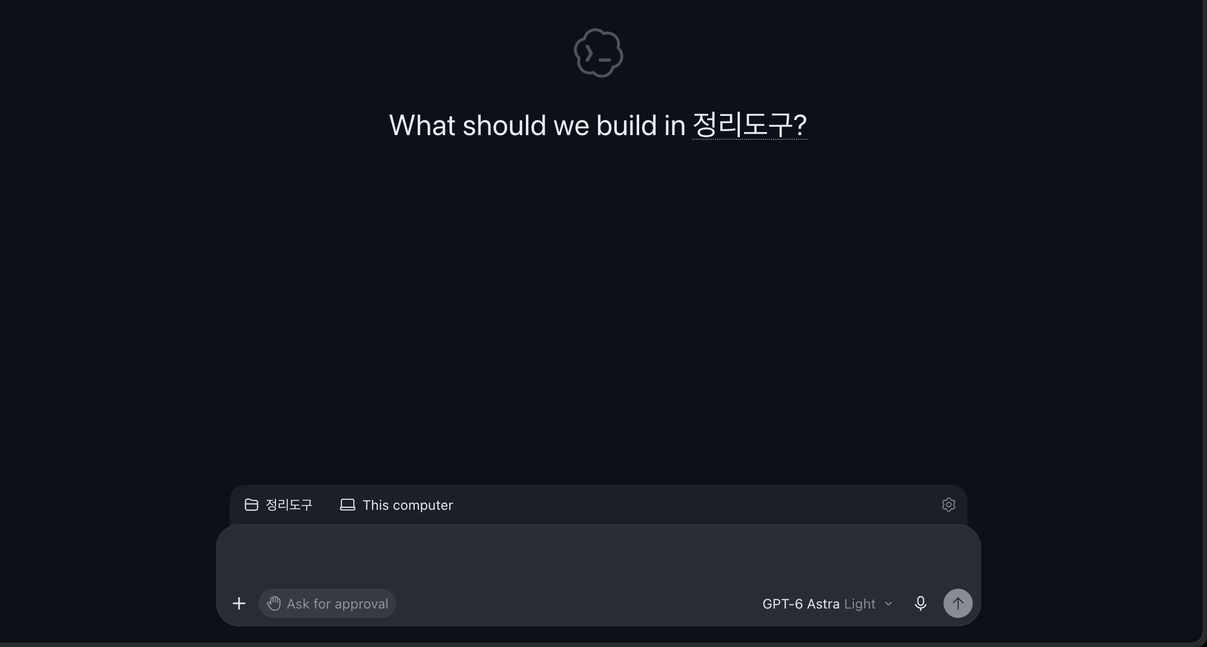
The screen above shows the organizer folder (organizer) opened as a project. You can see the chosen folder (organizer) and where you are working (This computer) above the input box, and the permission setting (Ask for approval) and model name below it. We cropped out the chat list and usage notice on the left.
Click Choose project and pick the organizer folder (or ~/hello-ai-practice/organizer if you followed the Claude Code guide). Codex can read and edit files in the folder you choose.[5] You can also open it from the menu bar with "File → Open Folder…".
Leave the work location set to This computer. This guide does not use Cloud, because files on your computer are not sent to the cloud.[6] We briefly introduce Cloud in Chapter 6.
Also check whether your folder is a Git repository (a tool that keeps a record of changes). The pane that shows changes in Codex only opens inside a Git repository. If it is not a Git repository, the app asks if you want to create one.[7]
- If you followed Claude Code Chapter 3, it is already a Git repository.
- If you started fresh with the practice files, just follow along when the app asks to create a repository.[7:1]
You can also ask Codex in chat, "Make this a Git repository." However, the .git folder that holds Git history is locked so Codex cannot change it freely. So it may ask for permission or stop partway. We look at folders like this in detail in Chapter 4.
Quick check
You want to use the pane that shows what changed in Codex. What is good to set up in your organizer folder beforehand?
Handing Off Your First Task
Send a request similar to the one in Claude Code Chapter 2. This time, you do not need to explain the format. That is because the folder already has templates (templates/).
Organize the notes in inbox/meeting-2026-10-27-weekly.txt into meeting minutes and save them as a new file in the notes/ folder.When we ran this for the guide, here is how Codex worked. We ran this same Codex not in the app but in the terminal (a window where you control the computer by typing commands, Chapter 7). The official docs explain that the app also automatically finds the rules file and skills in the folder you choose.[8] However, this guide did not verify the same result on the app screen.
- It looked for a rules file (
AGENTS.md) and templates in the folder. There was no rules file yet, so it read only the template. - Following the order of sections in the template, it filled in 2 decisions, 5 action items, topics for next time, and the next meeting.
- For due dates missing from the notes, it wrote
(메모에 없음)(not in notes). That rule was written in the template instructions. - After saving, it checked the section order, date, and day of the week on its own.
Result: Chapter 2 Meeting Minutes
Check the result against the original. Check these questions one by one.
- Were all 5 action items copied over? Do the owners match the notes?
- Did it avoid making up due dates that were not in the notes?
- Is the date right?
In this result, the date stands out. The original notes say 10/27(월) (Mon), but the meeting minutes changed it to 10/27(화) (Tue). The day of the week in the practice notes was made up for the story, so it does not match the real 2026 calendar. Codex fixed it to match the calendar and openly noted on its own in both its reply and a note inside the file that it made this change. If you do not like this call, just ask again: "Write the day of the week exactly as written in the notes."
Even with the same request, the result looks a little different every time you run it. The official docs also warn that a polished response can still have missing or wrong parts, so you should check the details that matter before using it.[9]
Quick check
In the meeting notes organized by Codex, the day of the week on a date is different from your original note. What should you do?
Try It Yourself
- Install the ChatGPT app and sign in.
- Select Codex at the top left, and open the organizer folder (
organizer) with Choose project. - Ask it to organize the meeting notes using the request above.
- Check the number of action items, owners, due dates, and date against the original notes.
Up next: In Chapter 3, you will move the CLAUDE.md rules file from Claude Code into AGENTS.md, which Codex reads.
Summary
- Select Codex at the top left of the app, and open a folder with Choose project above the input box.
- Leave the work location set to This computer. Your local files are not sent to Cloud.
- Viewing changes only works in a Git repository. Make your folder a Git repository first.
- Check the result against the original. Pay special attention to parts Codex changed on its own (this time, the day of the week).
Glossary
| Term | One-line meaning |
|---|---|
| Project | The folder where Codex works |
| This computer | Working on your own computer |
| Cloud | Working in a workspace over the internet |
| Git | A tool that keeps a record of file changes |
Finished this chapter?
Progress is saved only in this browser. See your progress on the full table of contents.
Next chapter: Chapter 3. The AGENTS.md Rules File
References (9)
Codex official docs, "ChatGPT desktop app". "Install the ChatGPT desktop app. Download ChatGPT for macOS or Windows, or follow the Linux installation guide." learn.chatgpt.com (checked on 2026-11-01) ↩︎
Codex official docs, "Quickstart". "Open the app, then sign in with your ChatGPT account." learn.chatgpt.com (checked on 2026-11-01) ↩︎
Codex official docs, "ChatGPT desktop app". "Choose ChatGPT or Codex. In ChatGPT, use the toggle above the composer to select Chat or Work. In Codex, start with New chat." learn.chatgpt.com (checked on 2026-11-01) ↩︎
Codex official docs, "Quickstart". "For software development with codebase context and developer tools, select Codex from the ChatGPT dropdown." learn.chatgpt.com (checked on 2026-11-01) ↩︎
Codex official docs, "Quickstart". "Start a chat, create a project, or open a folder. ChatGPT can read and modify files in the folder you choose." learn.chatgpt.com (checked on 2026-11-01) ↩︎
Codex official docs, "Codex environments". "Use Work in to choose This computer or Cloud." / "Your computer's local files, running processes, browser sign-ins, and VPN access aren't automatically transferred to it." learn.chatgpt.com (checked on 2026-11-01) ↩︎
Codex official docs, "Code review". "The review pane requires a project inside a Git repository. If your project isn't a Git repository yet, the app prompts you to create one." learn.chatgpt.com (checked on 2026-11-01) ↩︎
This guide did not directly verify the same result on the app screen. Codex official docs, "Projects and chats". "New chats start in the primary folder. Codex also uses that folder as the default for Git operations and automatic discovery of
AGENTS.md, skills, andconfig.toml." learn.chatgpt.com (checked on 2026-11-01) ↩︎Codex official docs, "Use ChatGPT". "A polished response can still be incomplete or wrong, so review the details that matter before you use or share it." learn.chatgpt.com (checked on 2026-11-01) ↩︎