Chapter 10. One-Line Runs and Automation
Required Read this to follow this stage.One-line summary:
claude -panswers once and exits. You allow writing in advance, and you judge success by the exit code. Put these three together and you get a weekly cleanup that runs with a single command.
The output in this chapter comes from running Claude Code 2.1.318 on Linux on November 6, 2026. It is fine if this feels hard. Looked at piece by piece, it is just joining together the things you made in earlier chapters.
claude -p vs. Interactive Mode
Add -p (or --print) and it answers once without a conversation, then exits.[1] Leave with /exit, move to the practice folder in the terminal, and type:
claude -p "Answer in one line only: how many files are in the inbox folder?"It answered There is 1 file in the inbox folder. and went straight back to the shell.
Interactive claude keeps going until you leave, and it starts in auto mode. claude -p ends once it gives an answer, and it starts in Manual mode.[1:1] You only need -p when you run the same task without a person. For everything else, interactive mode is enough.
Quick check
How is `claude -p "request"` different from the interactive `claude`?
Why Writing Gets Blocked
This time, ask it to create a file. So it does not overwrite the file from Chapter 4, name it minutes-one-line.md.
claude -p "Read the meeting note in inbox, organize it, and save it as the file minutes-one-line.md."No file is created. The answer tells you that file write permission was not approved. It is not broken. -p starts in Manual mode, but there is nobody to ask. So calls that need approval are denied.[1:2] You just need to allow the tools it needs in advance.[1:3]
claude -p "Read the meeting note in inbox, organize it, and save it as the file minutes-one-line.md. Answer in one line." --allowedTools "Read,Write"--allowedTools is an option that sets in advance which tools it may use without asking. Read is reading files, and Write is writing files. Join them with a comma and wrap them in quotes.
This time the file was created. If it is not in ls, also check ls notes. Because of the rules from Chapter 8, it may be saved there.
Rather than allowing a lot because you are not sure what it needs, it is better to allow only Read,Write, which this task needs. When you allow narrowly, there is less it can do even if Claude makes a wrong call.
Quick check
You asked `claude -p` to save a file, but no file was made. Why?
Passing Content with a Pipe
A pipe (Pipe, |) is a symbol that passes the output of the command before it as the input of the command after it. Picture water flowing through a pipe. claude -p also takes content through a pipe.[1:4]
cat inbox/meeting-2026-10-27-weekly.txt | claude -p "Pull out only the to-dos from this note, in three lines."- Seoyeon: buy a restroom light bulb today (10/27)
- Seoyeon: draft the set-menu board text by Wednesday
- Junho: find out the cost of vin chaud by FridayOn Windows, Korean text passed through a pipe can get garbled. If the answer is off, pass the file by putting @ in front of its name instead of using a pipe. Replace filename with the actual name of the note. We ran and checked this command on Linux but did not try it on Windows.
claude -p "Pull out only the to-dos from @inbox/filename in three lines."Do not pipe untrusted content straight in.[2] That includes text from the web or email from people you do not know. The text may hide the prompt injection you saw in Chapter 7.[2:1] Prompt injection is a trick that secretly mixes instructions for the AI into text to make it do something unexpected.
The practice note meeting-2026-10-29-adhoc.txt has an example of such a sentence. For now, just click the link and read it in your browser. Do not put it in the inbox folder yet. That is because the script we make later processes every note in inbox. You will put this note in when you learn how to handle it safely in Chapter 13.
Quick check
You want to pass the body of an email from a stranger straight to `claude -p`. What is the better way?
Saving the Output and Changing Its Format
If you want the answer in a file, add > todo.txt at the very end.[1:5] It does not appear on the screen; it goes into the file. If a file with the same name exists, it is overwritten, so be careful.
The hands-on in this chapter does not need the JSON output below. Just know that it exists.
If another program needs to read the answer, get it in the JSON format you saw in Chapter 8.[1:6] Write it like claude -p "What is 1+1? Number only." --output-format json. It comes out as one long line. The answer is in the result field.
The total_cost_usd field holds a dollar amount. There is no need to be alarmed. It is an estimate calculated by the program, so it can differ from what you are actually charged.[1:7] For subscribers, the session cost figure means nothing for billing.[3]
Quick check
How should you read `total_cost_usd` in the `--output-format json` result?
Turn Limits and Exit Codes
If Claude runs too long while nobody is around, that is a problem. Use --max-turns to set a cap on the number of turns (one round of Claude continuing its work). The default is no limit.[4] Let's deliberately cut it to 1.
claude -p "Read all the notes in the inbox folder and summarize them in three lines." --allowedTools "Read" --max-turns 1
echo $?Error: Reached max turns (1)
1The 1 at the very bottom is the exit code (Exit code). It is 0 on success and a non-zero value on failure.[1:8] People read the text, and scripts read this number. echo $? shows the exit code of the command just before it. In PowerShell, type $LASTEXITCODE.
Quick check
What does a script read to judge whether `claude -p` succeeded?
Making weekly-summary.sh
Now put the pieces together. A script (Script) is a set of commands written in a file and run all at once. You need the CLAUDE.md and notes folder from Chapter 8 and the skill from Chapter 9. Leave with /exit and move to the practice folder in the terminal. On Mac and Linux, paste the whole block below (view as a file: ch10-weekly-summary.sh.txt).
cat > weekly-summary.sh <<'EOF'
#!/bin/bash
# Turn each meeting note in inbox into meeting minutes, one by one.
for memo in inbox/meeting-*.txt; do
  echo "Organizing: $memo"
  if claude -p "/meeting-notes $memo" --allowedTools "Read,Write" --max-turns 10; then
    echo "Done: $memo"
  else
    echo "Failed: $memo"
  fi
done
EOF
If it has not run yet after pasting, press Enter once more. If nothing appears, it worked. Check with ls that weekly-summary.sh was created.
The top line #!/bin/bash marks that this file should be read by bash (a kind of shell). The next line starting with # is an explanation for people to read. The for line puts each note whose name starts with meeting- into memo, one at a time. Here memo is a variable (Variable). Think of it as a name tag that holds a value for a while. Put $ in front of the name, as in $memo, and you take out the value inside it. On the first round, $memo becomes inbox/meeting-2026-10-27-weekly.txt.
The if line calls the skill from Chapter 9 and prints Done if the exit code is 0, or Failed if not.
Write variable names in English, like memo. bash does not accept Korean variable names. File names can be in Korean.
Running it takes one line.
bash weekly-summary.sh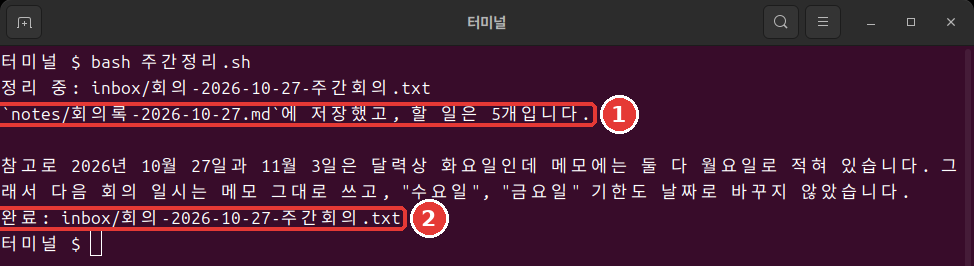
Organizing: inbox/meeting-2026-10-27-weekly.txt
Saved to `notes/minutes-2026-10-27.md`, with 5 to-dos.

For reference, the note lists 10/27 and 11/3 as Mondays, but on the 2026 calendar both are Tuesdays, so I left the days and dates as they are in the note.
Done: inbox/meeting-2026-10-27-weekly.txt
Meeting minutes were created without anyone pressing anything (see the result). Your result and wording may differ; it is fine as long as it has the three sections and the table.
On Windows, this script does not run as is in PowerShell. That is because it is written for bash. Use the PowerShell version below. On Mac and Linux, you can skip this part.
Here is the same task written for PowerShell. Paste this box into the window each time you run it. It is an example we have not run. If you use WSL, run the script above inside the WSL terminal.[5]
foreach ($file in Get-ChildItem inbox/meeting-*.txt) {
  $memo = "inbox/$($file.Name)"
  Write-Output "Organizing: $memo"
  claude -p "/meeting-notes $memo" --allowedTools "Read,Write" --max-turns 10
  if ($LASTEXITCODE -eq 0) { Write-Output "Done: $memo" } else { Write-Output "Failed: $memo" }
}
Quick check
In a script, you used a Korean variable name, `메모`, and got an error. How should you fix it?
What to Know on a Subscription Account
If you have a subscription account, remember just two things.
- Check your usage once before and once after running the script. Type
/usageinside a session to see the usage bars.[3:1] - Even if other articles recommend an option called
--bare, do not add it.
The official docs this guide checked do not say how -p runs are counted against subscription limits. So instead of guessing, it is more reliable to check directly with /usage.
Here is why you should not add --bare. The official docs recommend --bare for scripts, but --bare does not read your subscription login information. It also does not load CLAUDE.md or skills.[6] Our script needs all three.
On the other hand, using -p without --bare loads that folder's settings. That includes hooks and MCP servers in a folder you have never trusted.[6:1] So run it only in your own folders whose contents you know.
Quick check
When you run scripts on a subscription account, what should you do with the `--bare` option?
Checks Before You Step Away
Before you leave it running and step away, check three things.[7] Here is how our script measures up:
- What does done look like? It is done when one meeting-minutes file per note appears in
notes. - Can it check its own work? The exit code separates
DonefromFailed. - Does it touch only what it should? We allowed only
Read,Write, but that does not limit the folder. So run it only in the practice folder. The number of turns is capped with--max-turns 10.
The script processes every meeting note in inbox. So put in new notes and then run it. Do not put in notes you have not read. Also, exit code 0 only means it finished normally. It does not mean the content of the minutes is correct. For the first few weeks, read the results yourself.
Quick check
The script printed `Done`. What does this word mean?
Try It Yourself
In the terminal, send a reading question with
claude -p, then send a writing request without permission. Uselsto see that no file was created.Send it again with
--allowedTools "Read,Write"added.Pull out the to-dos with a pipe and save them. On Windows, if the answer is off, use the
@method from earlier.bashcat inbox/meeting-2026-10-27-weekly.txt | claude -p "Pull out only the to-dos from this note, in three lines." > todo.txtMake it fail with
--max-turns 1and look at the exit code.Make
weekly-summary.shand run it withbash weekly-summary.sh. On Windows, paste the PowerShell code box above.
Ask yourself: Did it run without a person? Does the result match the note? Next week, when there are more notes, will the same command still work?
Summary
claude -pstarts in Manual mode, and there is nobody to ask. Allow writing in advance with--allowedTools.- Do not pipe in untrusted content. The cost in the JSON is an estimate.
- Cap the turns with
--max-turnsand judge success by the exit code. - Write bash variable names in English. A bash script does not run as is in PowerShell.
- On a subscription account, do not use
--bare, and check usage directly with/usage.
Glossary
| Term | One-line meaning |
|---|---|
| Pipe | A symbol that passes a command's output to the next one |
| Exit code | A number left when a program ends (0 means success) |
| Script | A file of commands run all at once |
Finished this chapter?
Progress is saved only in this browser. See your progress on the full table of contents.
Next chapter: Chapter 11. Hooks and Screen Customization
References (7)
Claude Code official docs, "Run Claude Code programmatically". "Add the
-p(or--print) flag to anyclaudecommand to run it non-interactively." / "With Claude Code v2.1.302 or later,claude -pruns start in Manual mode when nothing sets a permission mode." / "In a Manual modeclaude -prun, a call that needs approval is denied unless something approves it" / "Use--allowedToolsto let Claude use certain tools without prompting." / "Non-interactive mode reads stdin, so you can pipe data in and redirect the response out like any other command-line tool." / "json: structured JSON with result, session ID, and metadata" / "Both figures are client-side estimates and can differ from your actual bill." / "Claude Code exits with code 0 on success and a non-zero code when the run fails, so your scripts can branch on the exit status." code.claude.com (checked on 2026-11-06) ↩︎Claude Code official docs, "Security". "Avoid piping untrusted content directly to Claude" / "Prompt injection is a technique where an attacker attempts to override or manipulate an AI assistant's instructions by inserting malicious text." code.claude.com (checked on 2026-11-06) ↩︎
Claude Code official docs, "Manage costs effectively". "Claude Pro, Max, and Ultra subscribers have usage included in their subscription, so the session cost figure isn't relevant for billing purposes." / "Subscribers see plan usage bars, activity stats, and a usage breakdown on the same screen." code.claude.com (checked on 2026-11-06) ↩︎
Claude Code official docs, "CLI reference". "Limit the number of agentic turns (print mode only). No limit by default." code.claude.com (checked on 2026-11-06) ↩︎
Claude Code official docs, "Advanced setup". "You install and launch
claudeinside the WSL terminal, not from PowerShell or CMD." code.claude.com (checked on 2026-11-06) ↩︎Claude Code official docs, "Run Claude Code programmatically". "
--bareis the recommended mode for scripted and SDK calls, and will become the default for-pin a future release." / "In bare mode, Claude Code never reads OAuth credentials or the system keychain." / "Add--bareto reduce startup time by skipping auto-discovery of hooks, skills, custom commands, subagents, installed plugins, MCP servers, auto memory, and CLAUDE.md." / "Without--bare, a-psession runs the hooks in a project's.claude/settings.jsonand connects the servers in its.mcp.json, even in a folder you've never trusted." code.claude.com (checked on 2026-11-06) ↩︎Claude Code official docs, "Best practices for Claude Code". "Before a run goes unattended, make sure it knows what done looks like, can check its own work, and can only touch what it should." code.claude.com (checked on 2026-11-06) ↩︎